

Local Deep Research is an open-source AI research assistant that runs entirely on your machine with no API keys. Give it a complex question and it automatically searches the web via SearXNG, academic sources like arXiv and PubMed, and your own documents, then synthesizes everything into a proper report with citations, logs, and a downloadable PDF. Install Docker, clone the repo, bring up the stack with Docker Compose, pull a model into Ollama, create your account at localhost:5000, and you can start researching in minutes.
You do not need a massive GPU. A consumer GPU is recommended for local deep research tasks, and everything is installed with a single Docker Compose file that handles dependencies. Every source it finds is stored in an encrypted local library, indexed and embedded for semantic search, so your private knowledge base compounds over time and fewer queries need external search engines.
How it works
Submit a research query and the system breaks it down into sub-questions. It searches multiple engines at the same time: the web via SearXNG, academic sources like arXiv and PubMed, and your own local documents.
Every source it finds gets downloaded into your encrypted local library. Those sources are embedded as vectors for fast semantic retrieval. Future queries search both the live web and your growing library.
Requirements
I ran this on Ubuntu with an NVIDIA RTX A6000 48 GB, but you do not need that much VRAM. A decent consumer GPU is sufficient. Make sure you have a recent Docker installed.
You only need Docker. Docker Compose will pull everything the stack needs, including Ollama, a vector store, and SearXNG.
Set up with Docker
Clone the repository for Local Deep Research. If you saw “get clone” anywhere, that is a typo; use git clone.
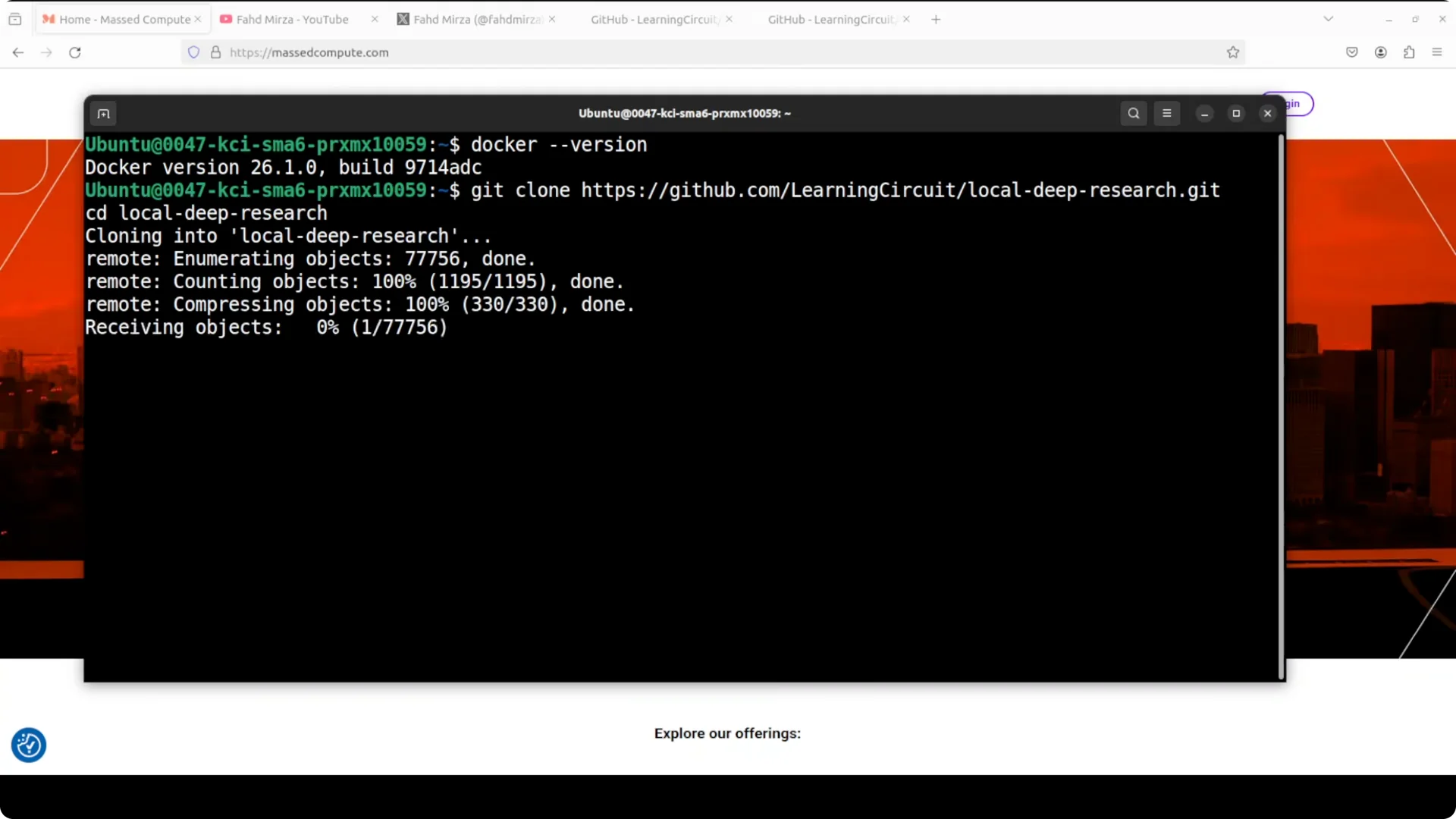
If you have an NVIDIA GPU, fetch the Docker Compose files that enable GPU support and bring the services up. Docker will pull the Ollama setup, any vector store the stack uses, and required models.
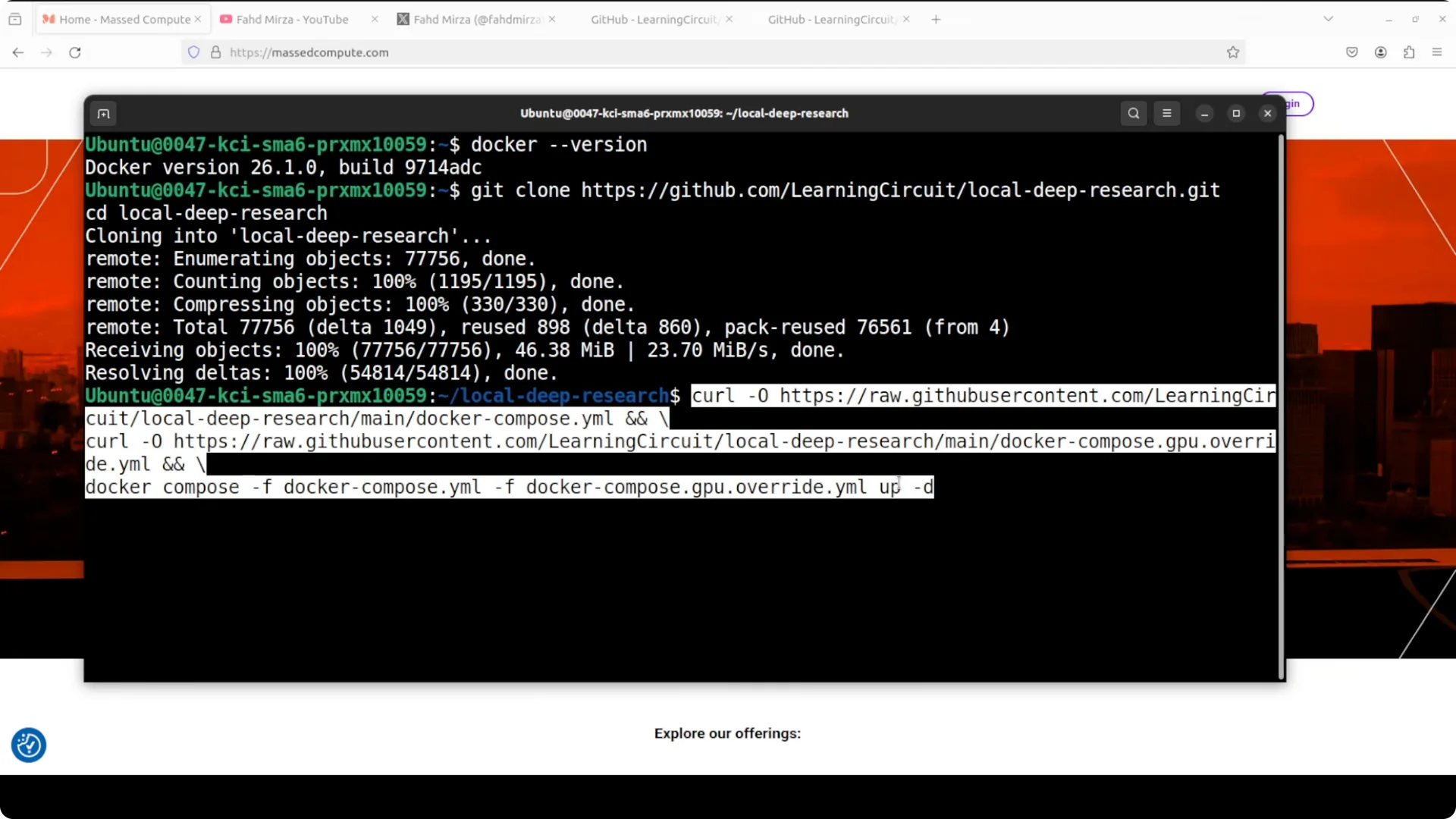
Start the services
The stack brings up three containers: SearXNG, Ollama, and Local Deep Research. You do not need any API key, and you do not have to chase prerequisites. It all comes up through that one Compose file.
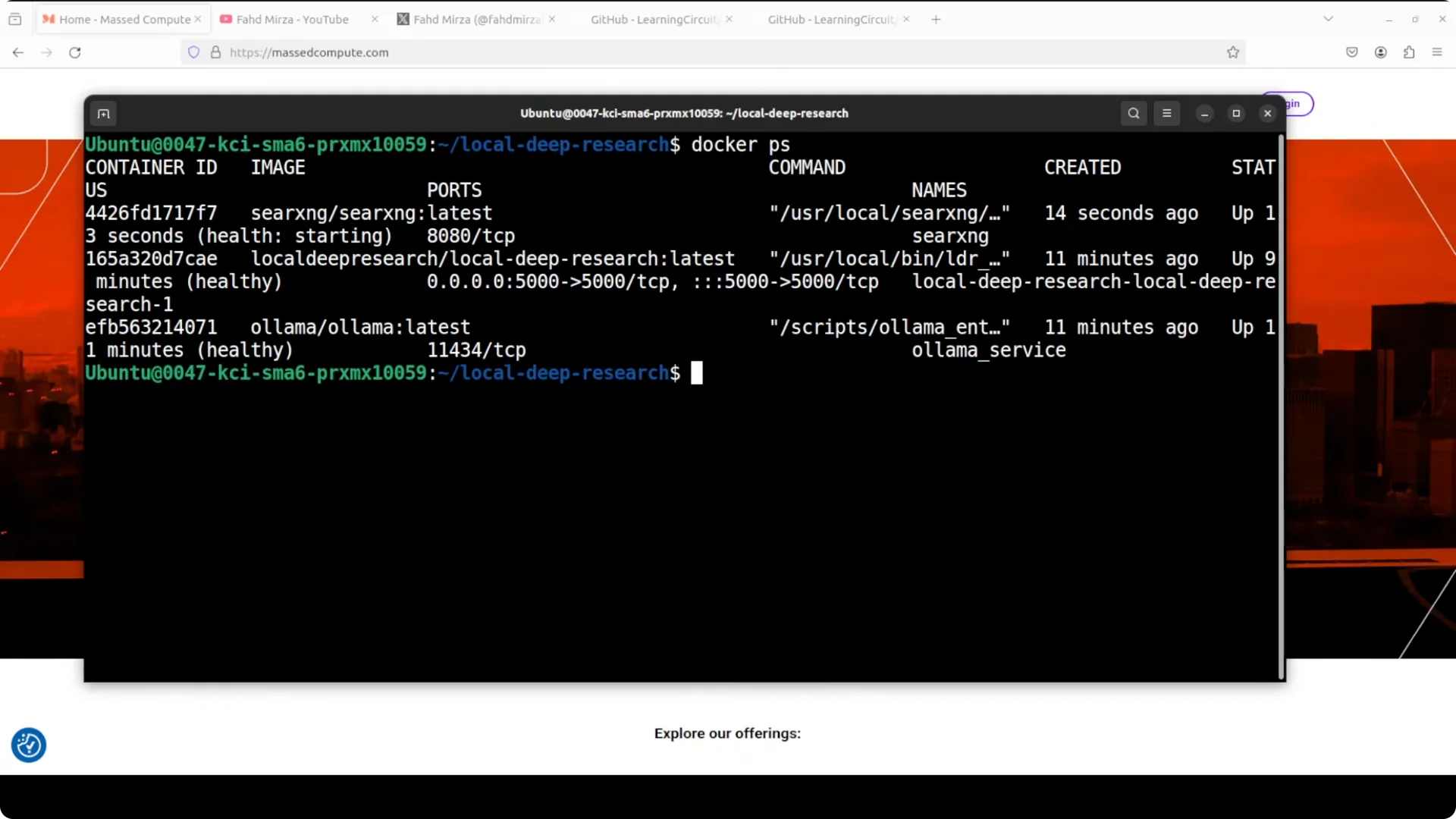
Run docker ps to confirm the three containers are up. If one is restarting, read the next section.
Fix SearXNG restarting
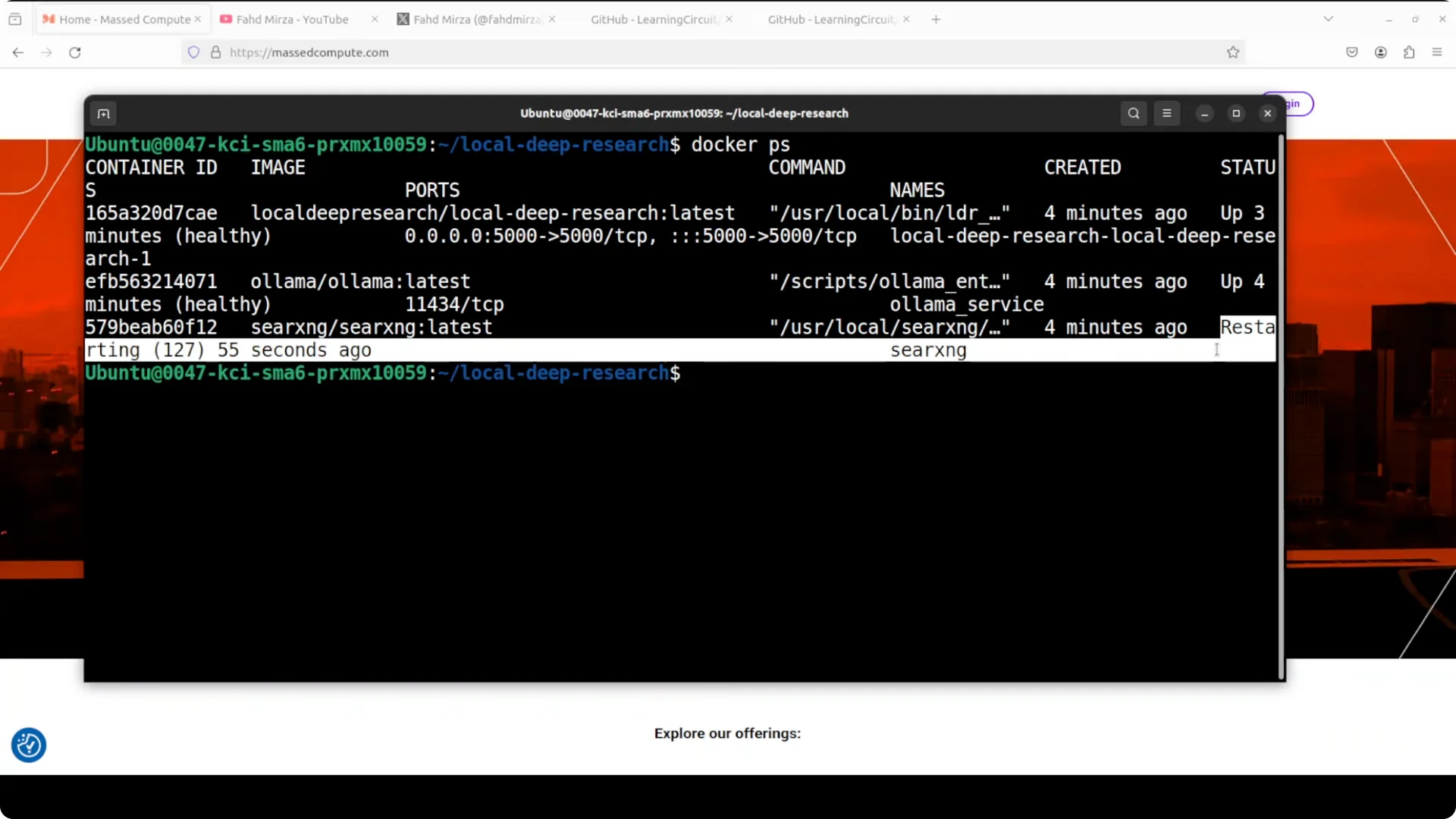
If SearXNG shows a restarting state while Ollama and Local Deep Research are up, it is usually a permissions issue. Inspect the SearXNG logs, fix the file or directory permissions the logs point to, and restart the SearXNG container.
Run docker ps again to verify all containers are up. Once permissions are corrected, SearXNG starts cleanly.
Load a model in Ollama
Next, pull a model into the Ollama container. I went with Gemma 7B, but you can download any model you prefer.
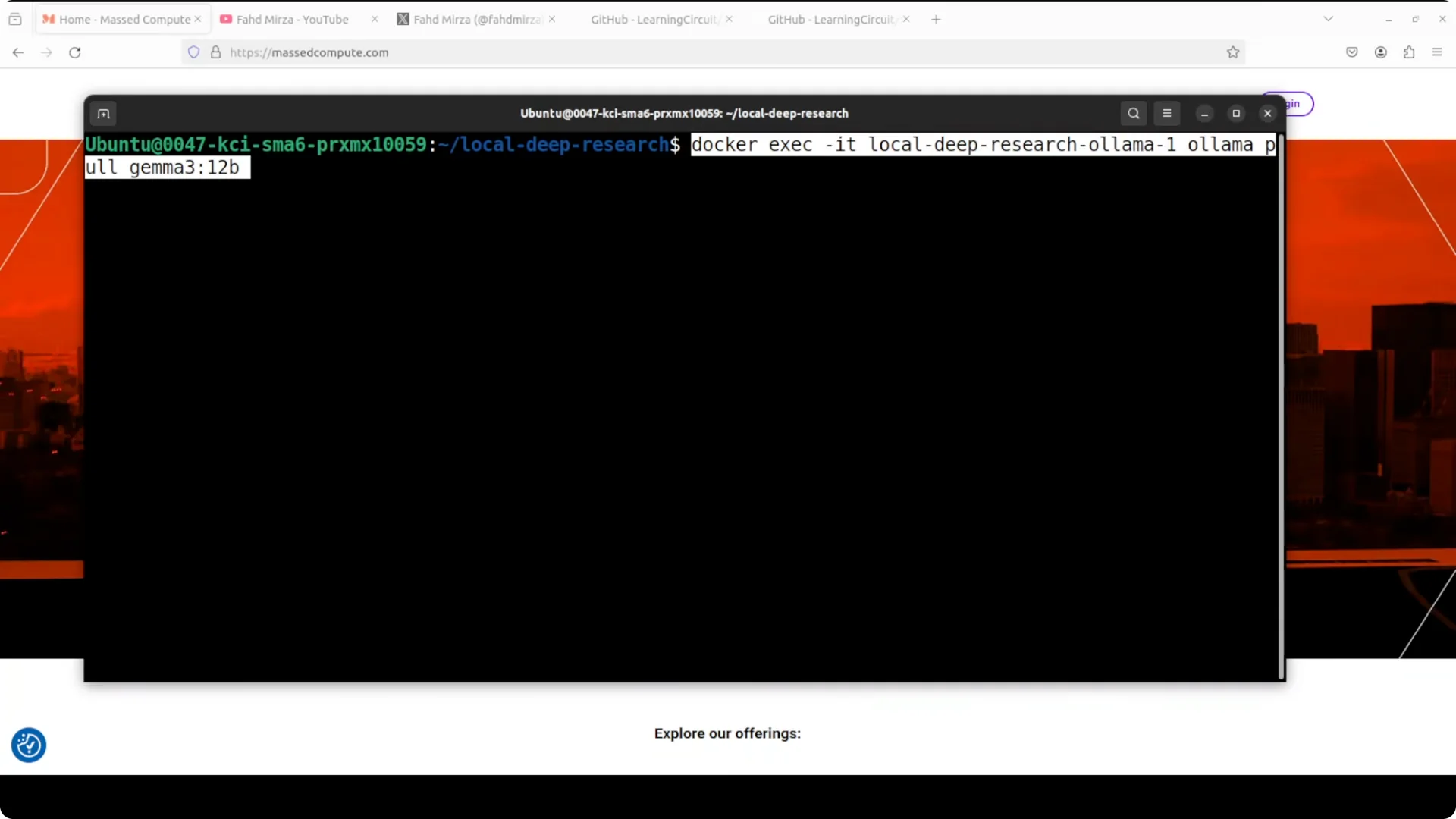
If the first pull fails because the container name is wrong, run docker ps to get the correct container name and run the pull again with the proper naming. This time it succeeds and the model is ready. For a short primer on Gemma-family usage for drafting, see this note on Gemma variants in drafting workflows.
First login and basic config
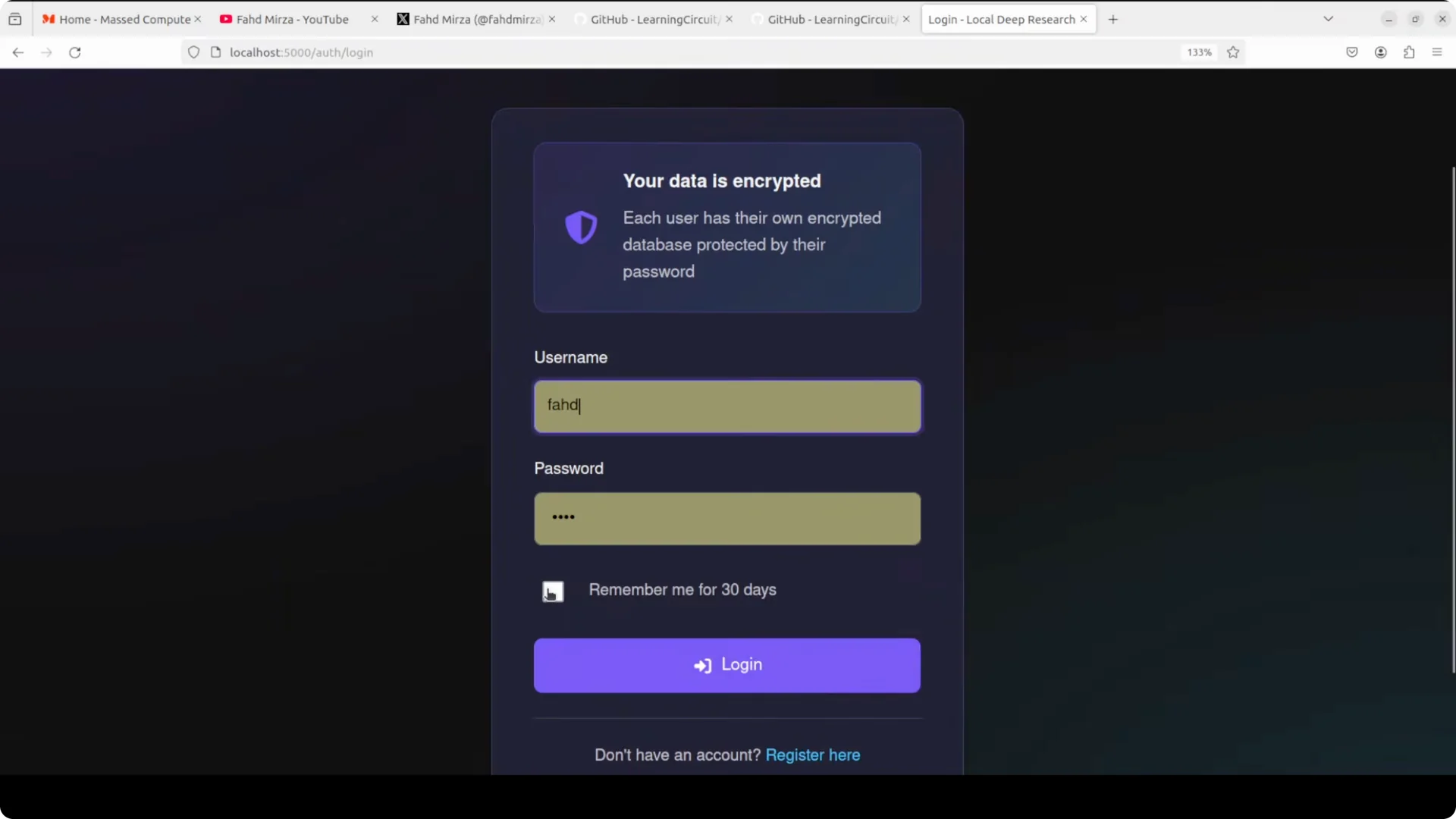
Open your browser to localhost:5000. Create a user with a strong password and log in.
You can choose research mode: a detailed report or a quick summary. Under advanced options, the model provider defaults to Ollama local, and you can also pick llama.cpp or hosted options, though staying local keeps it private.
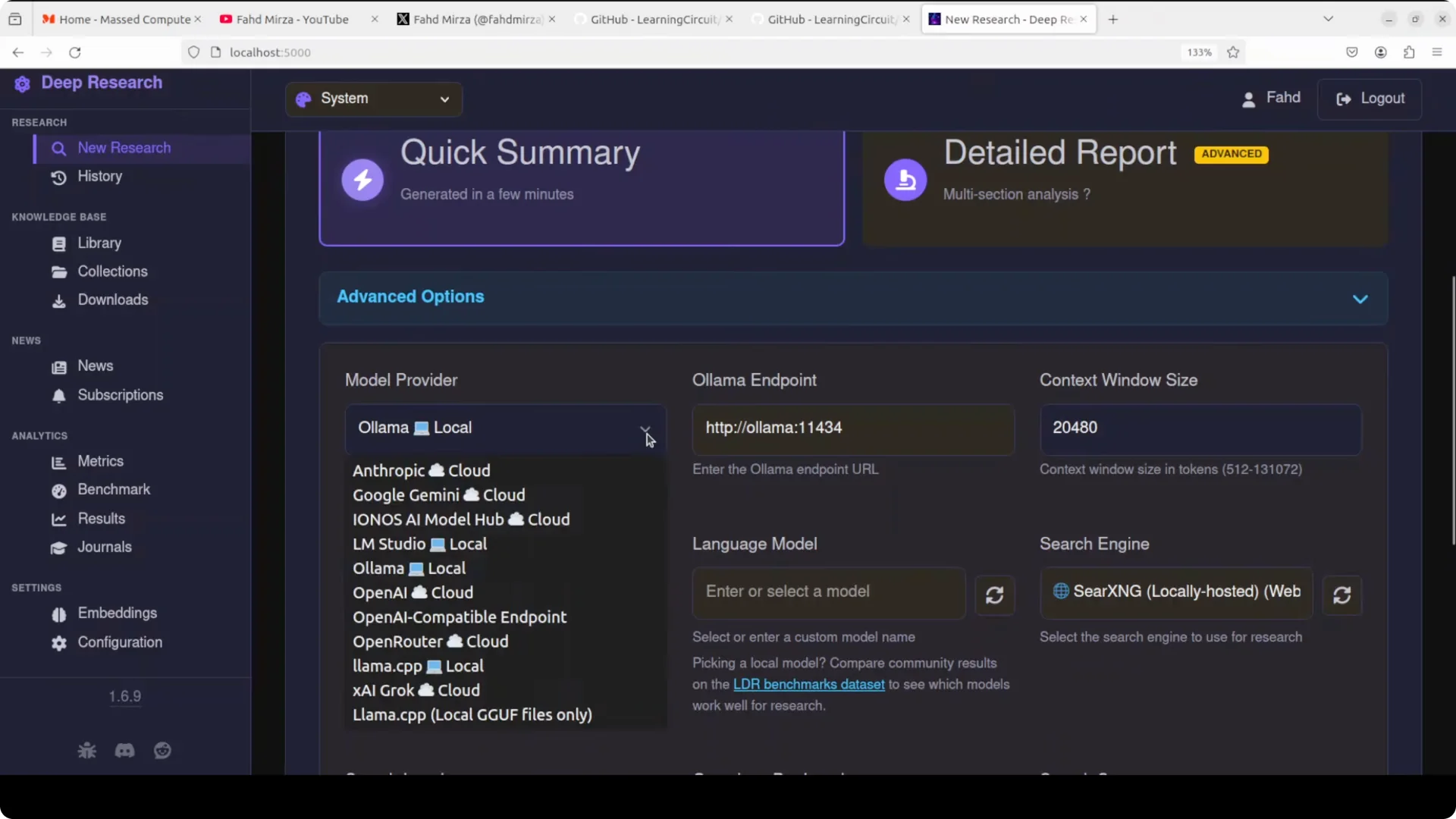
The search engine defaults to your locally hosted SearXNG. On the left, there are benchmarking and embedding settings where you can test configuration and pick embedding models. The cosine similarity setting powers the semantic search and the defaults work well. For context on eval behavior in instruction models, see our testing notes on Ernie 5.1.
Run your first research
Enter a query such as “what are the causes and treatments of premature aging.” This is not medical advice; it is an example of a health topic query.
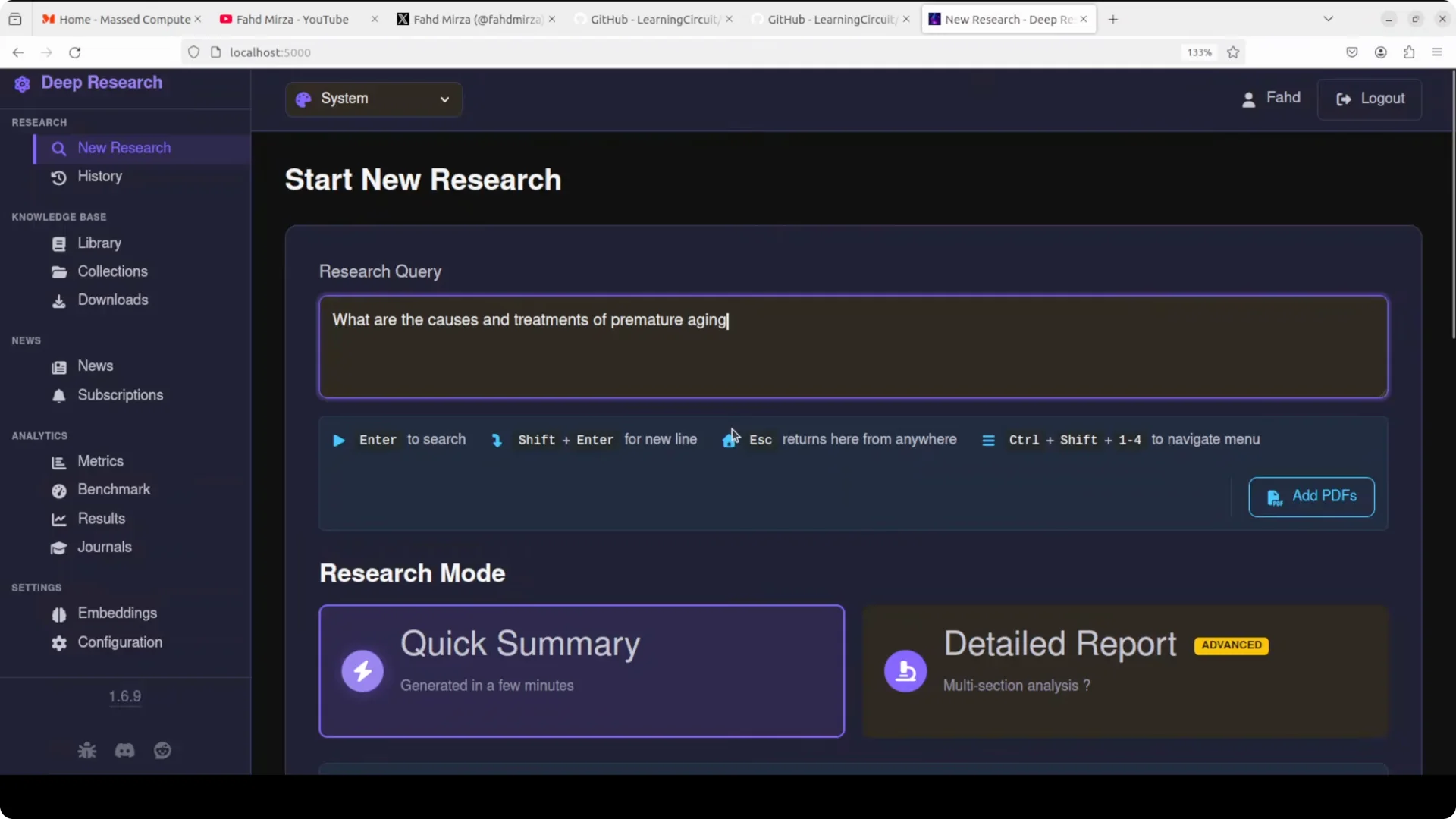
You can upload your own PDFs to ground the response on your documents. Pick quick summary for a faster run or choose detailed report if you are fine with longer processing.
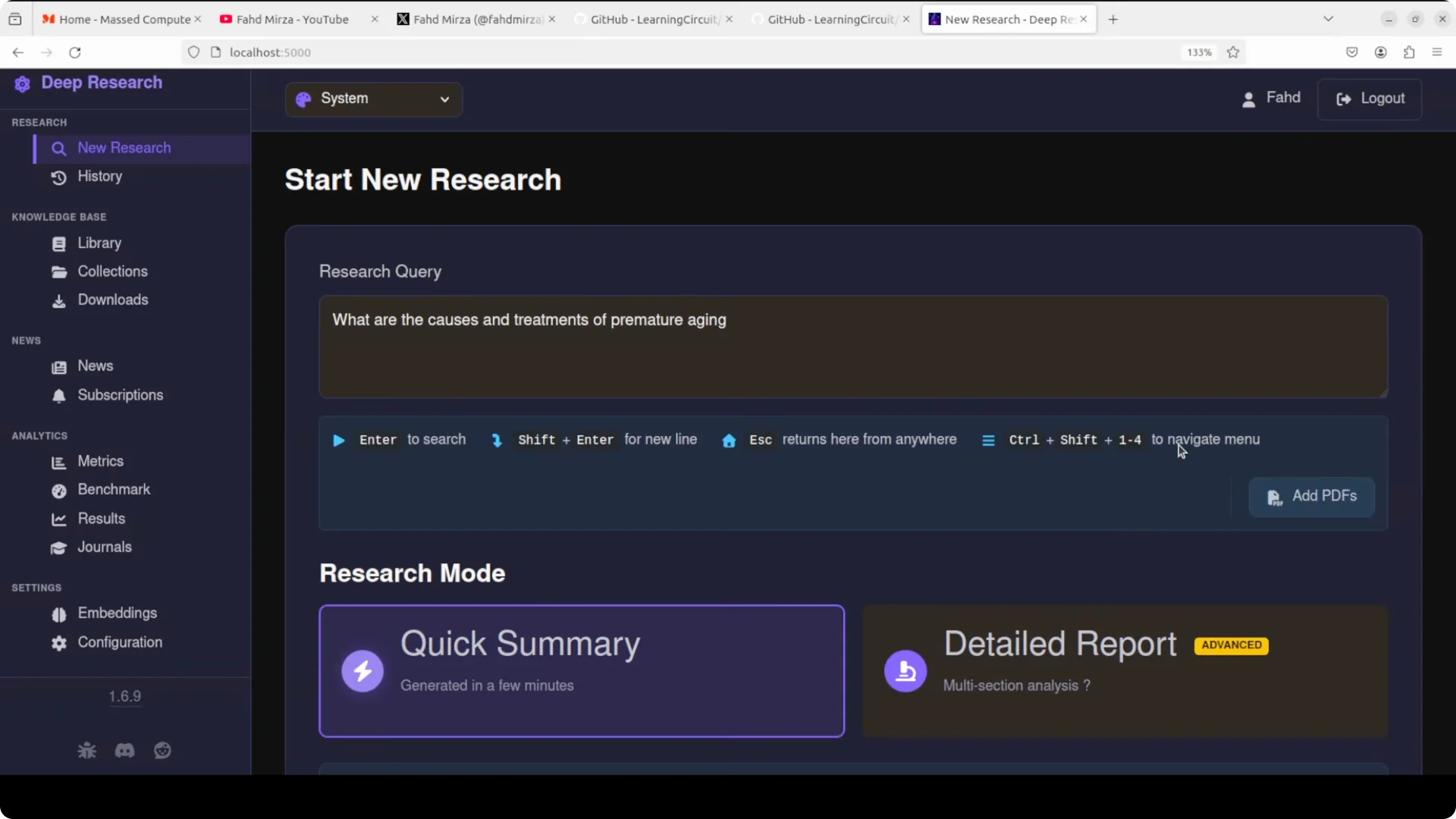
Start the research and watch the logs as it performs a web search, pulls results from different sources, and records research actions. There are still some rough edges, but it is free, local, and private. No API costs, no data leaving your machine.
Results and outputs
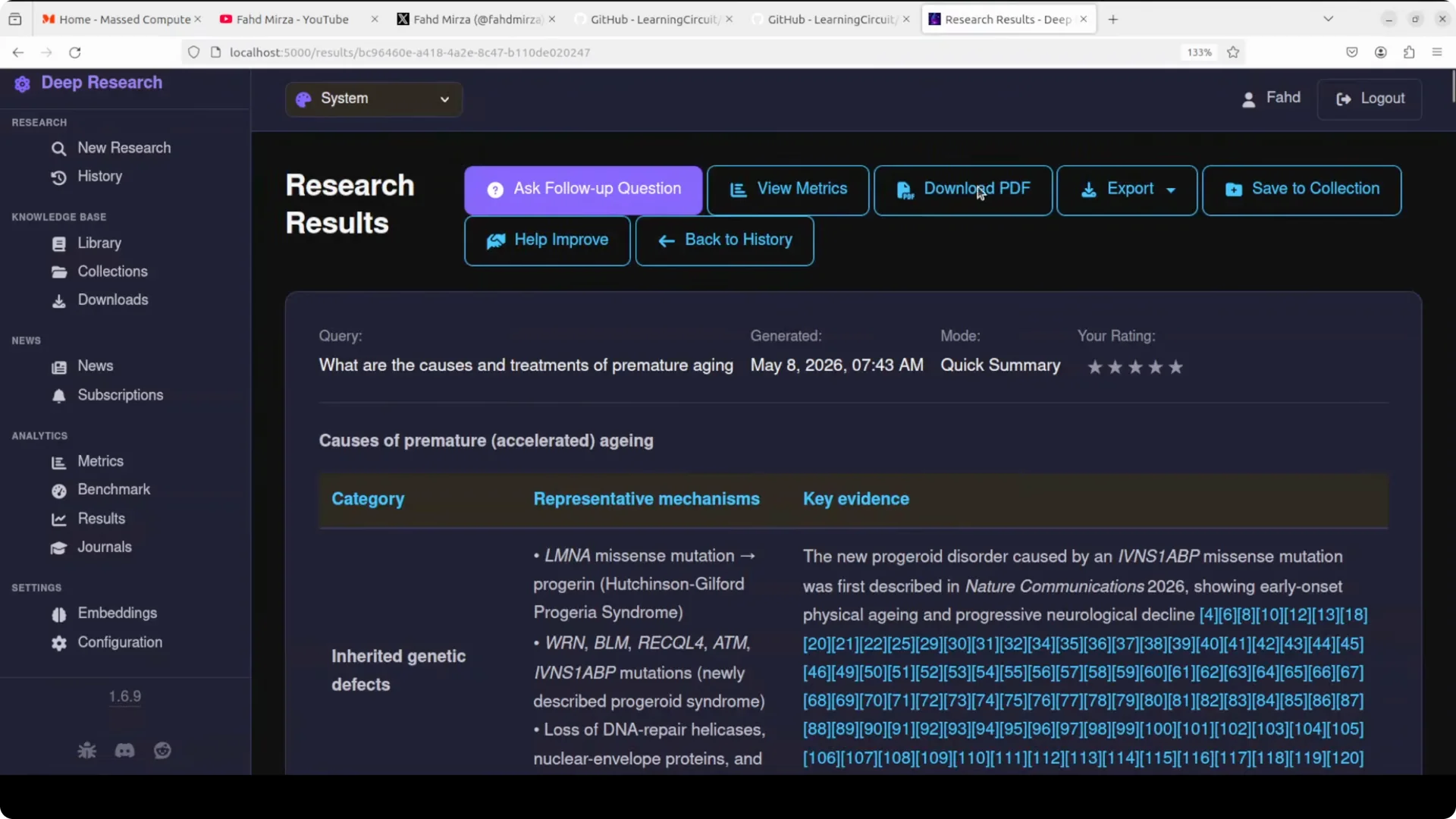
When the research completes, open the results. You can view the history and add results to collections.
The tool presents a clean report with tabular sections where relevant and clickable citations. It also generates a PDF of the full report that you can download.
Notes on models and performance
You can improve results by refining your prompt or by choosing a different local model. If you want to compare compact local options, check this overview of a small local-intelligence model.
Everything runs on your hardware, and the library compounds with use. As your encrypted corpus grows, more queries answer from local context.
Final thoughts
Local Deep Research runs fully on your machine, searches the web, academic sources, and your documents, then writes a cited report you can export as PDF. Install Docker, bring up the stack with Compose, fix SearXNG permissions if it restarts, pull a model into Ollama, and you are ready. The system keeps everything private, builds your local knowledge base over time, and saves you from API fees.