
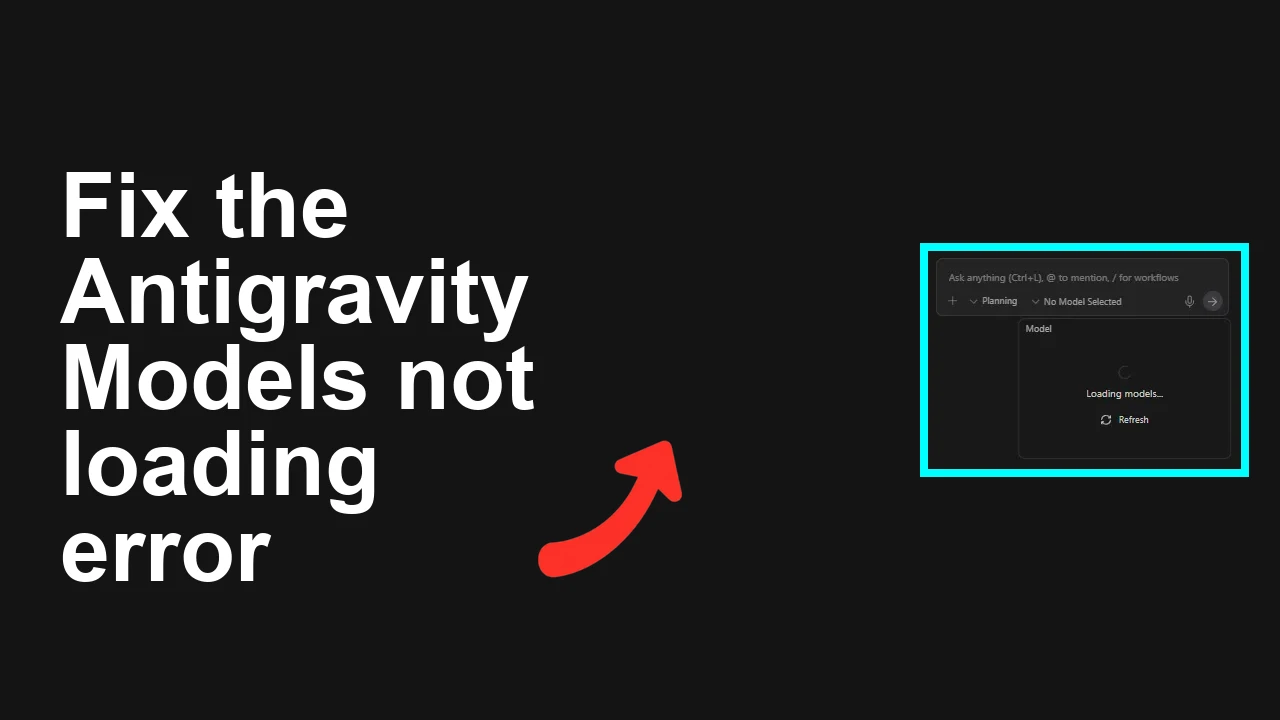
You signed in with your Google account, but the Antigravity app just sits there with a spinner and never loads models. Refresh does nothing, and it keeps waiting for minutes.
Antigravity models stuck on loading after Google login
The issue shows up right after a successful Google sign in. The models list never appears, the page shows a spinner, and the refresh control is unresponsive. No obvious error is shown on screen, but the browser Network panel often shows blocked requests, 401 unauthorized, 403 forbidden, or 500 server errors.
If this only happens for Gemini models or you see prompts mentioning Gemini, also review our focused guide on troubleshooting Gemini model errors in Antigravity.
Solution Overview
| Aspect | Detail |
|---|---|
| Root Cause | Stale or blocked auth session and cached service worker preventing authenticated model fetch requests, sometimes compounded by blocked third party cookies or an extension |
| Primary Fix | Clear site data and service worker for the Antigravity domain, allow third party cookies, then sign in again |
| Complexity | Easy |
| Estimated Time | 5 to 10 minutes |
Fix models not loading right now
Step by Step Solution
Step 1 Clear the app session, cache, and service worker
1. Open the app, press F12 to open DevTools, then select Application.
2. In Storage, check Clear storage, select all data types, and click Clear site data.
3. In Application, select Service Workers and click Unregister for every worker.
4. Open the Console and run the commands below to remove any stuck tokens and caches.
localStorage.clear();
sessionStorage.clear();
caches.keys().then(keys => keys.forEach(k => caches.delete(k)));
navigator.serviceWorker.getRegistrations().then(rs => rs.forEach(r => r.unregister()));
5. Close all tabs for the site.
Step 2 Allow cookies and site data so your login can reach model APIs
Many sign in flows place a Google token in a cookie that the model backend needs. If your browser blocks third party cookies, the app can show a spinner forever.
Chrome
1. Open Settings then Privacy and security then Cookies and other site data.
2. Select Allow all cookies, or keep Block third party cookies but add an exception for the Antigravity site under Sites that can always use cookies and check Including third party cookies.
3. Reload the app.
Reference: Manage cookies in Chrome
Step 3 Disable extensions that can block network calls
Ad blockers, privacy filters, and script blockers often stop the model list fetch.
1. Open chrome://extensions
2. Toggle off blockers and privacy extensions.
3. Reload in a fresh tab and test.
4. If it works, re enable extensions one by one to find the culprit.
Tip: A quick test is Incognito with all extensions disabled by default. Press Ctrl Shift N or Cmd Shift N, open the app, and sign in.
Step 4 Force a fresh login
1. Fully sign out of the app using its Sign out option.
2. Clear site cookies again for the app domain.
3. In a new tab, sign out of Google at https://accounts.google.com
4. Close the browser, reopen, and sign in fresh.
If you see server errors after login, such as 500, policies in Google Workspace or a proxy can be involved. For org managed accounts, compare with our guide to address HTTP 500 issues under Google Workspace.
Step 5 Check the network and DNS
If the app cannot reach its backend, it can hang on loading.
Quick checks
- Use DevTools Network to look for requests stuck in Pending or blocked by CORS. Note any 401, 403, 500.
- Try a different network like a mobile hotspot.
- Flush DNS, then retry.
DNS flush commands
Windows
ipconfig /flushdnsmacOS
sudo dscacheutil -flushcache; sudo killall -HUP mDNSResponderLinux with systemd
sudo resolvectl flush-caches || sudo systemd-resolve --flush-cachesStep 6 Try another browser profile or a different browser
Create a fresh Chrome profile or test in Edge or Firefox. If it works there, the issue is local to the original profile and clearing site data plus removing the offending extension usually resolves it.
If your use case is to bring in a different model stack and you are checking availability, see our quick setup notes to install Claude Code in Antigravity after the loading issue is resolved.
Alternative Fixes and Workarounds
Use a direct window reload that bypasses cache
- Windows and Linux press Ctrl Shift R
- macOS press Cmd Shift R
Set the site as an exception in tracking prevention
In Edge Settings then Privacy, search and services then Tracking prevention, add the Antigravity site to Exceptions.
Bypass the service worker entirely for one session
Open DevTools, Network tab, check Disable cache and in Application then Service Workers check Bypass for network. Keep DevTools open while you reload and test.
Check system time and date
Out of sync time can invalidate tokens.
- Sync your clock from system settings and retry.
Temporarily test without a corporate VPN or proxy
Org proxies can inject headers or block model endpoints. Test off VPN, then share blocked request details with your admin.
Troubleshooting Tips
- In DevTools Network, click a failed models request then check Response and Headers. A 401 or 403 usually means the token cookie is missing or blocked by cookie policy. A 500 means a backend fault or an upstream proxy issue.
- If you see CORS errors in Console, confirm you are opening the correct app origin and not an embedded or framed view blocked by the browser.
- Confirm the account actually has access to models. Some tenants restrict catalogs by policy or region.
- Try a smaller window of extensions. Privacy tools like uBlock, Ghostery, DuckDuckGo, NoScript, and similar are common causes.
- When in doubt, create a brand new Chrome profile and sign in there to isolate profile state.
For Gemini specific errors during model load or chat, use our focused notes here Gemini troubleshooting for Antigravity.
Best Practices
- Keep one browser profile dedicated to AI work with minimal extensions.
- Regularly clear site storage for heavy single page apps if you notice stale state.
- Allow cookies for trusted work apps so auth tokens survive cross site flows.
- Document any proxy or SSO headers your org adds and test with them off when debugging.
- Bookmark your app status and incident pages where available and check before deep debugging.
Final Thought
A stuck spinner after login almost always traces back to blocked cookies, an old service worker, or an extension that breaks fetch calls. Clear site data, permit cookies, and retest in a clean session to restore model loading within minutes.