
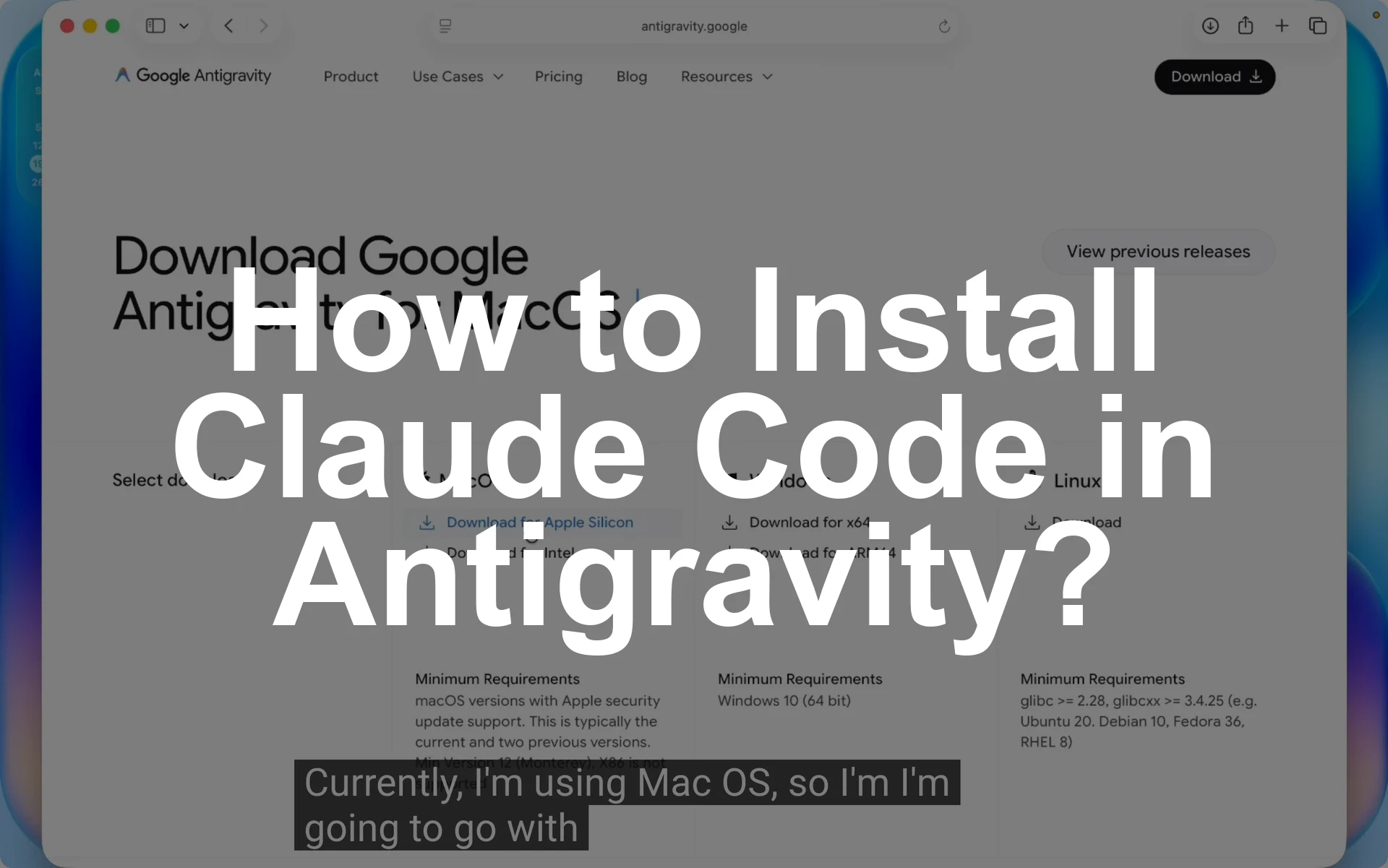
The quick answer for how to install Claude Code in Antigravity is this. Download and install Antigravity from antigravity.google.com, open the app, install the Claude Code extension, open a project folder, start a new Claude chat, switch to Auto mode, paste a professional prompt, and let it build the project.
That covers both how to install Claude Code in Antigravity and how to use Claude Code in Antigravity with a working example that goes from setup to a live Google Antigravity + Claude Code project.
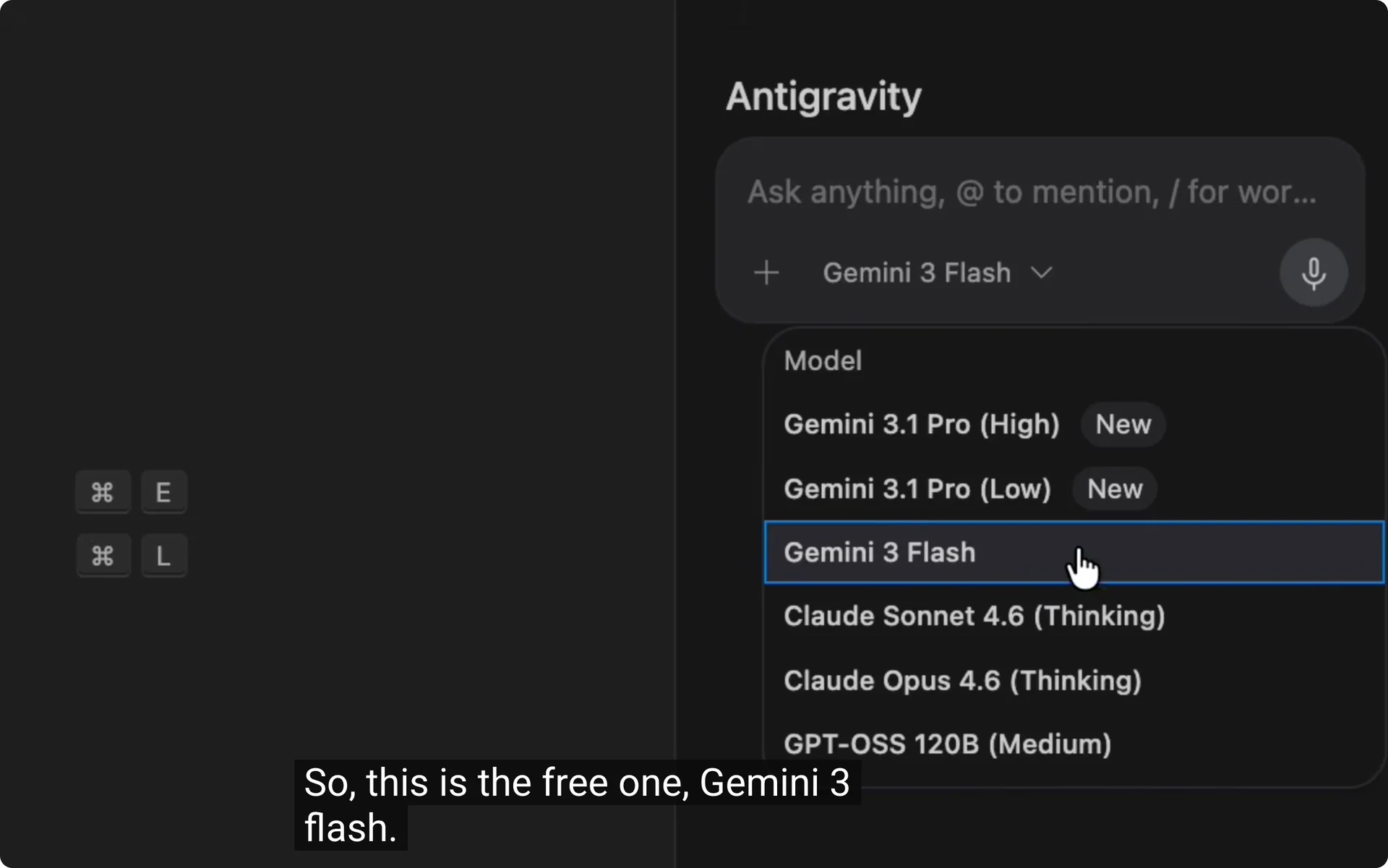
If you prefer the built in Antigravity chat, you can pick a model on the right panel, including Gemini 3 Flash for free or Claude Sonnet 4.6 Thinking.
I switched to the Claude Code extension for deeper coding workflow, signed in to my account, and used Auto mode so it could write files without constant prompts. If a login screen mentions claude code antigravity-auth, that is the normal sign in flow.
Install Antigravity
Open a browser and go to antigravity.google.com.
Click Download, choose your operating system, and get the correct installer.
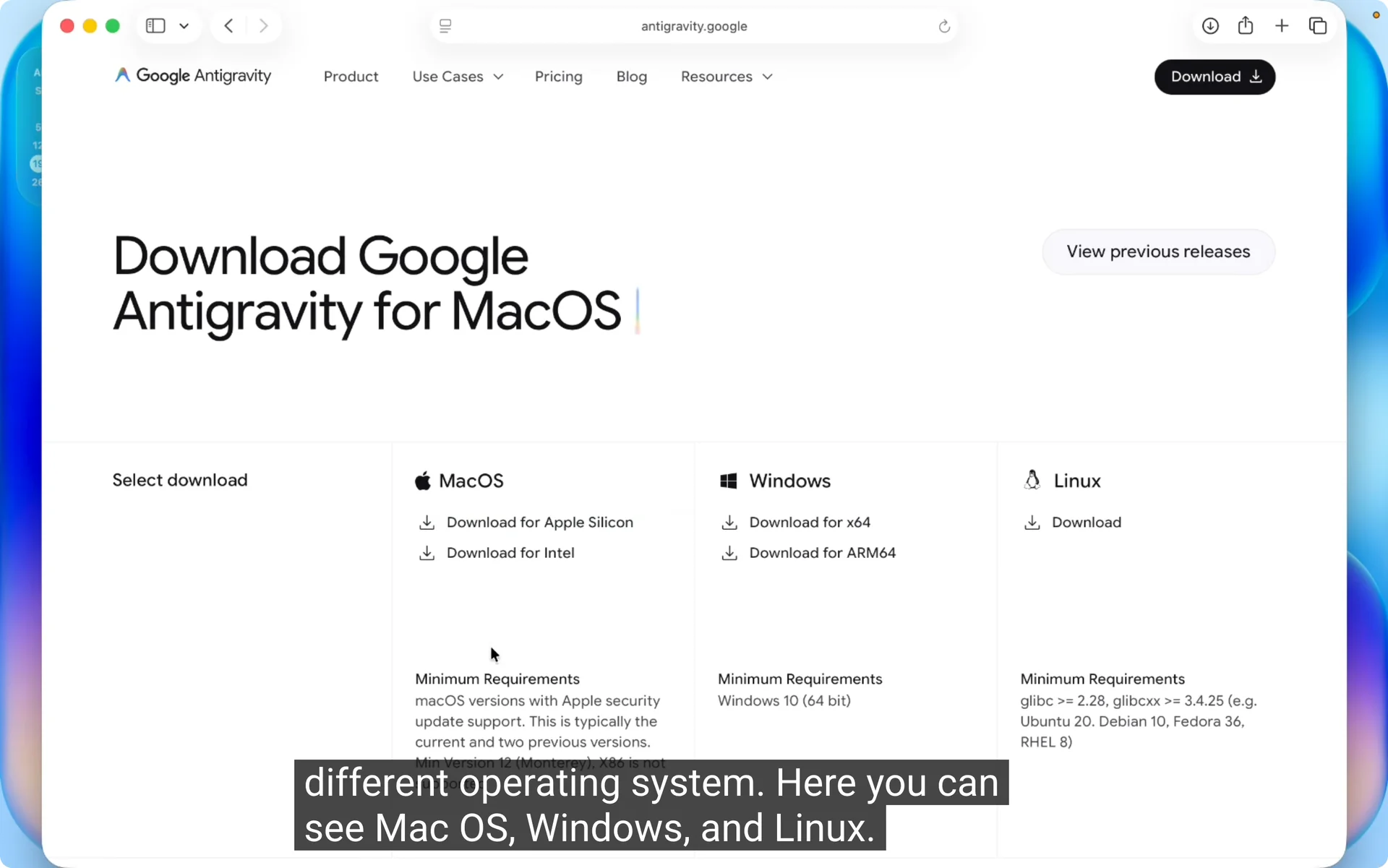
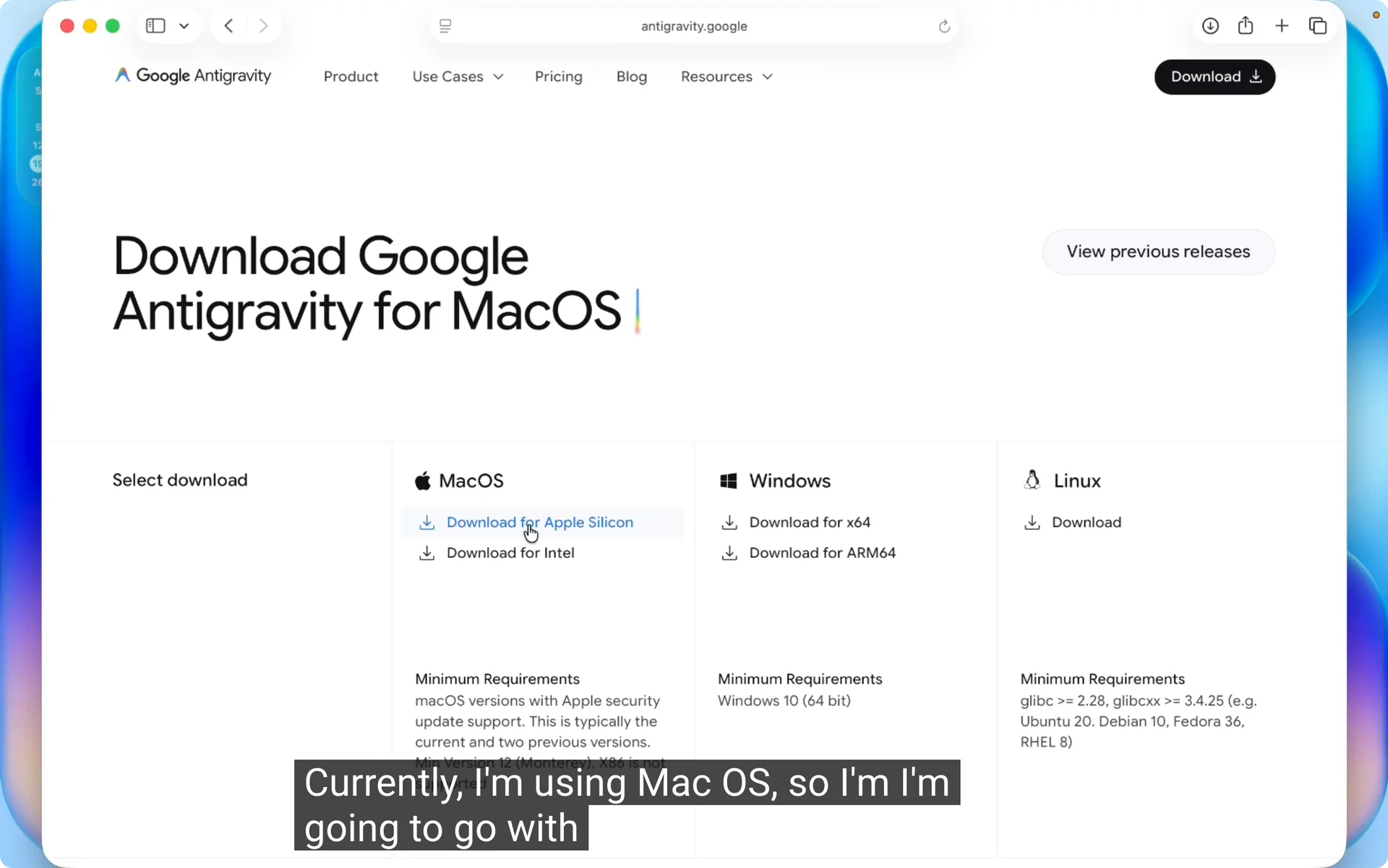
On macOS Apple silicon, click Download for Apple silicon, open the installer, and drag the app to Applications.
On Windows, choose Download for x64, run the .exe, and complete the setup.
Launch Antigravity from your Applications or Start menu.
It looks similar to VS Code, and you will see extensions and a chat panel on the right.
Pick your chat
On the right panel you will find Antigravity Chat where you can select models.
The free pick I like is Gemini 3 Flash, and you may also see Claude Sonnet 4.6 Thinking.
I removed the default chat panel because I wanted to run the Claude Code extension chat for this build.
For a quick comparison of approaches, see this breakdown of Claude Code vs the Antigravity chat.
Add the Claude Code extension
Open the Extensions view and search for Claude. Install Claude Code for VS Code.
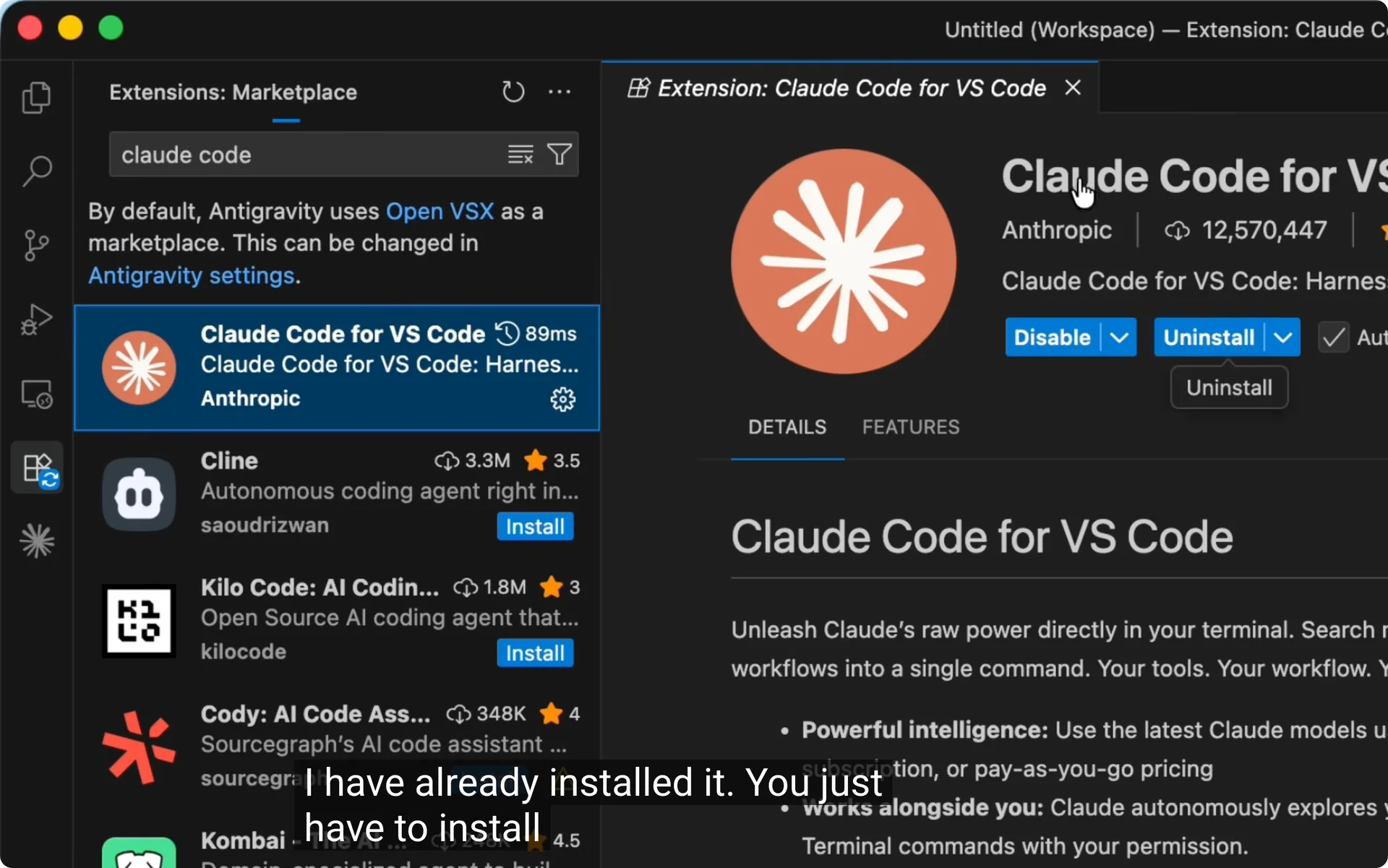
After install, a Claude chat section appears under Extensions.
Click New session to open the chat box.
Create a project folder
I suggest working inside a clean folder for each project.
Click Open Folder, create a new folder on the Desktop named Claude portfolio, and add it as your workspace.
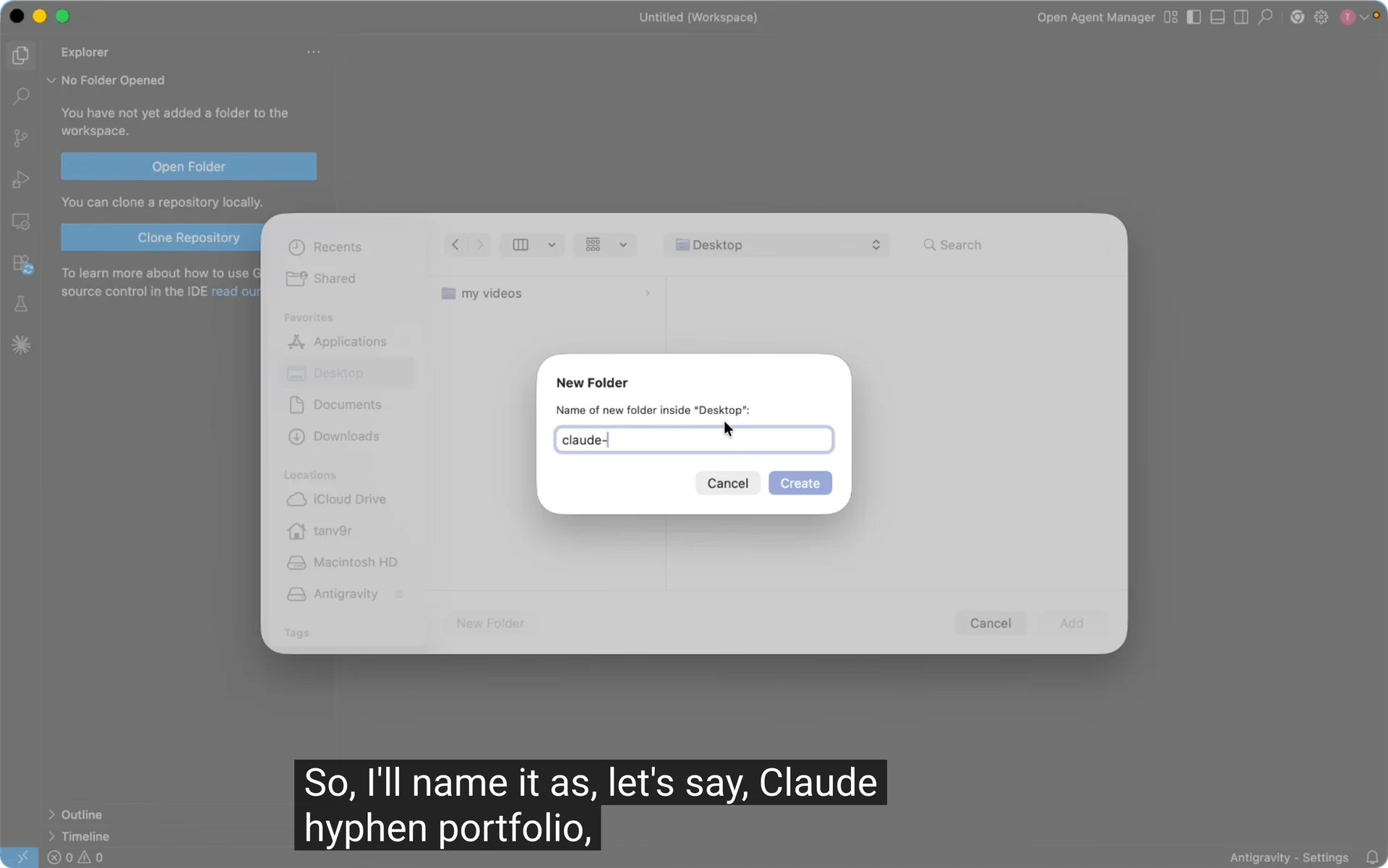
Confirm you are inside the Claude portfolio folder before starting the chat.
This keeps all generated files organized.
Start a Claude chat
Open the Claude Code panel and click New session.
Sign in to your account when prompted, and you can switch accounts later from the same panel.
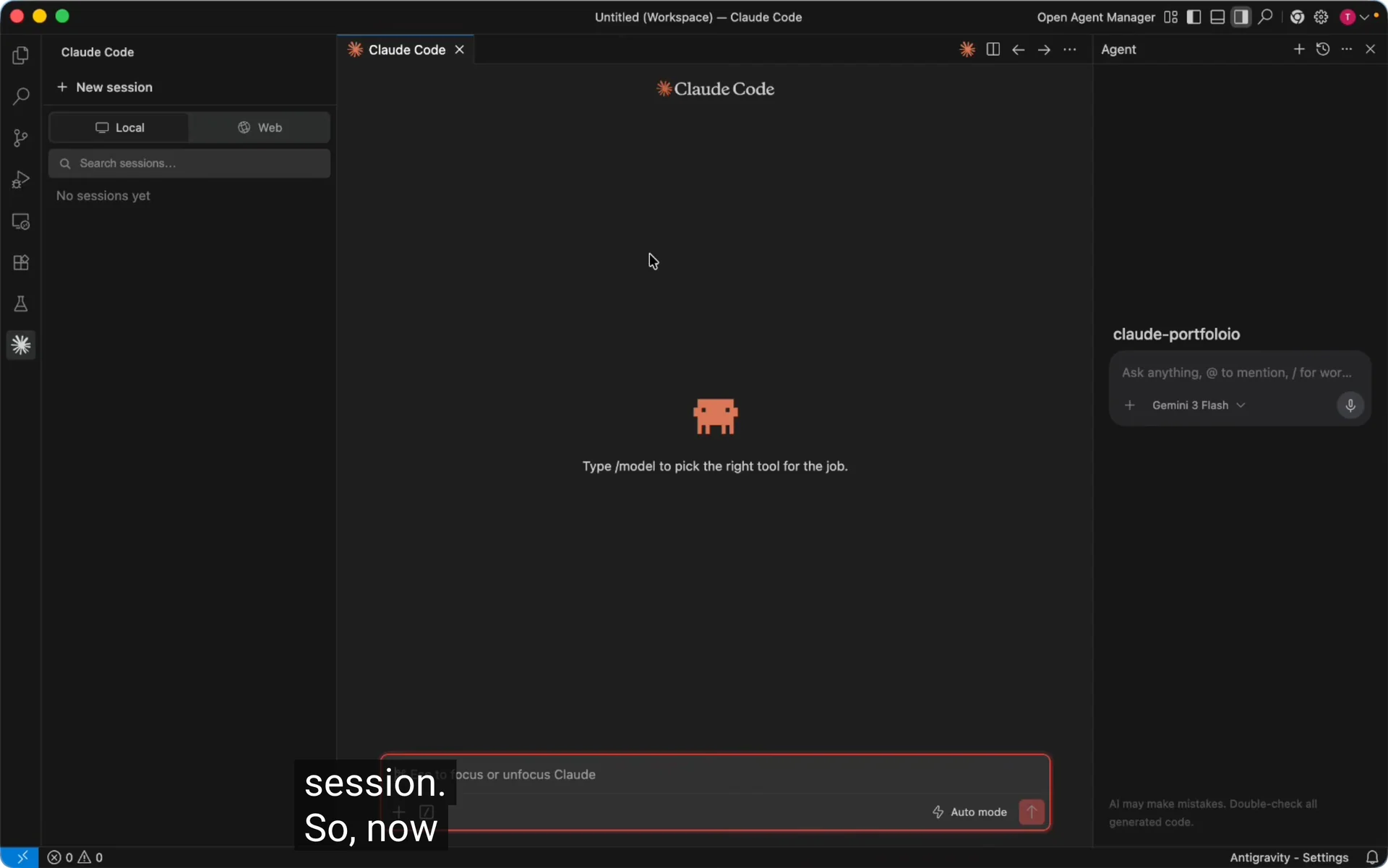
I have a pro account, but the free plan works with limits. If you see text like claude code antigravity-auth, proceed with the standard sign in, and if you need source references, search for claude code antigravity github to review the extension repository and notes.
Prompt and build
I wanted a modern portfolio using HTML, CSS, Bootstrap, and JavaScript, and I asked an AI for a professional prompt that included sections, colors, fonts, and layout details.
The prompt covered navigation, hero, about, skills, projects, and contact, which saved me from listing everything by hand.
Paste your prompt into the Claude chat.
On the right side, switch from edit mode to Auto mode, then send the prompt.
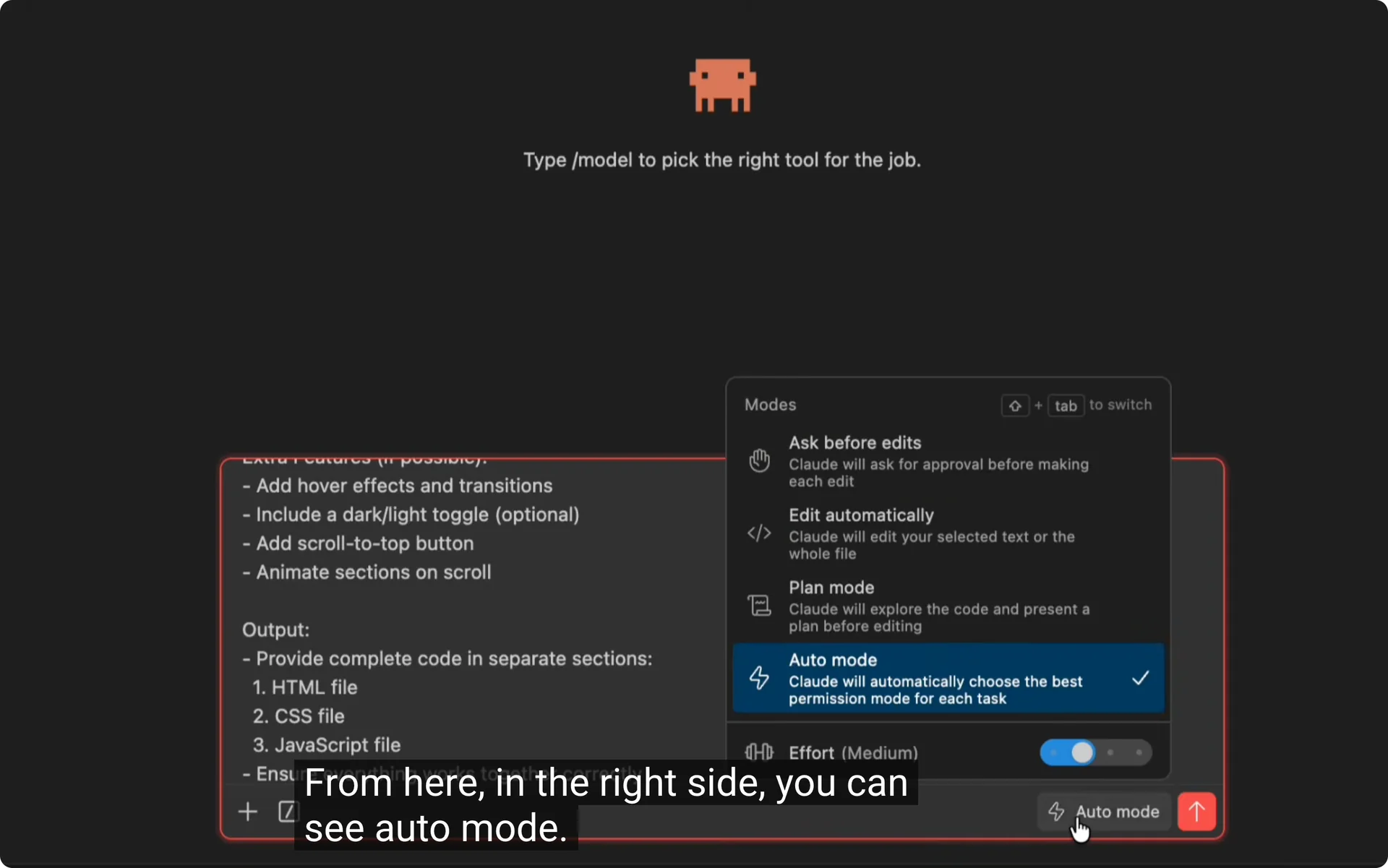
Why Auto mode
Auto mode lets Claude Code write and update files without asking permission for every step. If you minimize the window or switch tasks, the build keeps going without constant allow prompts.
If you need changes afterward, ask for edits to specific parts in chat. You do not need to regenerate the entire prompt.
For techniques that consistently produce strong outputs, here is a practical guide to the best way to use Claude Code.
Generate files
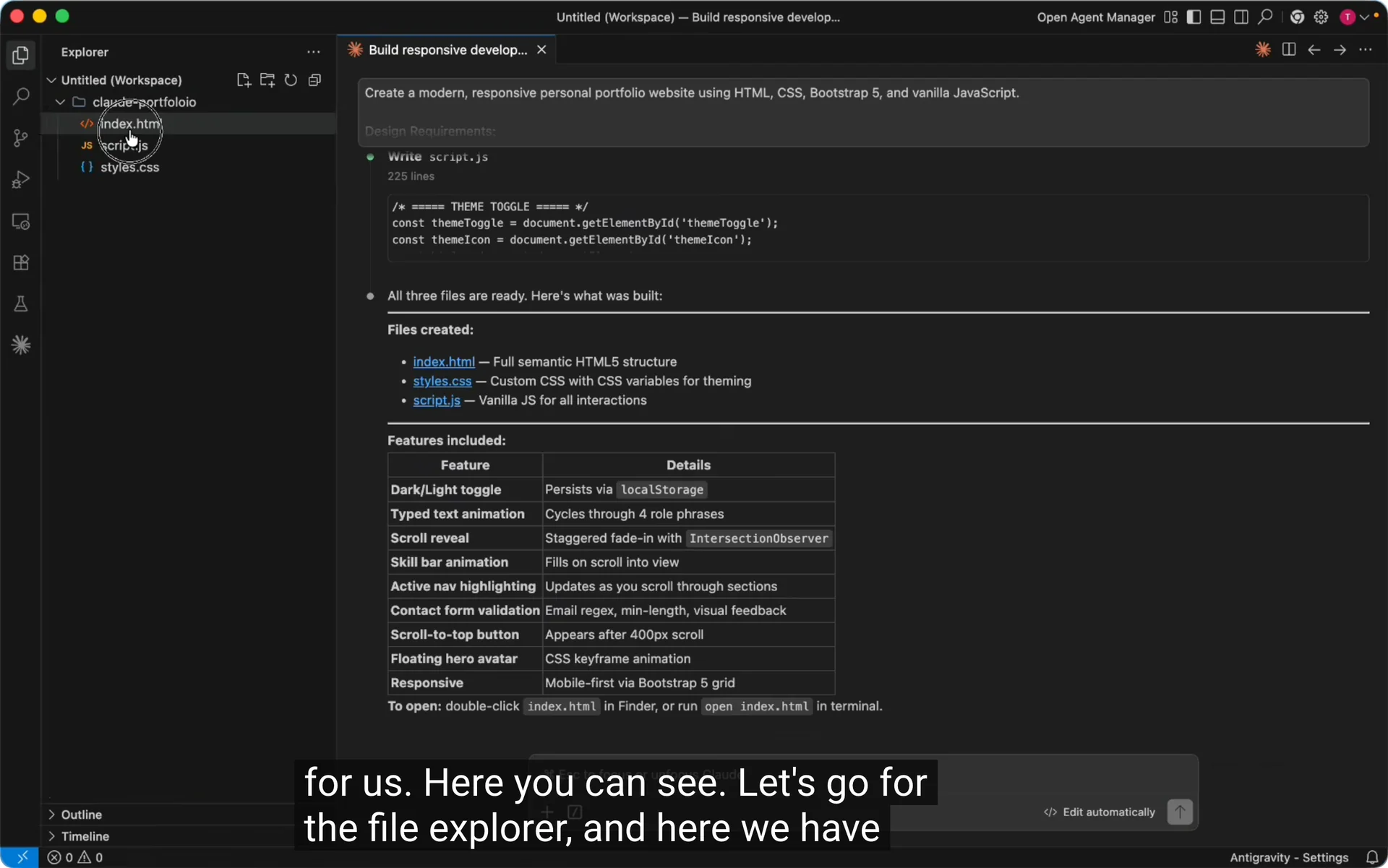
After you send the prompt, you can watch progress in the Explorer. The project will appear under your workspace folder as files are created.
When it finished, I saw index.html, script.js, and style.css. That confirmed the build was complete.
Preview the project
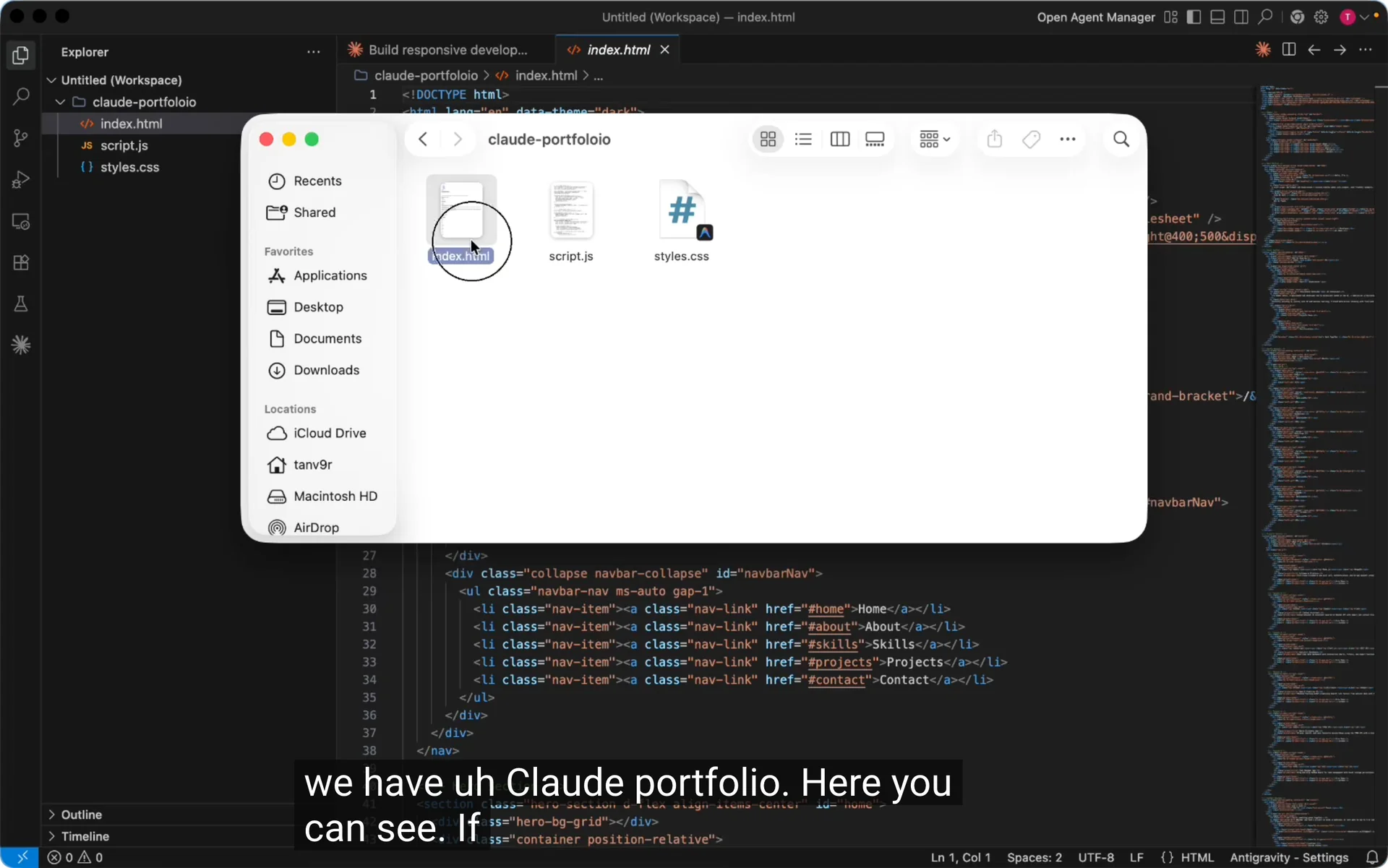
Open Finder, go to Desktop, then open the Claude portfolio folder.
Double click index.html to open it in your browser.
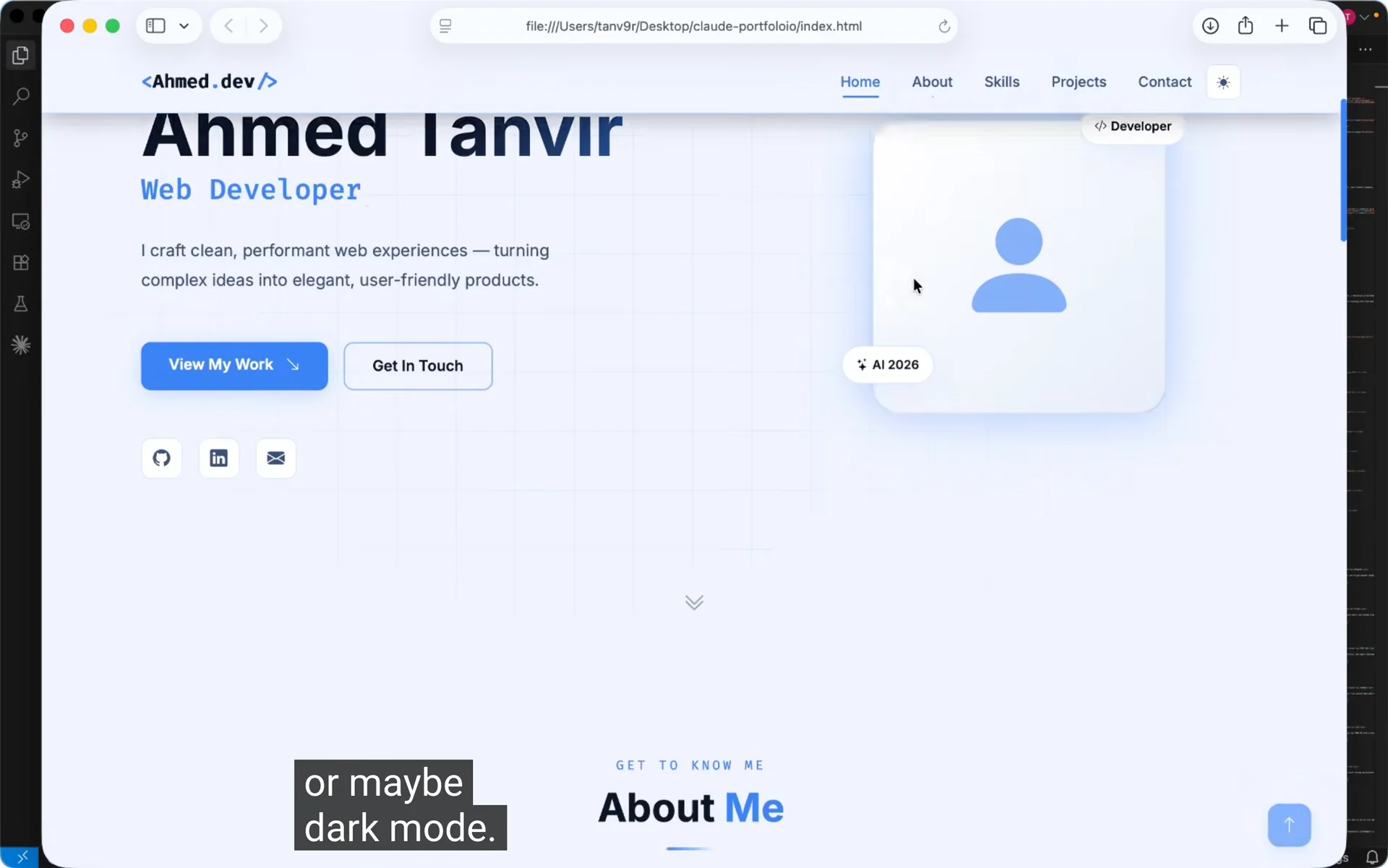
My result showed a hero, plus About, Skills, Projects, and Contact.
There was a dark mode and light mode toggle and a light animation effect.
If you want changes, specify them in the chat, such as editing the hero copy, updating colors, or adjusting the skills layout. You can keep iterating without starting over.
For more ways to expand your builds, explore focused Claude Code skills that help with structure, refactors, and testing.
Final thoughts
You can generate small sites or large apps with Google Antigravity + Claude Code, including portfolios and bigger projects. Install Antigravity, add Claude Code, work inside a folder, set Auto mode, paste a strong prompt, and let it create the files. That is the full path from install to a live build using Claude Code in Antigravity.