
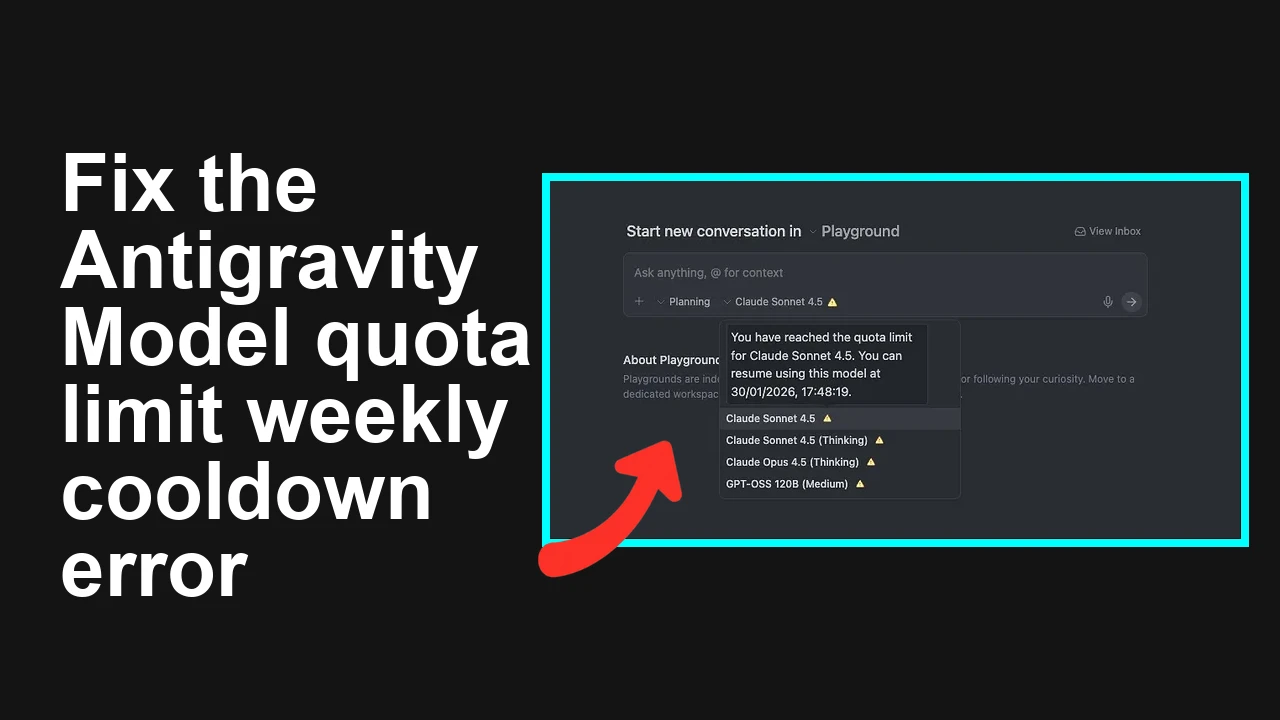
You updated Antigravity to 1.15.6 and it now shows Model quota limit exceeded for every non Google model even though your weekly quota already reset. The lock shows a future resume date and none of the usual resets helped.
Antigravity 1.15.6 shows Model quota limit exceeded right after quota reset
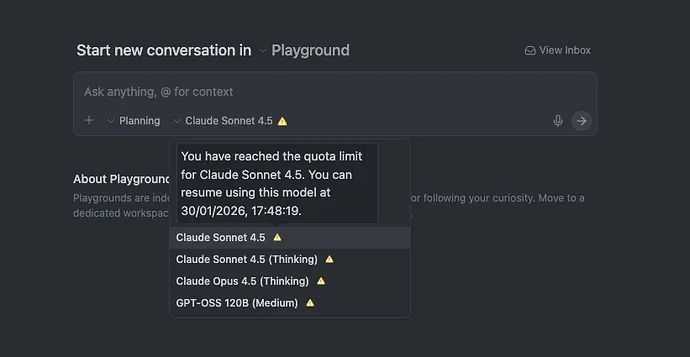
Users on Google AI Pro report that after the update to Antigravity 1.15.6 the app immediately enforces a weekly cooldown for non Google models.
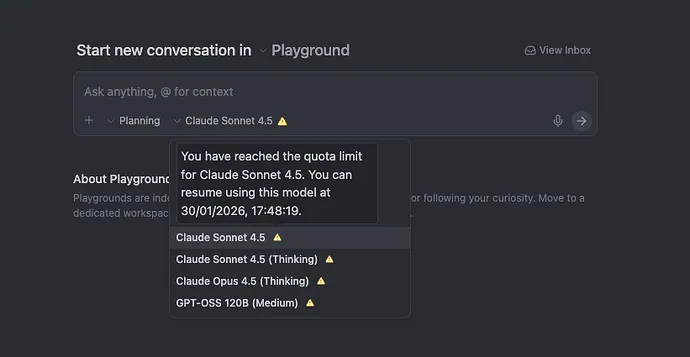
The banner reads Model quota limit exceeded with a resume date in the future for example 30 Jan 2026 17:48:19 even though the quota indicator had already reset earlier in the day.
If you need a refresher on how the weekly allowances work in Antigravity and Google AI Pro, see our concise quota guide.
Solution Overview
| Aspect | Detail |
|---|---|
| Root Cause | A stale cooldown timestamp or usage cache persisted across the 1.15.6 update, often tied to saved credentials. Time zone offsets can make the wrong resume time stick. |
| Primary Fix | Fully purge local state and delete Antigravity credentials from Keychain, then sign in to force a fresh quota pull from the server. |
| Complexity | Medium |
| Estimated Time | 10 to 15 minutes |
Fix the stuck cooldown and quota banner in Antigravity 1.15.6
Step by Step Solution
1. Quit Antigravity completely
- Press Command Q to ensure the app is not running.
- Optional check in Activity Monitor and close any remaining Antigravity processes.
2. Clear the local Antigravity state on macOS
Run these exact commands in Terminal to remove cached state and logs.
rm -rf ~/Library/Saved\ Application\ State/com.google.antigravity.savedState
rm -rf ~/Library/Logs/Antigravity
rm -rf ~/Library/Caches/Antigravity
rm -rf ~/Library/Application\ Support/Antigravity
3. Remove stale credentials from Keychain Access
This is the critical step that most reinstalls miss. It forces Antigravity to fetch a fresh quota window from the server.
- Open Keychain Access on macOS.
- In the search box type Antigravity.
- Delete items that reference Antigravity and com.google.antigravity.
- Empty the Keychain Access trash if prompted.
Command line alternative for advanced users
security delete-generic-password -s "com.google.antigravity" ~/Library/Keychains/login.keychain-db 2>/dev/null || true
security delete-internet-password -s "com.google.antigravity" ~/Library/Keychains/login.keychain-db 2>/dev/null || true
Note You may not see both items which is fine. The goal is to remove any Antigravity specific saved tokens.
4. Ensure system time and time zone are correct
Incorrect local time can extend the perceived cooldown.
- System Settings then General then Date and Time.
- Enable Set time and date automatically and Set time zone automatically using your location.
Apple guide for time settings is here for reference Set the date and time on Mac.
5. Reboot your Mac
A reboot helps flush any in memory state from helper processes.
6. Sign back in to Antigravity and force a quota refresh
- Launch Antigravity.
- Sign in again.
- Open Preferences and pick a Google model first example Gemini to confirm the account is healthy.
- Then switch to a non Google model and send a short message. This triggers a fresh usage fetch and should clear the banner.
7. Verify the resume date is gone
The app should no longer show Model quota limit exceeded. If you still see a future resume time wait up to two minutes and try again.
For more context on weekly allowances and how resume times are computed see our deeper breakdown of limits.
Alternative Fixes and Workarounds
Use a patched Antigravity build if available
Check for updates inside Antigravity and install the latest build. Regression fixes that correct cached quota windows are usually shipped quickly.
Switch to Google models for urgent work
The issue typically affects non Google providers only. Continue with Google models until the quota window refreshes.
Sign out from all Antigravity sessions then sign in on one device
Multiple devices right after a reset can confuse usage windows. Use a single device for the first session after your weekly reset.
Wait for the server window if you truly hit the cap
If you actually closed the week at the cap the server will enforce the resume date regardless of local state. Confirm with a short test after the listed time.
Google documents hard quota behavior here Gemini API quotas.
Troubleshooting Tips
- Check your plan is active and payment is current. Suspended billing can present as quota issues.
- Confirm your time zone is correct since a wrong offset can push the resume date further out.
- Try a second macOS user profile to rule out profile specific Keychain or cache issues.
- Inspect logs at ~/Library/Logs/Antigravity after a fresh run. Look for quota or cooldown messages.
- If the problem persists after the full reset contact support and share the exact resume timestamp shown in the banner.
If Antigravity ever stalls on launch or refuses to progress after sign in you can apply the techniques in our focused fix article fix loading issues.
Best Practices
- Avoid updating the app in the same hour as your expected weekly reset. Do the update either a few hours before or after to reduce risk of stale state.
- Keep system time automatic and consistent across devices signed into the same account.
- Periodically sign out and back in at the start of a new billing week to force a clean usage window.
- Keep Antigravity up to date to receive quota and authentication fixes promptly.
Final Thought
The stuck cooldown in 1.15.6 is almost always tied to a cached quota or credential artifact that survives normal reinstalls. Clearing both the local app data and the related Keychain items forces a fresh server side usage window, which removes the erroneous Model quota limit exceeded banner so you can get back to work.