
Your Antigravity app opens but stays stuck on the message One moment, the agent is currently loading and even feedback submission does not complete. This usually means the local state is corrupted or the agent service cannot initialize.
Antigravity stuck at One moment the agent is currently loading
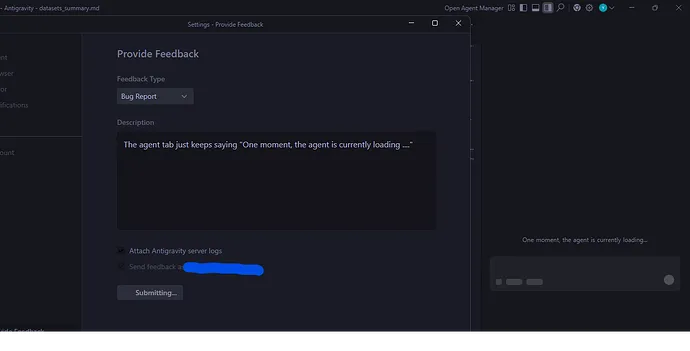
You see a persistent loader with the text above and nothing proceeds even after restarts. Some users also report the feedback form remains stuck at submitting which points to a blocked request queue or a hung service worker.
If your symptom is that models never initialize at all, check this targeted fix while you proceed with the steps below:
Read More: Antigravity Models Not Loading
Solution Overview
| Aspect | Detail |
|---|---|
| Root Cause | Stale or corrupted cached data prevents the agent bootstrap or a backend outage blocks requests |
| Primary Fix | Fully quit Antigravity then clear app cache and local state and restart a fresh session |
| Complexity | Easy |
| Estimated Time | 5 to 15 minutes |
Fix Antigravity stuck loading the agent now
Step-by-Step Solution
1. Confirm service availability
- If multiple requests like feedback and agent load both hang, there may be a temporary outage.
- Try from a different network or device to quickly rule out a local issue.
- If this is an enterprise setup, ask your admin about any recent firewall or proxy changes.
For architecture context on how the agent process initializes and how to verify it, see the brief primer here: Read More: Agent Manager Antigravity
2. Fully quit Antigravity and kill any background process
- Close the app window, then ensure no residual process is running.
macOS
pkill -f AntigravityWindows PowerShell
Stop-Process -Name Antigravity -ForceLinux
pkill -f Antigravity3. Clear cached state to remove a bad session
Do not skip this step. It fixes the majority of stuck loading cases.
macOS
rm -rf "$HOME/Library/Application Support/Antigravity/Cache"
rm -rf "$HOME/Library/Application Support/Antigravity/Code Cache"
rm -rf "$HOME/Library/Caches/Antigravity"
Windows PowerShell
Remove-Item "$Env:APPDATA\Antigravity\Cache" -Recurse -Force
Remove-Item "$Env:LOCALAPPDATA\Antigravity\Cache" -Recurse -Force
Remove-Item "$Env:LOCALAPPDATA\Antigravity\Code Cache" -Recurse -Force
Linux
rm -rf "$HOME/.config/Antigravity/Cache"
rm -rf "$HOME/.cache/Antigravity"
4. Reset local databases that can hang initialization
If the app is browser based, clear site storage for the Antigravity origin.
Chrome or Edge
- Open the Antigravity page
- Press F12 then open Application
- Select Clear storage then click Clear site data
Firefox
- Open the Antigravity page
- Press F12 then open Storage
- Right click the origin then choose Delete all
If using the desktop app only, remove IndexedDB and Local Storage folders inside the app data directory if present.
macOS
rm -rf "$HOME/Library/Application Support/Antigravity/IndexedDB"
rm -rf "$HOME/Library/Application Support/Antigravity/Local Storage"
Windows PowerShell
Remove-Item "$Env:APPDATA\Antigravity\IndexedDB" -Recurse -Force
Remove-Item "$Env:APPDATA\Antigravity\Local Storage" -Recurse -Force
Linux
rm -rf "$HOME/.config/Antigravity/IndexedDB"
rm -rf "$HOME/.config/Antigravity/Local Storage"
5. Relaunch and perform a clean sign in
- Start Antigravity
- If you are already authenticated, sign out then sign back in to refresh tokens
- Create a fresh agent session and wait a full 60 seconds
If your stack involves Gemini 3 1 Pro and the agent keeps trying to load that model, verify access and quota here: Read More: Gemini 3 1 Pro Error Antigravity
6. Eliminate local networking blockers
- Temporarily disable VPN and custom proxy
- On Windows run
ipconfig /flushdns- On macOS run
sudo dscacheutil -flushcache; sudo killall -HUP mDNSResponder- On Linux run
sudo systemd-resolve --flush-caches- Test connectivity
curl -I https://www.google.com7. Update or reinstall Antigravity
- Check for updates inside the app
- If problems persist, uninstall then reinstall the latest build
- After reinstall, repeat step 3 to ensure no stale folders remain
Alternative Fixes and Workarounds
Start a new agent workspace
- Create a brand new agent from the template list
- If the new one loads but the old one does not, export what you need then delete the stuck agent
Try a clean browser profile
- In Chrome create a new profile and open Antigravity
- This isolates extensions and corrupt profile data
Switch account or project
- Sign out then sign in with a different account or select another project or org if applicable
Different network path
- Tether through mobile data or try from a guest network to rule out a firewall path issue
Troubleshooting Tips
- Ensure device time and timezone are correct since expired or not yet valid tokens can block initialization
- If crash or error logs exist under an Antigravity Logs folder in your app data directory, review the latest file for repeated request failures
- If you see constant service worker events in browser devtools, unregister the worker under Application then reload
- Storage quota full can prevent databases from opening. Free disk space then retry
- If you use endpoint allowlists, add the required domains and confirm TLS interception is not rewriting certificates
Best Practices
- Keep Antigravity updated to the latest version
- Avoid long lived stale sessions by signing out and back in after major updates
- Periodically clear cache if you switch models or providers frequently
- Document required firewall exceptions and keep a known good network path for quick tests
Final Thought
In most cases the app is held up by a bad local session. Clearing cache and local databases then relaunching with a fresh sign in resolves the stuck agent is currently loading message quickly. If that fails, check for a service outage or networking blocks, then update or reinstall to restore a clean state.