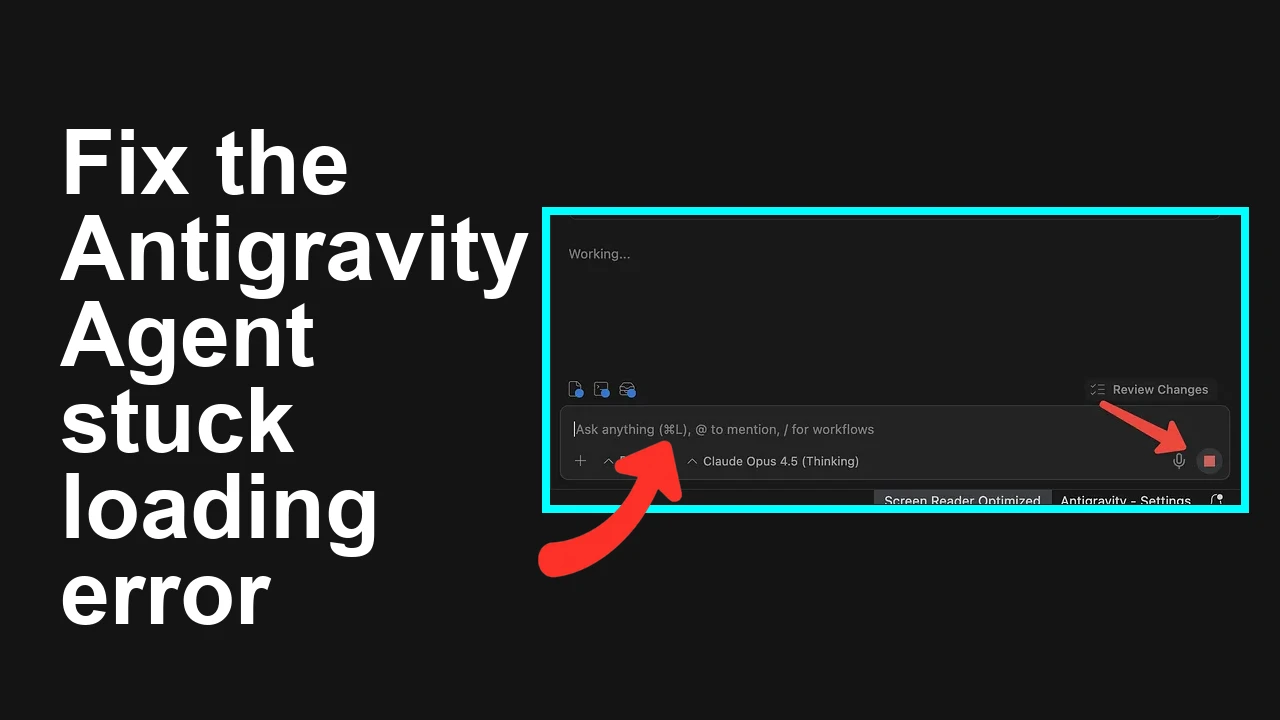
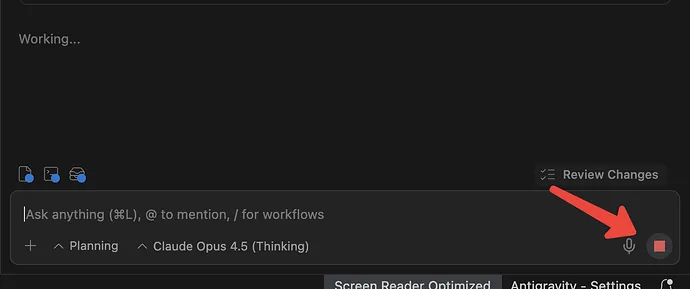
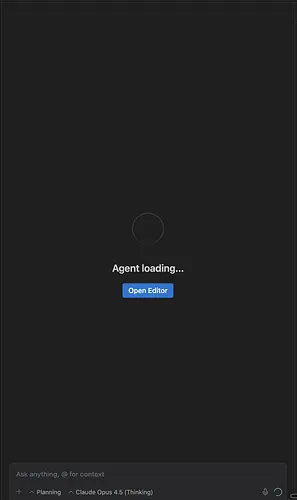
Your Antigravity agent starts running, then the Stop button does nothing and the run never ends. You end up closing the workspace or quitting the app to escape the loop.
This guide shows how to force stop the stuck run, reset agent state, and prevent it from happening again fast.
Antigravity agent stuck and Stop button does not respond
The agent run is active and the UI Stop control is unresponsive. You may see the spinner keep going with no output, and the only way out seems to be closing the workspace or quitting Antigravity.
In most cases the background agent process keeps running or the run queue is wedged, so the UI cannot cancel it.
You can safely end the process and clear its state.
Read More: Agent execution terminated issues explained
Solution Overview
| Aspect | Detail |
|---|
| Root Cause | Background agent process or queued run is wedged and UI events cannot cancel it, often due to a stuck tool call or broken websocket |
| Primary Fix | Force stop the agent process, clear the agent run state and queue, then reopen the workspace |
| Complexity | Easy |
| Estimated Time | 5 to 10 minutes |
Stop and reset a stuck Antigravity agent
Step by Step Solution
1. Try the in app cancel once more
- Open the Runs or Jobs panel and press Stop or Cancel on the active run.
- If nothing happens within 10 seconds, proceed to the next step. Do not wait forever.
2. Force stop the background agent process
Use one of the following exact commands for your system. This ends the stuck run immediately.
macOS and Linux
ps aux | grep -i antigravity
pkill -f antigravity || true
pkill -f agent || true
If you still see a running process id, end it hard
kill -9 <PID>
Windows PowerShell
tasklist | findstr /I antigravity
taskkill /F /IM antigravity.exe
If a process id remains
taskkill /F /PID <PID>
3. Clear the agent run state and queue
Removing stale state prevents the run from restarting on reopen. Back up the folders first if you need artifacts.
macOS
rm -rf "$HOME/Library/Application Support/Antigravity/Agent/state"
rm -rf "$HOME/Library/Application Support/Antigravity/Agent/queue"
Linux
rm -rf "$HOME/.config/Antigravity/Agent/state"
rm -rf "$HOME/.config/Antigravity/Agent/queue"
Windows PowerShell
Remove-Item -Recurse -Force "$env:APPDATA\Antigravity\Agent\state"
Remove-Item -Recurse -Force "$env:APPDATA\Antigravity\Agent\queue"
4. Reopen Antigravity and the affected workspace
- Launch Antigravity fresh and reopen the workspace.
- Start a small test run to confirm Stop now responds.
5. Set a hard cap to prevent future runaway runs
In Settings or the agent config, set a maximum step count and a short per tool timeout. This ensures
Stop becomes effective quickly even if a tool misbehaves.
Related help: If your agent stalls around context limits, see this quick fix for the
1024 tokens not thinking symptom.
Alternative Fixes and Workarounds
Break and re establish the live session
- Turn off network for a few seconds to break a stuck websocket, then re enable it and press Stop again.
Disable autonomous auto continue for this workspace
- In the agent settings uncheck auto continue or autonomous mode so a single step cannot chain ly.
Update to the newest Antigravity build
- Install the latest version to pick up fixes for stuck runs and improved Stop handling.
If the hang only happens with the Browser Agent
- The browser tool chain can wedge on permissions or an orphaned headless session. Follow this focused guide to repair permissions and reset the driver in browser agent not working.
Troubleshooting Tips
- Check system task manager to ensure no old processes keep relaunching
* macOS Activity Monitor:
official user guide
* Windows Task Manager:
open Task Manager
* Linux process control:
kill and pkill reference
- Inspect logs for repeating tool calls or network errors
* macOS logs in Library Application Support Antigravity logs
* Linux logs in config Antigravity logs
* Windows logs in AppData Roaming Antigravity logs
- Reduce the model context window or tool output size for this agent if you repeatedly hit context stalls. For additional context handling advice, see our short token stall explainer.
- If you previously saw runs ending with a specific termination message, compare symptoms with this execution terminated troubleshooting.
Best Practices
- Keep a modest max steps limit and per action timeout for all agents.
- Prefer explicit tool whitelists and ask before running external browser or shell actions.
- Save work frequently. Enable run checkpoints so you can stop and resume cleanly.
- Update Antigravity regularly and review release notes for agent run control fixes.
Final Thought
A stuck run is almost always a wedged background process or stale queue. By
ending the process and clearing agent state, you restore control quickly and Stop works again on the next run.