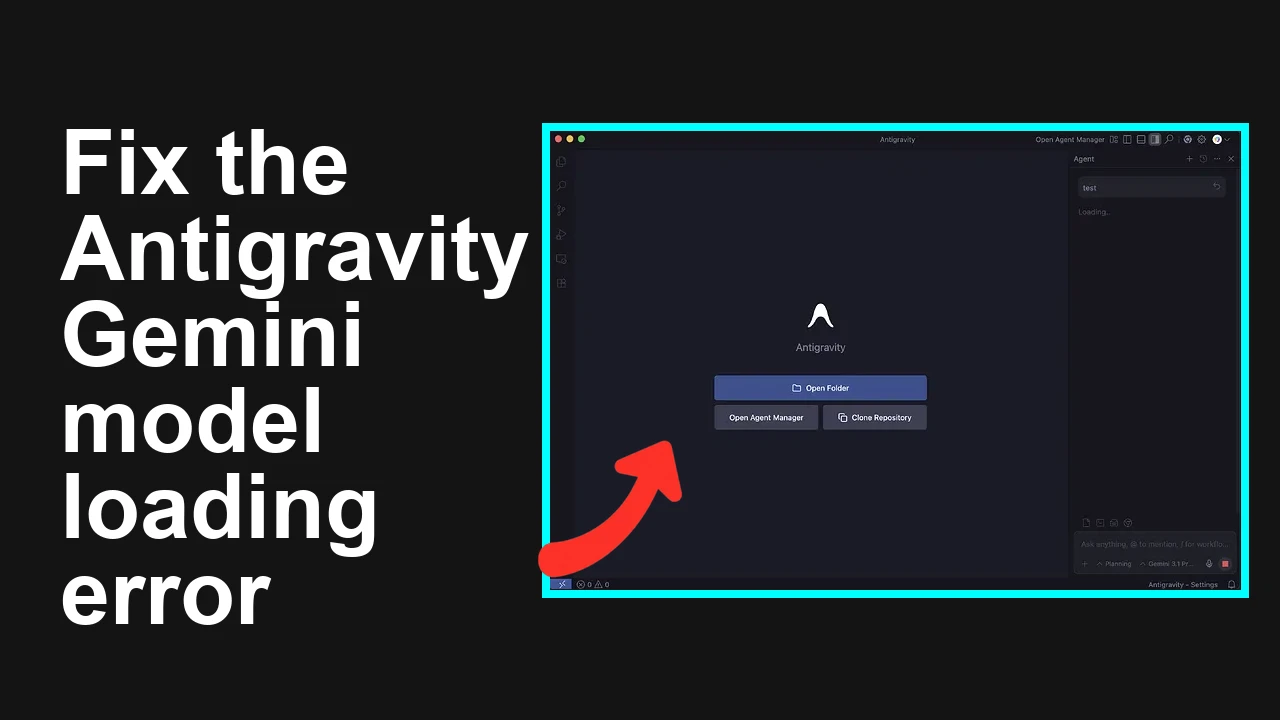
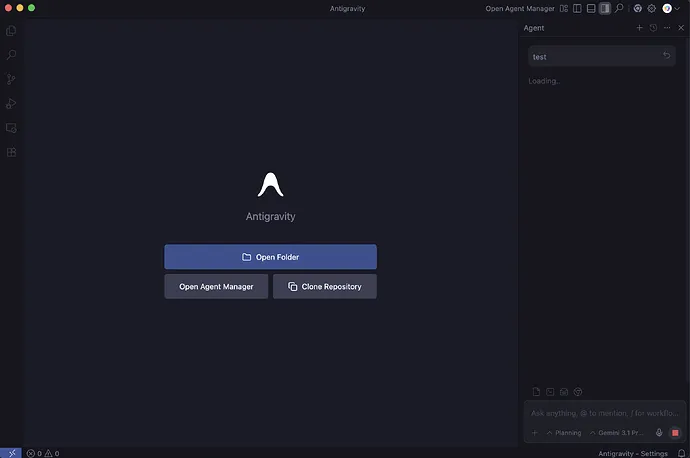
You are trying to use Antigravity with Google Gemini and only Gemini 3 Flash loads, while Gemini Pro models either spin forever or show a small retry button. Claude works and your Google Workspace account is linked, but all Gemini Pro variants fail to respond.
Gemini Pro models not loading or show retry in Antigravity
This issue typically presents as infinite loading on requests to Gemini Pro models or a brief retry button under the prompt. There is no clear error surfaced in the Antigravity chat, even though Gemini 3 Flash and other providers like Claude respond normally.
Solution Overview
Aspect
Detail
Root Cause
Missing model entitlements or disabled billing and APIs for Gemini Pro, often compounded by using the wrong endpoint Google AI Studio versus Vertex AI or Workspace admin restrictions.
Primary Fix
Verify model access with a direct API call. Then enable billing and the correct APIs, confirm model availability, and select the correct provider configuration in Antigravity.
Step 1. Test your key against a Pro model from the terminal
This confirms if your key and account are actually allowed to call Gemini Pro. Open a terminal and run:
Export your Google AI Studio API key
export GOOGLE_API_KEY="YOUR_AI_STUDIO_API_KEY"
Quick health check with a Pro model using the Generative Language API
curl -s -H "Content-Type: application/json" \
 -d '{"contents":[{"parts":[{"text":"Say hello in one short line"}]}]}' \
 "https://generativelanguage.googleapis.com/v1beta/models/gemini-1.5-pro-latest:generateContent?key=$GOOGLE_API_KEY" | jq .
If you receive a 403, 404, or a message like model not found or permission denied, your account is not entitled to Pro on this endpoint. That is why Antigravity spins without answers.
Optionally list the models your key can see:
Step 3. If you use Vertex AI, confirm the Vertex path and auth
Some organizations allow Gemini Pro only via Vertex AI. In that case you must use a service account with application default credentials and the Vertex endpoint.
If Vertex works but AI Studio does not, configure Antigravity to use the Vertex provider for Gemini, not the AI Studio key.
Step 4. Ask your Workspace admin to allow Gemini services if needed
On Google Workspace, domain policies can silently block Pro access. Your admin should:
Allow the Google AI Studio service and the Generative Language API for your organizational unit
If your org standardizes on Vertex AI, grant you access to the Vertex project and enable the aiplatform API and billing
Ensure external generative AI services are not blocked by data protection rules
After policy changes, re test Step 1.
Step 5. Configure Antigravity to match your access path
Inside Antigravity:
Open Settings then Providers then Google Gemini
If you validated AI Studio in Step 1, paste the AI Studio API key and pick the models labeled Pro latest
If you validated Vertex in Step 3, switch provider type to Vertex AI, select your region for example us central one, and authenticate with your service account or application default credentials
Save, restart Antigravity if required, and test a short single line prompt
If it still spins, open your browser dev tools Network tab and capture the failing request. A 403 or 404 confirms entitlement or endpoint mismatches. A 429 suggests rate limiting.
Read More:Handling high traffic related errors
Alternative Fixes and Workarounds
Use Gemini Flash temporarily
If you need immediate output, select Gemini Flash while your admin enables Pro access. Flash works with more permissive entitlements and can unblock you short term.
Route through Vertex AI only
Many enterprises permit Gemini Pro on Vertex AI but not AI Studio. Switching Antigravity to Vertex mode often resolves silent permission failures.
Try a clean API key
Create a new AI Studio key in the correct project with billing enabled and re test Step 1. Keys created in the wrong project often lack Pro entitlements.
Reduce request size to rule out soft limits
Send a minimal prompt first. Very large inputs can hit safety or quota thresholds that present as retries in some UIs. For token issues in Antigravity, see this quick tip: token limit symptoms and fixes.
Troubleshooting Tips
Check model spelling exactly as returned by the list models API for example gemini 1 dot 5 pro latest. A wrong name returns not found.
Look for HTTP codes in the browser console. 403 means not entitled. 404 means wrong model or endpoint. 429 means quota or rate limit.
Confirm region alignment in Vertex AI. Using a model in a different region can fail silently in some tools.
Verify that your Google account used for the key is not restricted by Workspace policies. Test with a personal account to compare.
If Antigravity shows random retries during peak hours, you might be rate limited. See this playbook: mitigating high traffic errors.
Best Practices
Keep billing active and monitor quotas for the Generative Language API or Vertex AI to avoid silent denials.
Use separate projects for development and production and verify entitlements on both.
Pin model names to the latest alias rather than a dated suffix and periodically re validate with a curl test.
Document your org standard is AI Studio or Vertex and configure Antigravity to that path to prevent endpoint mismatches.
If your account was recently created, verify eligibility with your admin or support. For domain or age related blocks, see this quick check: account eligibility checklist.
Final Thought
The issue is almost always entitlement and endpoint mismatch. Verify access with a direct API call, enable billing and the right APIs, then align Antigravity to AI Studio or Vertex based on what actually works. Once the key and endpoint match your allowed path, Gemini Pro models respond instantly.
We use cookies to ensure that we give you the best experience on our website. If you continue to use this site we will assume that you are happy with it.