You updated Anti Gravity to 1.20.5 and started hitting the quota refresh limit even with light usage. Models like Gemini and Claude stopped responding, and you saw prompts to wait days for a reset.
Anti Gravity quota error after enabling AI Credits in version 1.20.5
Users report that after upgrading to Anti Gravity 1.20.5, turning on the new AI Credits toggle under Settings then Models causes credits to drain fast and triggers quota exhausted or quota refresh limit errors across models.
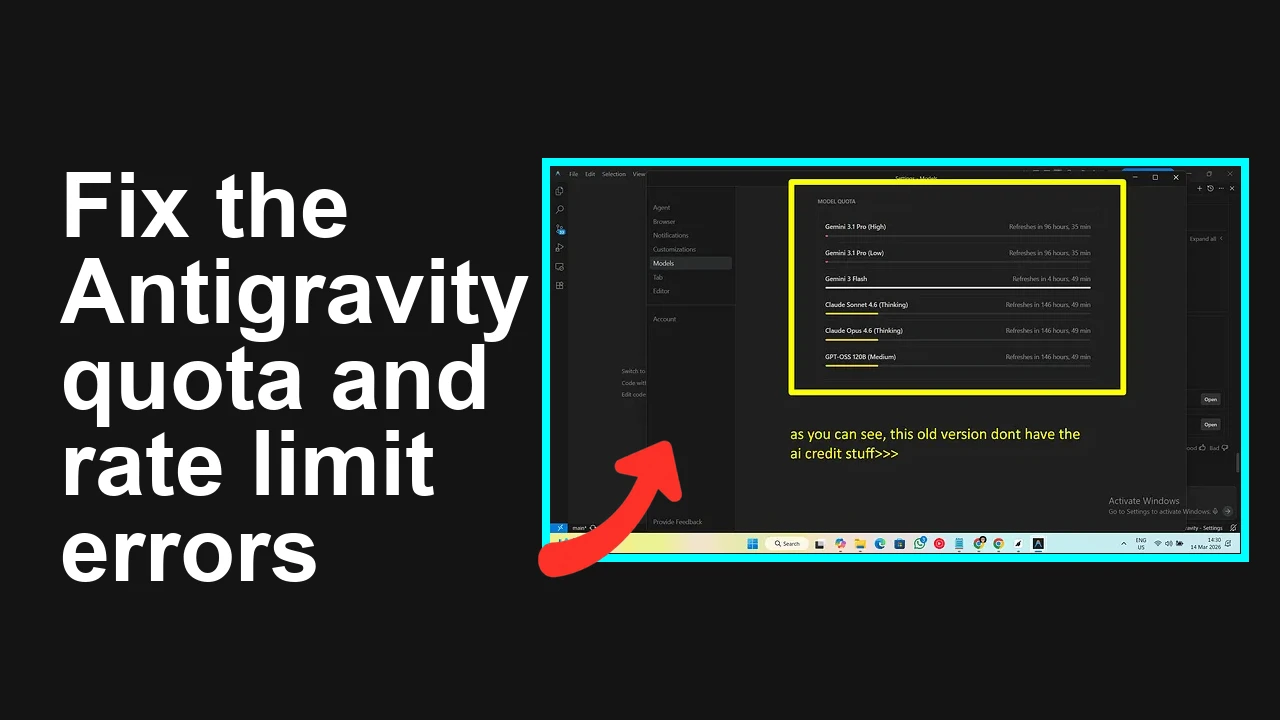
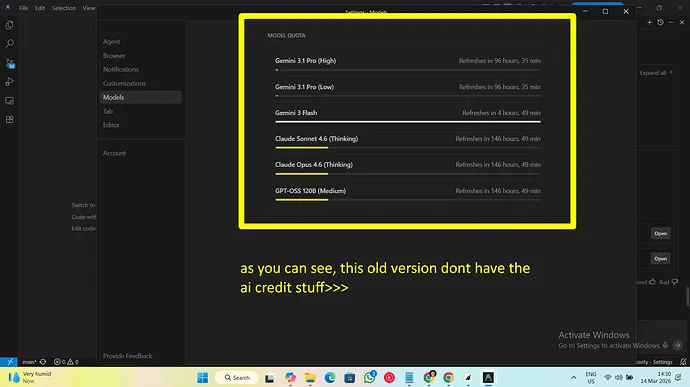
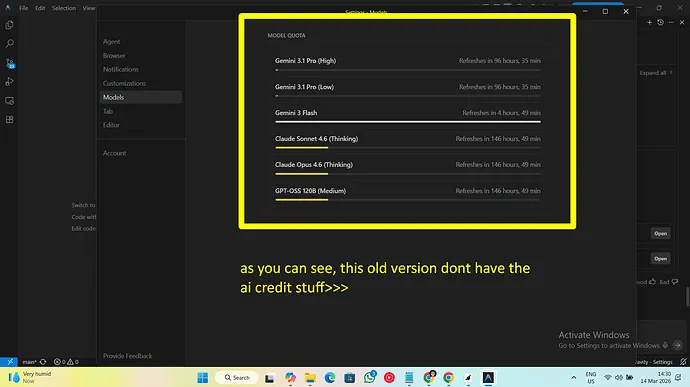
This began right after the update and did not occur on 1.19.6, which lacks the AI Credits option. After downgrading to 1.19.6, models work again and quota errors stop.
For deeper context on how quota accounting behaves with Google AI Pro inside Anti Gravity, see this quota guide.
Solution Overview
Aspect
Detail
Root Cause
1.20.5 AI Credits option appears to trigger aggressive credit consumption and quota locks across providers
Primary Fix
Downgrade to 1.19.6 and keep AI Credits off, then prevent auto update until a patch lands
Complexity
Easy
Estimated Time
15 to 25 minutes
Fix quota exhaustion now
Step-by-Step Solution
1. Turn off AI Credits in 1.20.5 before changing versions
Open Anti Gravity
Settings
Models
Toggle off AI Credits
Restart the app and test a single prompt
If errors persist after toggling off credits, continue with the steps below.
2. Prevent automatic updates to avoid returning to 1.20.5
Android Play Store
– Open the app listing for Anti Gravity in Play Store
– Tap the three dot menu in the top right
– Uncheck Enable auto update
– Reference: Disable auto updates on Play Store
Desktop or other platforms
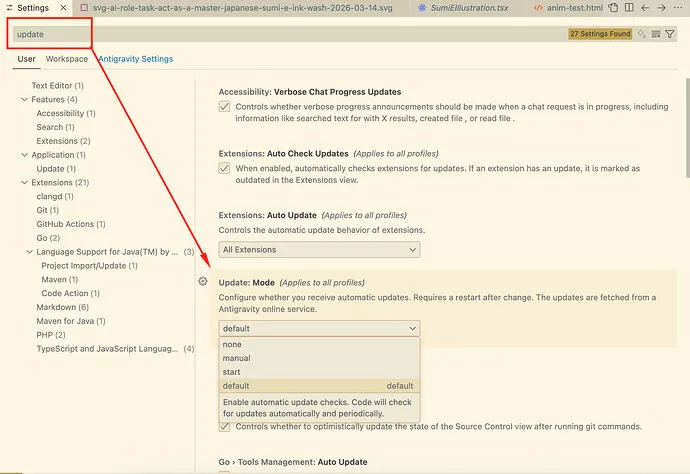
– In app Settings check for any Update or Auto update switch and turn it off
– If installed from a store, turn off auto updates for this single app in the store client
For a broader look at how Anti Gravity quotas differ with provider subscriptions, see our short explainer on provider quota nuances.
3. Install Anti Gravity 1.19.6
Obtain the 1.19.6 installer from the official download page or a trusted archive from the developer
Android with ADB
– Enable Developer options and USB debugging
– Connect the device to a computer with ADB installed
– Install the APK
“`
adb devices
adb install AntiGravity_v1.19.6.apk
“`
Windows or Mac
– Uninstall the current app if the installer will not overwrite
– Install the 1.19.6 build
– Launch the app
Ensure no AI Credits toggle is present in Settings then Models
Send one short prompt to each model you use
Confirm no quota refresh limit errors appear
5. Optional cleanse
Clear app cache only through your OS app settings
Sign out and sign in again to refresh tokens
Avoid clearing app data unless needed, as it resets local content
To understand what user actions most often trigger provider block thresholds, review our quick note on common quota triggers.
Alternative Fixes and Workarounds
Stay on 1.20.5 but keep AI Credits off
If you cannot downgrade, disable AI Credits and restart the app
Reduce message length and batch size to lower immediate hit rates
Monitor for a patched release from the developer
Wait for provider reset window
Some accounts auto reset after several days
If your tenant shows a reset date, pause heavy use until that window passes
Switch to a different model or provider temporarily
Use a provider account with available quota while the affected one cools down
Keep requests short and less frequent to avoid rate limits
Reauthenticate provider connections
Disconnect and reconnect API based providers from inside Anti Gravity
Refresh any expired tokens
Reinstall the same version cleanly
Uninstall then reinstall the same 1.19.6 build to clear local corruption
Troubleshooting Tips
Confirm you actually installed 1.19.6 by checking the About page inside the app
If the app keeps prompting updates, verify auto update is off in the store client and inside the app
Test with a single provider first to isolate if the block is provider side
Check system time and network proxies because skew and middleboxes can trigger provider security rules
If stuck, capture a short screen recording and app logs, then submit to support with timestamps and your account ID
Best Practices
Keep AI Credits off until an official fix for 1.20.5 is announced
Cap message size and concurrency to avoid sudden quota spikes
Update only after reading the release notes for quota related changes
Keep a rollback plan with a safe copy of the last stable installer
Test new builds in a staging profile before using them on production accounts
Final Thought
The fastest reliable fix is to revert to 1.19.6 and keep AI Credits disabled while preventing auto updates. This restores normal model responses and stops the quota refresh limit errors until a patched release resolves the credit accounting issue.
We use cookies to ensure that we give you the best experience on our website. If you continue to use this site we will assume that you are happy with it.