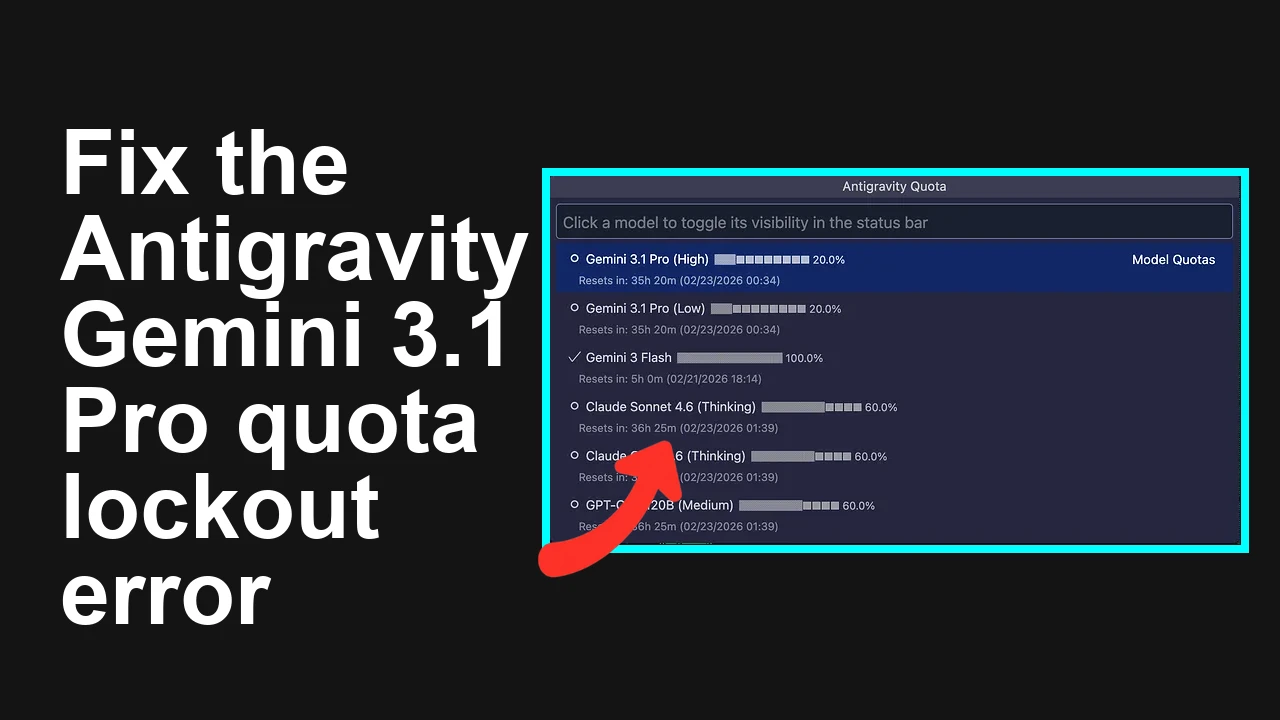
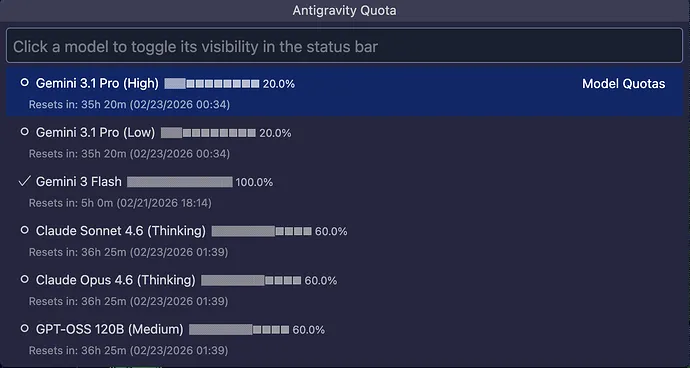
You are blocked by a sudden Gemini 3.1 Pro High quota stuck at 20 percent with a 35 hour reset on Antigravity, even though you did not actively use it. This feels like a ghost drain that halts your Next.js work and makes the subscription pointless.
Antigravity Gemini 3.1 Pro quota stuck or draining with 35 hour reset
Your Antigravity dashboard shows Gemini 3.1 Pro High availability at 20 percent with a reset in 35 hours. You also notice other models like Claude and GPT OSS showing higher availability, which adds to the confusion. The key symptoms are a long reset window, a misaligned usage indicator, and a sensation that quota is depleting without visible activity.
If you need background on common Gemini errors and UI signals on this platform, see our quick explainer on Gemini 3.1 Pro issues on Antigravity.
Solution Overview
Aspect
Detail
Root Cause
Hidden background calls in workflows or agents, shared project quota, or a stale quota UI that lags the backend reset window
Primary Fix
Audit and stop background callers, verify which project holds the quota, rotate exposed API keys, then request a manual reset or quota bump
Complexity
Medium
Estimated Time
30 to 60 minutes
The Problem in Context
Quota shows 20 percent with 35 hours reset on Gemini 3.1 Pro High
No recent manual calls, yet the number does not recover
Other models show better availability
This pattern almost always traces back to one of four things:
Background workflow runs, retries, or scheduled agents still making calls
Shared quota across a different project or workspace where someone else is calling the model
Leaked API key being used outside your app
A front end cache delay where the reset window takes longer to surface
Fast Fix for Ghost Quota Drain on Antigravity
Step-by-Step Solution
1. Confirm which project and workspace own your quota
In Antigravity, open Settings then Project and note the Project ID and Workspace name
Ensure your development app and API keys are tied to the same Project ID you see in the quota widget
If you also use Google Cloud or AI Studio under the hood, verify consumer quotas align to the same project:
gcloud config set project YOUR_PROJECT_ID
gcloud projects describe YOUR_PROJECT_ID --format="value(projectNumber)"
Use the number from above in the next commands as PROJECT_NUMBER

AI Studio Generative Language quotas
gcloud services quotas list \
 --service=generativelanguage.googleapis.com \
 --consumer=projects/PROJECT_NUMBER

Vertex AI quotas in case Antigravity is routing through Vertex AI
gcloud services quotas list \
 --service=aiplatform.googleapis.com \
 --consumer=projects/PROJECT_NUMBER
If the quotas here do not match what Antigravity shows, you are likely on a different backing project or a shared organization quota.
2. Find and stop hidden callers
In Antigravity, open Workflows and Agents
– Pause any workflow with a schedule
– Open each workflow and disable automatic retry or continuous run toggles
– Check Webhooks or Integrations tabs for triggers that may fire on events
Review Runs or History and sort by recent time to locate any process that keeps retrying
If your Antigravity project is connected to Google Cloud, pull recent API usage from Cloud Audit Logs:
# Replace YOUR_PROJECT_ID and adjust time window if needed
gcloud logging read \
 'protoPayload.serviceName="generativelanguage.googleapis.com" AND timestamp>="-'P2D'"' \
 --project=YOUR_PROJECT_ID \
 --limit=100 \
 --format="table(timestamp, protoPayload.authenticationInfo.principalEmail, protoPayload.requestMetadata.callerIp, protoPayload.methodName)"
Look for calls happening when you were idle. Note the caller email or IP.
3. Rotate keys to stop any leak immediately
In Antigravity Settings open API Keys then create a new key
Update your app config and CI secrets with the new key
Delete the old key
On your local machine, remove stray keys and cache entries:
# Example paths that often hold secrets
rm -f .env.local .env.development.local .env.production.local 2>/dev/null
If you keep env files in the repo, update and reissue them safely
Search your repos to ensure keys were not committed:
# Requires ripgrep. Replace YOUR_KEY_PREFIX if your keys share a prefix.
rg -n --hidden --iglob '!node_modules' 'AIza|ANTIGRAVITY_|YOUR_KEY_PREFIX' .
4. Verify reset window and capacity region
In Antigravity Quotas panel, note the reset time and any region label for Gemini 3.1 Pro High
Switch the model region if the platform allows choosing a different capacity region
If you cannot change region, select Gemini 3.1 Pro Standard or Flash for heavy iteration while waiting
Use a small canary request to validate capacity on the new selection before resuming full workloads:
export GOOGLE_API_KEY="YOUR_KEY"
export MODEL_ID="models/gemini-1.5-pro" # or the exact model your plan grants
curl -s -H "Content-Type: application/json" -H "x-goog-api-key: $GOOGLE_API_KEY" \
 https://generativelanguage.googleapis.com/v1beta/$MODEL_ID:generateContent \
 -d '{"contents":[{"parts":[{"text":"ping"}]}]}' | jq .
5. Ask for a manual quota reset or increase
Open Support from Antigravity and include:
Project ID and Workspace
Screenshot of the quota panel with reset timer
The last 48 hour call summary from your logs
A request to reset the Gemini 3.1 Pro High pool or provision a temporary increase
If your subscription tier caps the pool, Support may move you to a higher band. For plan nuances and why High tiers are throttled differently, see this explainer on subscription level and Antigravity quota behavior.
6. Short term unblocking tactics
Switch prompts that need fast iteration to Gemini Flash or Pro Standard
Reduce tokens per call and set a tight max output for debugging loops
Batch long context operations during low traffic windows
Cache deterministic steps so retries do not re spend
Create a second Antigravity project purely for heavy debug sessions
Use separate API keys so quota pools are independent
B. Fall back to available models for burst tasks
Route non critical steps to models showing higher availability in your dashboard
Keep Gemini 3.1 Pro High only for final review or production grade outputs
C. Reduce hidden retries
In every workflow node set retry policy to zero during development
Add guards so that webhook storms cannot trigger chains of calls
D. Enforce per minute client limits
Add a client side limiter so bursts do not deplete the pool all at once
Queue jobs during the reset window to smooth demand
Troubleshooting Tips
If the quota percent does not change after stopping all workflows, sign out then back in and hard refresh the Quotas panel to clear stale UI
Confirm you do not have a second browser session or teammate account with the same project selected
Check cron services or CI pipelines that may be calling the API with old keys
Inspect dependency bots that may run code examples during upgrades
If your Organization enforces pooled quotas, ask an admin to show active consumers across teams
Best Practices
Keep separate projects for development and production with different keys
Never store API keys in source control and rotate keys monthly
Add a usage dashboard that alerts when call volume spikes over normal baselines
Cap retries and add circuit breakers in agents and workflows
Schedule long context jobs during off peak hours to avoid capacity contention
Final Thought
The fastest path is to stop hidden callers, rotate keys, verify the correct project pool, and request a manual reset. Once you pin down the real consumer of your quota, your Gemini 3.1 Pro High availability will recover and your development rhythm will be back on track.
We use cookies to ensure that we give you the best experience on our website. If you continue to use this site we will assume that you are happy with it.