
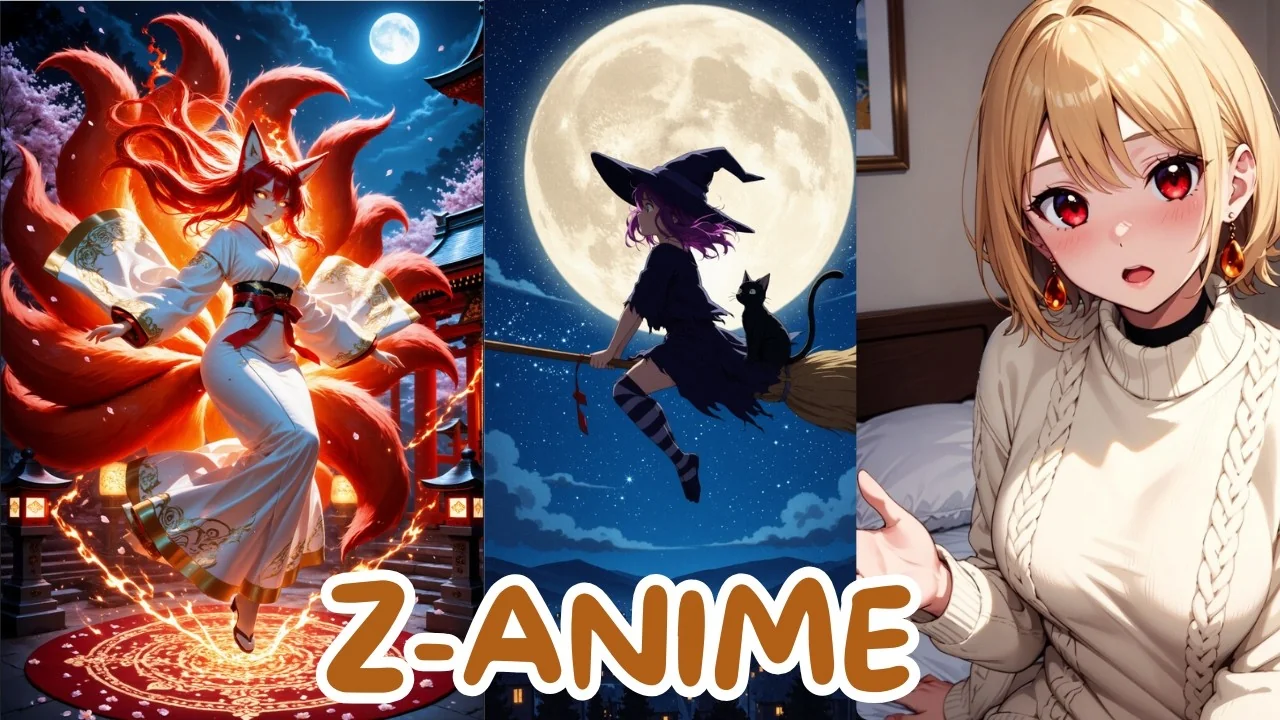
You can install ZZZ Anime locally in ComfyUI and generate rich anime art in minutes. Install ComfyUI, download the ZZZ Anime diffusion model, its text encoder, and the VAE, place them in the correct ComfyUI folders, load the provided workflow, choose your model in the loader nodes, add a positive prompt, and generate. On a lower GPU like 8 GB, pick the smaller diffusion file and the FP8 text encoder, keep resolution modest, and you are good to go.
ZZZ Anime is built for anime art with beautiful style diversity. An indie developer took Alibaba’s strong 6 billion parameters ZZZ Image base model and did a full fine tune on high quality anime art, turning it into a dedicated anime model while keeping the original strengths like great prompt understanding and creative freedom.
What this model is
This model has been built from the ground up on top of Alibaba’s ZZZ Image base. It was retrained entirely on high quality anime art to become a dedicated anime powerhouse. I want to see how successful that creator was.
They kept great prompt understanding and a lot of creative freedom. It delivers rich, beautiful anime style illustrations with incredible diversity. You can create stunning anime art in seconds instead of waiting months.
Read More: our Ollama guide for a free local assistant
Install it locally
Step 1. Install ComfyUI. ComfyUI is a powerful node based interface for running AI image generation models like this one.
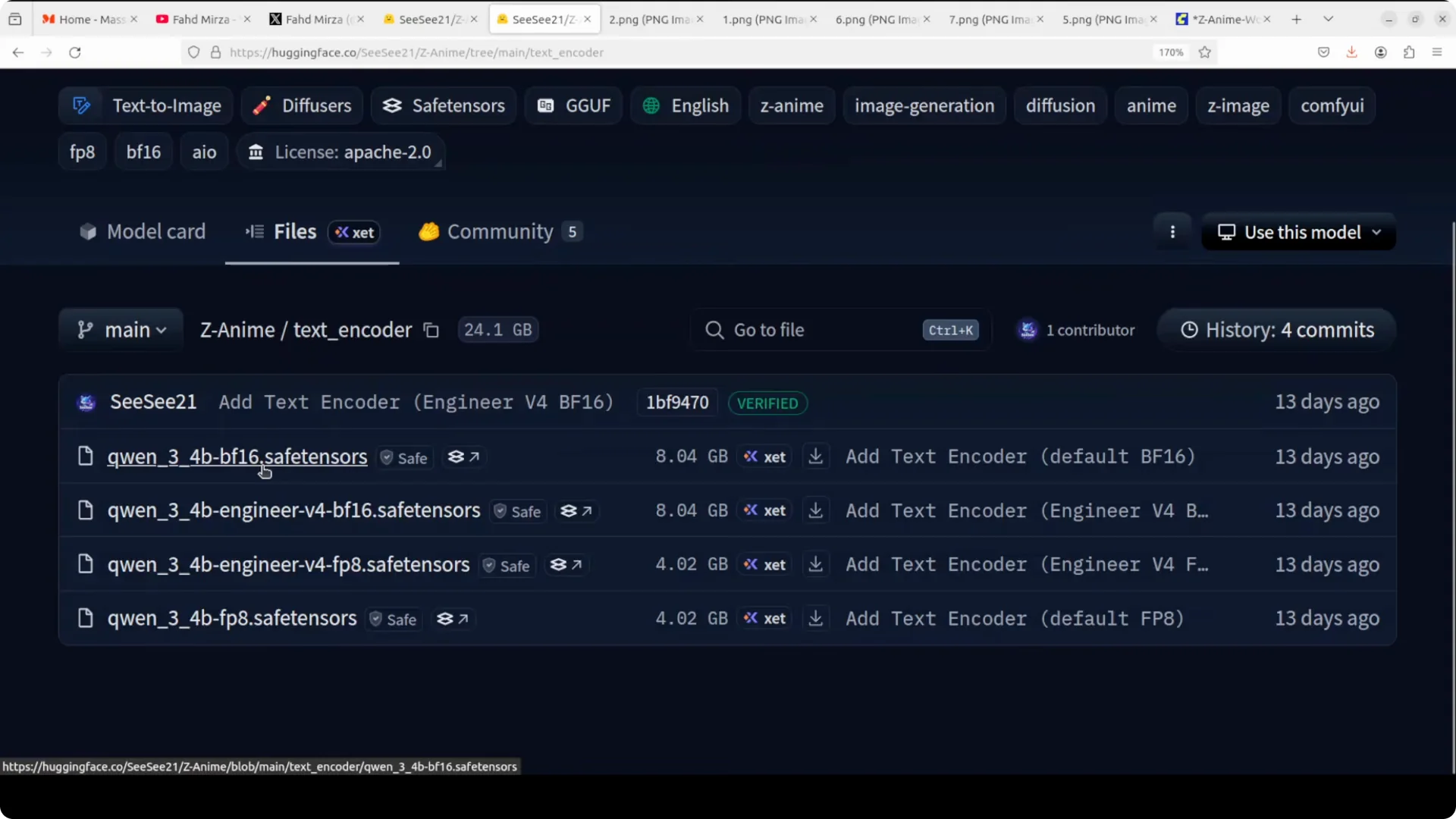
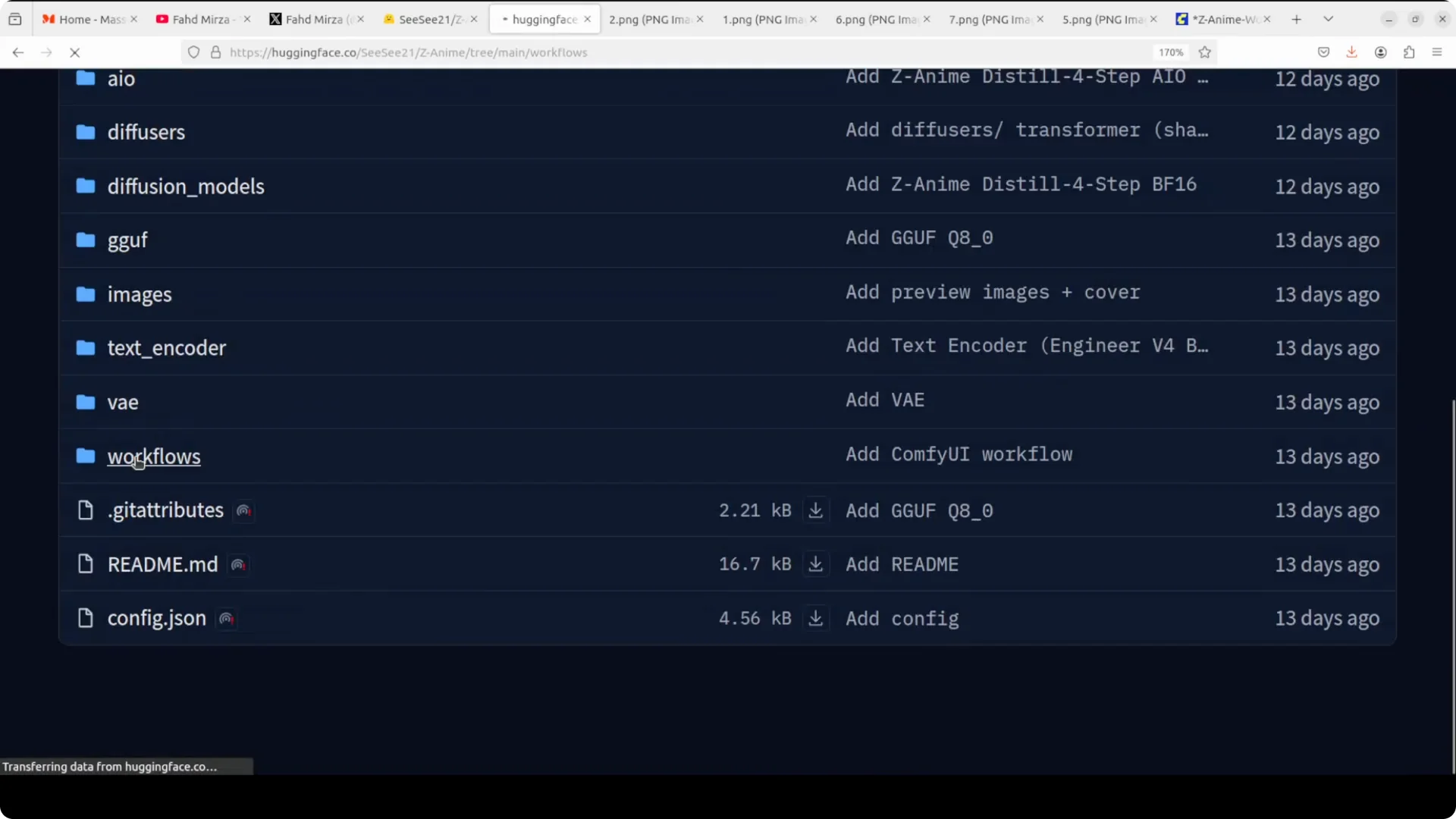
Step 2. Get the ZZZ Anime files from the model card on Hugging Face. Download the diffusion model file that fits your GPU, the text encoder, and the VAE.
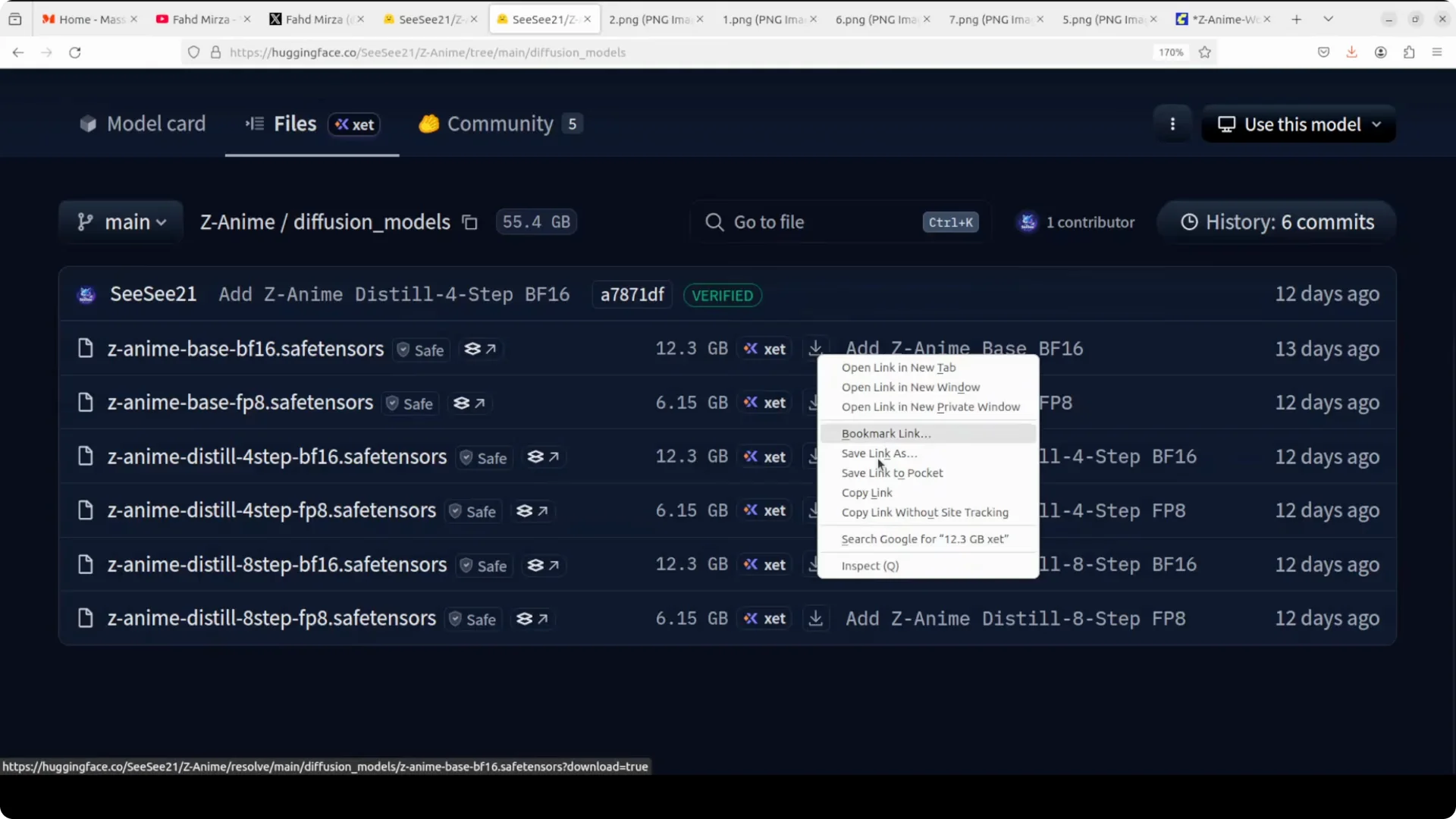
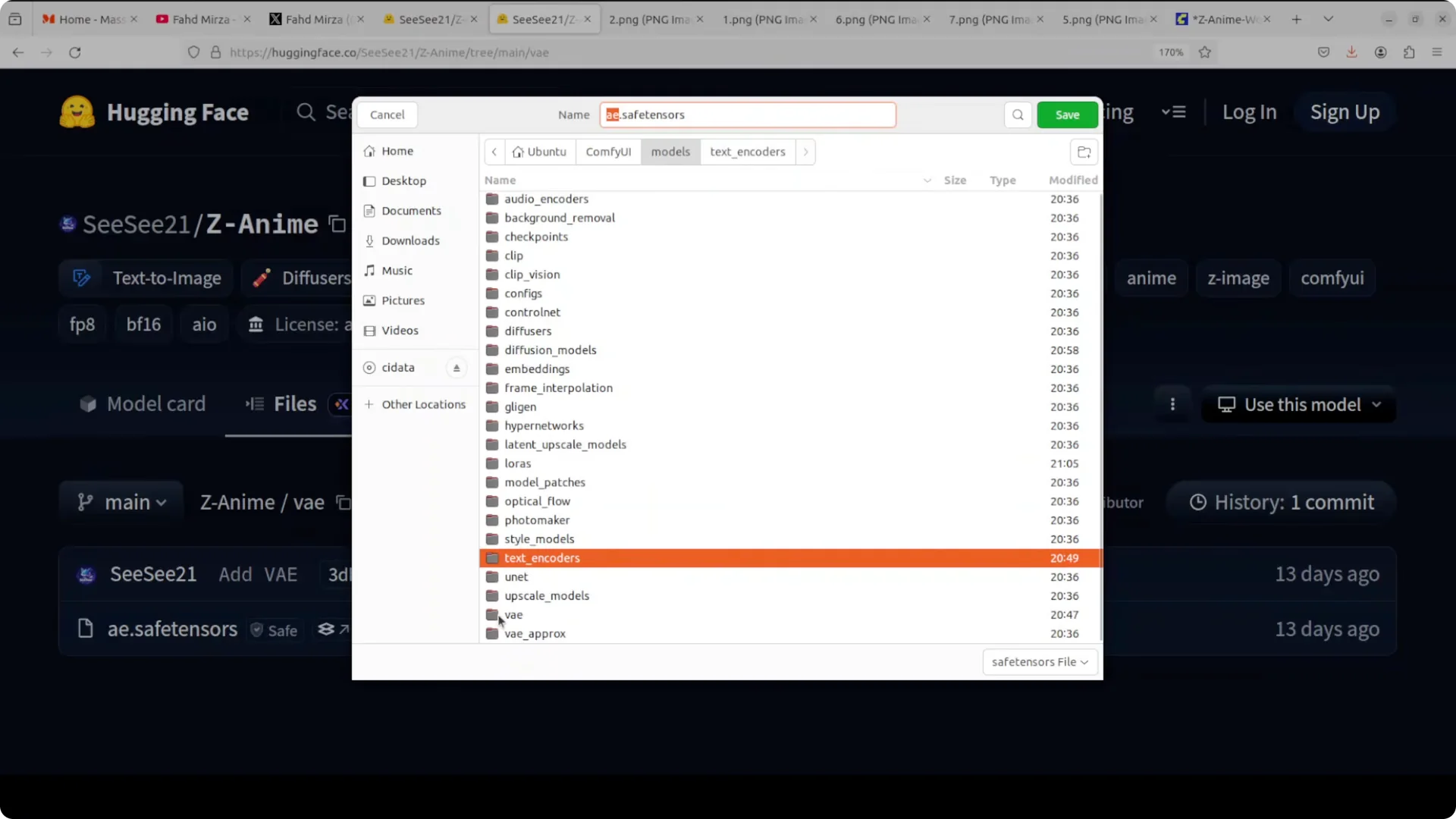
Step 3. Put files in the correct ComfyUI folders. Place the diffusion model in ComfyUI/models/checkpoints. Place the text encoder in ComfyUI/models/clip. Place the VAE in ComfyUI/models/vae.
Choose the right variant for your GPU
If you have a lower GPU like 8 GB, select the smaller diffusion model variant. For the text encoder, pick FP8 for lower VRAM. BF16 is fine for higher VRAM, FP8 helps you fit within tight limits.
On a high VRAM card, you can go with the full version. I ran the full model on an Nvidia RTX on Ubuntu with 48 GB of VRAM. It worked smoothly.
Read More: local intelligence with Zaya1 8B
Load the workflow
You will need a workflow with nodes connected to create the image. Download the provided workflow file, then drag and drop it into ComfyUI.
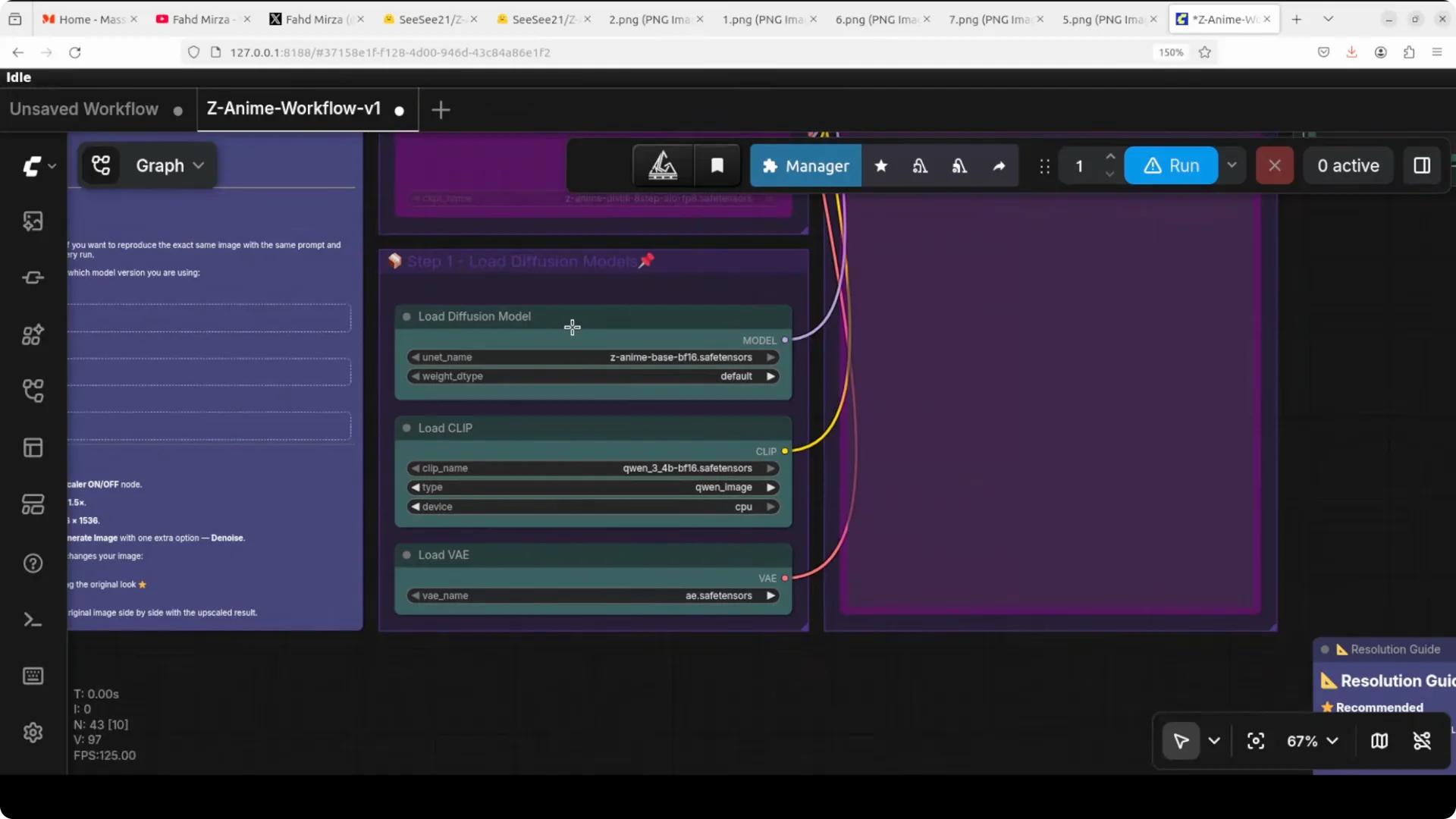
In the nodes, go to Load Diffusion Model and select the base model in the checkpoint loader. Set your text encoder in the CLIP slot and the VAE in the VAE loader.
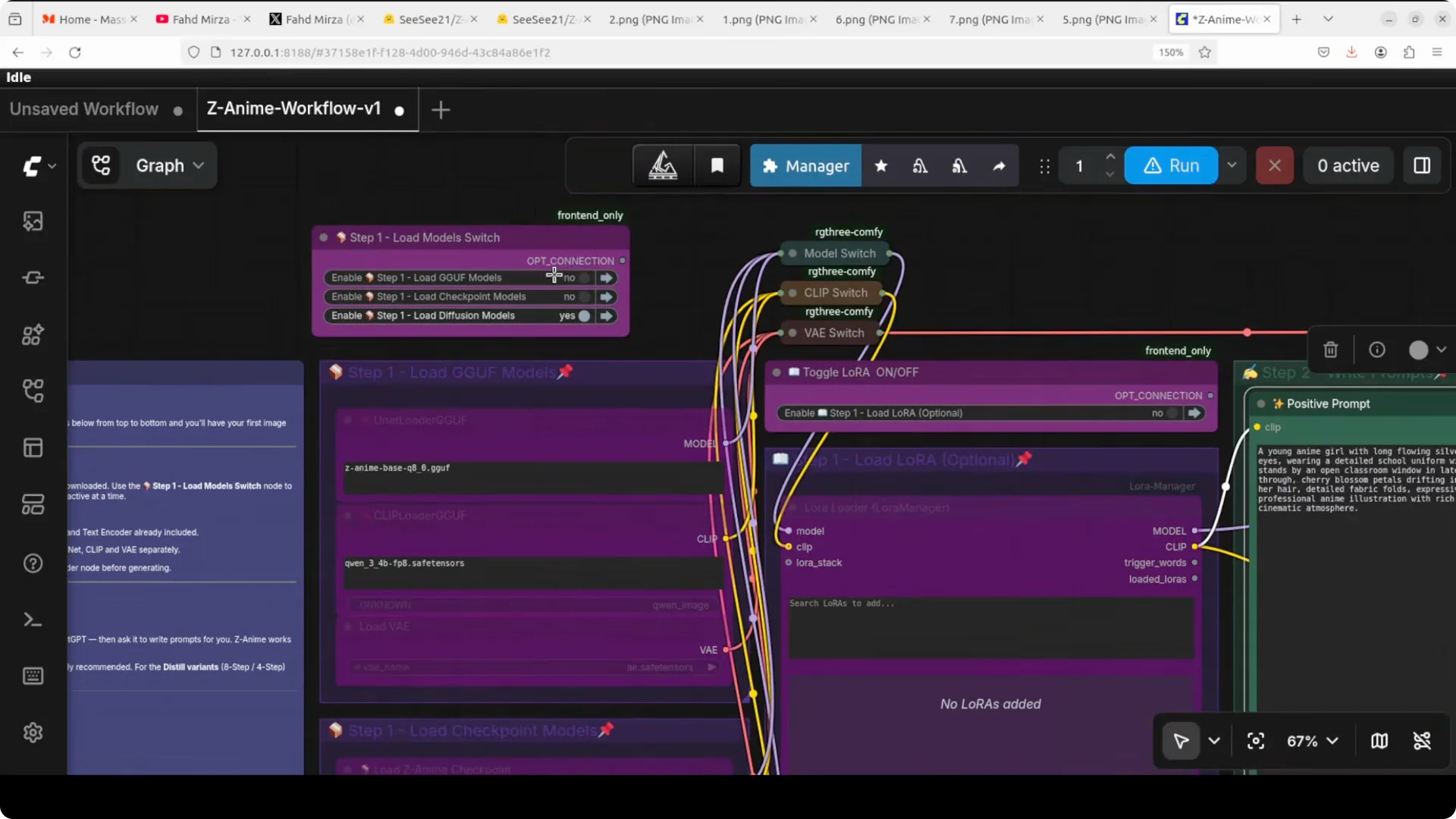
If you are using a GGUF file, use the GGUF node they provided. Load your GGUF model there and toggle it on.
Prompt and generate
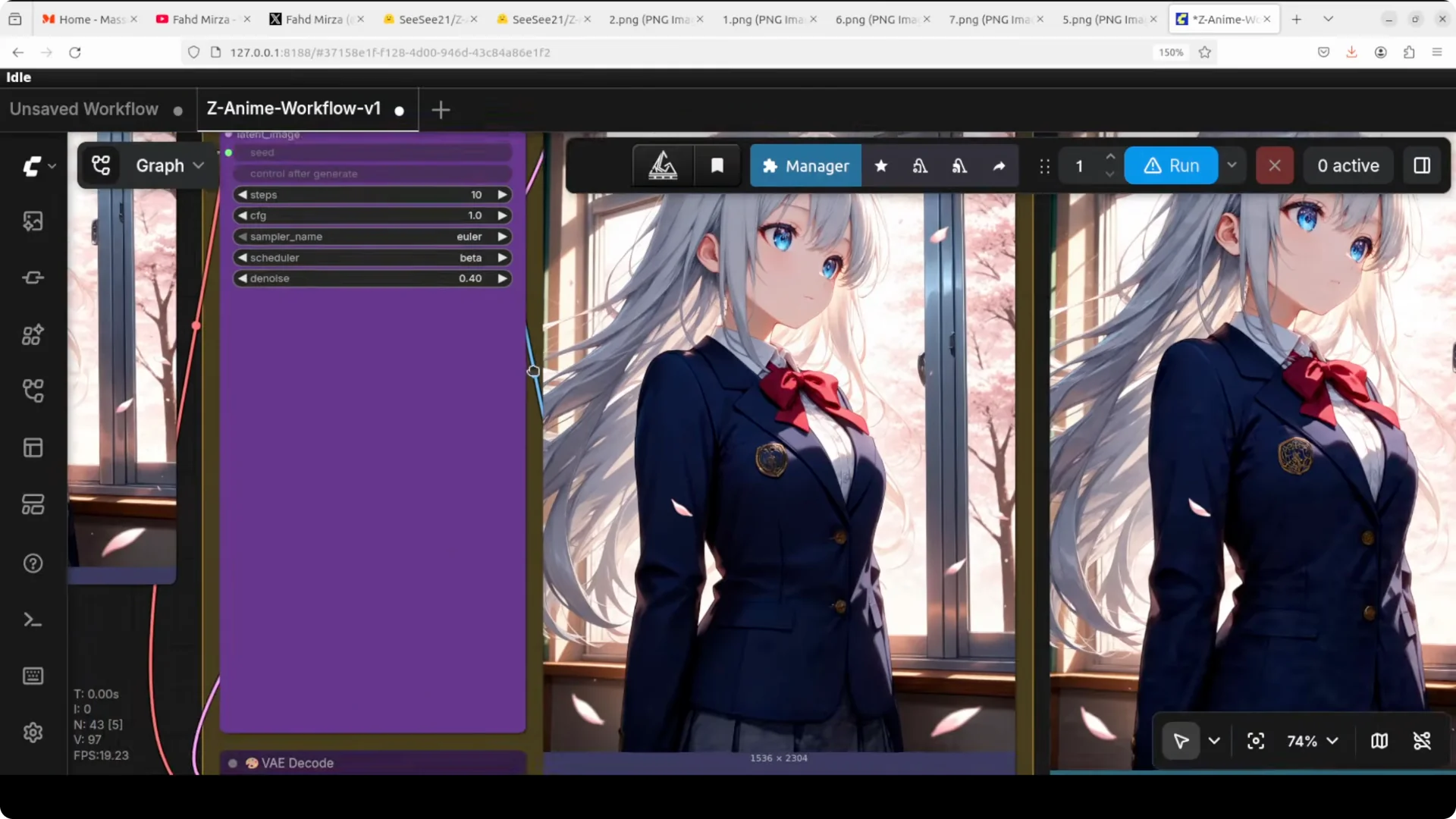
Give your positive prompt and run. I started with a prompt and it generated the first image, then the workflow upscaled it.
You can see the difference between the original and the upscaled one. The upscaled image is more detailed, more realistic, and more fine grained.
Settings that matter
In Generate Image you will see settings like steps, CFG, sampler, scheduler, seed, and resolution. Steps is how many times the AI thinks and refines your image, more steps gives higher quality but takes longer.
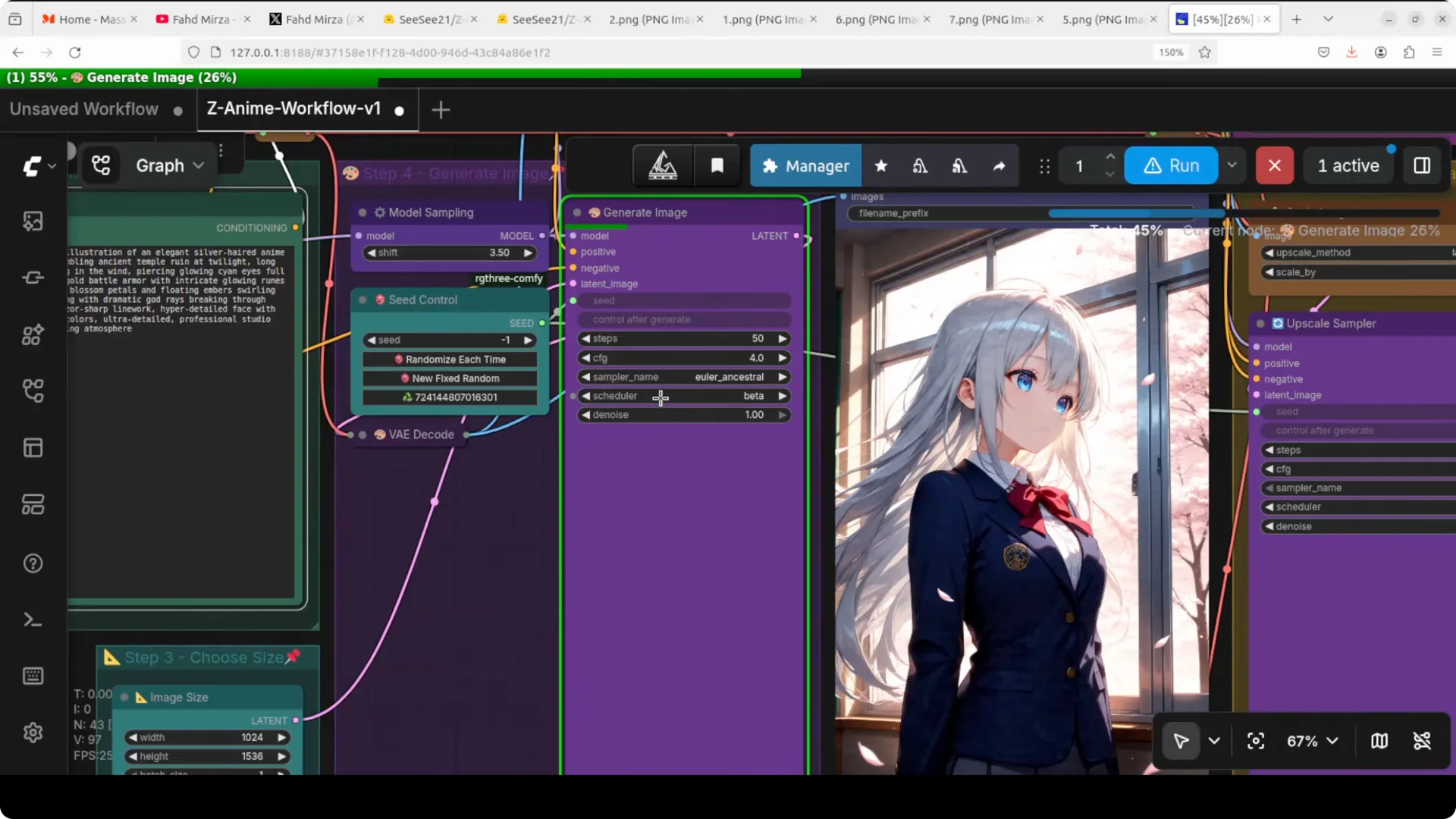
CFG is guidance scale and controls how strictly the AI follows your prompt. Higher number is more obedient, lower number is more creative, something like temperature.
Sampler is the method the AI uses to turn noise into a picture. We are using Euler Ancestral, which is the sweet spot for the Z anime base model.
Scheduler works with the sampler to decide how the image gets cleaned up over each step. We are using a beta scheduler here.
Seed is a random number that decides the exact look of your image. Same seed and same settings give you an identical result every time.
Resolution is straightforward and it impacts VRAM. If you need to fit lower VRAM, reduce resolution and batch size.
Read More: our ERNIE 5.1 test and findings
VRAM use and practical tips
With the full model, I saw VRAM around 12 to 14 GB. It may spike initially, then settle, which is still not bad.
You can easily run it on a consumer GPU. On a lower VRAM card, use the smaller diffusion model file and FP8 text encoder, and keep resolution moderate.
Example prompts and results
I asked for a breathtaking masterpiece anime illustration of an elegant silver haired anime warrior queen standing atop a crumbling ancient temple ruin at twilight. It generated a strong first image, then the workflow upscaled it. The upscaled version looked more detailed and nuanced, with expressions done well and the requested fire elements in place.
Next I prompted a mystical nine tailed fox spirit girl floating gracefully with a kimono, flowing ribbons, and cherry blossoms, with rich vibrant colors and studio anime art. The original image was vibrant and vivid and it perfectly followed my prompt with everything around the fox theme. The upscaled result was even better and looked beautiful.
For a last test, I asked for a college girl anime with emerald eyes and a warm friendly smile on a sunny college campus with cherry blossoms. It did pretty well and the college campus was depicted. The upscaled one looked really good.
Final thoughts
ZZZ Anime delivers rich, beautiful anime style illustrations and follows prompts with impressive fidelity. Install ComfyUI, drop in the diffusion model, text encoder, and VAE, load the workflow, and you are creating in minutes. On 8 GB VRAM, pick the smaller files and FP8, keep resolution modest, and you will still get vivid, detailed art.