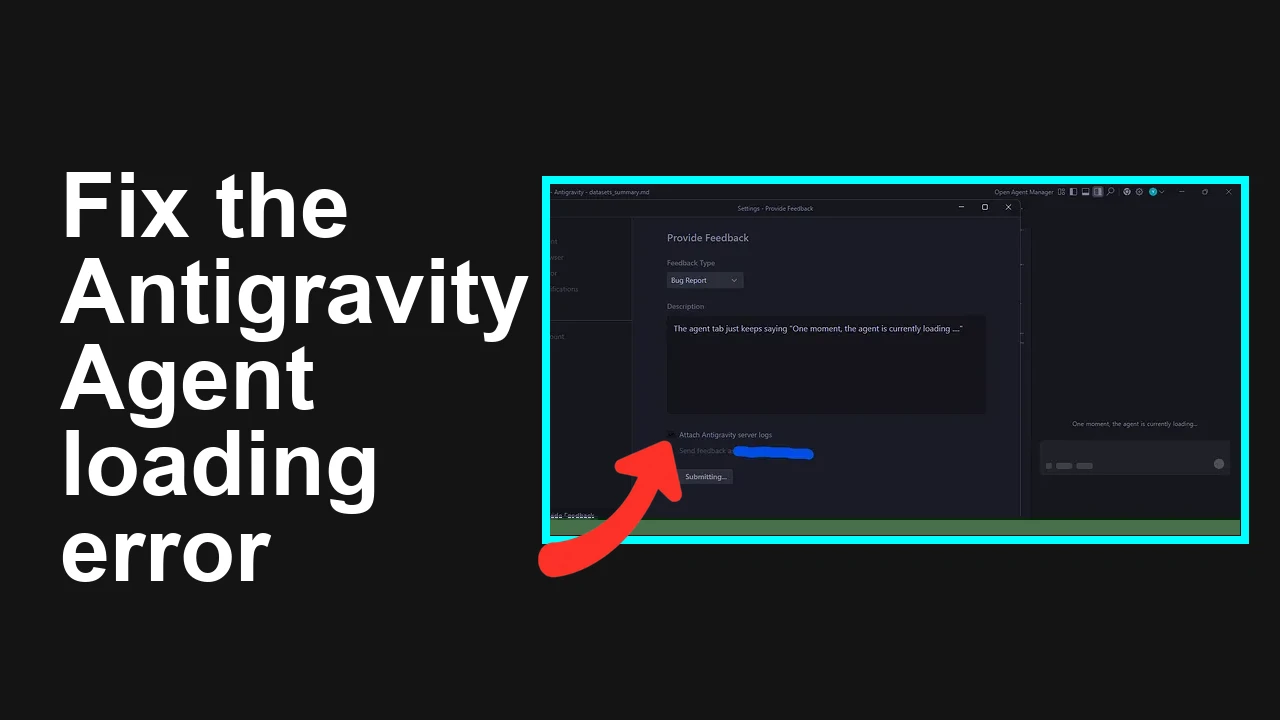
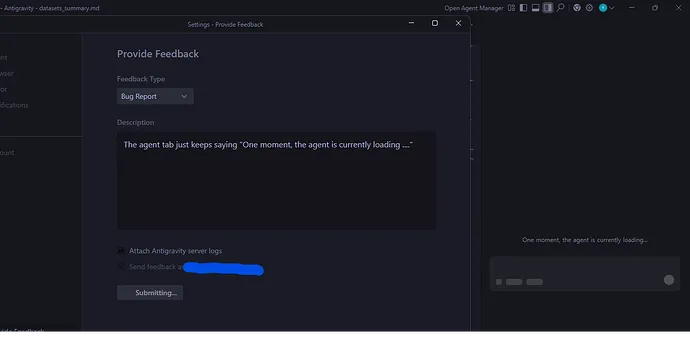
Users report Antigravity gets stuck on the message One moment, the agent is currently loading, and even the in app feedback spinner never finishes. This guide gives the fastest fixes to get your agent loading again.
Antigravity stuck on “One moment, the agent is currently loading”
Antigravity opens but never progresses past the loading banner. Feedback submission is also frozen on submitting, suggesting a stuck session, cached state, or a background service that did not initialize.
For a quick checklist and common causes, see our detailed tips here: troubleshooting steps for a stuck agent.
Solution Overview
Aspect
Detail
Root Cause
Stale session or cache, blocked websocket, or a stalled Agent Manager process
Primary Fix
Refresh authentication and clear site or app cache, then restart the background agent process
Complexity
Easy
Estimated Time
5 to 15 minutes
Fix the Antigravity loading loop now
Step by Step Solution
1. Hard refresh and re authenticate
Reload the page bypassing cache.
– Windows or Linux: Ctrl F5 or Ctrl Shift R
– macOS: Shift Command R
Sign out of Antigravity, fully close the tab or app, then sign back in.
This resets a stuck session token that often causes the loading banner.
2. Clear Antigravity site data in the browser
In Chrome or Edge: open Settings, Privacy and security, Site settings, View permissions and data stored across sites, search for antigravity, remove site data and permissions.
Or open DevTools, Application tab, Storage, clear Local Storage, Session Storage, and IndexedDB for the Antigravity origin.
Reopen Antigravity and sign in again.
3. Restart the background Agent Manager
A stalled local helper can freeze the frontend. Restart it after closing Antigravity.
Close Antigravity completely.
If you have a system tray icon for an agent helper, exit it.
Reopen Antigravity.
Need more background on this component and how it should behave
See Agent Manager behavior and recovery.
4. Disable extensions and content blockers temporarily
Open a private window and sign in to Antigravity.
If it loads, disable extensions one by one to find the blocker, especially privacy filters that can break websockets.
5. Check network, VPN, and firewall
Turn off VPN and custom DNS briefly.
Try a different network such as a mobile hotspot.
Corporate firewalls that intercept TLS can block the websocket handshake used by the agent loader.
In DevTools, Network tab, filter for ws and confirm a 101 Switching Protocols response. If it fails, inspect any proxy or content filter in use.
Look for console errors
Open DevTools, Console tab, and note any errors related to authentication, CORS, or blocked resources. These often point to an extension or firewall.
Try a clean device
Testing Antigravity from another machine helps isolate device specific corruption.
If feedback is stuck
Since in app feedback is also spinning, use an alternate path such as a support email or ticketing portal so the issue is logged while you apply the fixes above.
Best Practices
Keep one active session per account
Multiple concurrent sessions can cause token confusion. Sign out on unused devices.
Clear site data after major updates
After app updates, a quick site data reset prevents schema mismatches.
Allow websockets in your network stack
Add exceptions in proxies and filters for wss traffic on port 443 to the Antigravity domain.
Maintain an extensions allowlist
Privacy tools are helpful, but add Antigravity to the allowlist to avoid blocked requests.
If you want a compact checklist with the exact order to try fixes, bookmark this reference: quick Antigravity loading checklist.
Final Thought
Most cases of One moment, the agent is currently loading are fixed by clearing site data, restarting the Agent Manager, and signing in again. Follow the steps above in order and you should be back to a working agent in minutes.
We use cookies to ensure that we give you the best experience on our website. If you continue to use this site we will assume that you are happy with it.