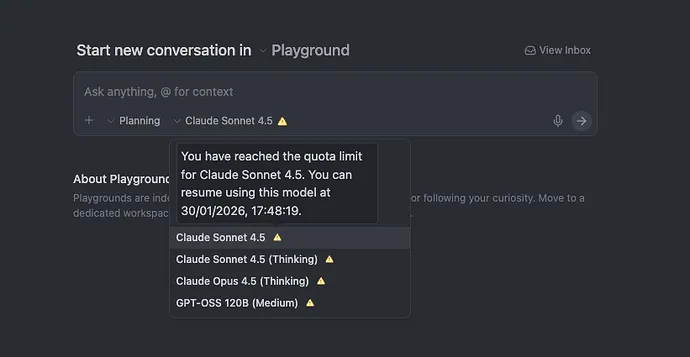
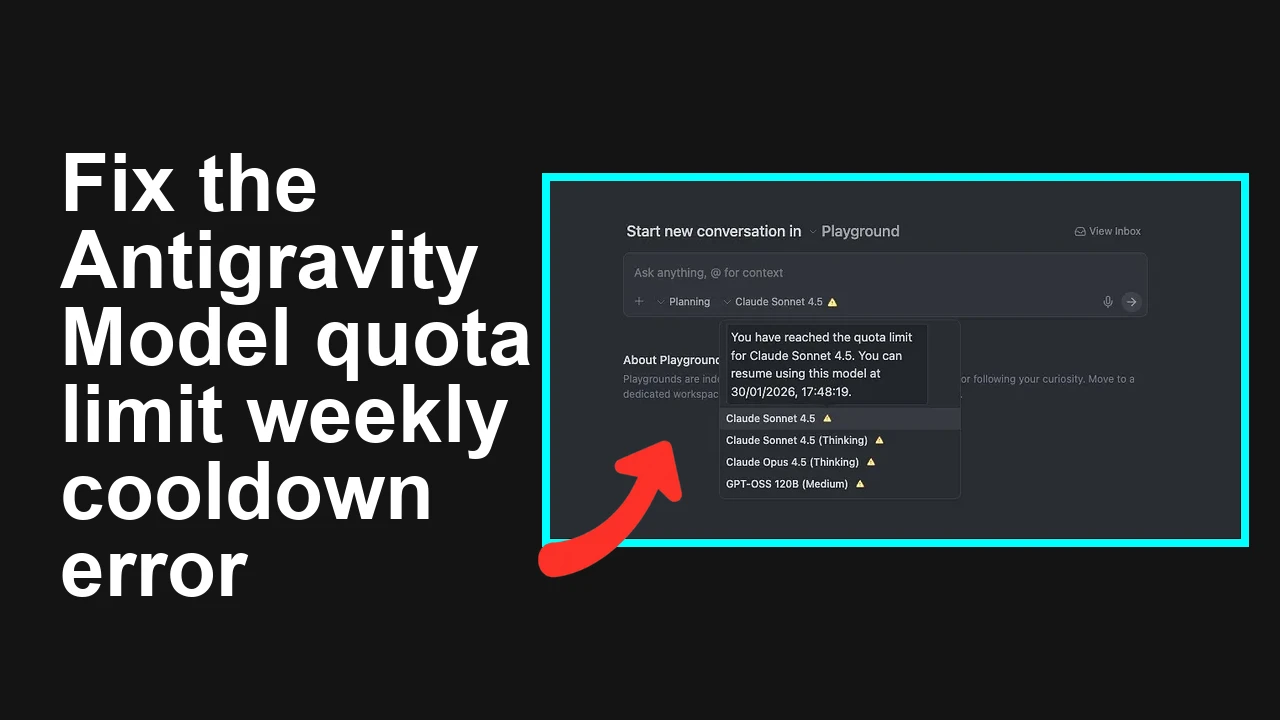
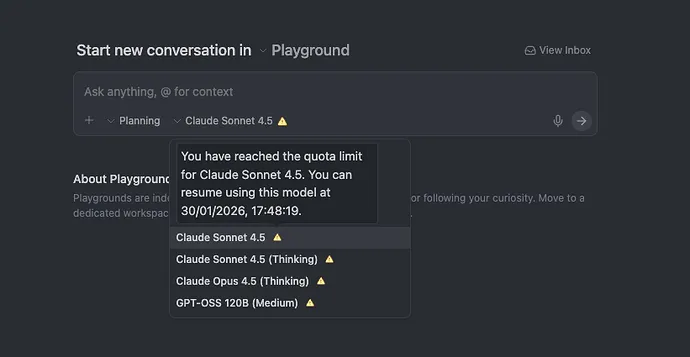
You updated Antigravity to 1.15.6 and immediately started seeing Model quota limit exceeded for every non Google model, even though the weekly quota had just reset. You already tried sign out, reinstall, downgrade, and a full local wipe, but the lock persists with a future resume timestamp.
Antigravity shows model quota limit exceeded after an update
This issue shows up right after upgrading to Antigravity 1.15.6 on macOS. The app reports Model quota limit exceeded for all non Google models with a resume date a full week ahead, even though the in app indicator showed a reset earlier that day.
In short, this presents like a server side quota window recalculation after the update. For a quick explainer on why quotas trip the way they do, see why Antigravity sometimes triggers a quota limit.
Solution Overview
Aspect
Detail
Root Cause
A server enforced seven day rolling window for non Google model usage was recalculated after updating to 1.15.6, causing an immediate re lock tied to your last heavy usage time. Local cache resets do not help because enforcement is on the server.
Primary Fix
Perform a true account level token revoke, then a clean local state purge and fresh sign in to force a correct server sync. If the same future resume timestamp returns, request a quota reset from support or wait until that timestamp passes.
Complexity
Medium
Estimated Time
15 to 30 minutes for the reset, longer if waiting on support
If you are on the Google AI Pro plan, the non Google model allowance has separate weekly limits. For reference, review Google AI Pro quotas for Antigravity.
Fix Antigravity 1.15.6 model quota limit exceeded after reset
Step-by-Step Solution
Step 1. Confirm the server resume timestamp
Open Antigravity and note the exact resume date shown in the banner for non Google models.
If the date is roughly seven days from your last heavy usage, this points to a server window, not a local cache issue.
Step 2. Sign out of Antigravity
In Antigravity, sign out from your account.
Fully quit the app.
Step 3. Revoke Antigravity access from your Google account
First run a prompt with a Google model to confirm the account is healthy, then test a non Google model.
Step 6. If the same resume date appears, escalate
If the identical future resume time still shows, the lock is server enforced.
Contact Google Support and ask for a non Google model quota reset on your subscription. Provide your plan, timezone, app version, and the observed resume timestamp. Attach a new screenshot of the banner.
Until support resets the window or the timestamp passes, you can continue using Google models within their limits.
Alternative Fixes & Workarounds
Use only Google models until the resume timestamp
Immediate and reliable since Google model usage is governed by different limits on your plan.
Wait out the seven day window
If you can tolerate the delay, the lock will clear automatically at the displayed resume time.
Switch to a different Google account or project
If policy allows, signing in with a different subscription or project that has headroom for non Google models avoids the current window.
File a support ticket requesting a manual quota reset
Fastest path if you need non Google models immediately and can reach support quickly. Provide the resume timestamp and app version.
Ensure macOS date and time are set automatically, with the correct timezone for your region. See Apple’s guide: Set the date and time on Mac.
Verify your Antigravity version is 1.15.6 and note the exact time you updated.
Test a Google model to confirm that only non Google models are blocked.
Do not keep reinstalling without revoking account permissions. A reinstall alone will not change a server lock.
If you contact support, include plan, OS, region, app version, resume timestamp, and a screenshot of the banner.
Best Practices
Track weekly usage for non Google models and avoid exhausting the allowance late in the week to prevent a late re lock after an update.
When updating Antigravity, finish your non Google usage beforehand, then update during a quiet period.
Keep a fallback path ready, such as Google models or a second project with separate quotas.
Use one clean sign out and token revoke when troubleshooting auth or quota issues. Multiple repeated reinstalls without a revoke can waste time.
Final Thought
The message is almost always a server enforced window, not a corrupt cache. A clean token revoke and local reset forces a true sync, and if the same resume date returns, you can either ask support for a reset or use Google models until the window clears.
We use cookies to ensure that we give you the best experience on our website. If you continue to use this site we will assume that you are happy with it.