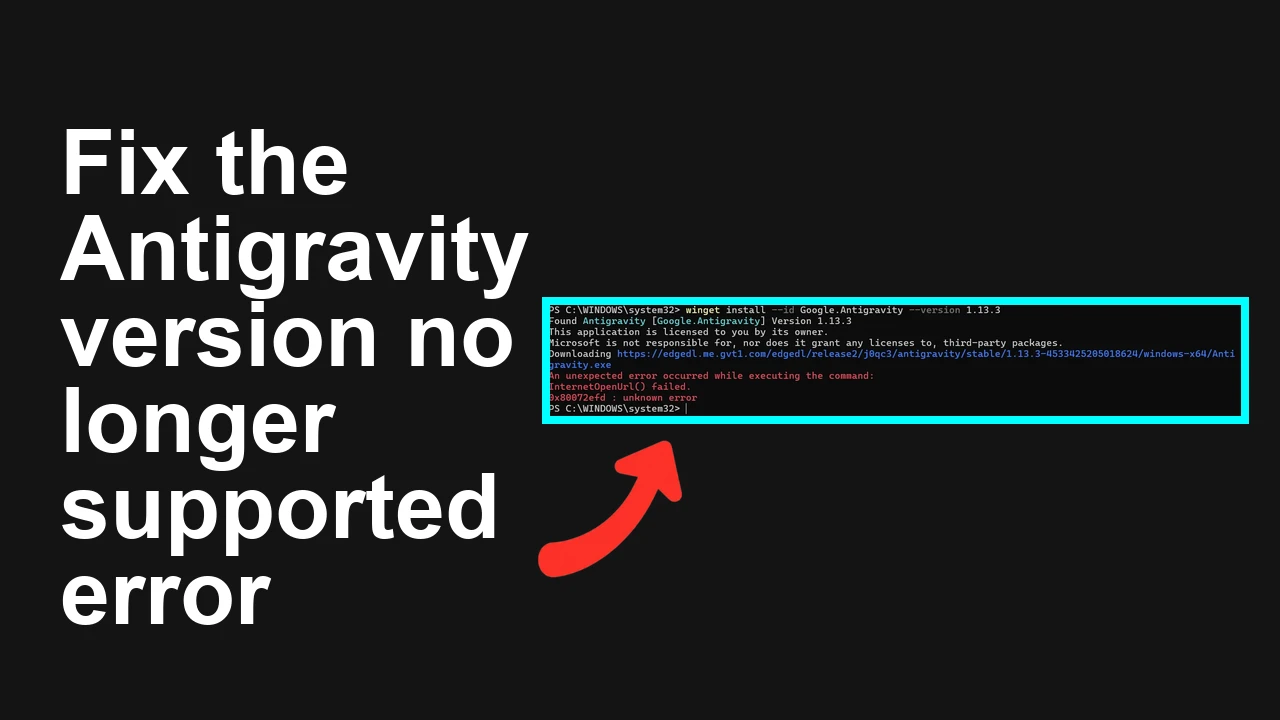
You are seeing the Antigravity app refuse to run with the message This version of Antigravity is no longer supported. Please update to receive the latest features! even after reinstalling version 1.13.3. The update you installed is still below the server required minimum, so the service blocks that client.
Antigravity shows This version is no longer supported on Android 1.13.3
The app throws the banner This version of Antigravity is no longer supported. Please update to receive the latest features! right after launch. Some users tried removing and reinstalling the APK, but the same prompt returns because the reinstall fetched the same outdated build.
Read More:Gemini 3 1 Pro Error Antigravity
Solution Overview
Aspect
Detail
Root Cause
Server side minimum version bump makes 1.13.3 and older clients unsupported
Primary Fix
Install the latest stable Antigravity build from the official source, then clear cached tokens
Complexity
Easy
Estimated Time
10 to 15 minutes
Fix Antigravity by updating beyond 1.13.3 and clearing stale data
Step-by-Step Solution
1. Check the installed package and version
Open Android Settings then Apps then Antigravity then App details. Confirm it shows 1.13.3 or another old build.
If using ADB, list the package and version:
adb shell pm list packages | grep -i antigravity
adb shell dumpsys package com.antigravity | grep -i version
Replace com.antigravity with the actual package name shown from the first command.
2. Back up your content folder if you keep data outside the app sandbox
Some builds write exports to shared storage. Copy any local exports before uninstalling.
3. Fully remove the deprecated client
If Play Store shows only the old variant in your region, a simple reinstall can bring back the same build. Remove it completely.
The unsupported message should be gone. Confirm the About screen shows the new version.
Ranking by effectiveness
1. Update to the latest official stable build then clear caches best success rate.
2. Join beta channel to receive a higher version if stable is not yet published to your region.
3. Sideload the universal APK or all splits if store delivery is pinned to an older variant.
Related readingtroubleshooting a stuck loading agent can help if the app hangs on the splash screen after the upgrade.
Alternative Fixes & Workarounds
Join the beta channel to jump past the minimum version
In the Play Store app open Antigravity then scroll to Join the beta then Join.
Wait a few minutes then check for Update.
Fix store pinning that keeps serving 1.13.3
Clear Play Store cache and storage then reopen the store.
Switch network from Wi Fi to mobile data.
Set time to Automatic date and time then reboot. Expired cert chains can cause stale responses.
Install with a split installer when only bundles are offered
If the download provides multiple APK splits, use a split installer app or ADB install-multiple as shown above.
Work profile or MDM pinned to old version
If your device is managed, your admin might have pinned 1.13.3. Ask them to approve the new build or raise the minimum version in the management console.
For INSTALL_FAILED_MISSING_SPLIT, install all split APKs with install-multiple as shown above.
If the banner still appears after update, clear the app data then sign in again:
adb shell pm clear <package-name>
Note that clearing app data removes local app database. Restore any exported backups you made from shared storage.
Network middleboxes and DNS caches can hold stale update metadata. Switch to a known DNS then retry:
Settings then Network and Internet then Private DNS then Off, or choose dns.google
Best Practices
Enable auto updates in the Play Store so you always meet the minimum supported version.
Keep a periodic export of chats or settings to shared storage so you can safely reinstall.
Install from official sources only to avoid outdated or mismatched builds.
Avoid freezing or disabling Play Store and Play Services since that can block updates.
Check release notes before installing from a different channel stable or beta to ensure compatibility with your device.
Final Thought
The error is enforced server side once a minimum client version changes. Updating beyond 1.13.3 from an official source and clearing cached data resolves it in minutes, and the app should work normally again.
Read More:Gemini 3 1 Pro Error Antigravity
We use cookies to ensure that we give you the best experience on our website. If you continue to use this site we will assume that you are happy with it.