
Users report that Stitch’s Copy to Figma button does nothing and code export shows Coming soon. Some tried both Figma web and desktop on macOS and Chrome, often with a VPN, and still cannot paste into Figma.
Stitch Copy to Figma not working and code export shows Coming soon
You click Copy to Figma in Stitch, then press Command V in Figma Web or the Figma desktop app, but nothing appears on the canvas.
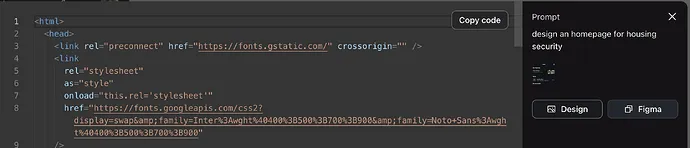
Others see Coming soon in the code panel and cannot copy any generated code.
Solution Overview
| Aspect | Detail |
|---|---|
| Root Cause | Feature gating and clipboard permission issues in the browser or app. VPN and outdated Figma builds can also block rich clipboard data. |
| Primary Fix | Use the Figma desktop app, allow clipboard permissions for Stitch, disable VPN temporarily, then copy again and paste on an active Figma canvas. |
| Complexity | Easy |
| Estimated Time | 10 to 20 minutes |
Read More: Fix Stitch Mcp Api Key Antigravity
Confirm the issue is fixed and enable clipboard access
The Stitch team indicated the issue was fixed. If you still see no action from Copy to Figma or the code tab shows Coming soon, the steps below will get you unblocked fast.
Step by Step Solution
1. Use the Figma desktop app and update it
- Download or update from the official page: Figma downloads.
- Open an existing file or create a new design file. Click on the empty canvas once to ensure the paste target is focused.
- Pasting works most reliably in the desktop app. The browser version can block rich clipboard formats.
2. Disable VPN and refresh Stitch
- Temporarily turn off your VPN or select a region where Stitch is available. Regional gating can block features and clipboard payloads.
- Reload Stitch and sign in again.
3. Allow clipboard permissions for Stitch in Chrome
– In Chrome, open the Stitch tab. Select the site information icon in the address bar, open Permissions, set Clipboard to Allow, then refresh.
– You can also open the permissions page directly:
“`
open -a “Google Chrome” “chrome://settings/content/clipboard”
“`
Add your Stitch site and set it to Allow.
4. Copy from Stitch and paste in Figma desktop
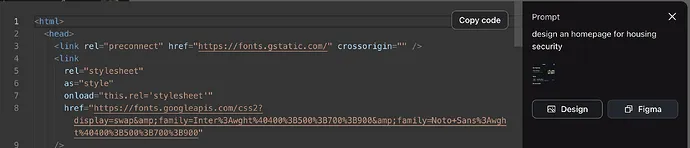
– In Stitch, click Copy to Figma.
– Switch to the Figma desktop app, click the canvas, then press:
– macOS: Command V
– Windows or Linux: Ctrl V
– If a layer appears off canvas, press 1 to fit the view or use Shift 2 to zoom to selection.
5. Verify the clipboard actually has data
– macOS:
“`
pbpaste | head -n 40
“`
– Windows PowerShell:
“`
powershell -command “Get-Clipboard | Select-Object -First 40”
“`
– Linux:
“`
xclip -selection clipboard -o | head -n 40
“`
– You should see non empty content. If it is empty, the copy action failed or the browser blocked it.
6. If code export still says Coming soon
- Refresh Stitch and sign out then sign in.
- Create a new file in Stitch and test again. Some older sessions were created before the feature flag flipped.
- If it persists, your account may not have the flag yet. Continue with the alternatives below or contact support.
Read More: quota related issues with Google services
Alternative Fixes and Workarounds
1. Use Figma web with explicit clipboard permission
– Open Figma in Chrome
– Ensure the Figma tab is focused and paste again. Some users reported success after enabling Clipboard in both Stitch and Figma site permissions.
2. Clear Figma cache and relaunch
– Quit Figma fully.
– macOS:
“`
rm -rf “$HOME/Library/Application Support/Figma”
“`
– Windows:
“`
rmdir /s /q “%AppData%\Figma”
“`
– Linux:
“`
rm -rf “$HOME/.config/Figma”
“`
– Reopen Figma, then try the paste again.
3. Clear Chrome site data for Stitch and retry
In Chrome, open:
“`
open -a “Google Chrome” “chrome://settings/siteData”
“`
Search for the Stitch site, clear data, sign in again, copy, then paste in Figma desktop.
4. Import assets instead of pasting
If Stitch allows exporting SVG or PNG, download assets and use File then Place image in Figma to bring them into your canvas.
5. Use a Figma plugin that accepts structured paste
If the clipboard from Stitch contains JSON, try a compatible plugin to interpret that data, for example search the Figma Community for paste JSON plugins.
See Figma’s help on copy and paste: Copy and paste in Figma.
Troubleshooting Tips
- Test in an Incognito window with no extensions. Extensions can block clipboard access.
- Check the browser console for errors that mention Clipboard or Permissions.
- Ensure you clicked the canvas before pasting. Pasting into a selected text layer can silently fail.
- Try another supported browser for Stitch and Figma.
- Confirm your account has the feature by trying with a new Stitch file.
- If you are in a restricted region, keep the VPN off only during the copy action to avoid feature gating.
Read More: Fix 1024 Tokens Not Thinking Error Antigravity
Best Practices
- Prefer the Figma desktop app for rich clipboard pastes.
- Keep Chrome and Figma updated to the latest versions to avoid API permission gaps.
- Review site permissions after browser or OS updates since clipboard access can reset.
- Avoid long running Stitch sessions. Refresh the page before copying to ensure your session uses the latest feature flag.
- Limit browser extensions that intercept the clipboard.
Final Thought
The fastest path is to use the Figma desktop app, allow clipboard for Stitch, and disable the VPN while copying. If code export still shows Coming soon, refresh your session or use the workarounds above until the feature flag reaches your account.
For reference on web clipboard behavior: Async Clipboard API.