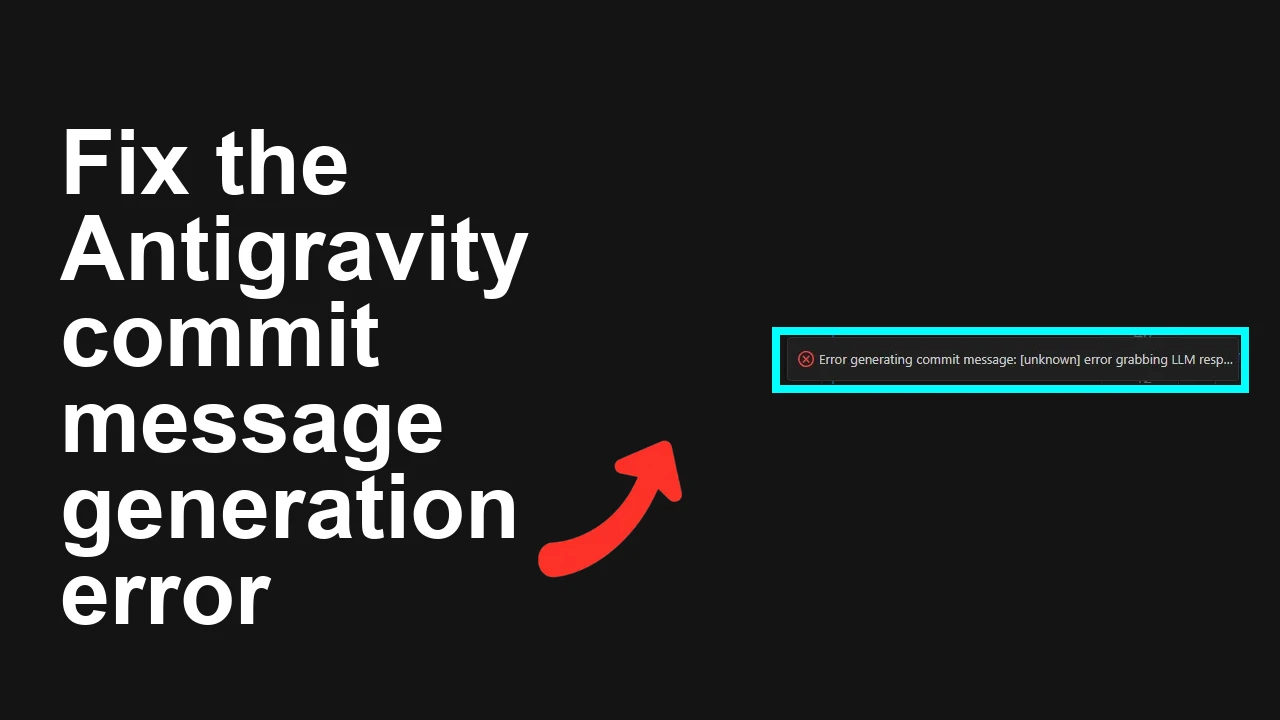
Your commit assistant in Antigravity is not generating a message or returns an empty or failed suggestion when you try to commit. This often happens right after staging changes or clicking the AI commit action in your editor.
Antigravity commit message not generated or empty
Developers report Antigravity showing no output or a brief error such as Error generating commit message with no details. Typical symptoms are a spinner that stops without text, an empty suggestion box, or a generic failure when the feature is invoked from the editor.
If you want a deeper breakdown of this specific Antigravity behavior, see our focused notes in this commit message issue fix.
Solution Overview
Aspect
Detail
Root Cause
Staged diff unavailable or too large, temporary service outage or quota, stale extension session, or local hooks blocking commit flows
Primary Fix
Ensure a small staged diff exists, update and restart the Antigravity extension, reauthenticate, and retry
Complexity
Easy
Estimated Time
10 to 20 minutes
Fix commit message generation in Antigravity
Step by Step Solution
1. Confirm you have a staged diff and keep it focused
Antigravity usually needs staged changes. If nothing is staged or the diff is huge or binary heavy, message generation can fail.
Run these commands in your repo root:
git status
git diff --staged
If nothing is staged, stage a minimal set of files and retry:
If the diff is enormous or includes large generated artifacts, commit in smaller chunks first.
If you often meet a token bound issue during generation, review techniques to reduce context size in this token limit troubleshooting.
2. Update the Antigravity extension and reload your editor
A stale extension build or corrupted session is a common cause.
VS Code
– Open Extensions panel and update Antigravity if an update is available
– Run Command Palette then Developer Reload Window
JetBrains IDEs
– Open Plugins then update Antigravity and restart the IDE
After reload, try the commit message action again.
3. Reauthenticate and check network or quota
Sessions can expire or be blocked by network settings.
Sign out from the Antigravity extension panel then sign back in
Ensure your network allows outbound requests and that no corporate proxy is blocking requests
If you use a proxy, configure it in your system and editor settings, then retry
Confirm your AI quota and rate limits are healthy. See current guidance on limits in the Gemini docs: Rate limits
4. Clear extension cache and reinitialize
Clearing cached state resolves many silent failures.
VS Code cache locations
– Windows: %AppData%\Code\User\globalStorage
– macOS: ~/Library/Application Support/Code/User/globalStorage
– Linux: ~/.config/Code/User/globalStorage
Close the editor, back up the Antigravity extension folder inside globalStorage, remove it, then reopen the editor and sign in again.
You can also inspect logs via the editor
VS Code Command Palette then Developer Open Extension Logs to look for request errors
5. Rule out Git hooks or templates blocking the flow
Custom hooks can veto commit paths or interfere with message editing.
Check for hooks:
Invoke Antigravity on this reduced diff.
If you are working inside a Stitch based workspace and the project itself fails to initialize cleanly, that can block commit helpers. For that scenario, review this Stitch project loading guide and then retry the commit assistant.
Alternative Fixes and Workarounds
Use a local commit template when the service is flaky
Create a lightweight template to keep moving:
cat > ~/.gitmessage.txt << 'EOF'
type scope subject

body

footer
EOF

git config --global commit.template ~/.gitmessage.txt
Follow the Conventional Commits spec while the assistant is unavailable: Conventional Commits
Generate suggestions from only the last commit sized diff
Stage and commit with a temporary message, then immediately rewrite with a refined message once the assistant recovers:
git add -A
git commit -m "temp"
After the assistant works, run an amend
git commit --amend
Switch to a minimal test repo to isolate
Create a new repo with a tiny change to eliminate repo specific issues:
Keep diffs small and focused before asking for an AI message
Avoid committing large binary assets in the same change as code edits
Update the Antigravity extension regularly and restart your editor weekly
Keep a local Conventional Commit template as a fallback
Document any Git hooks your team uses and test the AI assistant with hooks disabled during setup
Final Thought
The fastest path is to stage a small diff, update and relaunch the extension, then reauth and retry. These steps resolve the majority of silent message failures and keep your commits consistent while you continue shipping.
We use cookies to ensure that we give you the best experience on our website. If you continue to use this site we will assume that you are happy with it.