
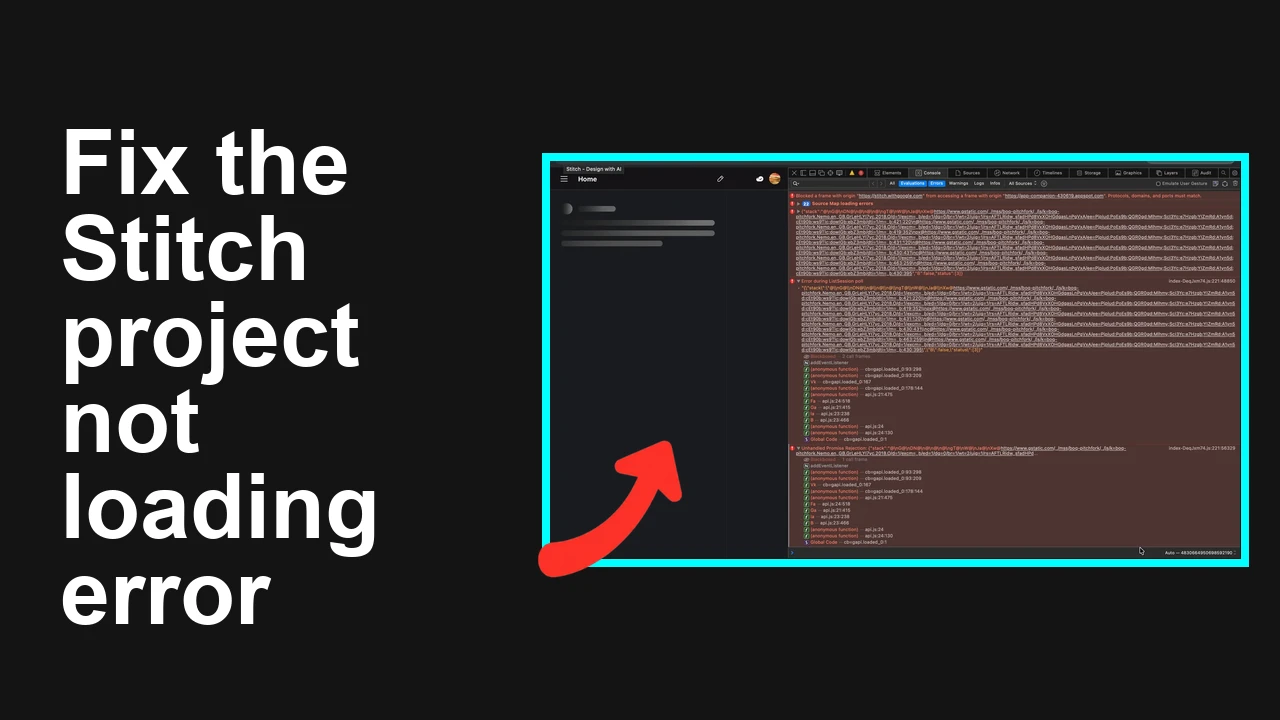
Your Stitch project opens to a black screen with an loading spinner, and attempts to Duplicate or Download return errors or a zero byte ZIP. This typically hits the largest multi page projects and blocks any export or recovery from the UI.
Stitch project not loading shows black screen
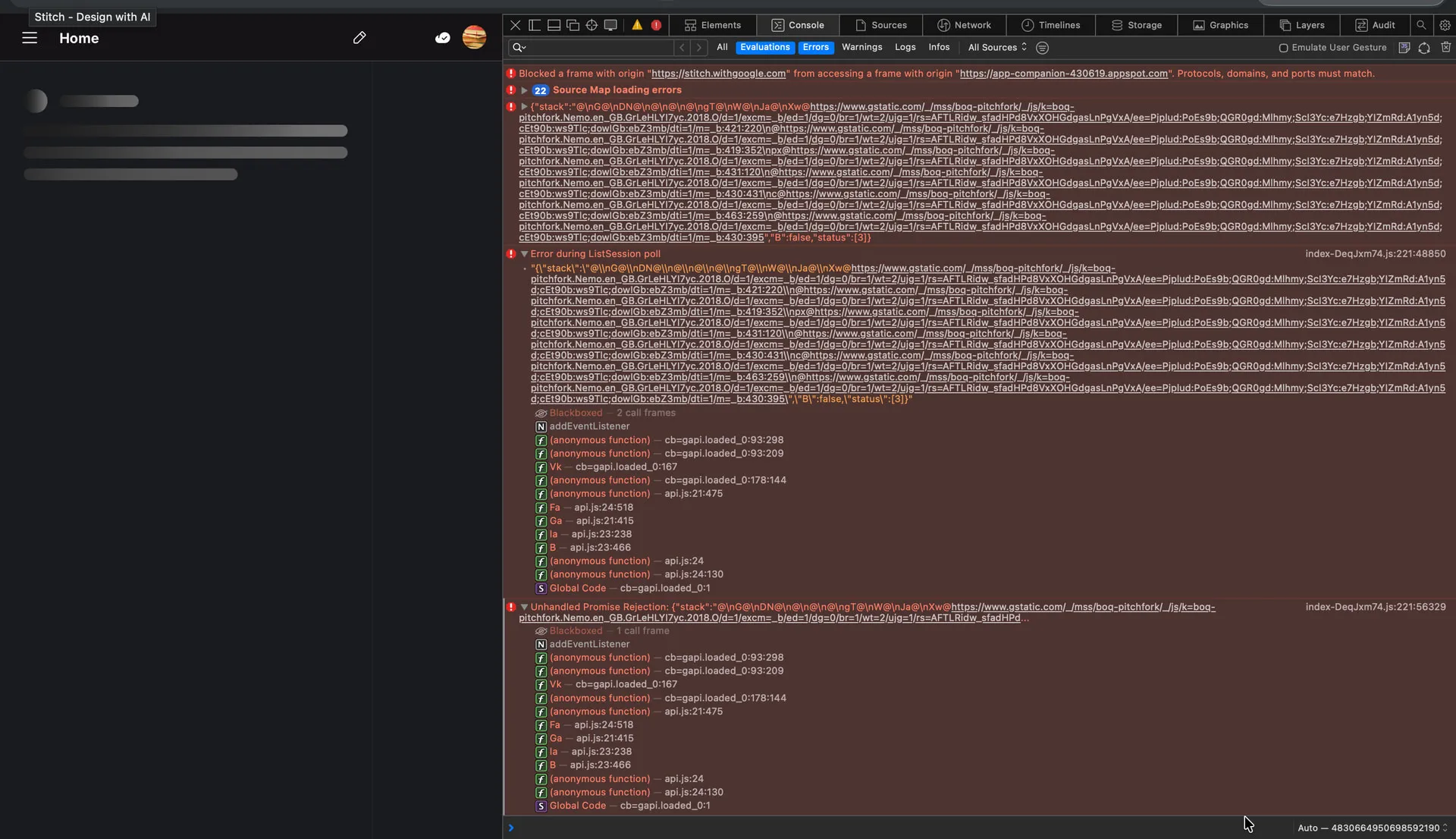
Users report one specific project will not open while others work fine. Symptoms include a persistent black canvas with a loading indicator, Duplicate throwing an error, and Download ZIP yielding an archive with zero files.
This often points to cached project metadata conflict or a backend job failure on large multi page files.
If this is a permissions or auth edge case, see our quick note on API key problems in Stitch.
Solution Overview
| Aspect | Detail |
|---|---|
| Root Cause | Corrupted local storage or service worker cache colliding with a large project load, or a transient backend export job failure |
| Primary Fix | Clear site data and service worker for the Stitch domain, then reopen in a clean browser profile and retry Duplicate or Download |
| Complexity | Medium |
| Estimated Time | 10 to 25 minutes |
Recover a stuck Stitch project that will not load
Step-by-Step Solution
Step 1. Check for an active outage
- Visit the Google Cloud Status Dashboard to rule out a regional incident: Google Cloud Status
- If there is an outage, wait and retry later. If not, proceed.
Step 2. Hard refresh and clear site data using DevTools
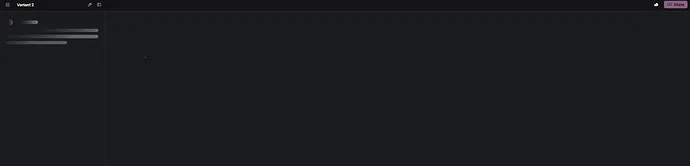
- Open the broken project page.
- Open Chrome DevTools with F12 or Cmd Option I on macOS or Ctrl Shift I on Windows.
- Application tab Clear Storage Clear site data. Select all storage types including Cache Storage, IndexedDB, Local Storage, and Service Workers, then Clear site data.
- In the same Application tab Service Workers Unregister any service workers for the Stitch domain.
- Do a hard reload with Cmd Shift R on macOS or Ctrl Shift R on Windows.
- Try opening the project again and then test Duplicate and Download.
For reference on the DevTools workflow see Chrome Clear storage and Service Workers overview.
Step 3. Try a clean browser context
- Open an Incognito or Private window and sign in fresh.
- Disable all extensions in chrome extensions then retry in a normal window.
- If still stuck, try Firefox or Edge to isolate extension or cache interference.
If your canvas still shows a spinner, some teams have reported model bootstrap stalls that look identical to asset stalls. When model assets refuse to initialize, the same blank screen can occur. See our quick guide on handling models not loading for checks that overlap with this symptom.
Step 4. Reset local databases for just this origin
Warning This resets locally cached drafts for the Stitch site only.
- Open DevTools Application IndexedDB. Expand databases for the Stitch origin.
- Right click each project or session object store. If an Export option is available, export JSON first to keep a backup.
- After exporting, delete the object stores or clear them.
- Also clear Local Storage and Session Storage for the origin.
- Reload the project.
If you rely on token limited in browser inference during load you can run into silent stalls. If you hit token ceilings during initialization, see this focused checklist on token limits causing stalled thinking.
Step 5. Re export from a new browser profile
If Duplicate and Download inside the stuck profile keep failing, create a fresh Chrome user profile and try again.
- Chrome Settings Manage other people Add.
- Sign in and open the Stitch app then open the project.
- Try File Download ZIP and File Duplicate again.
Step 6. Last resort clear service worker caches from disk
Only do this when the above steps fail and you are comfortable with local file operations.
macOS
1. Quit Chrome completely
2. In Terminal remove only this origin cache directories
rm -rf "$HOME/Library/Application Support/Google/Chrome/Default/Service Worker/CacheStorage"
rm -rf "$HOME/Library/Application Support/Google/Chrome/Default/Code Cache/js"
rm -rf "$HOME/Library/Application Support/Google/Chrome/Default/IndexedDB"
3. Reopen Chrome and sign in then retry Stitch
Windows
1. Close Chrome
2. Open Command Prompt as Administrator
rmdir /s /q "%LOCALAPPDATA%\Google\Chrome\User Data\Default\Service Worker\CacheStorage"
rmdir /s /q "%LOCALAPPDATA%\Google\Chrome\User Data\Default\Code Cache\js"
rmdir /s /q "%LOCALAPPDATA%\Google\Chrome\User Data\Default\IndexedDB"
3. Reopen Chrome and test the project
After recovery consider reviewing any workspace keys or connectors if the project depends on MCP like sources or tools. If authentication silently expired you may see similar symptoms. For a quick reset flow see how to fix common Stitch MCP key issues.
Alternative Fixes & Workarounds
Open a smaller page or strip heavy assets
- If the project has multiple pages, try opening a lighter page first then navigate to the heavy page after the editor loads.
- Remove or relink very large media assets once you gain access, then re add in smaller chunks.
Export from a recent autosave or history
- If your editor supports version history open Project History then restore a version that opens cleanly.
- Once open, split the project into smaller files.
Use a second account with shared access
- Share the project with a second account and try opening from there. Some profile level caches are user scoped.
Collect a HAR and console logs for support escalation
- Capture a HAR of the load attempt with Preserve log enabled. Steps here: Capture network logs
- Include failing request URLs status codes and any 5xx or CORS errors.
Troubleshooting Tips
- Confirm your network is not blocking long lived requests or WebSocket traffic. Corporate proxies can stall initialization.
- Watch the DevTools console for errors related to IndexedDB QuotaExceededError or Failed to fetch or 5xx from project endpoints.
- If Download ZIP returns zero bytes check the export request in Network. If it returns 204 or 500 retry after clearing caches or from a new profile.
- Memory starved systems can hang on very large projects. Close other tabs and applications then retry.
- If you see auth 401 or 403 sign out of all Google accounts in that browser then sign in only with the project owner account.
Best Practices
- Keep complex projects modular. Split into separate projects by feature or page so a single failure does not block all work.
- Export regular backups to external storage after major edits.
- Avoid embedding very large unoptimized media. Host heavy assets on a CDN and reference the smaller versions during editing.
- Limit extension count in your primary work browser and keep a clean profile reserved for production work.
- Document the exact steps that led to a stall and keep a reproducible checklist for your team.
Final Thought
Most black screen stalls come from a stubborn cache or a transient backend job failure. Clearing the site data and service worker then reopening in a clean profile resolves the majority of cases, and the alternatives above give you a path to recover work and reduce the chance of repeat incidents.