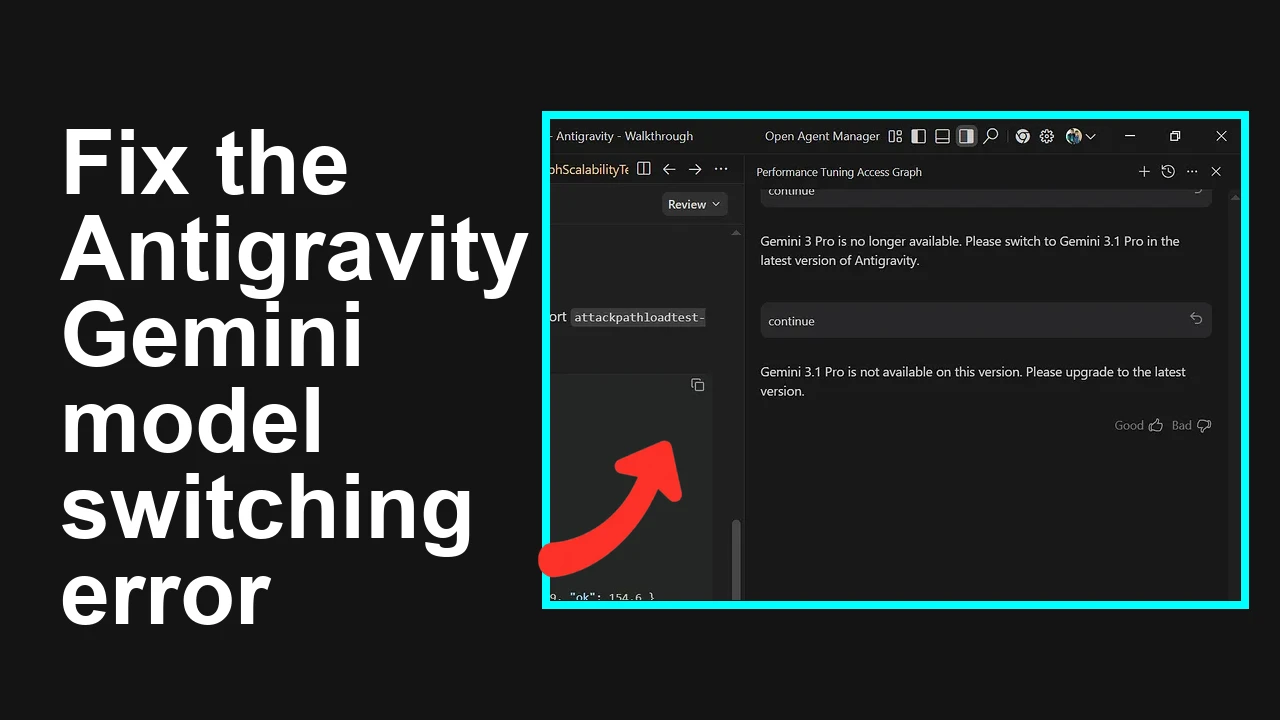
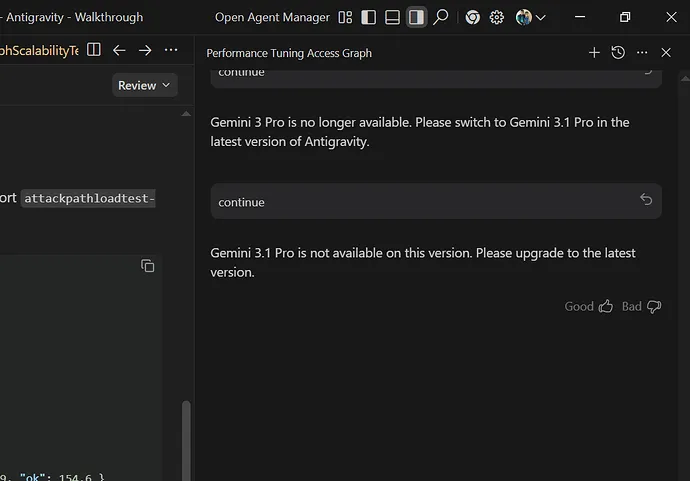
You are stuck in a loop in Antigravity where switching to Gemini 3.1 Pro shows a not available message and switching back to Gemini 3 Pro says it is no longer available. This usually means the app version and your account entitlements are out of sync.
Antigravity shows conflicting messages when switching between Gemini 3.1 Pro and Gemini 3 Pro
The app displays one of two alerts.
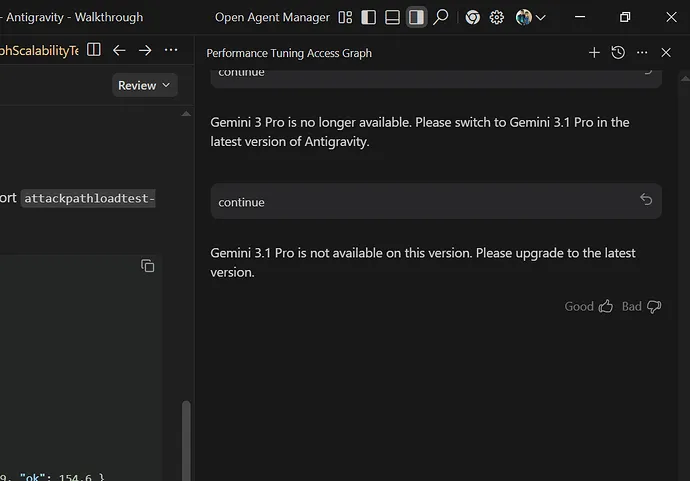
Gemini 3.1 Pro is not available on this version. Please upgrade to the latest version.
Gemini 3 Pro is no longer available. Please switch to Gemini 3.1 Pro in the latest version of Antigravity.
This combination indicates the model list in your client is outdated while your account now targets the newer model. You likely need the newest Antigravity build and a refresh of your sign in state and entitlements.
Solution Overview
Aspect
Detail
Root Cause
Outdated Antigravity build and stale entitlements conflicting with current model availability and plan
Primary Fix
Update Antigravity to the latest version then sign out and sign in to refresh model availability and select Gemini 3.1 Pro
Complexity
Easy
Estimated Time
10 to 15 minutes
If you are also running into strict daily limits during model selection or testing, see our quick explainer on Antigravity quotas here Read More:Antigravity quotas for Gemini 3.1 Pro.
Fix the Gemini 3.1 Pro not available and Gemini 3 Pro deprecated loop in Antigravity
Step-by-Step Solution
Step 1. Confirm and update Antigravity to the latest build
Open Antigravity then choose Help then About to note the current version.
Update using the in app updater from Settings then Updates or install the newest build from your original source.
After updating, fully quit Antigravity and reopen it.
Step 2. Refresh your account entitlements
In Antigravity open Profile or Account.
Choose Sign out.
Quit the app.
Reopen Antigravity and Sign in with the Google account that owns your Gemini subscription.
If Antigravity supports multiple workspaces or projects, select the one tied to your subscription.
Step 3. Reselect the correct model
Open the model selector in Antigravity.
Choose Gemini 3.1 Pro as shown in the app model list. Use the exact ID shown by Antigravity and avoid typing a guess.
If Gemini 3 Pro is still listed, do not select it since the message indicates it is retired in your current app stream.
Step 4. Clear cached model data if the message persists
If the app offers a Reset cache option under Settings then Advanced use it, then restart the app.
If you need to clear caches manually, close Antigravity first, then use these common locations. Only proceed if you are comfortable with file operations and back up first.
Windows
– Open File Explorer and paste this path in the address bar
%AppData%\Antigravity
– Delete the Cache folder then reopen Antigravity
macOS
– In Finder press Command Shift G and paste
~/Library/Application Support/Antigravity
– Delete the Cache folder then reopen Antigravity
Linux
– Remove cache under your config directory such as
~/.config/Antigravity
~/.cache/Antigravity
Step 5. Verify availability and quotas
Confirm that Gemini 3.1 Pro is available for your API surface and region in the official model availability list at Model availability.
Check quota status and rate limits at API quotas. Limits can block model switches or initial calls and make the app report availability errors.
Create a new project or workspace in Antigravity if available.
Select Gemini 3.1 Pro and run a short prompt to verify response.
Alternative Fixes and Workarounds
Switch account or project
If you have multiple Google accounts or projects, sign in with the account that actually owns the Gemini subscription. Entitlements are account and project scoped.
Reinstall Antigravity cleanly
Uninstall Antigravity.
Remove the app data folders listed above.
Install the newest build then sign in and select Gemini 3.1 Pro.
Use another supported API surface for a quick check
If the app still loops, validate your access by sending a quick request with the Gemini API using your key and the exact Gemini 3.1 Pro ID from the docs. If that works, the issue is limited to local app state and not your account.
Ensure system time and date are correct. Auth can fail with skewed clocks.
VPNs and corporate proxies can block model list refresh. Test without the proxy.
If your plan recently changed, it can take several minutes for entitlements to propagate. Sign out and in again after a short wait.
Check for mixed credentials. Remove any stale API keys or saved sessions and keep only the active account.
If the model list still shows both models with conflicting notices, contact Antigravity support with logs and your app version number.
Best Practices
Keep Antigravity updated so model catalogs match your subscription.
Use the exact model identifier provided by the app rather than typing custom names.
After plan changes or new entitlements, sign out and sign in to refresh access.
Avoid switching between deprecated and current models in the same workspace. Create a new workspace when moving to Gemini 3.1 Pro.
Monitor API quotas when testing new models to avoid false availability errors. If you need a refresher, here is a quota guide Read More:Quota limits explained for Antigravity.
Final Thought
The conflict comes from an outdated client and stale entitlements. Update Antigravity, refresh your sign in, and select the exact Gemini 3.1 Pro entry shown by the app to restore normal operation. If quotas or regional availability are the blocker, the linked checks will confirm it fast.
We use cookies to ensure that we give you the best experience on our website. If you continue to use this site we will assume that you are happy with it.