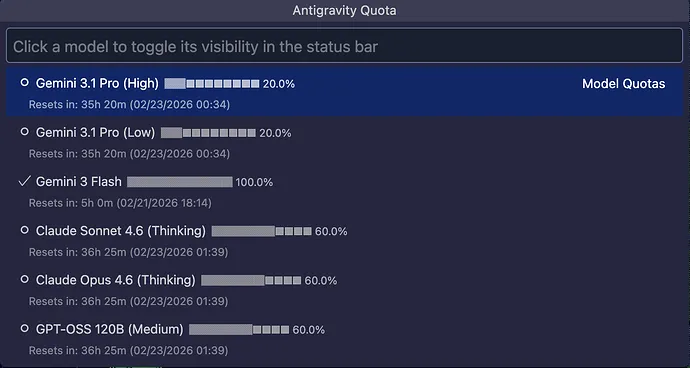
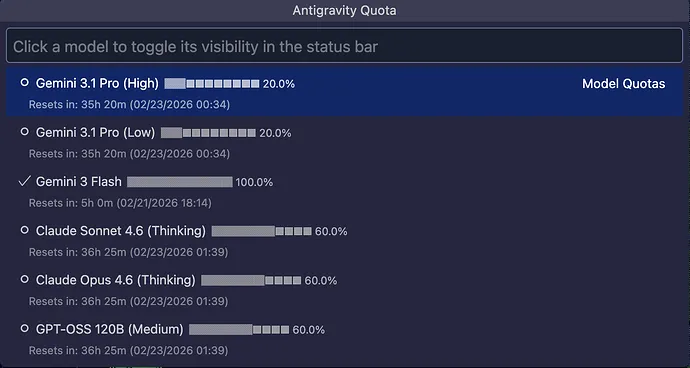
Your Gemini 3.1 Pro usage shows only 20 percent remaining with a 35 hour reset timer even after no recent activity. Here is the definitive fix to stop hidden drains and restore full access quickly.
Gemini 3.1 Pro quota stuck at 20 percent with a 35 hour reset in Antigravity
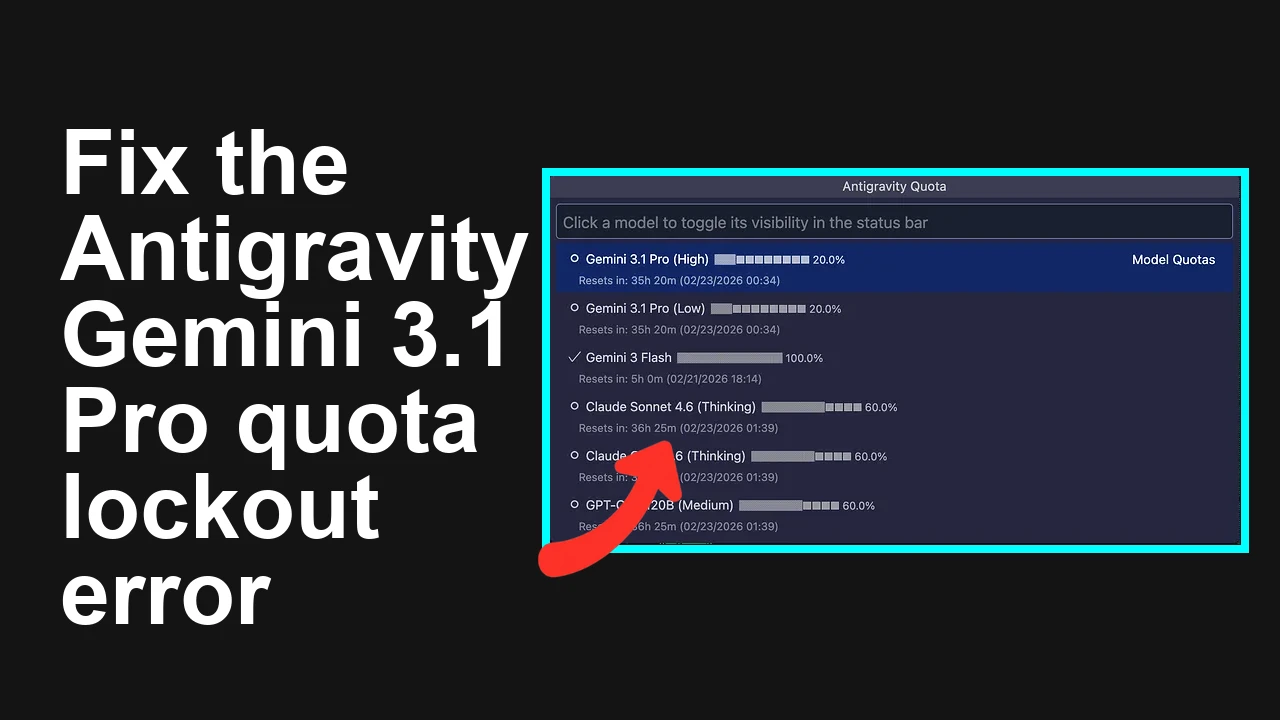
Developers report that the Antigravity dashboard shows Gemini 3.1 Pro High quota almost exhausted with a reset countdown of about 35 hours, even when the account appears idle. Symptoms include slow or blocked runs, High tier being locked, and other models showing higher availability in the same workspace.
Rolling usage window plus background or shared project activity are consuming tokens, often from unattended agents, scheduled workflows, or other API keys on the same quota. High tier capacity also enforces stricter gates.
Primary Fix
Audit all usage across the workspace and Google Cloud projects, pause background jobs, rotate or restrict API keys, switch to Standard or alternative models while High recovers, then request a quota adjustment if needed.
Complexity
Medium
Estimated Time
30 to 60 minutes
Stop the hidden drain and recover capacity
Step-by-Step Solution
1. Confirm where usage is being counted
1. In Antigravity, open Workspace or Project settings then Quotas and Usage and note which quota is redlined. Check if it specifically says Gemini 3.1 Pro High.
2. In Google AI Studio open the usage page to confirm token usage by model and key. If you use Vertex AI, open Cloud Console then Vertex AI then Quotas and Usage.
3. If you have multiple Google Cloud projects, verify the active project and region so you do not miss usage in another project or location.
If you frequently see inconsistent counters or error states around the same model, review common error patterns here: Gemini 3.1 Pro errors on Antigravity.
2. List and lock down every API key
1. List keys in your project.
“`
gcloud services api-keys list –project=YOUR_PROJECT_ID
“`
2. Restrict each key to the intended API and allowed origins. In Google Cloud Console open APIs and Services then Credentials then API keys then edit key restrictions. Apply:
– API restriction to Generative Language API or Vertex AI only
– Application restriction HTTP referrers for web or IP addresses for server
3. Rotate or delete any suspect or unused keys.
“`
gcloud services api-keys delete KEY_ID –project=YOUR_PROJECT_ID
gcloud services api-keys create –project=YOUR_PROJECT_ID –display-name=”server-prod-rotated”
“`
3. Pause background agents and schedulers
1. In Antigravity pause any automations that can call Gemini such as watchers, retrievers, monitors, or scheduled workflows.
2. Stop temporary preview environments and worker pods that may be retrying failed prompts.
3. If you bound Antigravity to CI or backend jobs, disable those pipelines until you reconcile usage.
4. Check for shared or team level drains
1. Confirm if your workspace quota is pooled across members. Ask collaborators if they ran evaluations, data indexing, or batch jobs.
2. Validate that other environments dev or staging are not sharing the same key.
3. Create a separate billing project to isolate heavy experiments so that production capacity is unaffected.
To understand how subscription tier and workspace pooling affect limits, see this quick explainer: how Google AI Pro subscription impacts Antigravity quotas.
5. Switch temporarily off High tier or to a lighter model
1. If the UI allows routing tier selection, change Gemini 3.1 Pro from High to Standard for the current workload.
2. Or switch models for bursty tasks. Example using the Generative Language API with curl:
“`
export API_KEY=”YOUR_API_KEY”
# Use a lighter model while High recovers
curl -s -X POST \
-H “Content-Type: application/json” \
-H “x-goog-api-key: ${API_KEY}” \
https://generativelanguage.googleapis.com/v1beta/models/gemini-1.5-flash:generateContent \
-d ‘{
“contents”: [{“parts”:[{“text”:”Quick health check prompt”}]}]
}’
“`
3. If you are on Vertex AI, pick an available Gemini release in your region with fewer constraints in Notebook or REST and continue development while High cools down.
6. Verify rolling window timing
1. Quotas commonly use a rolling window. The 35 hour reset indicates when all prior usage ages out.
2. After pausing background jobs, watch the countdown. It should shorten as no new tokens are consumed. If it does not change, something is still calling the API.
7. Add observability to catch silent usage
1. If you use Vertex AI, check recent logs.
“`
gcloud logging read \
‘resource.type=”aiplatform.googleapis.com/Endpoint” AND textPayload:”generate” ‘ \
–limit=100 –project=YOUR_PROJECT_ID –format=”value(timestamp,logName,textPayload)”
“`
2. For server calls through Generative Language API behind your app, check your reverse proxy or load balancer logs for repeated 429 or 5xx retries that trigger replays.
8. Request a quota review if the High tier is a bottleneck
1. In Cloud Console open Vertex AI then Quotas then Request increase for your region and model family.
2. In Antigravity support include exact timestamps, project id, and screenshots of the 35 hour timer and model tier so the team can inspect account level drains.
Alternative Fixes and Workarounds
Create a dedicated project per environment
Production, staging, and experimentation should have separate projects, keys, and quotas to prevent cross drain.
Use caching and prompt reuse
Cache deterministic responses keyed by prompt plus parameters to save tokens on repeated tasks.
Batch and chunk large jobs
Combine related prompts in a single call when appropriate and chunk long documents to control context costs.
Back off on errors rather than retrying immediately
Exponential backoff with jitter prevents retry storms that consume the rolling window without making progress.
Troubleshooting Tips
If your reset time never decreases, recheck keys and automations. Something is still active.
Confirm the region. Some quotas are region scoped and other regions may be available sooner.
Check time zone on dashboards to avoid misreading the countdown.
Inspect webhooks or app integrations that may call the model on message receipts or file uploads.
Verify no eval or indexing jobs are running in the background.
If you see persistent counter mismatches, gather request ids from response headers and open a support ticket for reconciliation.
Best Practices
Use least privilege and scope API keys per environment and per service.
Enforce API key restrictions to specific APIs and origins or IPs.
Rotate keys quarterly and immediately after any team changes.
Implement rate limiting and exponential backoff in clients.
Add usage monitoring and alerts tied to token spend and request rates.
Prefer lighter models or Standard routing for iterative dev loops and reserve High for latency critical paths.
Final Thought
The fastest path to resolution is to halt hidden usage, rotate or restrict keys, and switch off High tier while the rolling window clears. Once you verify the drain is stopped, request a right sized quota so your development does not stall again.
We use cookies to ensure that we give you the best experience on our website. If you continue to use this site we will assume that you are happy with it.