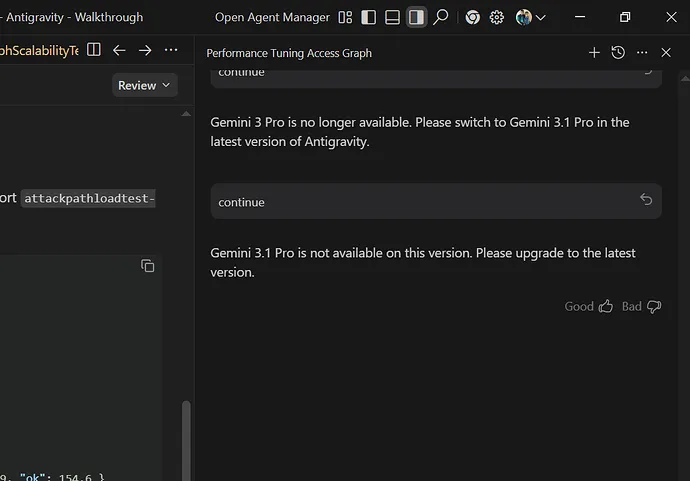
You are stuck in a loop in Antigravity where selecting Gemini 3.1 Pro says it is not available and selecting Gemini 3 Pro says it is no longer available. You have an active Gemini subscription but cannot pick a working model.
Antigravity shows Gemini 3.1 Pro not available and Gemini 3 Pro no longer available
Users see two conflicting prompts in Antigravity
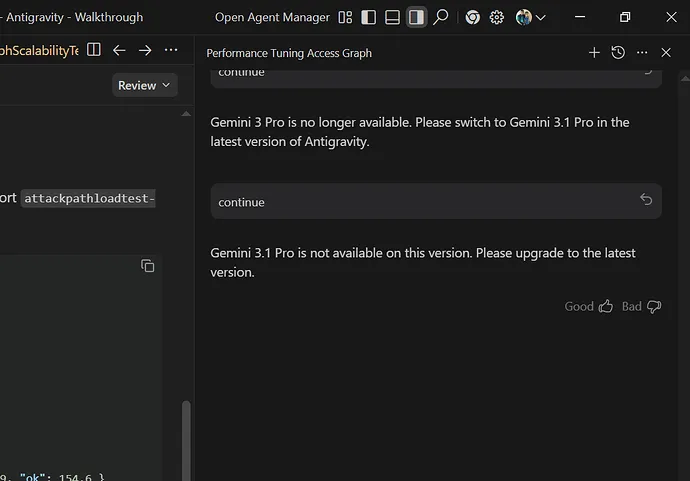
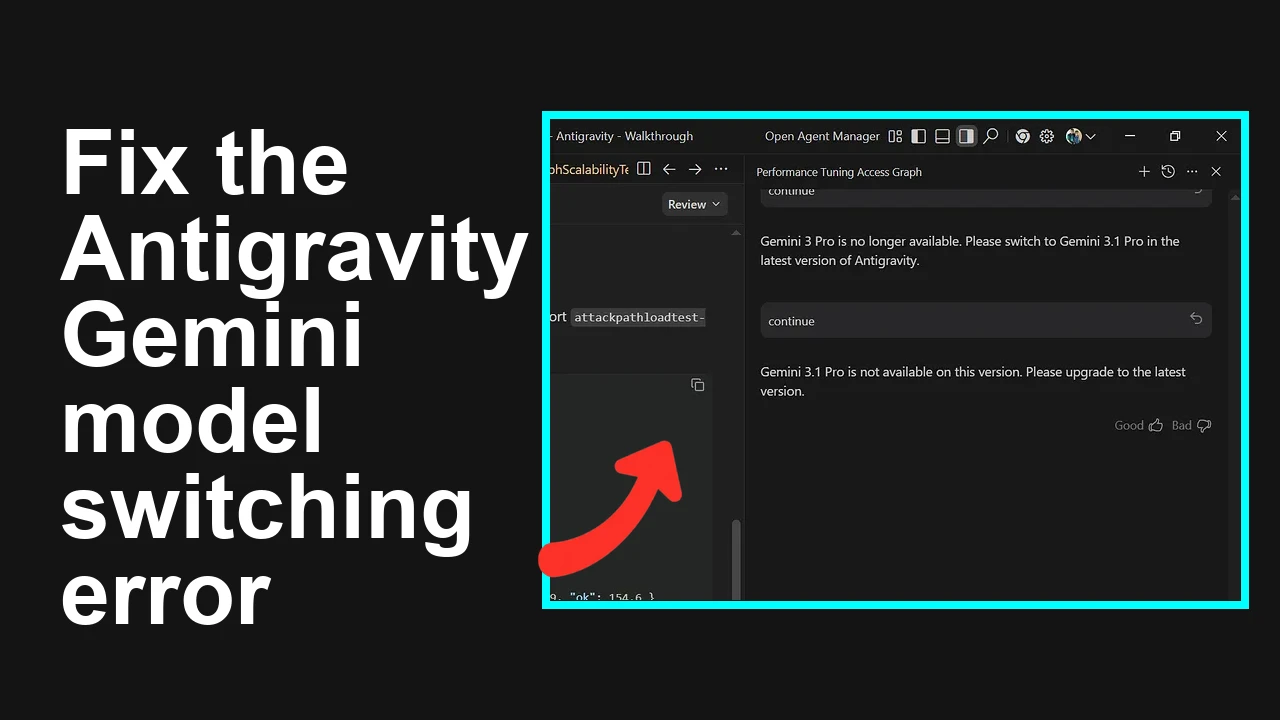
Gemini 3.1 Pro is not available on this version. Please upgrade to the latest version.
Gemini 3 Pro is no longer available. Please switch to Gemini 3.1 Pro in the latest version of Antigravity.
This usually happens right after a model deprecation and rollout of a replacement model, when the app version or cached configuration is out of sync with server side flags or regional availability.
Solution Overview
Aspect
Detail
Root Cause
App version and cached config are out of sync with backend model availability. Gemini 3 Pro is deprecated and Gemini 3.1 Pro requires the newest Antigravity build and supported region.
Primary Fix
Update Antigravity to the latest build that supports Gemini 3.1 Pro, then clear cache and data, sign in again, and select Gemini 3.1 Pro as default.
Fix the Gemini 3.1 Pro not available and Gemini 3 Pro no longer available loop
Step-by-Step Solution
Step 1. Confirm model availability for your region and account
1. Check supported regions and rollout notes for Gemini models in the Google docs
– Available regions
– Release notes
2. If you are on a work profile or managed device, confirm your admin allows Generative AI. Policies can block specific models.
Step 2. Update Antigravity to the latest version
1. Android
– Open Google Play and update Antigravity to the newest release.
– If you do not see an update, uninstall and then install again from Play.
2. iOS
– Open App Store and update Antigravity.
– If you are on TestFlight, install the latest build there.
3. Web
– Sign out then sign in again to refresh feature flags.
Step 3. Clear app cache and restart the app
1. Android manual steps
– Settings then Apps then Antigravity then Storage then Clear Cache then Clear Data
– Force Stop then relaunch the app
2. Android with adb
– Connect the device and run:
adb shell pm clear com.antigravity.app
adb shell am force-stop com.antigravity.app
– Launch Antigravity and sign in again
3. iOS
– Offload App in Settings then reinstall from App Store
– Or uninstall then reinstall if Offload is not available
Step 4. Sign out and sign in to refresh account entitlements
1. In Antigravity profile settings select Sign out
2. Quit the app then relaunch and sign in with the account that has the Gemini subscription
Step 5. Re select and set Gemini 3.1 Pro as default
1. Open Antigravity model picker
2. Select Gemini 3.1 Pro
3. Open Settings then Model then Set as Default
4. Remove any pin or quick action that still points at Gemini 3 Pro
Step 6. Retry and validate
1. Create a short test prompt and confirm responses are returned
2. If the picker still shows Gemini 3.1 Pro not available, pull to refresh the picker or restart the app once more
Step 7. Check subscription and quota status
1. Confirm your plan includes Gemini 3.1 Pro access and that you are not rate limited
2. For known quota edge cases and recent throttle patterns see
more quota notes for Gemini 3.1 Pro
Alternative Fixes and Workarounds
Join or leave beta channel
1. If Antigravity uses staged rollout, the stable build may lag feature flags
2. Opt in to the beta channel if offered. If you are already on beta and see errors, move back to stable and repeat the cache clear
Switch network or test another device
1. Try a different network like mobile data
2. Sign in on another phone or desktop to isolate device level cache or policy issues
Force refresh server flags
1. Toggle Airplane mode on then off
2. In Antigravity, sign out, kill the app, wait one minute, then sign in again
Clean reinstall
1. Uninstall Antigravity
2. Reboot the device
3. Reinstall and sign in
4. Set Gemini 3.1 Pro as default again
If you still see errors
1. Capture a short log right after reproducing the issue and share with support
This loop is a version and cache mismatch that surfaces during a model deprecation. Update Antigravity, clear cache, sign in again, and set Gemini 3.1 Pro as default to get back to productive work fast. If it persists, the alternative steps above will isolate the remaining cause and clear it.
We use cookies to ensure that we give you the best experience on our website. If you continue to use this site we will assume that you are happy with it.