Users on the Google AI Pro plan are seeing cooldowns of 9 to 18 hours in Antigravity for models like Gemini 3.1 Pro and Claude Sonnet, even though Pro advertises a refresh every five hours. This feels like a quota misclassification or an unexpected secondary cap.
Antigravity Pro quota shows long cooldowns instead of five hour reset
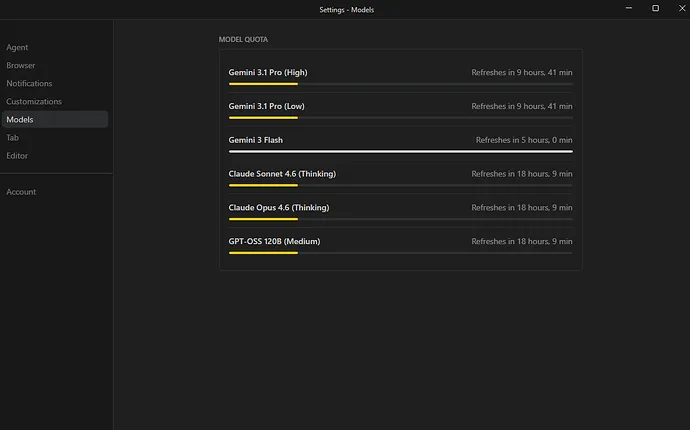
You expected Pro plan buckets that refresh about every five hours and higher limits than the free tier. Instead, the per model quota panels in Antigravity show timers such as 9 hours and 18 hours, which looks similar to multi day or weekly lockout behavior that other Pro users have described.
Common examples reported:
Gemini 3.1 Pro High shows Refreshes in 9 hours 43 minutes
Gemini 3.1 Pro Low shows Refreshes in 9 hours 43 minutes
Gemini 3 Flash shows Refreshes in 4 hours 56 minutes
Claude Sonnet 4.6 Thinking shows Refreshes in 18 hours 10 minutes
Claude Opus 4.6 Thinking shows Refreshes in 18 hours 10 minutes
GPT OSS 120B Medium shows Refreshes in 18 hours 10 minutes
If you are weighing plan value and current caps, check a concise explainer about Pro quota behavior and lockout windows here: Pro quota details for Antigravity.
Solution Overview
Aspect
Detail
Root Cause
Pro entitlement not fully synced in Antigravity or a provider specific secondary cap applied to certain models that is longer than the five hour rolling bucket
Primary Fix
Force an entitlement refresh, isolate model specific caps, and confirm plan status. If timers remain above five hours across models, file a support ticket with precise diagnostics for a quota correction.
Complexity
Easy
Estimated Time
20 to 30 minutes
Fix quota mismatch and unexpected cooldown timers
Step-by-Step Solution
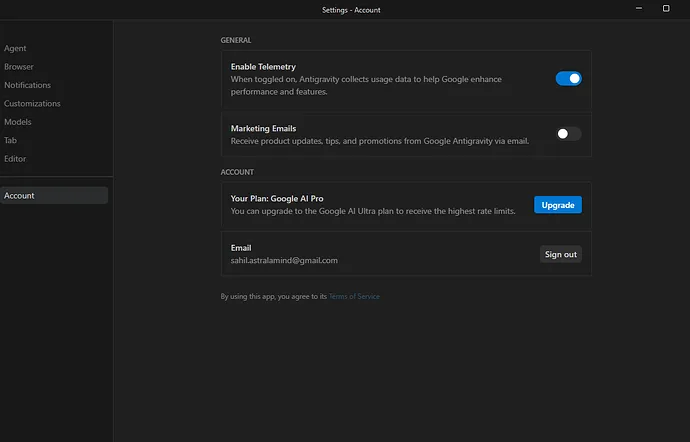
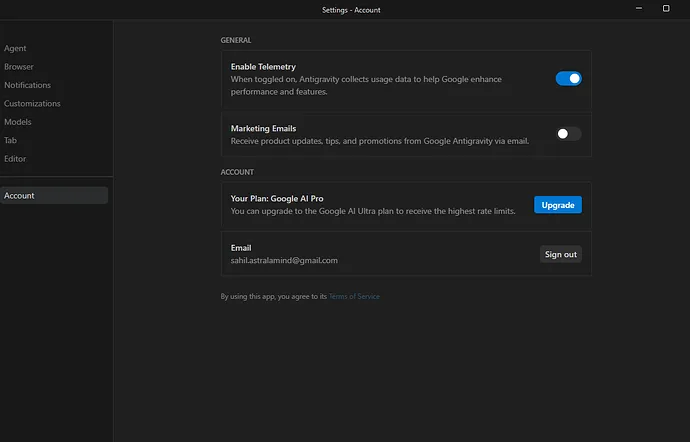
Step 1. Confirm your Pro subscription is active in Antigravity
Open Antigravity and check the account menu for a visible Pro badge and the plan details page.
In the same session, open your Google payments center and confirm the subscription is active and paid.
If the UI does not reflect Pro, continue with the next step to force a refresh.
Step 2. Force a clean entitlement refresh
Sign out of Antigravity, then close all browser windows.
Reopen an incognito window and sign in to the same Google account.
If the quota panels still show long timers, clear site storage for Antigravity and reload:
1. Open Antigravity in a tab.
2. Open the browser developer console.
3. Run these commands to clear local storage and caches for this origin:
Recheck the quota panels for each model family after reload.
For a deeper checklist on forcing a clean refresh and validating plan recognition, review this practical guide: verify Pro recognition and timer resets.
Step 3. Isolate model specific buckets
Switch between model families and providers. For example, compare Gemini 3 Flash versus Gemini 3.1 Pro, and compare with Claude Sonnet and Opus.
If only specific providers show the longer timers, this points to a provider level secondary cap, not a global Pro misclassification.
Reduce request size in that model panel by lowering input tokens, context size, or image uploads, then try again. Smaller bursts often avoid provider caps.
Step 4. Check for project or workspace level caps
If available in your account, create a new Antigravity project or workspace and retry the same models there.
If the new project shows the expected five hour refresh timer, the older workspace likely hit a secondary cap window.
Step 5. Cross check with the API where you have paid quota
If you also use Vertex AI or Google AI Studio with billing, make a small test call in that environment and confirm rate behavior there. This helps confirm if the cap is isolated to Antigravity or is account wide.
If the API environment behaves normally, include that fact in your support ticket to speed up resolution.
Step 6. Collect proof and contact support for a quota correction
Capture screenshots of the per model quota panels that show the long timers.
Note your current plan, exact email address used for Antigravity, your region and time zone, affected models and their timers, approximate usage volume before the lock, the time you first observed the lock, and steps already taken to refresh entitlements.
Request confirmation that your account is recognized as Pro within the Antigravity quota system and ask for removal of any unintended secondary cap.
Alternative Fixes & Workarounds
Use a different model family or smaller context size
Most reports show the long timers only on some providers. Switching models often restores the five hour refresh on others. Reducing payload size can reduce pressure on the burst bucket.
Create a fresh workspace or project
A new workspace can bypass a stuck cached state and separate usage accounting, which may immediately restore expected timers.
Temporarily route via your paid API environment
If you have Vertex AI or AI Studio with billing enabled, run time sensitive tasks there while Antigravity quota is corrected. See Google AI Studio pricing and quotas here: Google AI Studio pricing and Vertex AI quotas here: Vertex AI quotas.
Confirm you are not signed into multiple Google accounts in the same browser session. Mixed identities can confuse entitlement checks.
Try a different browser profile or a different browser to rule out extension interference.
Verify that a teammate has not consumed shared project quota in the background.
If you see timers like 18 hours for several third party models but not for Gemini, that strongly suggests a provider specific secondary cap. Include that detail in your support ticket.
If the timer increases after you wait, capture both before and after screenshots so support can trace the exact bucket state.
If you suspect time skew, run the system clock sync on your device and restart the browser.
Best Practices
Keep work distributed across multiple model families so a provider cap on one model does not stall the entire workflow.
Prefer smaller, more frequent requests in Antigravity for long sessions. Large single requests can drain burst buckets fast.
Maintain a backup path through Vertex AI or AI Studio with billing for production critical runs.
Periodically sign out and back in to keep entitlements fresh after plan changes or billing updates.
Document your typical daily and weekly usage so you can quickly show support a pattern if timers exceed the expected five hour refresh.
If you need a compact reference on common cap patterns and how Pro is expected to behave, see this explainer: Pro quota details for Antigravity.
Final Thought
The most common resolution is an entitlement refresh plus isolating provider specific caps, followed by a focused support ticket if timers remain above five hours across models. With the steps above, you can quickly restore expected Pro behavior or secure a fast correction from support while keeping your projects unblocked.
We use cookies to ensure that we give you the best experience on our website. If you continue to use this site we will assume that you are happy with it.