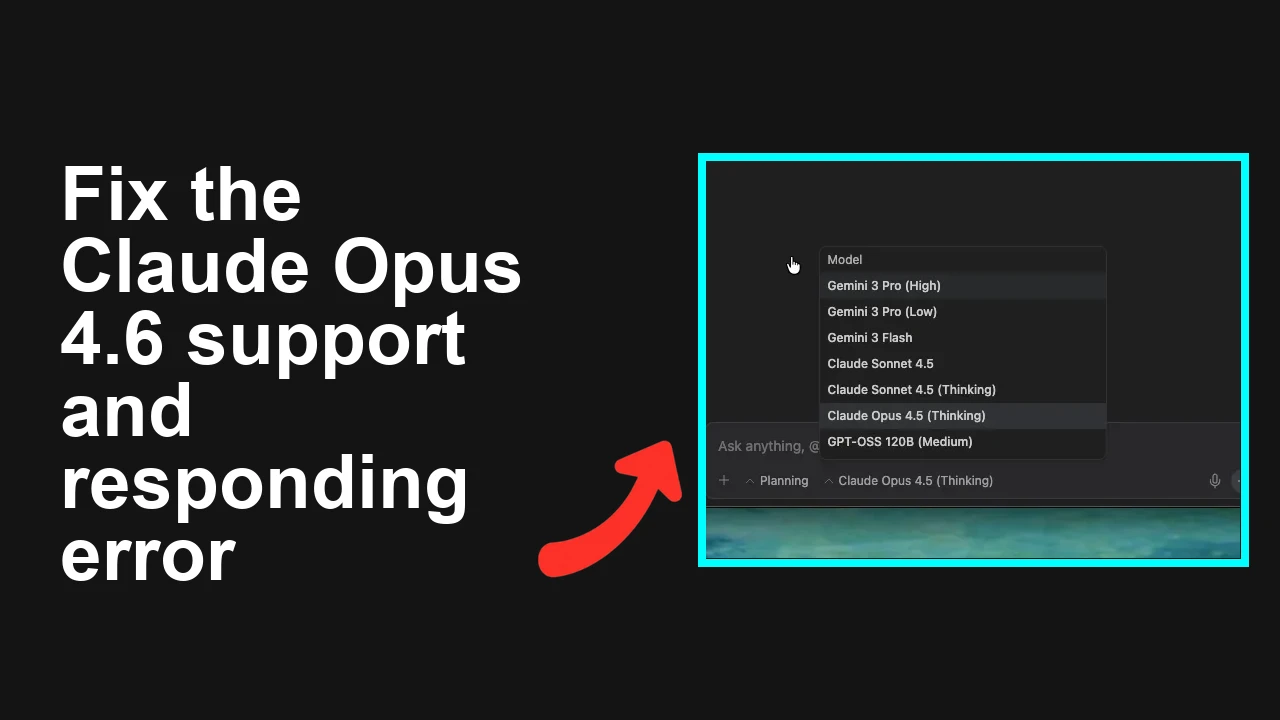
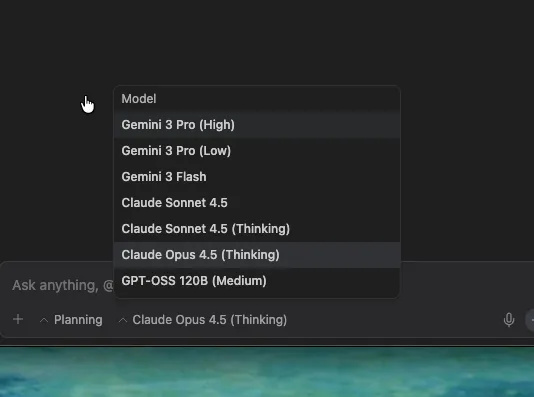
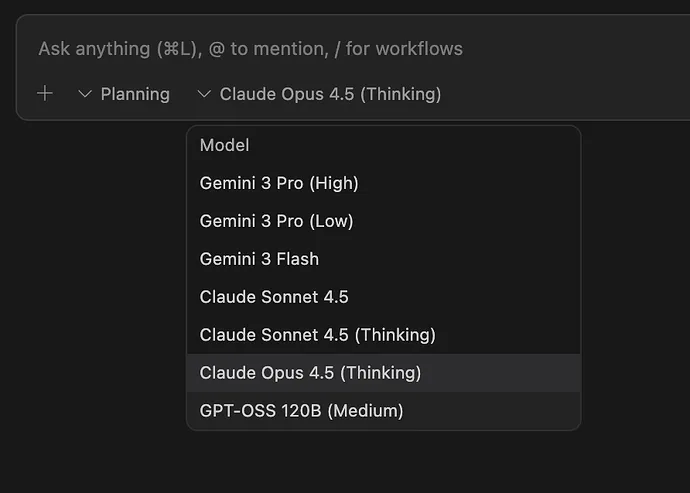
You are being prompted to switch from Claude Opus 4.5 to Claude Opus 4.6, but the new model does not appear for selection or it only appears in the Editor while Agent mode cannot run and asks you to change to 4.6. Even after restarting or signing out and back in, Opus 4.6 still does not show for some accounts.
Claude Opus 4.6 not showing in Google AI and Agent mode blocked
Users report the banner or prompt saying “Claude Opus 4.5 is no longer available. Please switch to Claude Opus 4.6” but the model picker does not list Opus 4.6. Others confirm it works in Editor, but Agent mode does not support Opus 4.6 yet, which blocks runs.
Some Pro accounts still do not see the new model even after app restarts, checking for updates, or signing out and in.
Solution Overview
Aspect
Detail
Root Cause
Staged rollout and cached model config. Editor supports 4.6 now, but Agent mode is not yet wired to 4.6. Entitlement and region propagation can lag.
Primary Fix
Use Editor mode, then hard refresh or clear site storage to refresh the model list. Select Claude Opus 4.6 in Editor. Wait for Agent mode enablement or use API based calls if your org allows it.
Complexity
Easy
Estimated Time
5 to 15 minutes
If you are also dealing with Antigravity issues in related UI work, see this quick guide on resolving Stitch Antigravity loading problems: Stitch Antigravity loading issues.
Fix Claude Opus 4.6 not appearing or Agent mode blocked
Step by Step Solution
Step 1 Confirm eligibility and use Editor mode
Open the product and switch to Editor.
Open the model selector. If you see Claude Opus 4.6, select it and run a quick test prompt.
If Opus 4.6 appears in Editor but not in Agent mode, continue with the next steps and use Editor until Agent mode is updated.
For context on model choice when you have multiple premium options, here is a practical comparison that can help you decide when to prefer Claude or a peer model: comparison of DeepSeek Claude and Qwen options.
Step 2 Hard refresh and relaunch to pull the new model list
Close all tabs of the app.
Reopen in a new window and perform a hard reload.
If you are in a browser, use an incognito window and sign in again. This bypasses stale cached configuration.
Step 3 Clear site data for a clean model picker
In Chrome
1. Open the app page.
2. Select the lock icon in the address bar then Site settings then Clear data.
3. Or open Developer Tools then Application tab then Storage then Clear site data.
In Safari
1. Preferences then Privacy then Manage Website Data.
2. Remove data for the app domain then reload.
Reference: Clear browsing data in Chrome
Step 4 Switch out of Agent mode and run from Editor
If Agent mode still complains that Opus 4.5 is deprecated and asks for 4.6 which you cannot pick, switch back to Editor.
Select Claude Opus 4.6 in Editor and continue your work there. This is currently the most reliable path while Agent mode catches up.
Step 5 Force a clean model selection by resetting local preferences
Sign out of your account.
Quit the app fully.
Sign in again and set the model in Editor first. Many users report that Editor reflects 4.6 immediately after a clean session.
Step 6 If your org supports API calls, test 4.6 with a direct request
Use a small code snippet to confirm that your account and region have access to Opus 4.6.
Example in Python with a generic provider pattern. Replace placeholders with your org setup and keys.
If this succeeds, the model entitlement is active. You can keep working via Editor or your API client until Agent mode supports the new model.
Step 7 Check plan and region
Confirm your Pro or Ultra plan is active and that your billing is valid.
Some model rollouts are region staged. If you have a multi region setup, try the default US region first if your compliance and policy allow it.
If you are in a managed workspace, ask your admin to confirm that the provider and new model family are allowed by policy.
Alternative Fixes and Workarounds
Use an incognito browser profile
Incognito sessions ignore stale cached flags and often reveal the updated model list immediately.
Try a different browser
Chrome, Edge, and Safari sometimes differ in how fast site storage updates. Switching browsers can surface the new model faster.
Create a fresh project or workspace
New projects pick up current defaults. Create a new project then open Editor and check the model picker.
Wait for Agent mode enablement
Editor often receives new models first. If Editor works, continue there and keep an eye on Agent mode release notes.
If your workflow includes exporting designs from Stitch and you are seeing odd export errors, this guide may save time: common Stitch export fixes.
Troubleshooting Tips
Confirm the product status page shows no incidents for model selection or entitlement.
Remove extensions that intercept network traffic or modify headers since they can break feature flags.
Ensure third party cookies are not blocked for the app domain since sign in and feature gating may rely on session cookies.
If nothing works, capture the following before opening a support ticket
– Timestamp, region, and account tier
– Screenshot of Editor model picker
– Screenshot of Agent mode prompt asking to switch to 4.6
– Console logs from a fresh session
Best Practices to prevent future model availability issues
Keep using Editor for first day access to new models, then migrate runs to Agent mode once release notes confirm support.
Periodically clear site storage for the app to avoid sticky cached model lists.
Track release notes for your provider and confirm your region is supported for each new model.
Maintain at least two browsers ready for quick failover during staged rollouts.
If you are evaluating models for your tasks and want a quick side by side view before switching defaults, check this helpful overview of strengths across leading options: how Claude compares to DeepSeek and Qwen.
Final Thought
The fastest path today is simple. Run Claude Opus 4.6 from Editor after a hard refresh or site data clear, then wait for Agent mode to be updated or use your API client if available. This gets you unblocked right away while the remaining UI catches up.
We use cookies to ensure that we give you the best experience on our website. If you continue to use this site we will assume that you are happy with it.