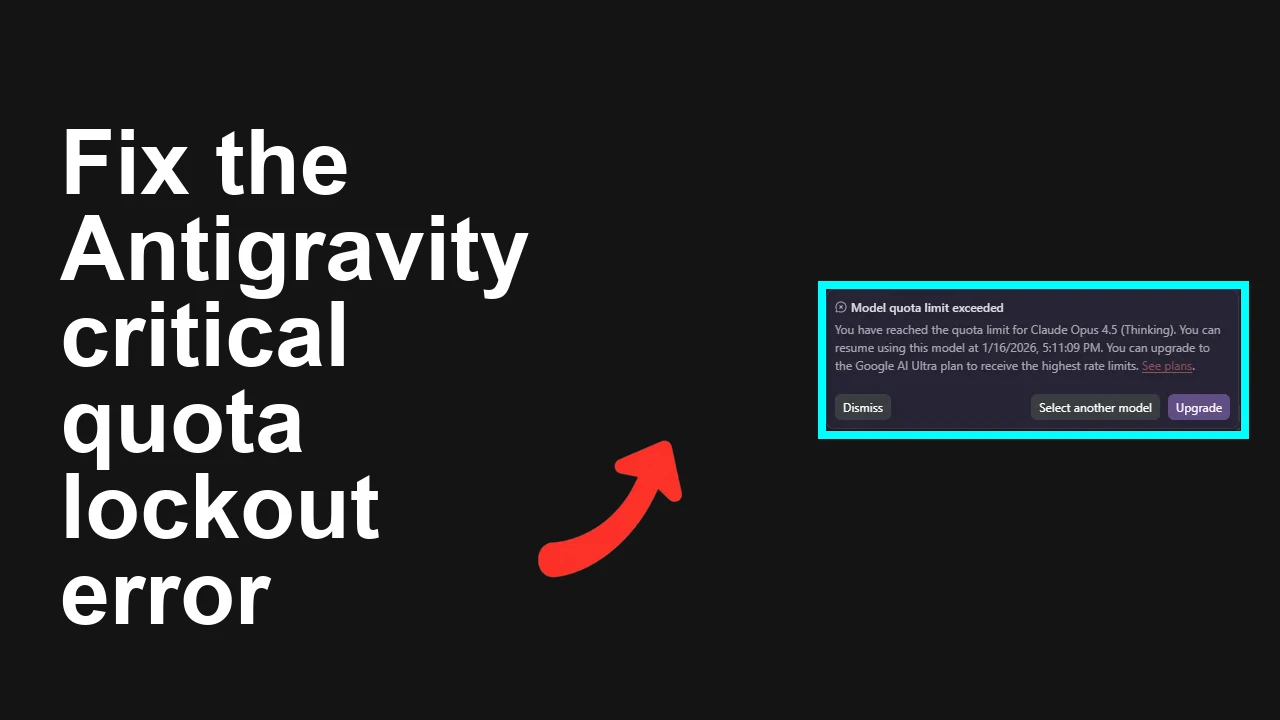
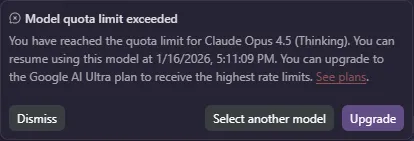
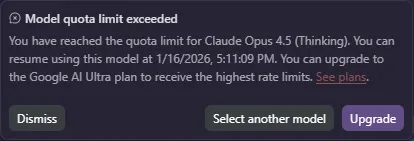
Antigravity IDE is showing a multi day quota lockout for your Google AI Pro account, even though your plan documents a five hour maximum. New chats display a four day lockout while existing sessions show seven days with a Model quota limit exceeded message.
Fix Antigravity IDE showing multi day quota lockout beyond Google AI Pro limits
You are seeing Model quota limit exceeded with an incorrect resume date, for example resume on January sixteen two thousand twenty six in an existing project and January thirteen two thousand twenty six in a new chat.
This happens on Windows 11 with Google Chrome and a Google AI Pro plan while using Claude Opus 4.5 Thinking inside an Antigravity project.
For context on common triggers that cause multi day holds in this IDE, see this quota trigger checklist.
Solution Overview
Aspect
Detail
Root Cause
Stale or corrupted usage cache in Antigravity tied to the current project and model session, sometimes compounded by account context mixups and time zone skew
Primary Fix
Reset the IDE session and project state, refresh usage, then retry with a different model before switching back
Complexity
Easy
Estimated Time
10 to 15 minutes
Restore access now in Antigravity IDE
Step-by-Step Solution
1. Verify your plan and usage outside the IDE
Open the Google AI Studio usage and limits page and confirm your account shows active Pro entitlements and that limits were not actually exhausted.
Reopen Chrome, then open Antigravity and sign in again with only the intended Google account.
Start a brand new chat in the same project and test a short prompt.
Tip
Using multiple signed in Google accounts in the same Chrome profile can confuse entitlements. Keep only the intended account active during this test.
5. Clear site data for a clean local cache
In Chrome address bar type chrome colon slash slash settings slash siteData then press Enter.
Search for the Antigravity domain and remove all site data.
Reopen Antigravity, sign in, then retry your chat.
6. Test from a new temporary project
In Antigravity create a new project.
Start a new chat, select a light model, and send a small prompt.
If it works here, return to the original project and retry. This isolates a project scoped cache issue.
7. Force a server side refresh by rotating sessions
In Antigravity user menu open account or security then sign out all sessions if available.
Sign in again and retry the original chat.
If your workspace still reports a multi day hold after these resets, see this follow up on extended lockouts before opening a support ticket.
Alternative Fixes and Workarounds
Use another model temporarily
Continue work with a lighter Claude or Gemini model in the same project. The heavy Thinking variant may be the only one impacted by the cached hold.
Work in a new project and migrate later
Create a clean project and keep moving while the original project cache clears. You can copy prompts and assets back once normal limits return.
Different browser profile
Create a fresh Chrome profile or try another browser to eliminate extension conflicts and stale storage tied to the original profile.
Troubleshooting Tips
Confirm your system clock and time zone are correct. A skewed local time can make resume on dates appear far in the future.
Disable aggressive privacy or ad blocking extensions for the Antigravity domain and retest.
Ensure only one Google account is signed in to the browser during testing to avoid entitlement confusion.
Check if teammates hit limits in a shared project. Some limits can be pooled at the project scope.
Wait ten to fifteen minutes after a burst of long Thinking runs. Soft limits can temporarily tighten and then relax.
If contacting support, include the project ID, chat ID, resume date shown, screenshot, your local time zone, and confirmation that limits in AI Studio are normal.
Best Practices
Prefer shorter interactions on heavy Thinking models and offload long analyses to smaller models when possible.
Keep one browser profile dedicated to Antigravity to avoid cross account contamination.
Regularly review the AI Studio usage page to anticipate soft limits before they trigger visible holds.
Close idle chats and projects you no longer need to reduce concurrent session pressure.
Take screenshots when limits appear so you have precise timestamps for support.
Final Thought
This issue is almost always a stale quota cache inside the IDE. Resetting the session and project state, switching models, and signing in cleanly returns most Pro accounts to normal five hour behavior within minutes.
We use cookies to ensure that we give you the best experience on our website. If you continue to use this site we will assume that you are happy with it.