
You can 20x your results with Claude Code by installing the extension in VS Code, initializing your project to generate a claude.md project doc, and enforcing spec driven planning before any edits.
Run features in Plan mode, let Claude use tools like web research and web fetch, review the task plan and edits.
Then switch to YOLO mode to safely auto apply changes once the plan is vetted.
Add a planning prompt to claude.md so Claude always writes a clear implementation plan with reasons, MVP focus, and task lists, then attaches a detailed change description as it works.
Boost speed further with hooks for event based automations, slash commands and reusable custom commands, bash mode with a leading exclamation to run terminal commands inside the session, and sub agents that take on specialized tasks with their own context.
Claude Code Install and initialize
- In VS Code, search for Claude Code and install it, then click the Claude icon to run it inside the IDE.
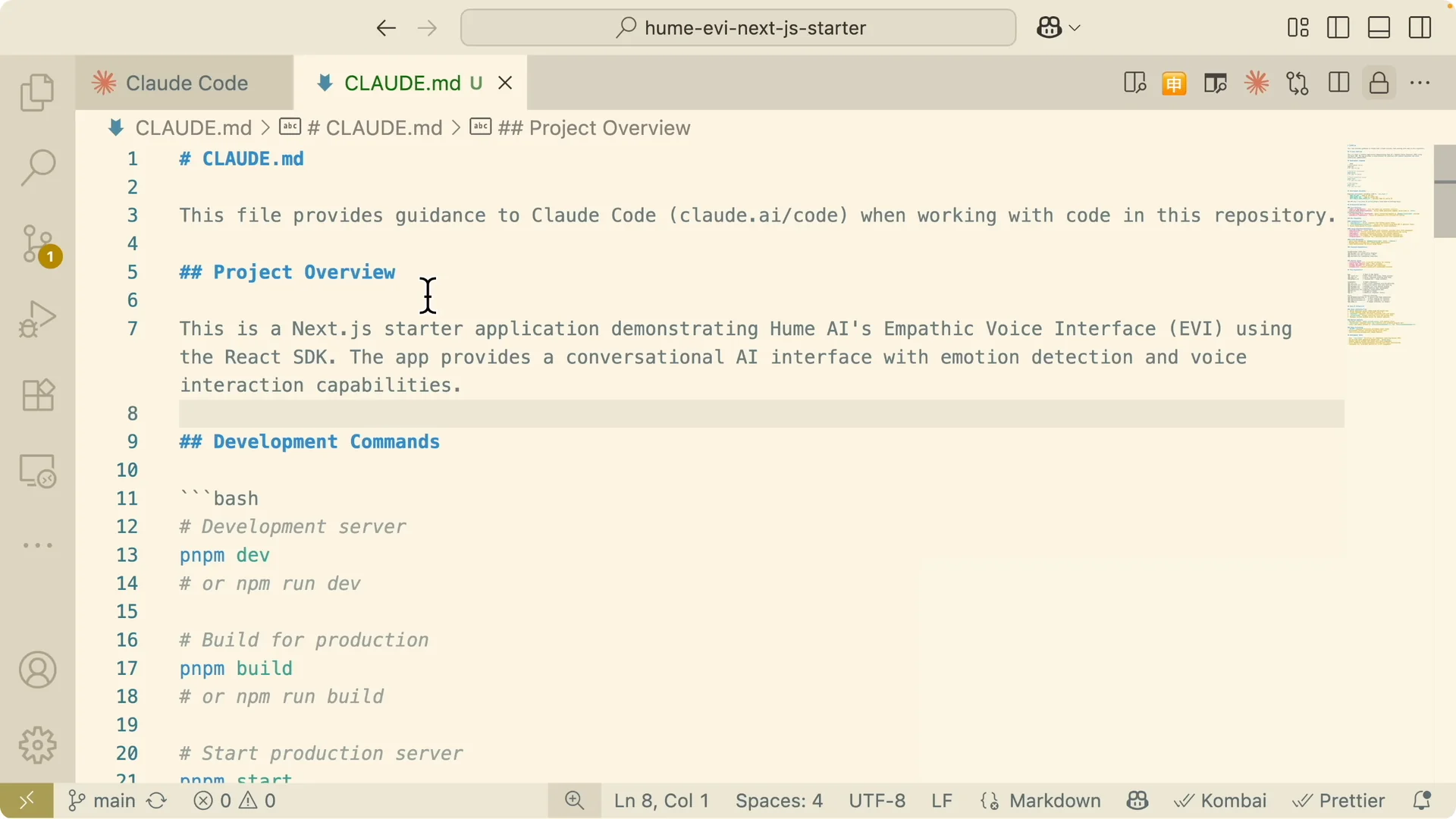
- Initialize a brand new project to generate claude.md with project overview, development commands, architecture notes, and dependencies.
- Claude references claude.md during conversations to understand the project before applying or making changes.
Spec driven planning
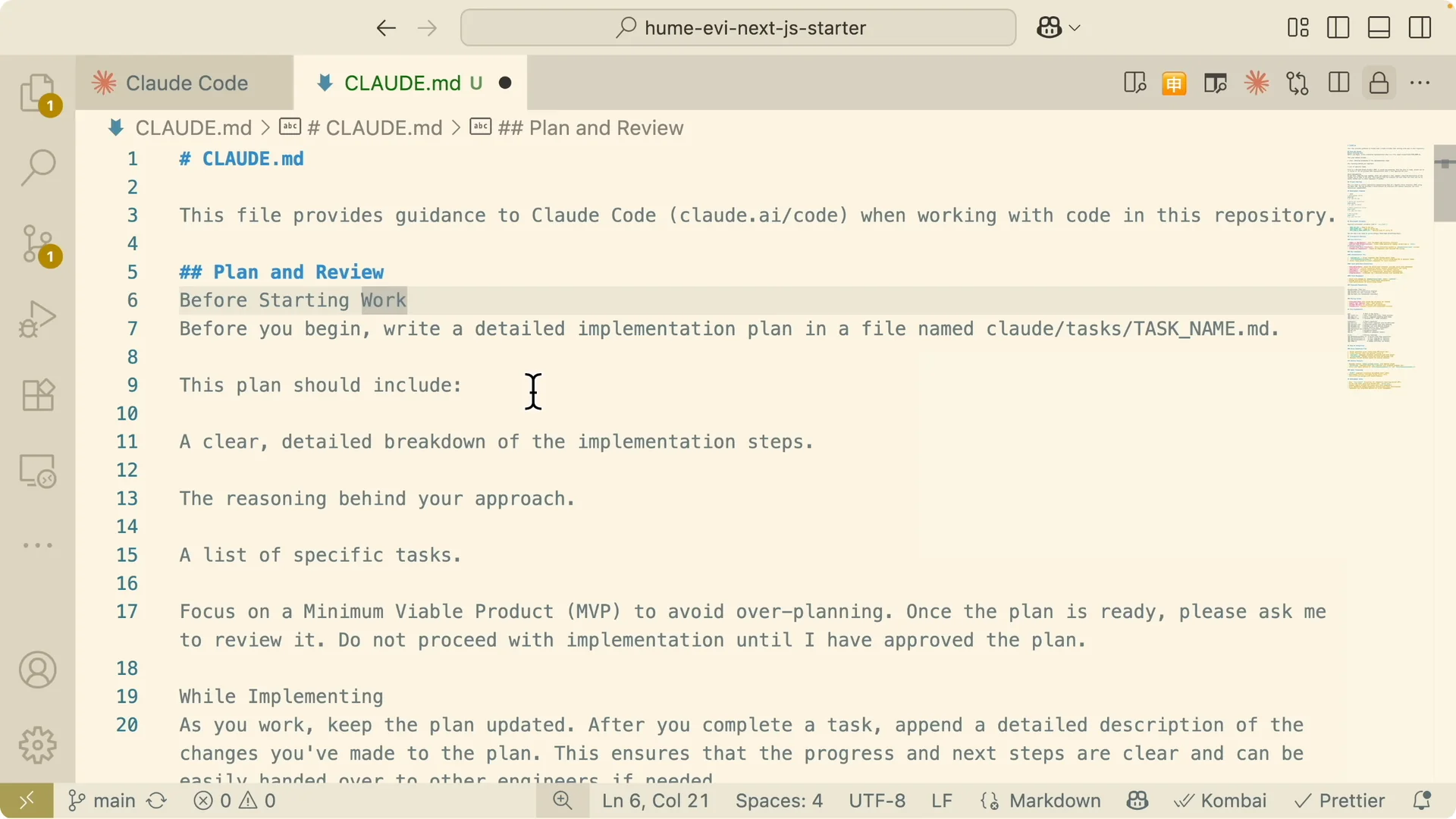
- I add a prompt in claude.md that says to plan and review every time before work begins.
- Claude writes a detailed implementation plan in Markdown, explains the approach, lists tasks, and focuses on the MVP.
- For implementation, I ask it to attach a detailed description of changes and keep progress visible so other engineers can pick it up from the plan.
Plan mode in practice
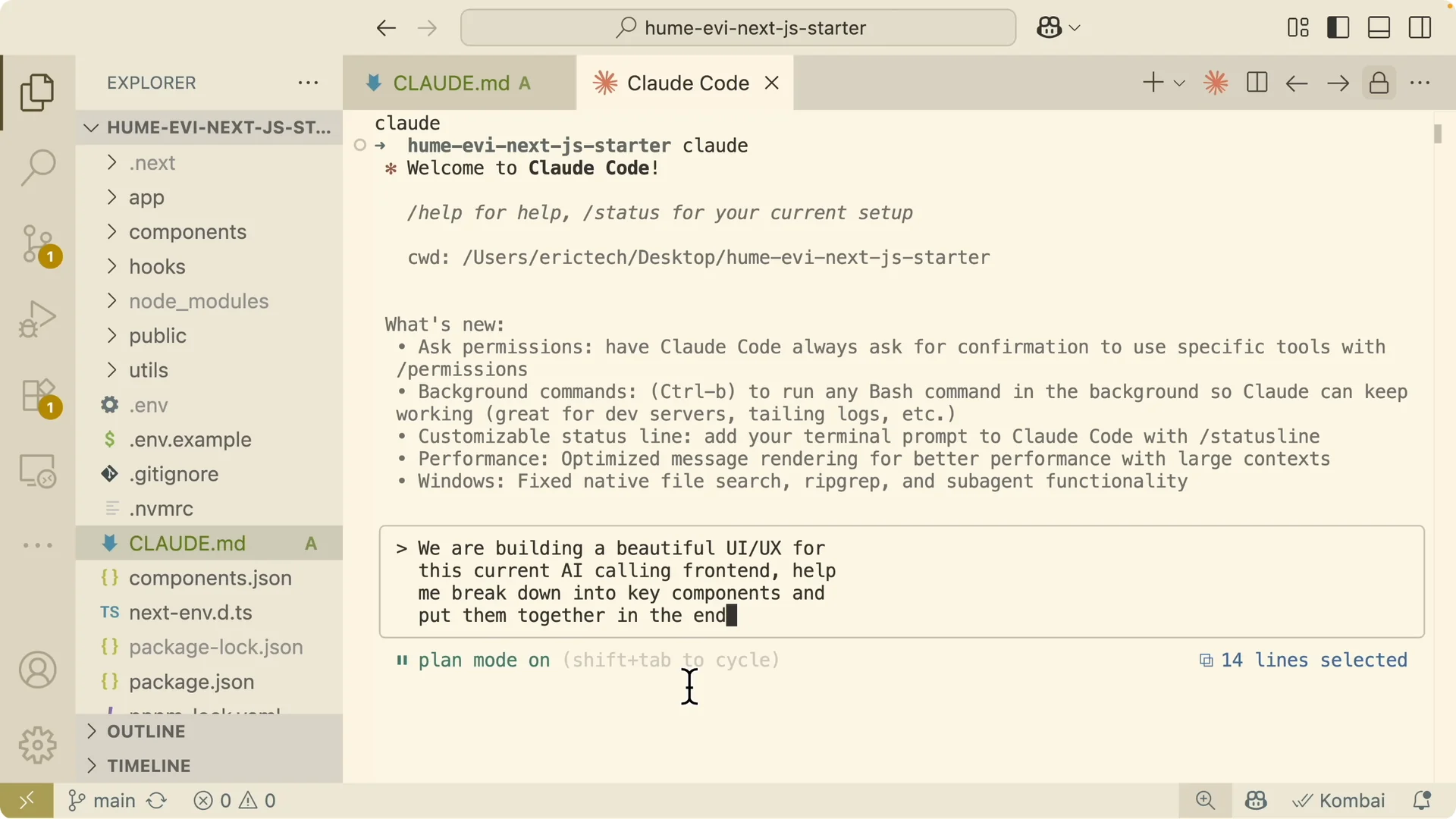
- I ask Claude to build a beautiful UI and UX for my AI calling friend app, break it into key components, then assemble it.
- I press Shift Tab to switch to Plan mode so it plans before executing.
- Claude reads the components in the project, uses web research to gather UI and UX trends for AI conversation interfaces, fetches references, and proposes an enhancement plan.
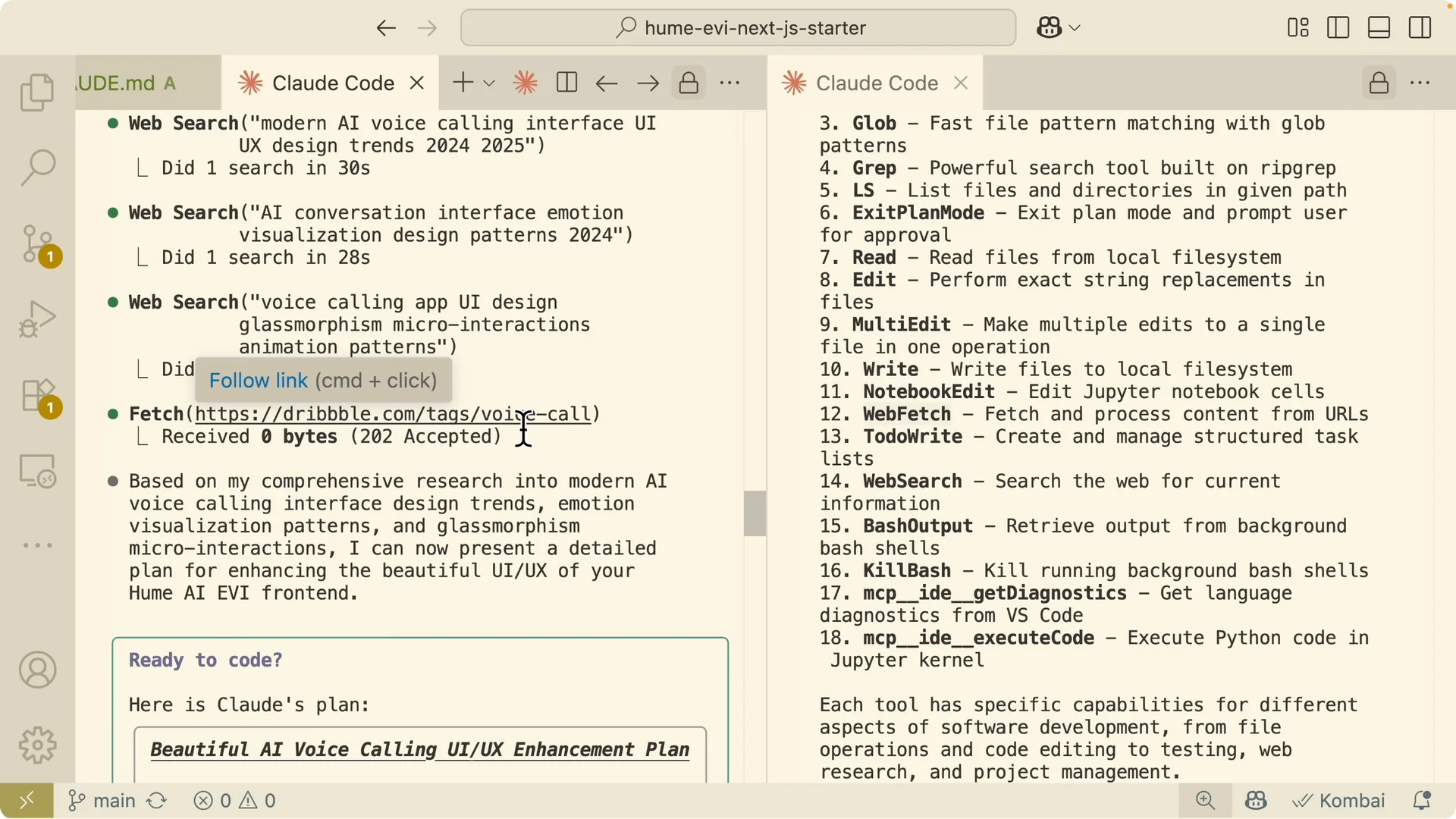
- After reviewing the plan and proposed edits, I auto accept changes and move to the next step.
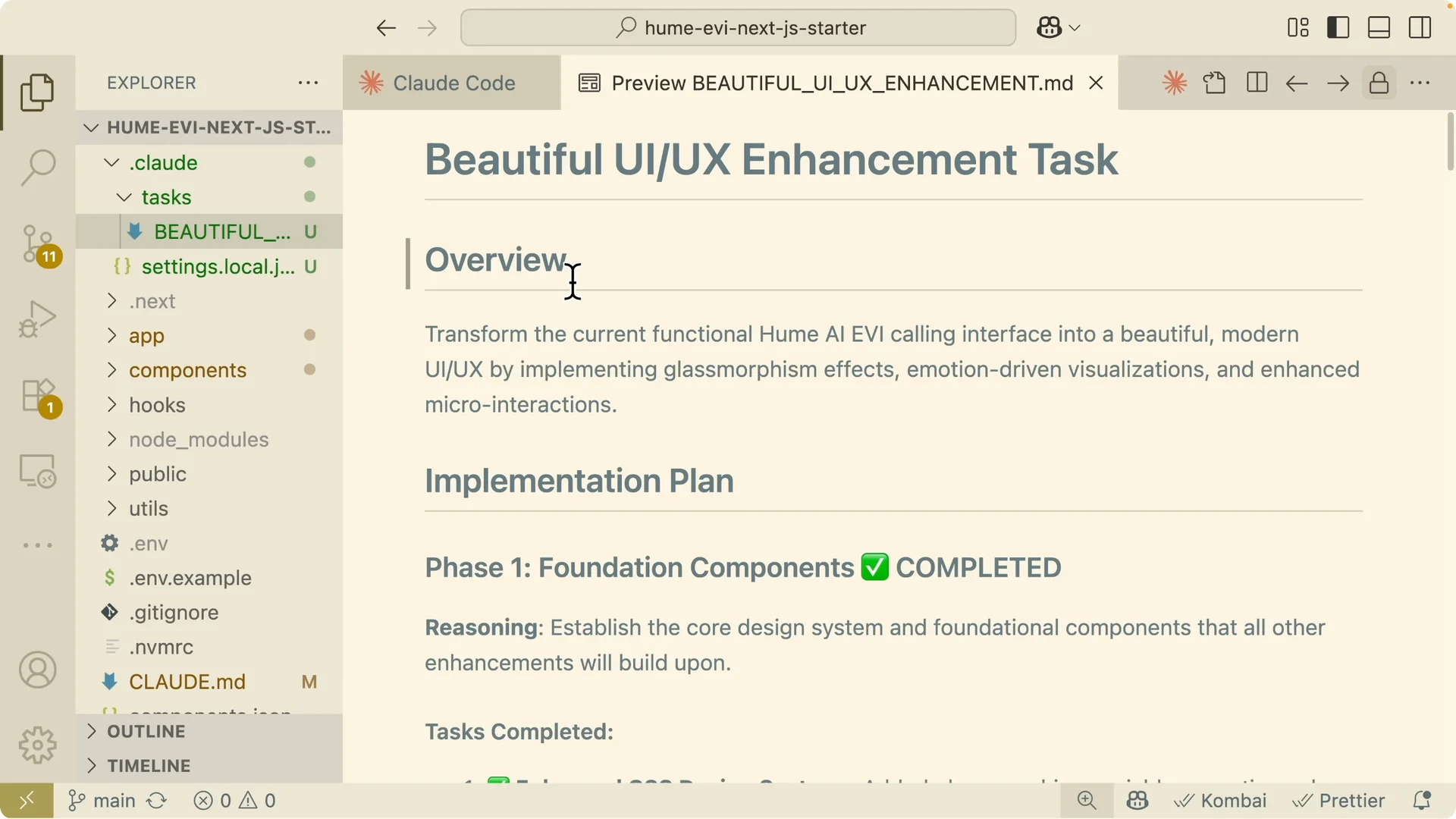
- Claude creates a task.md for the UI UX enhancement, marks completed foundations and core interface work, and tracks advanced features still in progress, like the visualizer and voice pause components.
- Once the plan and edits look good, I run the build to validate results.
YOLO mode for trusted automation
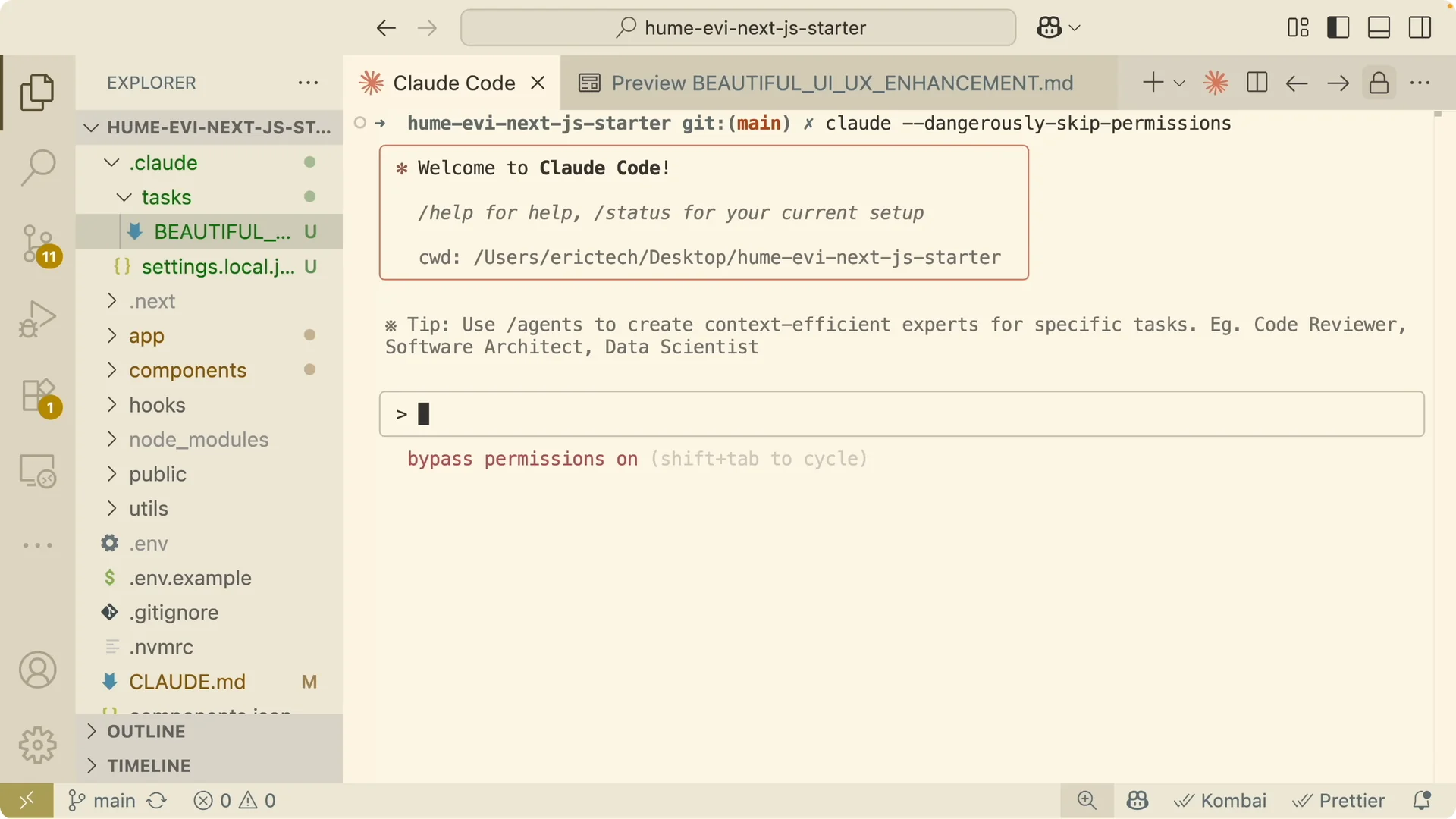
- If I am tired of approving every edit, I enable a YOLO flow with the command: “claude dangerously skip permissions”.
- Since the enhancement doc and plan are in place, I say “continue where we left off for the enhancement plan and please complete it.”
- Claude resumes, completes remaining tasks without repeated prompts, and updates the enhancement doc through all phases.
Validate the result
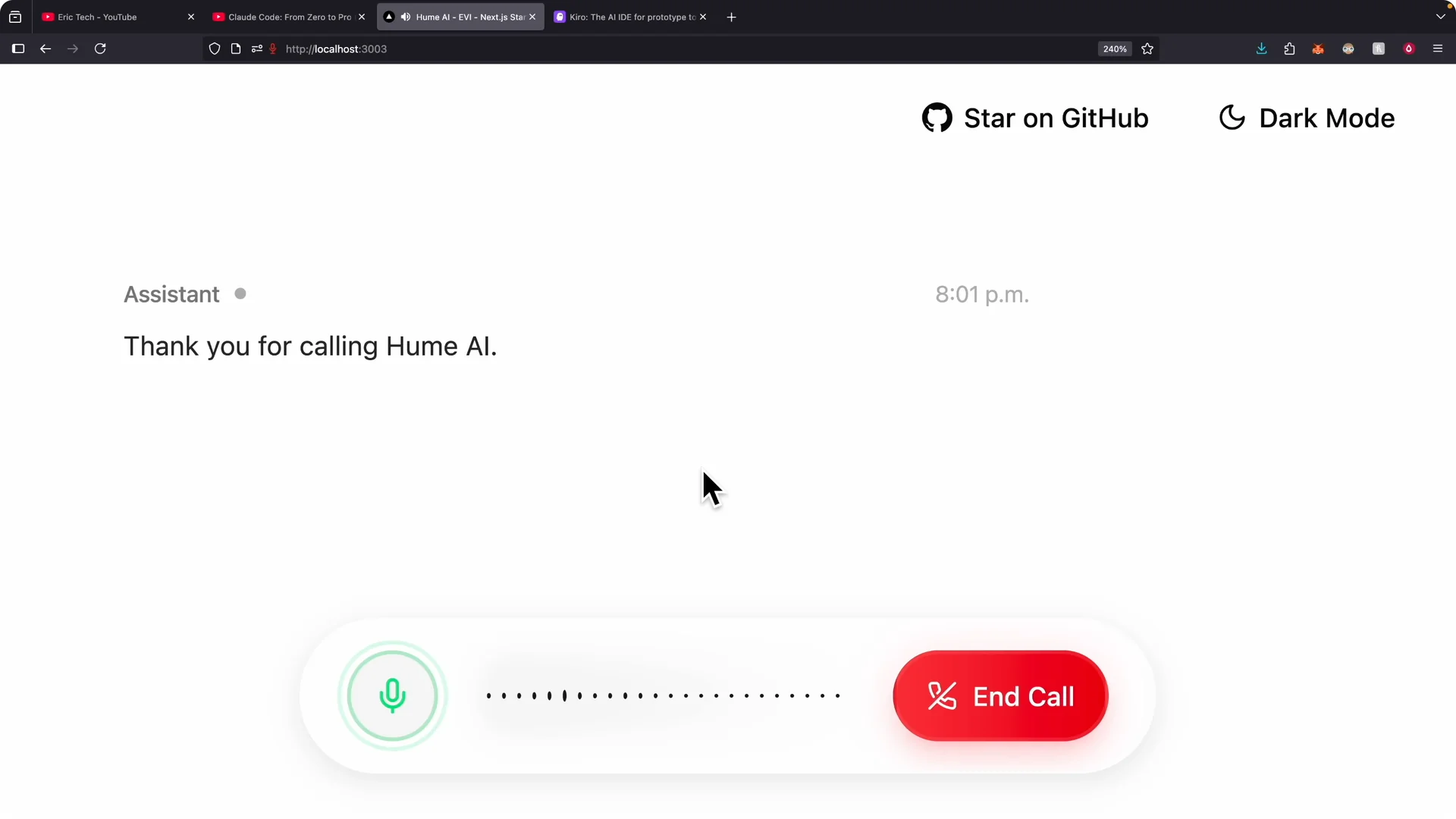
- I start the app with npm run dev and compare the new UI to the previous version.
- The updated design adds better visuals and animations, including animated assistant messages.
- The plan first flow delivers higher quality and faster iterations.
Read More: Set Up Claude Code Remote Control
Hooks for automation
- Hooks let me program actions when Claude performs events.
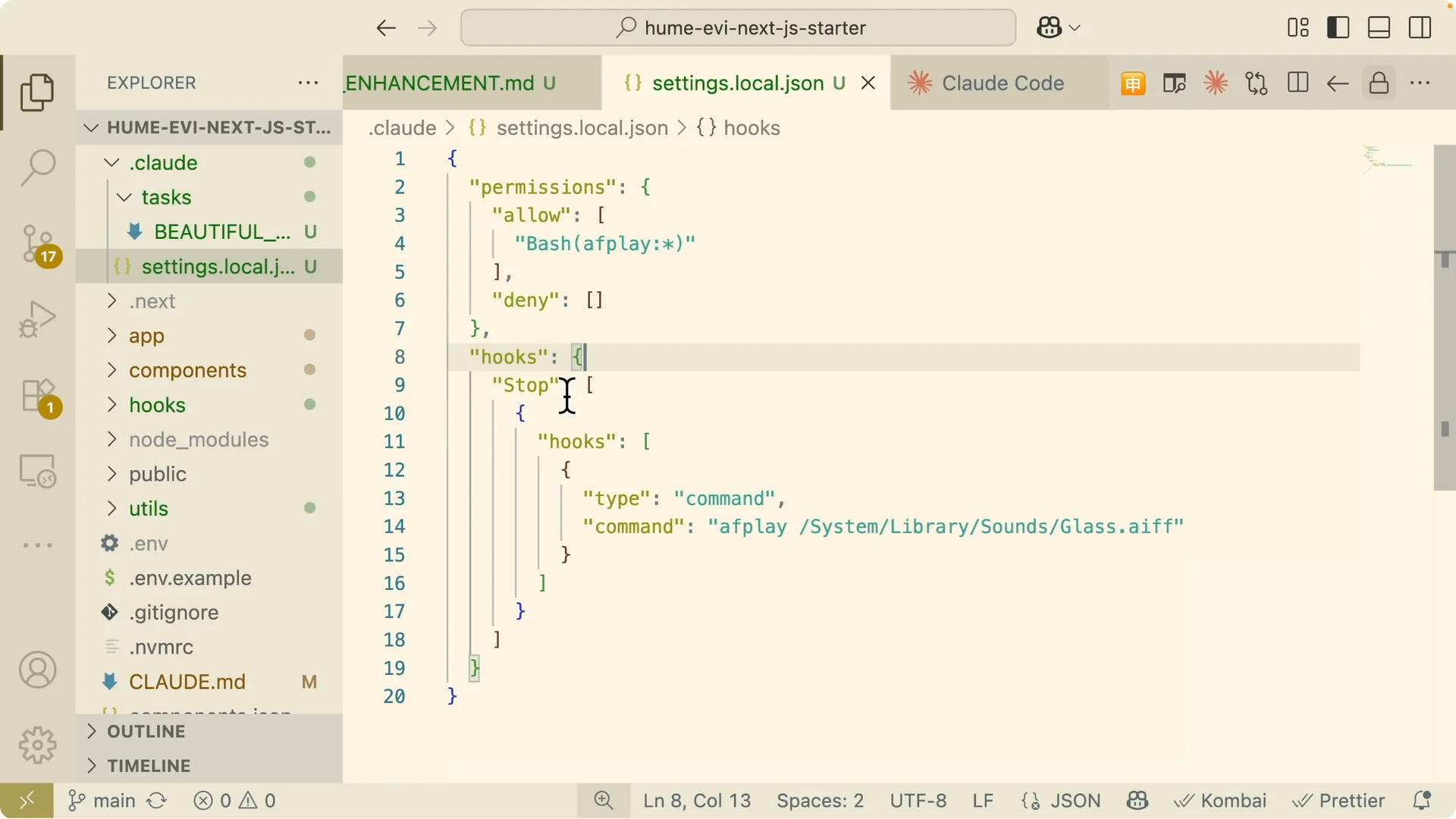
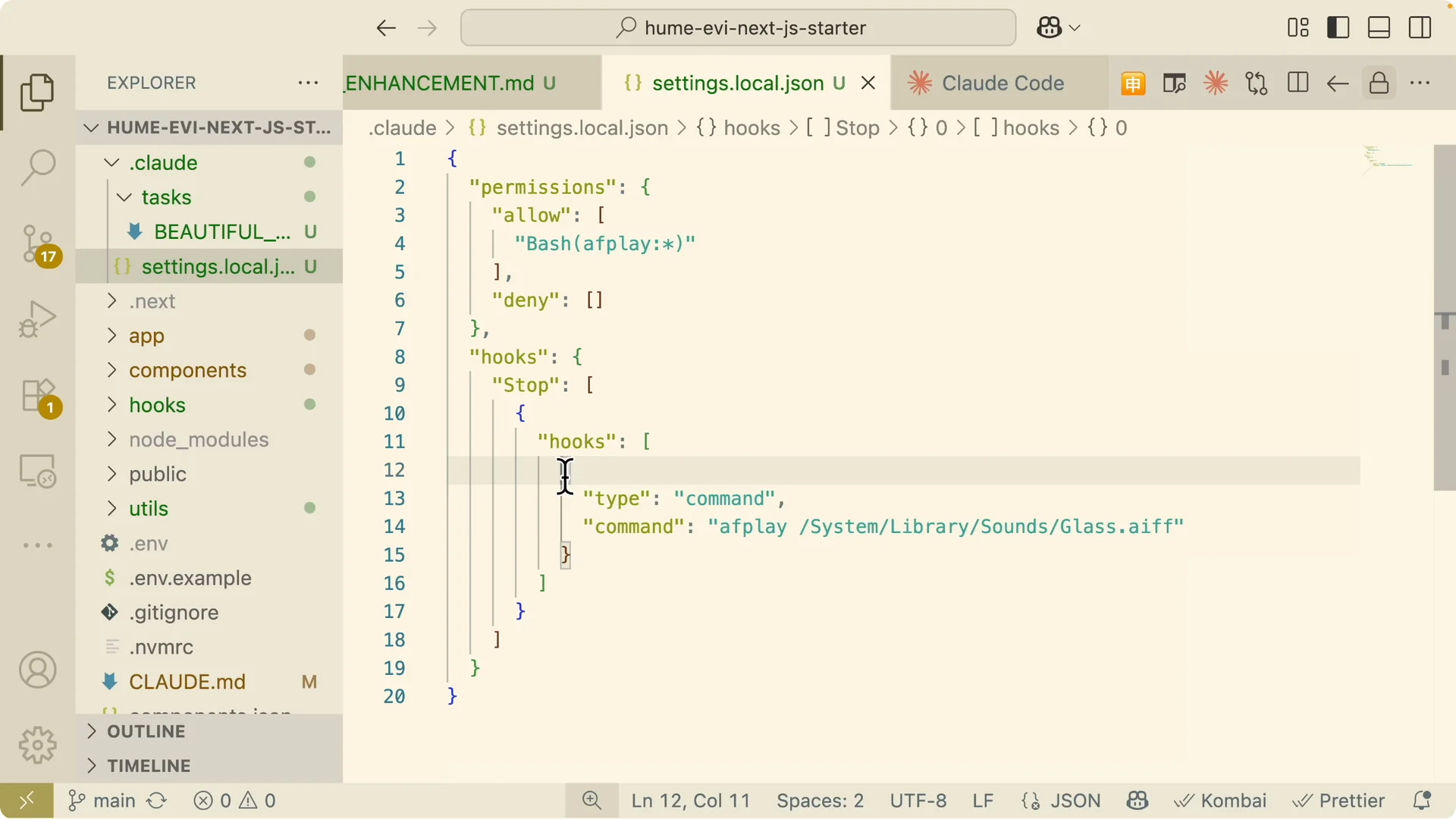
- I define hooks in settings.local.json with a hooks object.
- For example, on response finished, my hook plays a system sound on the local machine.
- I can scope hooks to a project folder pattern so a write or edit triggers a style check.
- Supported events include pre tool use, after a tool is used, notifications, and user prompt submit.
- The customization is extremely flexible, and I rely on it to keep workflows tight and responsive.
Slash commands and must know utilities
Built in commands help during development, including clearing conversation history, checking token usage with cost, and init for project setup.
I also view pull request comments and request PR reviews from within Claude Code.
These commands remove context switching and keep the session productive.
Custom commands you can reuse
I create a folder named claude/commands in my project, then add uppercase.md that says “Please respond in uppercase.”
In a Claude session, I run the uppercase command and responses come back in uppercase format.
I save prompts like QA checks, component scaffolding, or test generation into command files to reuse them every time.
There is a framework that extends Claude Code with specialized commands and personas for different development tasks.
I switch personas for focused work, like an architect persona during system design, front end for UI tasks, or backend for APIs.
This helps Claude apply the right approach for each problem.
Read More: Claude Code Desktop Managing Tasks
Session management tips
Use the resume function to continue any past conversation.
I browse previous sessions, open one from many hours ago, and continue with full context.
The export feature lets me save the current conversation to a file or clipboard so I can hand the memory to another model or agent.
Bash mode inside the session
I do not cancel the Claude session to run terminal commands.
I toggle bash mode by starting a message with an exclamation mark, then run commands like npm install.
Claude remembers these terminal actions in the conversation so it knows exactly what was done on the project.
Sub agents for parallel specialization
I create sub agents that focus on specific areas, like a front end agent, backend agent, and database agent, all working in parallel on a full stack project.
The main Claude session delegates tasks to sub agents, which follow their own system prompts and use tools like MCP.
Each sub agent has its own context window, so they do not consume the main session’s context, and they can be shared across projects for consistent workflows.
Read More: Claude Code Nano Banana Ai Images
Step by step quick start
- Install Claude Code in VS Code and open the Claude panel.
- Initialize the project to create claude.md and confirm the dependencies and dev commands.
- Add a planning prompt to claude.md to require plan and review before implementation and to attach detailed change descriptions.
- Switch to Plan mode with Shift Tab, let Claude analyze the repo, use web research and web fetch, and draft the enhancement plan.
- Review and auto accept edits, then monitor progress in task.md.
- When safe, enable YOLO with “claude dangerously skip permissions” to continue without repeated approvals.
- Use hooks in settings.local.json to automate events like on response finished or pre tool use.
- Apply built in commands such as cost, clear, init, resume, and export to manage work.
- Create command files under claude/commands for reusable prompts like uppercase.md.
- Run terminal commands in bash mode with a leading exclamation, for example ! npm install.
- Start your app with npm run dev and validate the new UI, animations, and features.
- Spin up sub agents for front end, backend, and database work with their own prompts and tools.
Final thoughts
Plan first, then execute is the single biggest multiplier in Claude Code, especially when paired with task docs and safe YOLO runs.
Add hooks, custom commands, and bash mode to eliminate friction, and use sub agents for parallel specialization.
Keep sessions tidy with resume and export, and keep claude.md current so Claude always acts with full project context.