
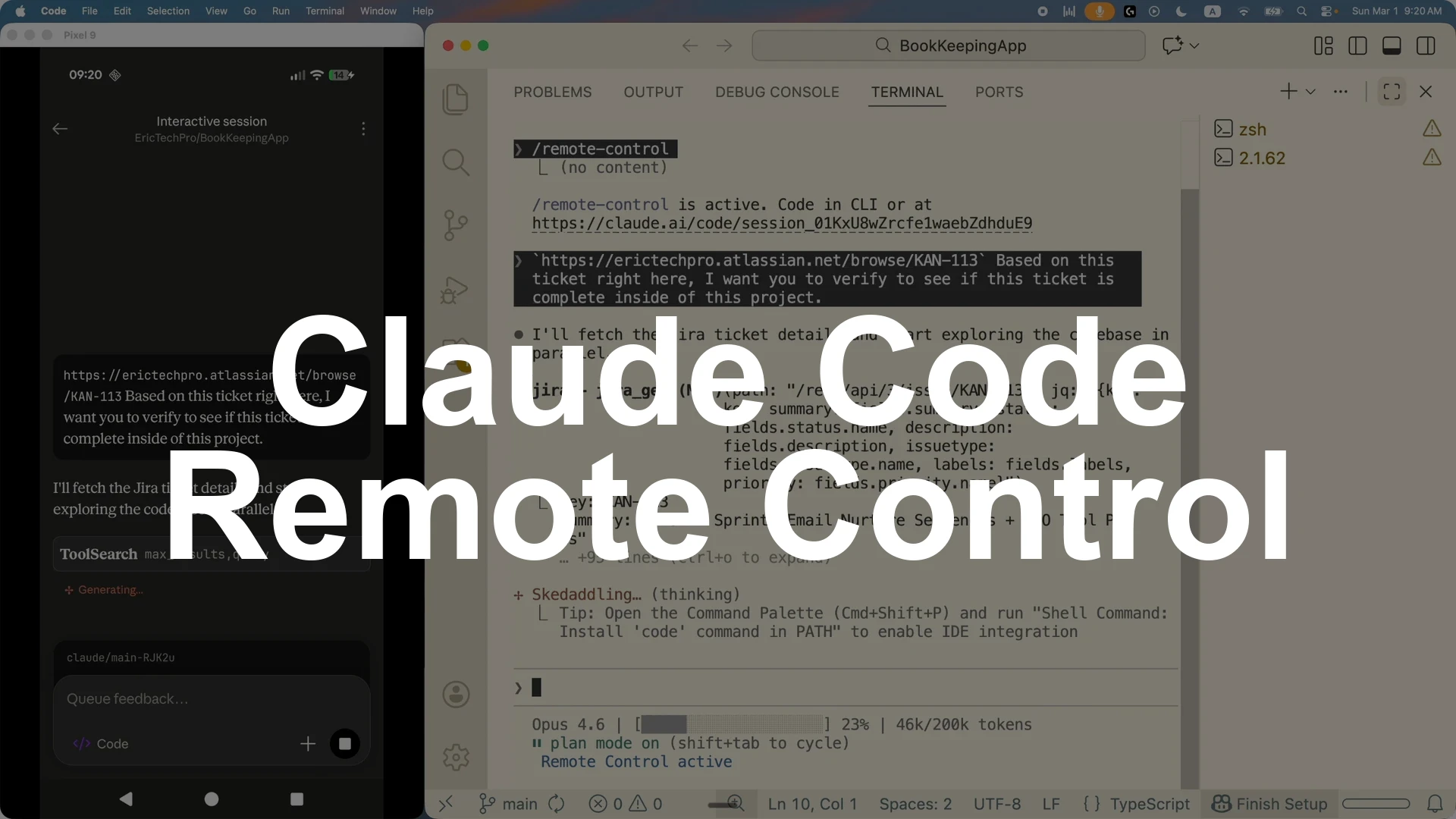
Claude Code Remote Control lets you control your running terminal sessions from your phone. Start a Claude Code session on your computer, type the command remote control, enable it, then open the Claude app on your phone and go to the Code section to enter the interactive session.
Prompts, tool calls, and results stay in sync across desktop and mobile, so you can keep working, trigger skills and MCP tools, and review plans or code on the go.
You can spin up multiple remote control sessions, rename them for clarity, and switch among them from your phone.
You can switch between Code mode and Plan mode, generate terminal diagrams for architecture and UI, suggest edits, replan, and even ask Claude to branch and coordinate agent teams.
To verify changes from mobile, connect Playwright MCP to open a browser, take screenshots, and compare them with the ASCII diagrams, or run the app from your desktop when you return.
Quick start
1. Open your project and start a Claude Code session on your computer.
2. In the terminal, type remote control and press Enter, then confirm to enable remote control for that session.
3. On your phone, open the Claude app, go to Code, refresh, and enter the new interactive session.
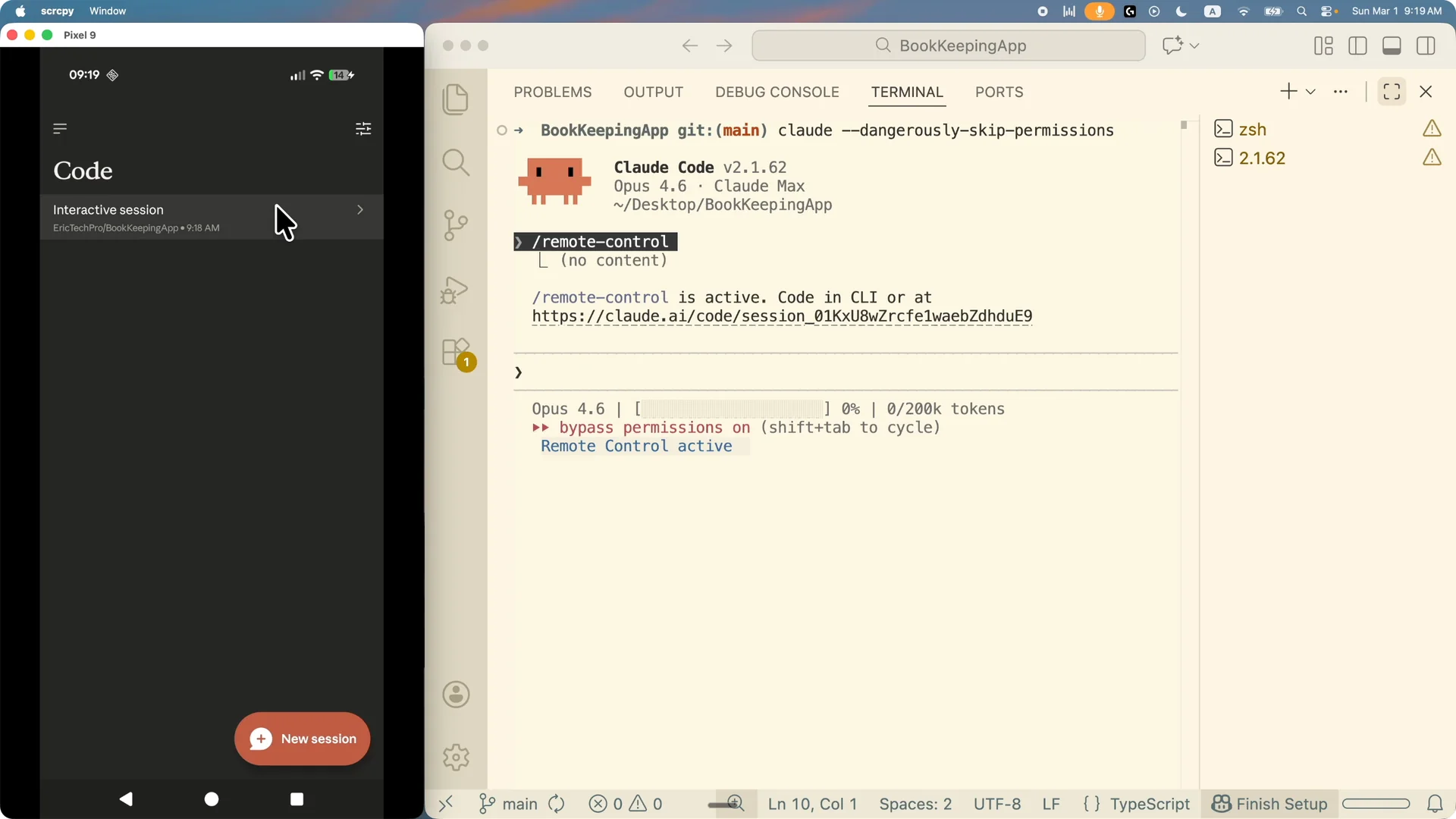
Once connected, everything you type in the terminal appears on your phone, and vice versa.
I can copy a ticket and ask Claude to verify if the ticket is complete inside the project.
It will call my local Jira MCP server, read the ticket, understand the task like email nurturing sequence and the SEO tool page, and explore the codebase to verify each item.
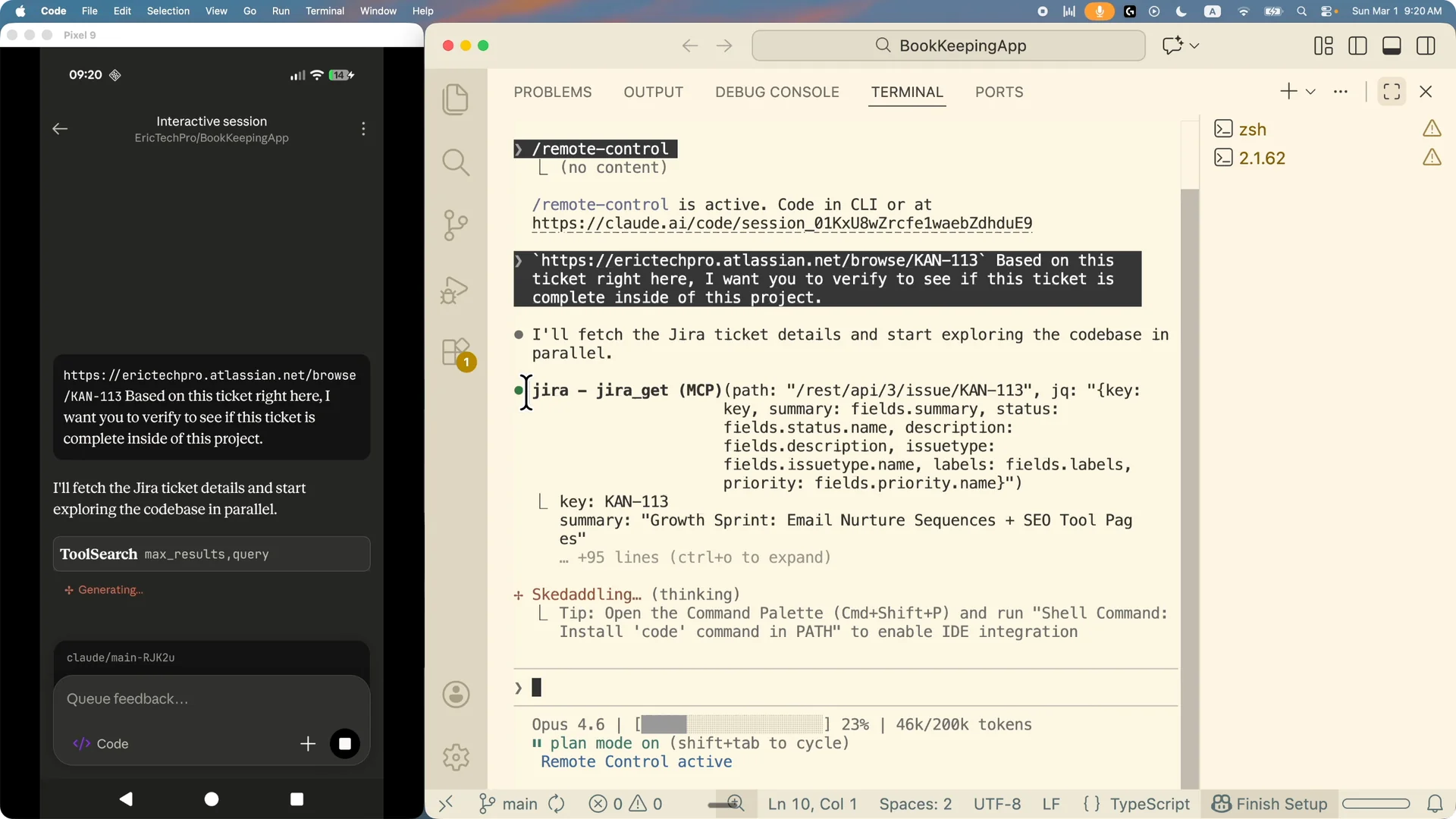
Prompts and outputs mirror on both ends.
I like that I can pick up exactly where I left off in the same terminal.
If I refresh on mobile, the latest conversation is right there.
Manage multiple sessions
You can have more than one terminal open.
Run remote control in each terminal and refresh on mobile to see both sessions appear.
I rename sessions for clarity, like Unmatched Page for planning and CAN-148 for a specific Jira ticket.
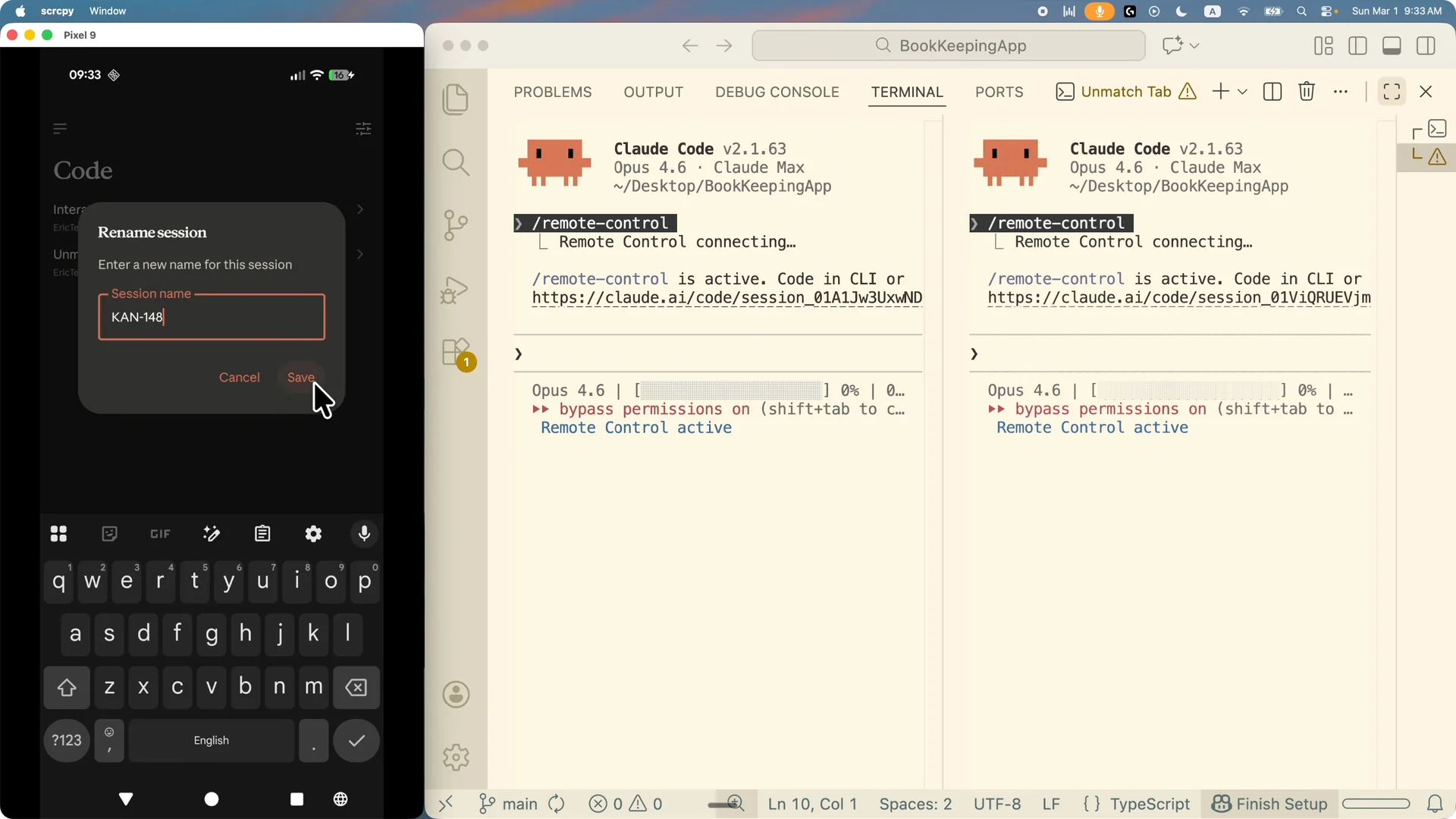
From mobile or desktop, I can enter either session and keep the work streams separate.
Based on current changes in the app, I ask Claude to understand the codebase and improve the user experience for matching receipts to transactions.
The problem is users only see two columns and they have to match items one by one, which is tedious.
I ask it to trigger the front end design skill to propose a better manual match experience.
I paste the same prompt in the mobile app so both ends match. The messages stay in sync immediately.
For broader task management beyond mobile, see how I set up efficient flows in this Claude Code desktop guide.
Switch to Plan mode
You can change the mode from Code to Plan to think before writing code.
I switch to Plan mode and ask Claude to plan the Google Drive folder sync feature.
It returns an architecture layout that includes the database, API layer, app autocomplete, and UI.
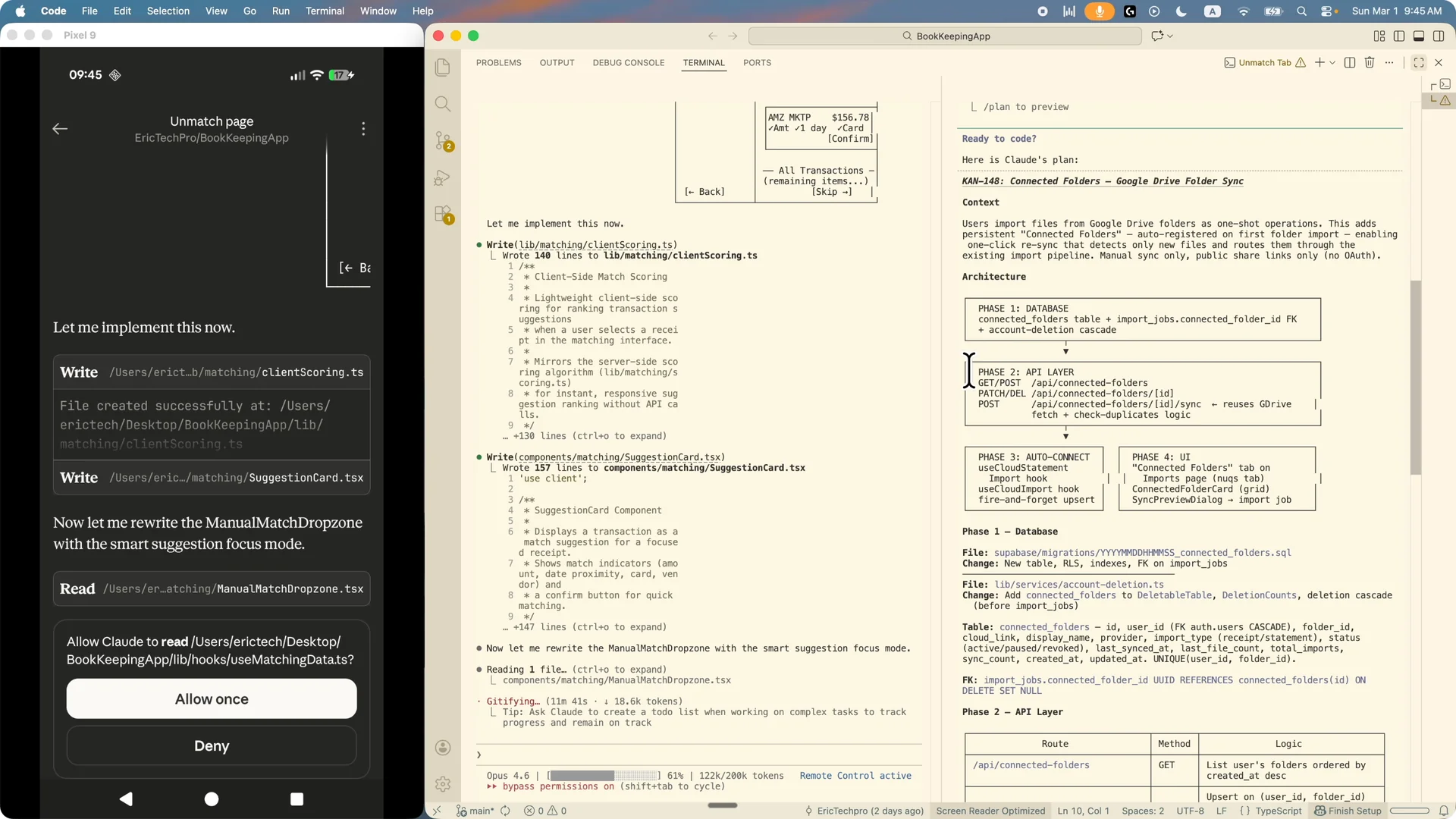
On mobile, the terminal diagram appears too.
I sometimes need to scroll to the right to see it fully on a small screen.
It is a clean way to visualize the plan and keep the discussion moving.
Read More: Claude Code Nano Banana Ai Images
Suggest edits and replan
I click Suggest edit and type what to change.
I ask Claude to make sure we can sync all folders in the connected folder tab, create a separate branch for this work, and trigger the agent teams to build it.
I send the suggestion and Claude replans the whole thing.
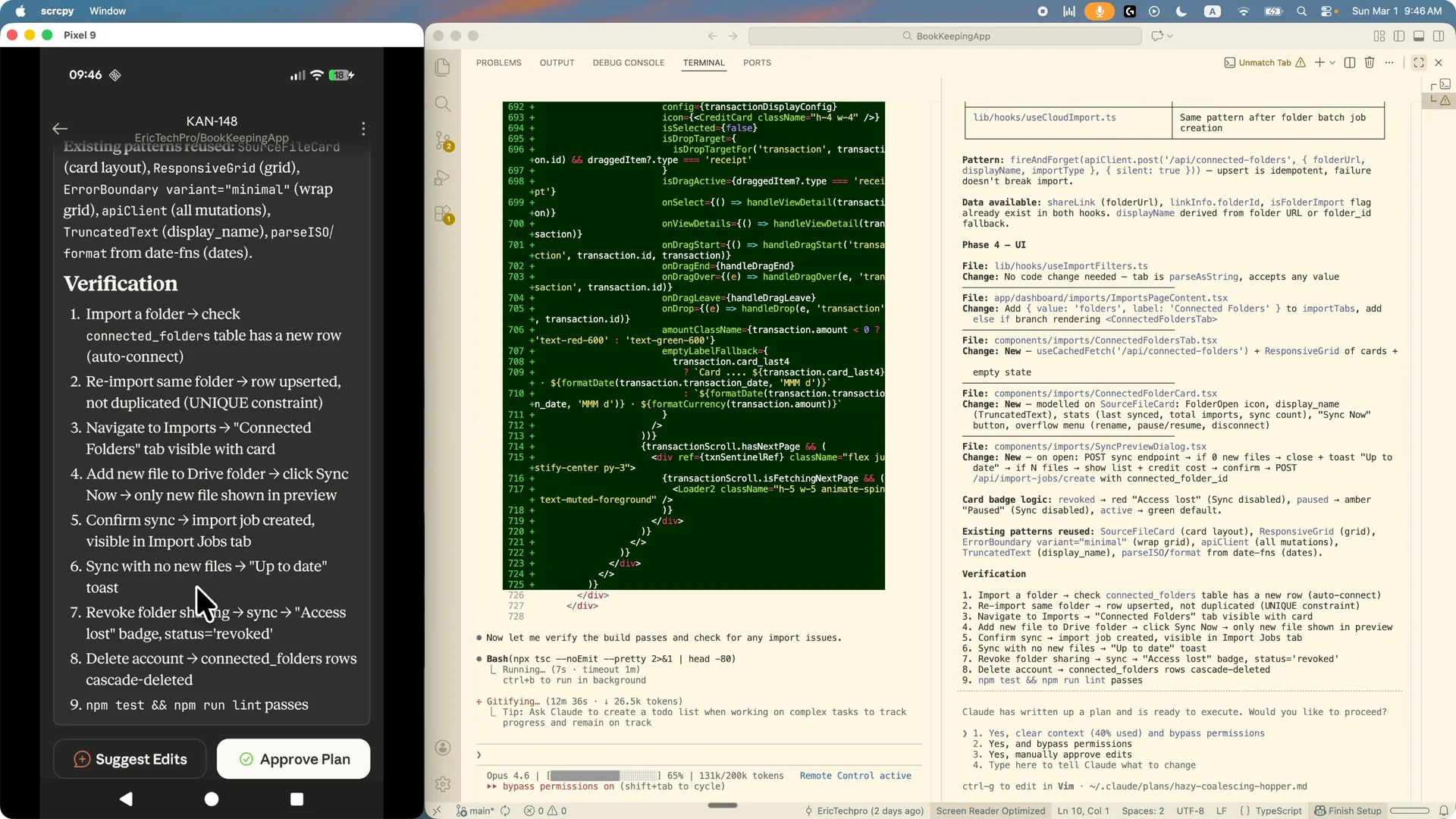
The two view layout on desktop makes it easy to watch both sessions progress.
On mobile, I switch between sessions to monitor results.
Permissions prompts like allow once or continue allow may appear, and I confirm to proceed.
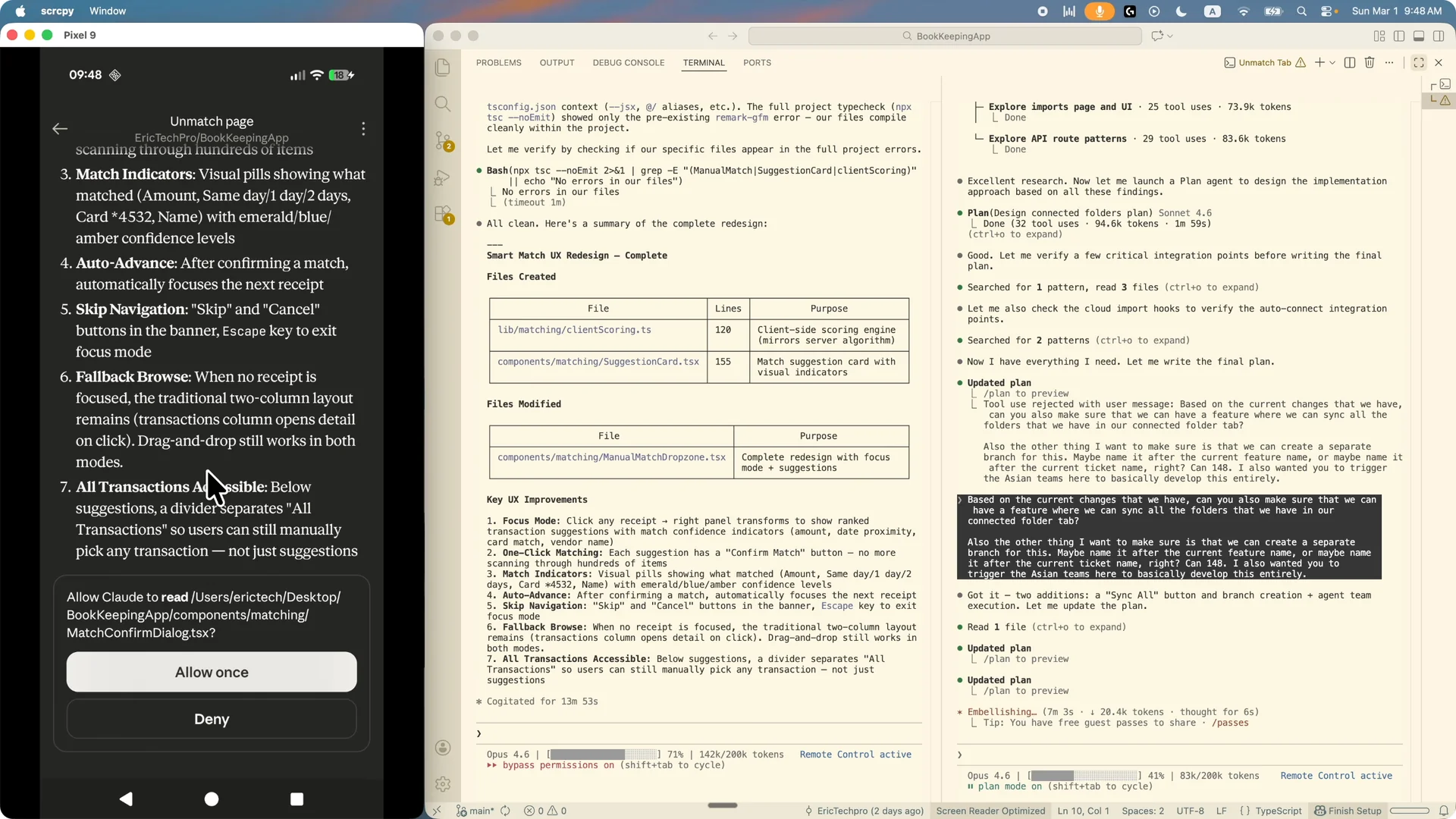
Verify changes from mobile
Because this is a remote session, you still need to run the app to see real UI changes.
I connect Playwright MCP and ask Claude to open the browser, navigate to the page, and take a screenshot.
I compare that with the ASCII diagram to confirm the UI has the changes we want.
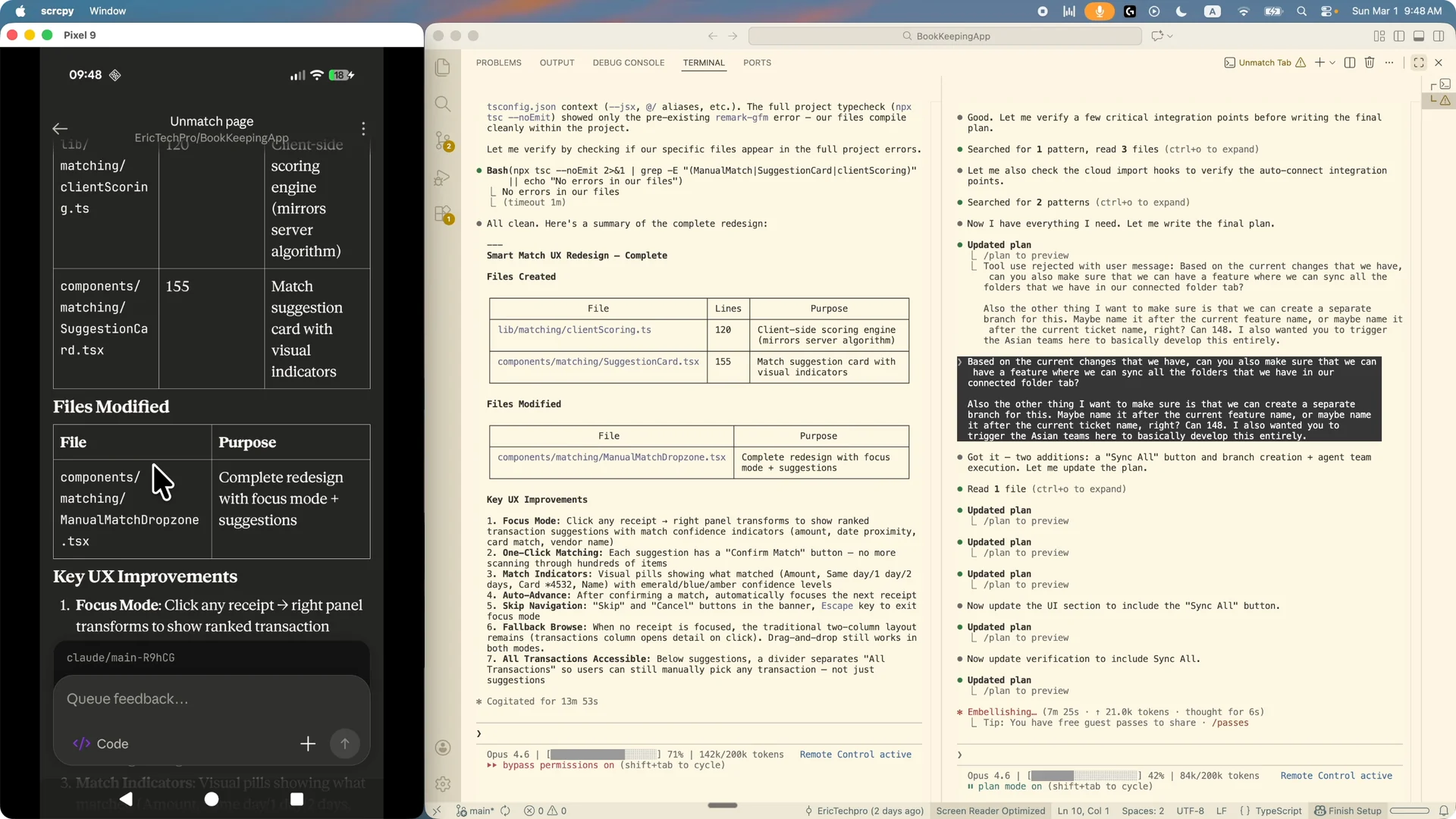
If I am away from my desk, I just queue the verification steps, then run them when I return to the desktop.
You can also instruct Claude to run the necessary commands once the desktop is active.
For Playwright specifics with Claude Code, see this Playwright setup and usage guide.
Generate UI diagrams
I ask for a terminal diagram to show what the matching page UI will look like.
Claude returns a diagram I can scroll through on mobile.
It is a fast way to confirm the 2D layout before committing to code.
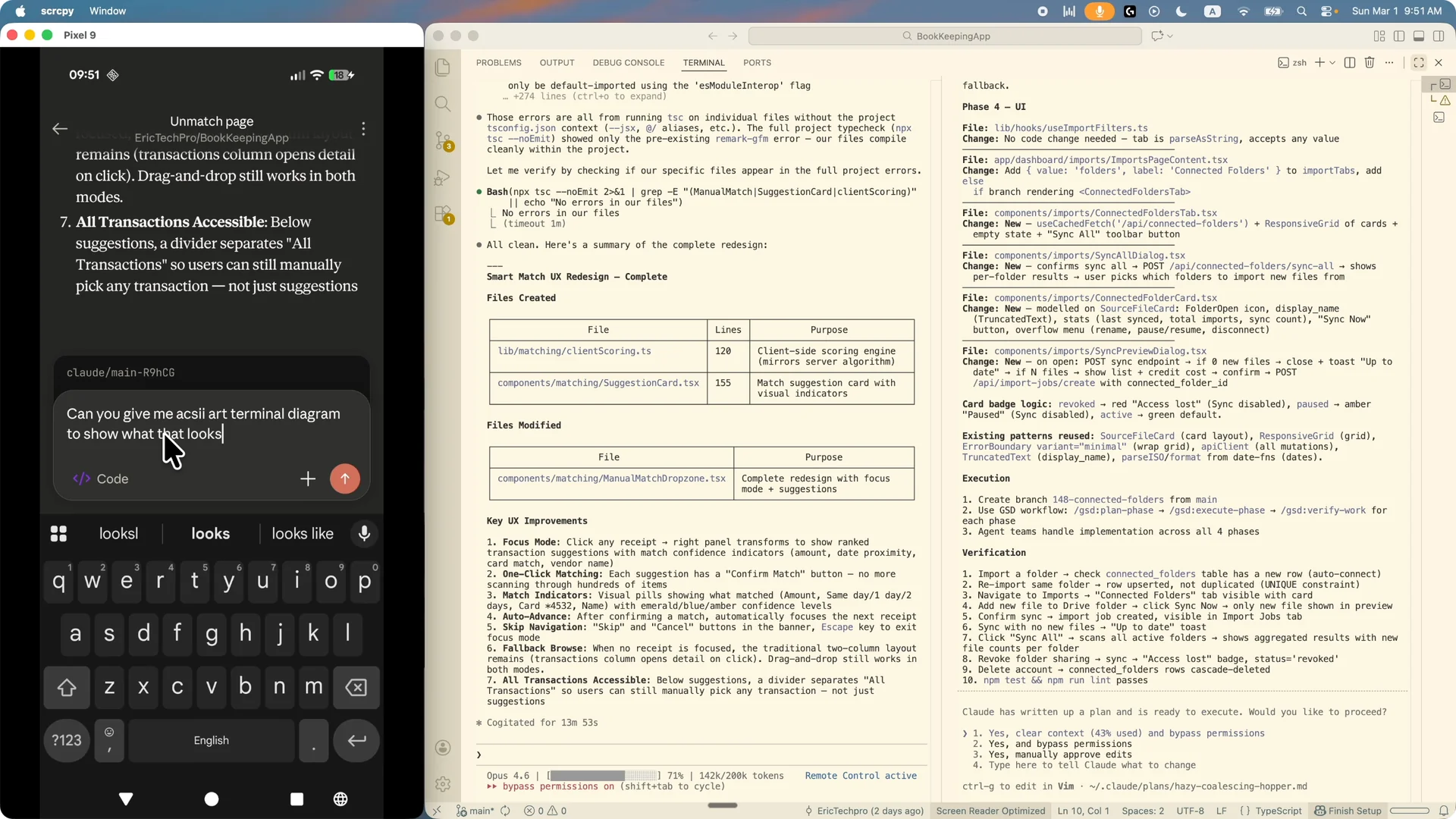
If the diagram is not what I want, I continue prompting to adjust the layout. I ask for a revised 2D view until it matches my expectations.
Once aligned, I proceed to implementation or have Claude update the plan.
Connect midway through a conversation
If I already have a Claude Code conversation running on desktop, I can type remote control in the middle of it.
I select Continue or show a QR code to connect to a web view, but I usually continue and pair with the mobile app.
After enabling, a refresh on mobile pulls in the entire conversation history.
The desktop needs to stay open so Claude Code can make changes to the local project.
Even if you connect midway, all previous context is preserved. That makes it easy to step away and keep guiding the work from your phone.
End a remote session
When I am done, I terminate the remote control session from the terminal. I press the down arrow to select Remote control active, click to view details, and press Enter to disconnect. The session disappears from mobile once it is terminated.
Small screen tips
Large terminal diagrams are viewable on mobile, but a tablet or larger phone helps. I scroll horizontally to see the full diagram. I keep session names short so switching between them stays quick.
Final thoughts
Remote control in Claude Code lets me keep real work moving from anywhere. I can connect the mobile app to my terminal sessions, manage multiple streams, plan in detail, and verify with Playwright MCP. Prompts and results stay perfectly in sync, so I never lose track of conversation or progress.