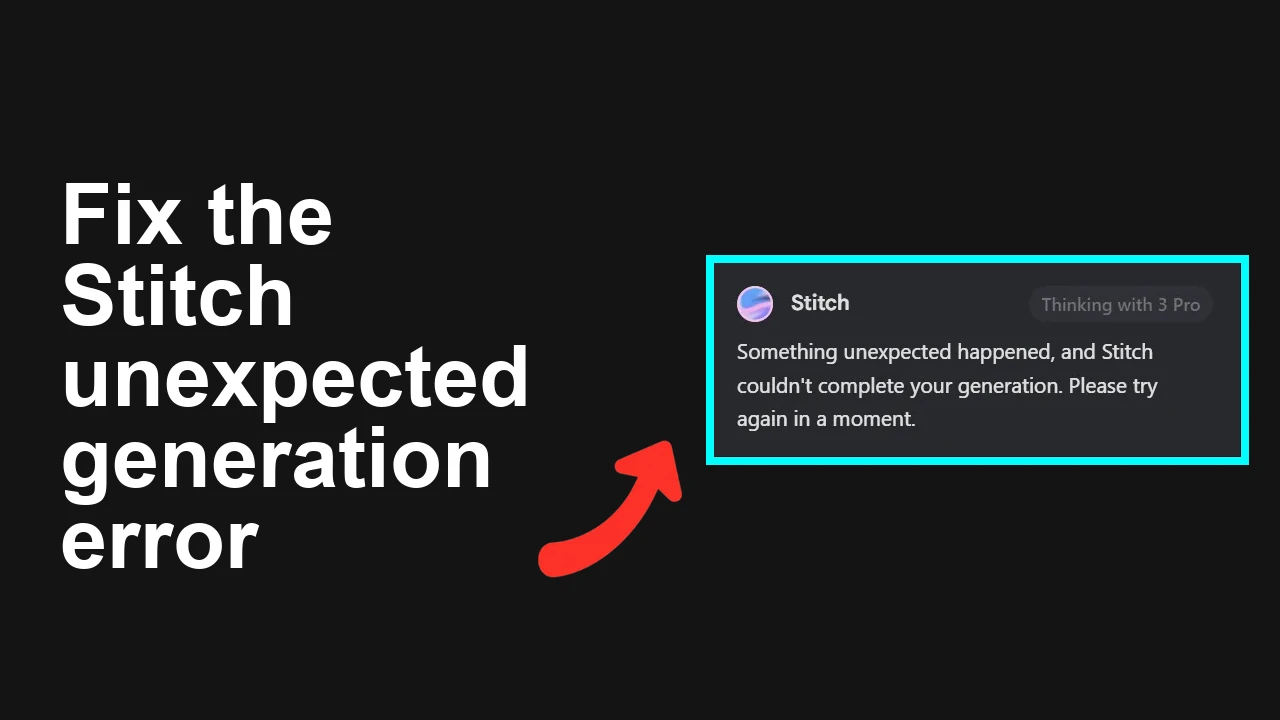
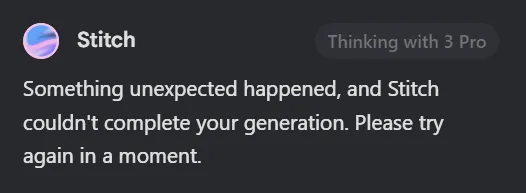
You are trying to generate a design in Stitch and keep getting the error: “Something unexpected happened, and Stitch couldn’t complete your generation. Please try again in a moment.” Clearing cache and even starting a new project did not help.
Stitch shows “Something unexpected happened” and refuses to complete your generation
Users report that every generate attempt fails with the exact message above. The issue can persist for a day or more, and support notes a prior fix was shipped but some users still see failures. Daily quota exhaustion or a backend regression are the most frequent triggers.
Solution Overview
Aspect
Detail
Root Cause
Temporary backend fault or your daily quota is exhausted for the current project or key
Primary Fix
Confirm and reset quota by switching project or key, then retry in a fresh project after a hard refresh and site data clear
Step 1. Confirm your daily quota and usage
1. Open the product where you trigger Stitch generation and check the account usage or quota screen.
2. If usage is near or at limit, switch to another project or API key and retry a single small generation.
3. If you cannot find quota in the UI, check the platform status or usage page if available.
Step 2. Start a fresh project and rerun the same prompt
1. Create a brand new project.
2. Paste the exact same prompt from the failing project.
3. Trigger a single generation. If this succeeds, the original project may be in a bad state.
Step 3. Hard refresh and clear site data for a clean session
1. Perform a hard reload
– Chrome or Edge Windows Ctrl plus F5 or Ctrl plus Shift plus R
– Chrome or Edge macOS Command plus Shift plus R
2. Clear local storage and caches for the site. In the browser DevTools Console on the page that hosts Stitch, run:
3. Remove service workers via DevTools Application tab if one is registered for the site, then reload and sign in again.
Step 4. Try a different project or API key
1. Create a new key and attach it to a fresh project if your platform supports API keys.
2. Retry with a minimal prompt that previously failed.
3. If tied to a region or model version, test a default region and the latest stable model.
For server side failure patterns that resemble generic errors, see HTTP 500 patterns in Google services to rule out broader outages.
Step 5. Reduce request size to rule out payload limits
1. Lower image dimensions or output quality.
2. Remove optional settings then add them back one by one.
3. Retry and watch for the first option that reintroduces failure.
Step 6. Collect console and network errors to pinpoint the cause
1. Open DevTools Network and Console tabs.
2. Reproduce the failure and copy the top red error message and any response codes.
3. If you see quota or rate limit messages, rotate to a new project or wait for the reset window.
Step 7. Wait and retry during a known fix window
Support confirmed a prior fix and that the team is re investigating. If quota is fine and fresh projects still fail, this is likely backend side. Retry every 30 to 60 minutes and track any status updates from the platform.
Alternative Fixes and Workarounds
Run in a different browser or Incognito
This rules out extensions and stale credentials. Close all regular sessions first.
Disable privacy and script blocking extensions
Temporarily turn off content blockers or network filters and retry.
Switch networks
Try a mobile hotspot or a different Wi Fi to exclude corporate proxies or DNS issues. You can also flush DNS if needed:
Retry with a known stable model or version
If your tool lets you pick a model or version, choose the default stable one. For symptoms that point to mismatches, see version mismatch checks.
Troubleshooting Tips
If one specific prompt always fails, test a simpler prompt to check for content filtering or token limits.
Confirm billing status. Expired trials or unpaid invoices can silently block generation.
Ensure required services are enabled for the project if your platform integrates with a cloud account.
Watch for rate limit headers or error bodies in Network logs. When in doubt, throttle your attempts and implement retries.
If you see internal errors for related Google services, this guide on handling HTTP 500 style failures can help you decide when to wait versus switch accounts.
Best Practices
Monitor usage and rotate projects or keys before you hit a hard daily ceiling. For deeper tactics, see our quota guide.
Add automatic retries with jitter in client code to ride out transient faults:
async function withBackoff(fn, attempts = 5) {
 for (let i = 0; i < attempts; i++) {
 try { return await fn(); }
 catch (e) {
 const wait = Math.min(60000, 1000  Math.pow(2, i))  (0.5 + Math.random());
 await new Promise(r => setTimeout(r, wait));
 }
 }
 throw new Error('Exhausted retries');
}
Keep prompts tight and avoid oversized payloads. Test with a known good minimal input first.
Periodically clear site data for web tools that maintain heavy local caches.
Final Thought
In most cases this Stitch error is either quota exhaustion or a temporary backend issue. Verify quota, test in a fresh project with a clean browser session, then retry with minimal settings. These steps quickly separate local problems from service side faults so you can get generations working again.
We use cookies to ensure that we give you the best experience on our website. If you continue to use this site we will assume that you are happy with it.