
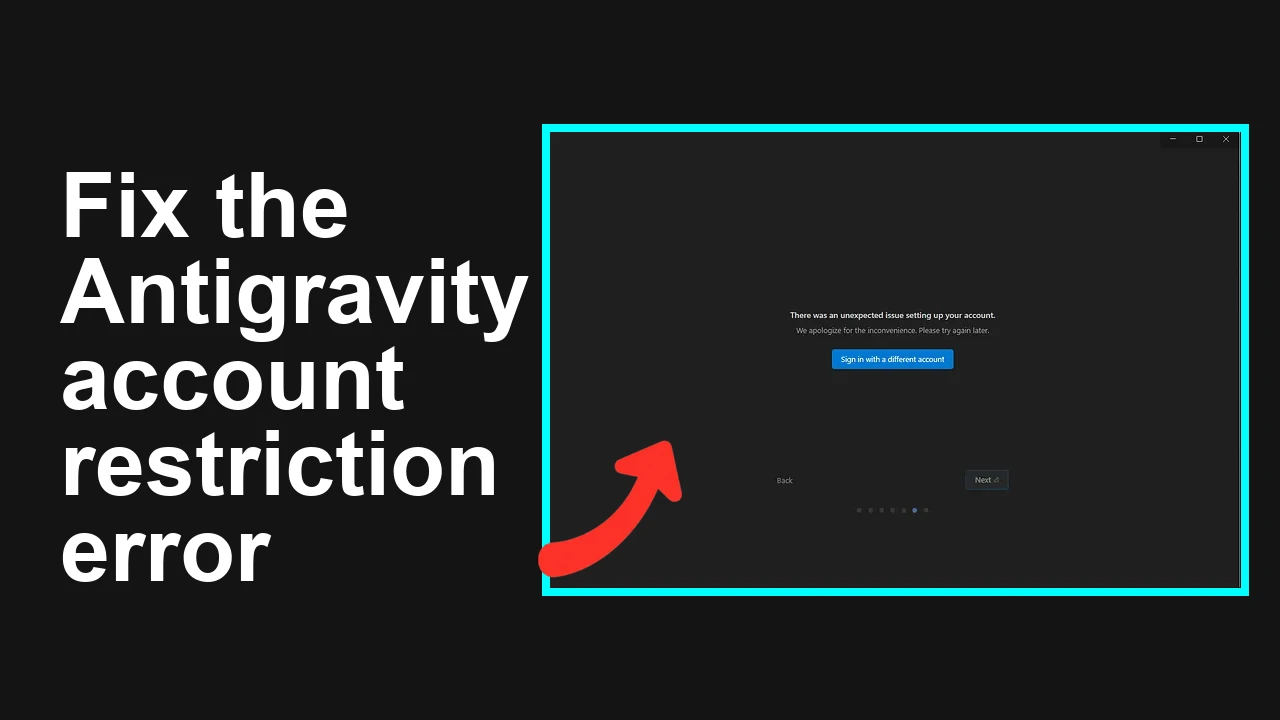
Your Google AI Ultra account was suddenly restricted after connecting Gemini models through a third party OAuth app, and you received no warning. You cannot sign in to the app to submit feedback, and support has not replied.
Google AI Ultra account restricted after OpenClaw OAuth
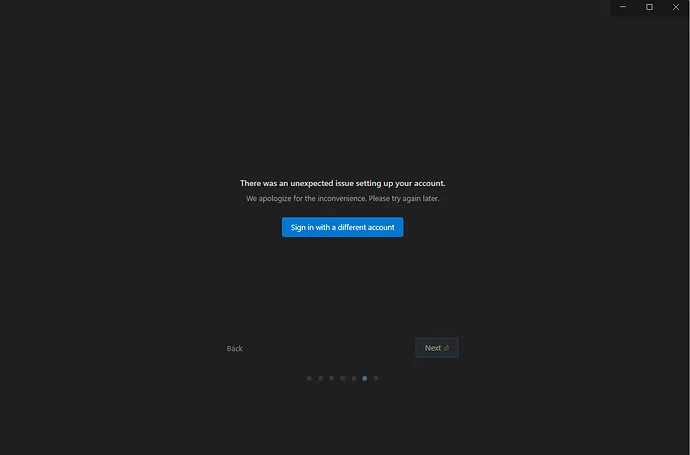
You connected Gemini through a third party OAuth integration and shortly after your paid Google AI Ultra account was restricted with no prior notice. You cannot access the app to file a report, and the only official guidance you received was to use the Antigravity feedback icon in the top right, which you cannot reach because you are logged out.
Solution Overview
| Aspect | Detail |
|---|---|
| Root Cause | Automated risk systems likely flagged third party OAuth activity from OpenClaw or abnormal API usage and temporarily restricted the account |
| Primary Fix | Revoke third party OAuth access, pause automated calls, then submit a clear unblock request with evidence and billing verification |
| Complexity | Medium |
| Estimated Time | 30 to 60 minutes to complete actions, plus 24 to 72 hours for review |
Read More: Fix Http 500 Internal Server Error Google Workspace
Recover access and lift the restriction
Step-by-Step Solution
Step 1. Confirm it is a product restriction, not a full account hold
- Open https://myaccount.google.com and confirm you can access your Google Account.
- Check your inbox and spam for policy or risk notifications from Google.
- If only Google AI Ultra or AI Studio is blocked while your Google Account works, proceed with the steps below.
Step 2. Revoke third party OAuth access linked to OpenClaw
- Open Google Account third party access.
- Select any app named OpenClaw or apps with Gemini scopes you did not intend to grant, then choose Remove access.
- If you still have an OAuth access or refresh token and want to revoke it programmatically, call the OAuth 2.0 revoke endpoint.
Command to revoke a token:
curl -X POST -d "token=YOUR_TOKEN_HERE" https://oauth2.googleapis.com/revokeOptional, inspect a token:
curl "https://oauth2.googleapis.com/tokeninfo?access_token=YOUR_ACCESS_TOKEN"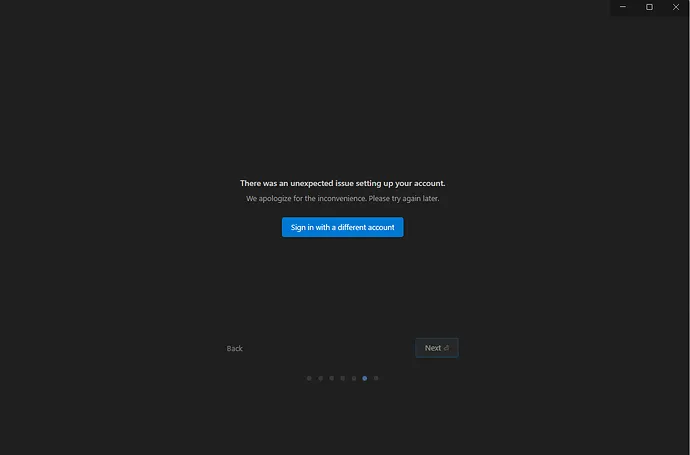
Step 3. Pause automations and reduce unusual API behavior
- Stop any bots, schedulers, or proxies that might be making rapid requests to Gemini.
- If you were tunneling traffic through OpenClaw or rotating IPs, stop until the review completes.
- Keep usage tied to a single consistent IP and account once access is restored.
Step 4. File an unblock request with complete context
You were advised to use the Antigravity feedback icon in the top right then Report Issue. Since you are logged out, use the public help channel:
- Open the AI Studio Help Center.
- Search for Contact us or Report an issue and submit a ticket that includes:
– Account email
– Date and time the restriction started
– Description of the recent OAuth connection to OpenClaw and that you have now revoked access
– Confirmation that you paused all automated requests
– Billing tier and that your payment method is valid
– A clear request for a manual review and re enablement
Suggested message template:
Subject: Request review of Google AI Ultra account restriction
Hello Support Team,
My Google AI Ultra account was restricted on <DATE> shortly after I connected Gemini via a third party OAuth app named OpenClaw. I received no prior warning. I have now revoked all third party access at https://myaccount.google.com/permissions and paused all automations.
Account email: <YOUR_EMAIL>
Billing plan: <PLAN_NAME> and payment method is current
Approximate start time of restriction: <TIMEZONE AND TIME>
Please run a manual review and re enable my access. I am happy to provide logs or additional details.
Thank you.
Step 5. Refresh your auth state and retry sign in
- Clear cookies and site data for aistudio.google.com and ai.google.com in your browser.
- Try an incognito window and a different network to avoid previous sessions or flagged IPs.
- Re attempt sign in after receiving confirmation from support or after 24 hours.
Step 6. Verify billing and identity signals
- Confirm your payment method is active and not declined in Google payments.
- Enable two step verification on your Google Account to strengthen trust signals.
- If your usage is for a business, ensure business profile and legal name are accurate.
Step 7. Follow up if no response
- If you do not receive a reply within 48 to 72 hours, reply to your original ticket with a concise nudge including your case ID and the actions you completed above.
Read More: Ollama Free Local Ai Assistant
Alternative Fixes & Workarounds
Create a clean project without third party OAuth
- Build a direct integration that authenticates with Google approved flows only.
- Keep the new project isolated from any proxies or traffic brokers.
Use the in app feedback path when access returns
- If you regain access even briefly, open the Feedback icon in the top right and select Report Issue to attach context and screenshots from inside the product. Mention your prior ticket ID.
Team access for urgent work
- If your organization has multiple accounts, a teammate with access can continue essential tasks while your account is reviewed. Keep usage modest and policy compliant.
Temporary local development
- While waiting on review, continue prototyping locally and keep production traffic paused to avoid further flags.
- Read More: Claude Code Nano Banana Ai Images
Troubleshooting Tips
- No email from support after 72 hours: resubmit through the Help Center and include your previous case number.
- Restriction recurs immediately after re linking OpenClaw: avoid reconnecting that app and contact its developer about scope and traffic patterns.
- You suspect a broader Google Account issue: review Account Help and resolve any security alerts first.
- You need to audit granted scopes: review the OAuth 2.0 token revocation guidance and keep only the minimum scopes required.
Best Practices
- Use trusted OAuth apps only and review their requested scopes before approval.
- Separate environments for experiments and production to contain risk.
- Limit request rates and avoid IP rotation or proxy patterns that look automated.
- Enable two step verification and keep billing details current.
- Document every change to auth and traffic so you can present a clear timeline to support if needed.
Final Thought
The fastest path is to revoke third party access, pause automations, and submit a precise unblock request with billing and security assurances. Once reviewed, you should regain access and can rebuild with a compliant, low risk integration approach.