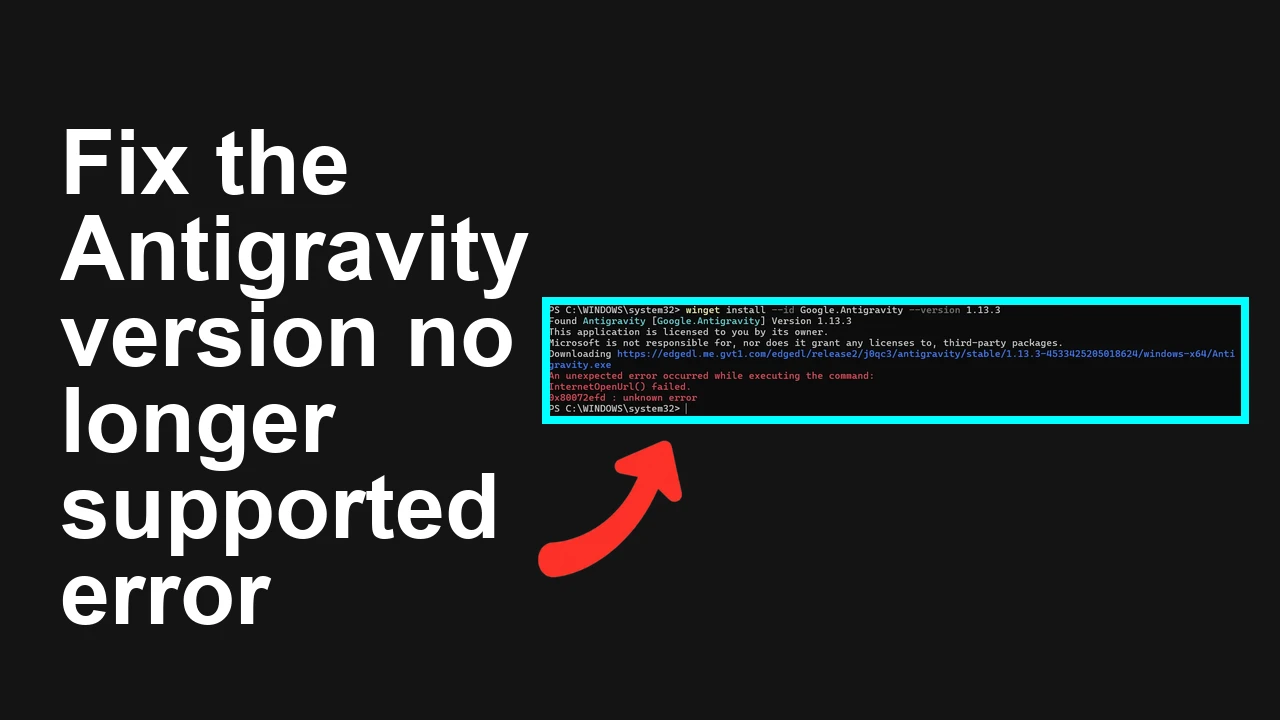
You are seeing the Antigravity app refuse to start or install because the backend now blocks old builds. The message says
This version of Antigravity is no longer supported. Please update to receive the latest features!
Fix Antigravity v1.13.3 shows This version is no longer supported
When attempting to install or open Antigravity version 1.13.3, the app shows
This version of Antigravity is no longer supported. Please update to receive the latest features!. A simple reinstall of the same package does not help, because the server enforces a minimum supported version and continues to block outdated builds.
For a deeper breakdown of why version blocks happen and how the app checks them, see our concise
version error guide.
Solution Overview
| Aspect | Detail |
|---|
| Root Cause | Server side minimum version policy now rejects v1.13.3 and older builds |
| Primary Fix | Remove the old build completely and install the latest supported release from the official source |
| Complexity | Easy |
| Estimated Time | 10 to 20 minutes |
Update to the latest supported build cleanly
Step-by-Step Solution
Step 1 Confirm the installed version
- On the device open Antigravity then About and note the version. If it will not open use ADB:
adb shell dumpsys package com.antigravity.app | grep version
Step 2 Back up what matters
- If the app offers export in Settings run a manual backup first.
- If you sideloaded models or created local files keep a copy of these folders if present on external storage:
/sdcard/Android/data/com.antigravity.app/
/sdcard/Documents/Antigravity/
Note that internal app data under
/data/user/0/com.antigravity.app/
is removed on uninstall and is not directly accessible without root.
Step 3 Fully remove the outdated build
* Settings then Apps then Antigravity then Storage then Clear storage
* Back then Uninstall
adb shell pm clear com.antigravity.app
adb uninstall com.antigravity.app
Step 4 Install the latest supported release
- Preferred Install from Google Play so you get the newest compatible build for your device
- If sideloading always fetch the newest package from the official publisher then install with ADB
adb install /path/to/Antigravity-latest.apk
- If the app ships as split packages you must install all APKs together
adb install-multiple base.apk split_config.arm64_v8a.apk split_config.en.apk
More on split installs here:
Bundletool docs
Step 5 Sign in and verify
- Open Antigravity sign in then confirm the new version in About
- The unsupported message should be gone
Step 6 If Play Store kept an old build force refresh
- Clear Play Store and Play Services cache then retry update
* Settings then Apps then Google Play Store then Storage then Clear cache
* Settings then Apps then Google Play Services then Storage then Clear cache
See steps in the official guide:
Clear cache and data
Alternative Fixes and Workarounds
Install the open or beta track that carries the supported build
- If your stable track is behind join the open testing or beta channel for Antigravity then update from Play Store
- After the update confirm the version meets or exceeds the minimum required by the service
Correct split package or ABI mismatch
- If you sideloaded only base.apk the app may start but still fail version checks or features
- Reinstall with all required splits for your device CPU and language
adb install-multiple base.apk split_config.arm64_v8a.apk split_config.xxhdpi.apk split_config.en.apk
Or use APKMirror Installer if you have a single apkm bundle:
APKMirror Installer
Device OS too old for the latest app
- If the newest Antigravity build requires a newer Android version update the device firmware then install from Play Store
- If device updates are not available use a supported secondary device or the web client while planning a device upgrade
Blocked by stale config or sign in state
Troubleshooting Tips
- Confirm the running version
adb shell dumpsys package com.antigravity.app | grep version
- Capture logs while launching to verify the minimum version error
adb logcat | grep -i antigravity
Look for entries indicating a required version or feature flag fetch
- Disable VPN or custom DNS temporarily in case backend version checks are blocked
- Ensure device date and time are set automatically incorrect time can cause config fetch failures
- Verify you installed the correct package name and not a clone package
- If after upgrading you hit server limits or request blocks see our quick remedies for quota failures here quota error tips
- If nothing works contact the publisher with your device model Android version app version and a short logcat excerpt
Best Practices
- Keep automatic updates on in Play Store to stay within supported versions
- Avoid sideloading older builds from mirrors the backend can block them without notice
- When sideloading verify signature and install all required split APKs for your device
- Before major updates export in app backups so you can restore settings quickly
- Document the app version and change timing in case you need to roll forward again
Final Thought
The unsupported version message is a server policy not a local bug.
Installing the latest supported build and clearing stale state resolves it in nearly all cases, and the steps above ensure you do it cleanly and safely.