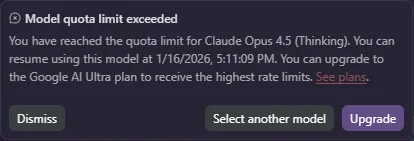
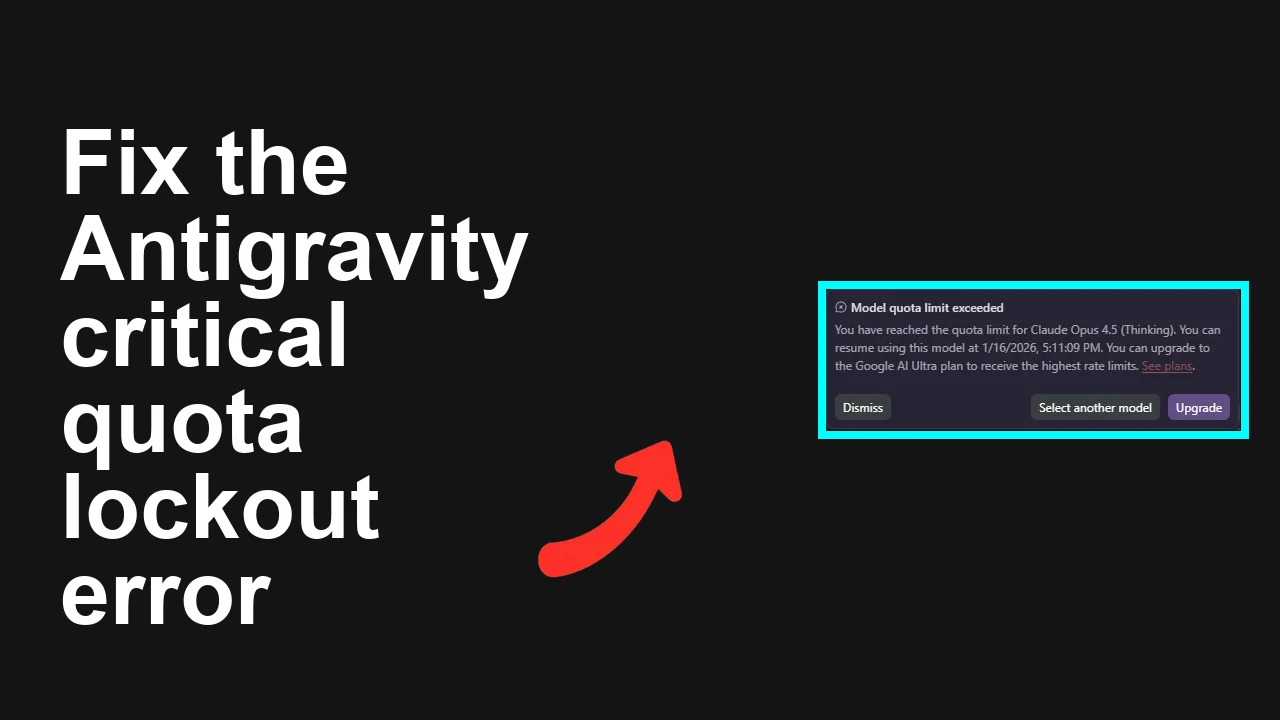
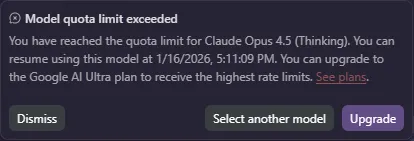
Users with a Google AI Pro plan are seeing Antigravity IDE lock them out with a “Model quota limit exceeded” message for several days even though the documented maximum is 5 hours. New chats show a 4 day lockout and existing sessions show a 7 day lockout.
Antigravity IDE shows multi day quota lockout on Google AI Pro accounts
You sign in with a valid Pro subscription, open or start chats that use Claude Opus 4.5 Thinking, and the IDE responds with Model quota limit exceeded and a wrong resume date such as 1 slash 16 slash 2026 for existing sessions and 1 slash 13 slash 2026 for new chats. This happens on Windows 11 in Google Chrome and only inside Antigravity IDE.
For more context on what this error means and how it is computed, check our short AI guide on Antigravity quota behaviors: critical quota error reference.
Solution Overview
Aspect
Detail
Root Cause
Stale or corrupted usage cache and entitlement state inside the IDE, combined with a per model throttle on Claude Opus 4.5 Thinking that inflates the lockout window for specific conversations
Primary Fix
Fully refresh account entitlements and clear site storage for the IDE, then start a fresh chat on a different model and switch back if needed
Complexity
Easy
Estimated Time
10 to 15 minutes
Fix the incorrect 4 to 7 day lockout now
Step by Step Solution
Step 1. Sign out of Antigravity IDE and close all tabs
Sign out from your profile inside the IDE
Close every browser tab that points to the IDE
Step 2. Clear site storage for the IDE origin
In Chrome type chrome colon slash slash settings slash siteData in the address bar
Search for your Antigravity IDE domain and remove all data including Cookies, Local Storage, IndexedDB, and Service Workers
Quit and relaunch Chrome
If you prefer DevTools
1. Open the IDE
2. Press F12 to open DevTools
3. Application panel then Storage
4. Click Clear site data
Step 3. Re authenticate and confirm entitlements
Sign back into the IDE with the Google AI Pro account
Confirm the Pro badge or plan indicator shows correctly in the workspace header
To double check the subscription is active in your Google account you can also review it at My Subscriptions.
Step 4. Start a brand new chat on a different model
Create a new conversation instead of reopening the old locked one
Choose a different model first, then switch back if required
– Example switch from Claude Opus 4.5 Thinking to a non thinking variant or another allowed model, then back to your preferred model
Keep a single browser tab open and avoid parallel runs for the first message
Tip If your model picker exposes thinking configuration reduce thinking tokens for the first request
For additional tactics to keep your usage below throttles, see our short checklist on managing Antigravity model triggers: understanding Antigravity quota triggers.
Step 5. Verify system clock and time zone
Wrong local time can confuse rolling windows shown in client messages even if the back end is correct.
On Windows 11
1. Settings then Time and Language then Date and time then enable Set time automatically and Set time zone automatically
2. Sync time
PowerShell commands if you prefer terminal
# View the current time zone
Get-TimeZone

Optionally set a specific time zone name
Set-TimeZone -Name "Pacific Standard Time"

Force time sync
w32tm /resync
Step 6. Cancel queued or stuck runs if your IDE shows a queue
If the IDE has a Runs or Queue panel cancel all pending items so the next request starts clean.
Step 7. Test with a lightweight prompt
Send a short message first such as
“Reply OK only”
If this succeeds your quota window is refreshed. Then proceed with normal prompts.
Step 8. If lockout persists capture evidence and request a quota reset
Collect these in Chrome
1. Press F12 and open the Network tab
2. Reproduce the error once
3. Click the failed request then copy Request URL, Response, and the x request id or similar header
4. Save all as HAR with content
Attach to your support ticket along with
Screenshot of the lockout banner that shows the incorrect resume date
Your account email and workspace id
Approximate time of the error
The model name and it was thinking enabled
While you wait you can keep working through a direct API where your paid key applies. Example calls below.
Anthropic API example for a light test
If your plan allows the base model without thinking use that for the session
Thinking requests often count heavier against throttles
Create a fresh workspace or project
Some quota flags are cached per project
A brand new workspace can clear the inflated window immediately
Reduce concurrency
Keep a single chat active
Avoid sending multiple large messages in quick succession
Wait one minute between heavy generations to allow counters to settle
Use a different browser profile
Create a clean Chrome profile then sign in once and retry
This isolates corrupted local storage that can cling to old quota windows
Temporary provider switch
If your IDE supports multiple providers switch to a non affected model family for urgent tasks
If you need a deeper walkthrough of techniques that keep Antigravity below soft and hard limits, see our compact playbook here: strategies to avoid Antigravity throttles.
Troubleshooting Tips
Confirm that the wrong resume date appears only in the IDE. If direct API calls succeed the issue is client side caching or entitlement propagation inside the IDE
Check for mixed sign in. Verify that the Google account in Chrome is the same one used for Pro billing
Disable extensions that intercept requests such as script blockers, privacy filters, corporate proxies
Try a different network to rule out enterprise egress that may collapse many users into one IP level quota
If you see different resume dates between new and existing chats it is strong evidence of per thread quota metadata. Always start a new chat after the reset steps above
Best Practices
Keep thinking requests small and infrequent when using models with higher quota weight
Avoid opening many parallel chats for the same model in multiple tabs
Refresh site storage only for affected origins rather than clearing the entire browser
Periodically verify your subscription and workspace entitlements after plan changes
Capture request ids whenever an error appears. It accelerates support diagnostics
Final Thought
The multi day lockout is almost always a cached entitlement and per thread throttle bug, not a real quota limit. A clean sign out, targeted site storage reset, and a new chat on a different model restores access in minutes so you can get work done again.
We use cookies to ensure that we give you the best experience on our website. If you continue to use this site we will assume that you are happy with it.