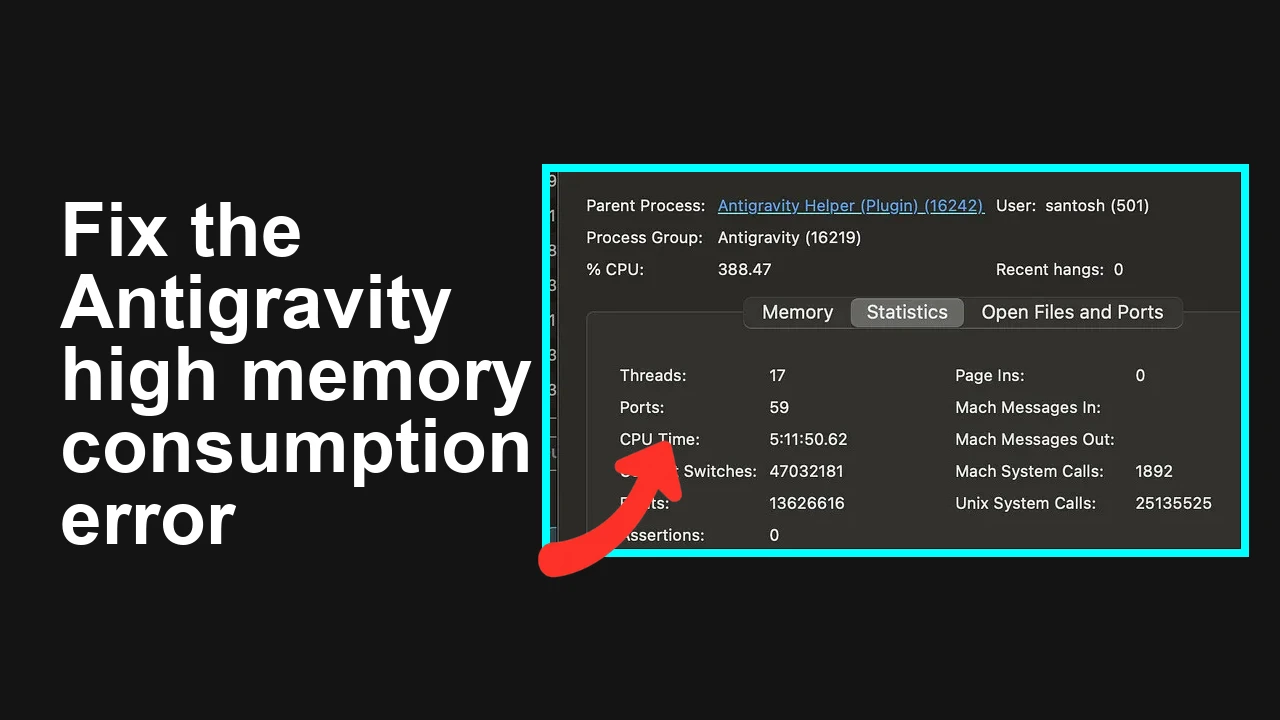
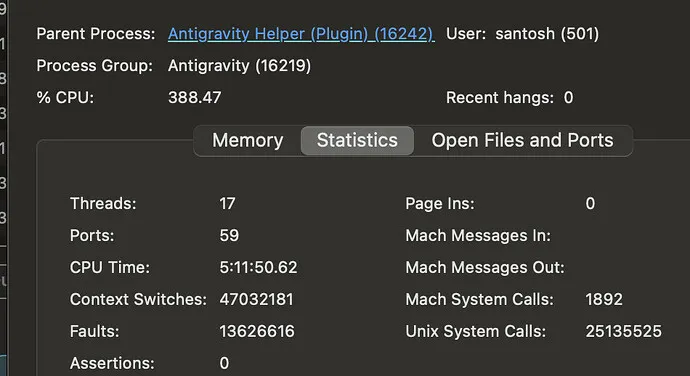
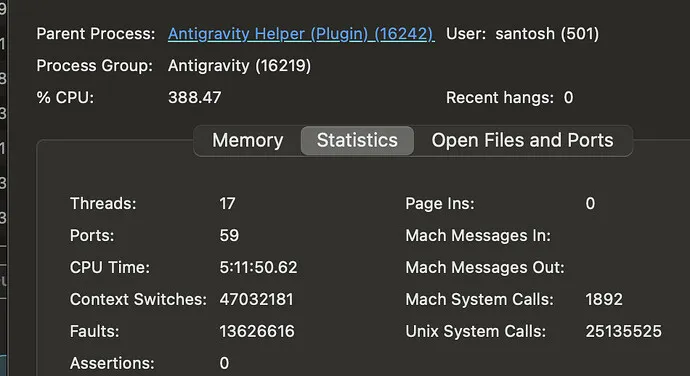
Antigravity intermittently freezes on Windows while the language server spikes memory to the limit. Projects with very large files or opening the full repository root trigger indexing storms and device overheating.
Antigravity language server hang on Windows with high RAM usage
Users report the app hangs after a few prompts. Task Manager shows the language server consuming most available RAM and the device becomes very hot.
Working from a subfolder helped briefly, then the issue returned. The durable fix came from breaking up very large source files some were over 1000 lines so the language server does not index massive files in one pass.
Related but different If your runs fail due to request quotas rather than memory, see our quota error guide here Critical quota help.
Solution Overview
Aspect
Detail
Root Cause
Language server indexing a very large workspace and very large single files which drives RAM usage sky high
Primary Fix
Limit workspace to a focused subfolder and split oversized files into smaller modules that are easier to index
Complexity
Medium
Estimated Time
30 to 90 minutes for a typical codebase
Fix the language server memory spike and hangs
Step-by-Step Solution
Step 1 Limit the workspace scope to the code you need
Open only the product subfolder instead of the entire repository root. This keeps the symbol index small.
Add a workspace settings file to exclude heavy folders from indexing.
Create or edit this file
.vscode/settings.json
and add
This prevents the language server and search features from scanning huge directories.
Read more on workspace settings in the editor docs here
VS Code settings.
Step 2 Split any file that is one thousand lines or more
Very large files were the main trigger. Break them into logical modules.
Example Python refactor
Before
my_service.py
# file had more than 1200 lines
class Service:
 def action_a(self): ...
 def action_b(self): ...
 # many more methods
After
services
user_service.py
order_service.py
user_service.py
class UserService:
 def create_user(self): ...
order_service.py
class OrderService:
 def create_order(self): ...
my_service.py now becomes a thin orchestrator
from services.user_service import UserService
from services.order_service import OrderService

class Service:
 def __init__(self):
 self.users = UserService()
 self.orders = OrderService()
Apply the same idea for TypeScript or Java by moving classes or features into separate files and folders. The goal is to keep each file focused and small enough for quick parsing.
Step 3 Restart the language server and the app
Close the editor or IDE that hosts the language server.
Quit and reopen Antigravity.
Reopen only the smaller subfolder workspace created above.
On Windows you can confirm memory relief with Task Manager
Task Manager help.
Step 4 If the spike started after an update consider rolling back
When issues began right after an update, reinstall the prior stable version and wait for a patched build that addresses memory behavior. Test with the refactored and reduced workspace as well.
Step 5 Reduce background analysis when under pressure
Temporarily disable heavy background features in your editor such as full workspace symbol search or code lenses, then re enable after refactor. For details see your editor or language extension documentation.
Additional note on trigger limits If your app pauses due to trigger limits rather than memory, see this short explainer Trigger limit tips.
Alternative Fixes & Workarounds
Work in a temporary minimal workspace
Copy only the required source subfolder into a clean temp folder and open that folder in your editor. This avoids scanning unrelated parts of the repo.
Exclude generated artifacts
Ensure large generated files logs data exports or coverage outputs are outside the workspace or listed in files.exclude and search.exclude.
Close heavy background tools
Shut down browsers with many tabs package managers and other heavy apps when running Antigravity to leave more memory available.
Increase system virtual memory
On Windows expand the page file so spikes do not cause a hard freeze.
Windows virtual memory guidance.
Troubleshooting Tips
Watch memory in Task Manager and identify the top process name for the language server. If it grows without bound even on a small workspace capture a sample and report it to the editor extension maintainer.
Check for huge single files such as one massive JSON or CSV sitting in the workspace. Move those to a data folder and exclude them.
Verify you are not opening your entire home directory as the workspace root. Always open the smallest folder that contains the code you are editing.
Clear any editor cache folders if the index seems corrupted then reopen the workspace.
If prompts stall for quota reasons not memory, see this follow up on trigger quotas follow up on trigger quotas.
Best Practices
Keep source files between 200 and 800 lines where practical. Favor small cohesive modules.
Establish folder conventions early so each feature lives in its own folder with a clear entry file.
Commit a team workspace settings file .vscode settings.json that excludes heavy folders and artifacts.
Add a check in CI or a simple script to flag files that exceed your agreed size threshold.
Periodically prune logs data dumps and caches inside the repo so the workspace stays lean.
Final Thought
The reliable fix is to shrink the language server workload. Open a smaller workspace and split oversized files so the index stays compact. This stops the memory spike and keeps Antigravity responsive on Windows without hardware upgrades.
We use cookies to ensure that we give you the best experience on our website. If you continue to use this site we will assume that you are happy with it.