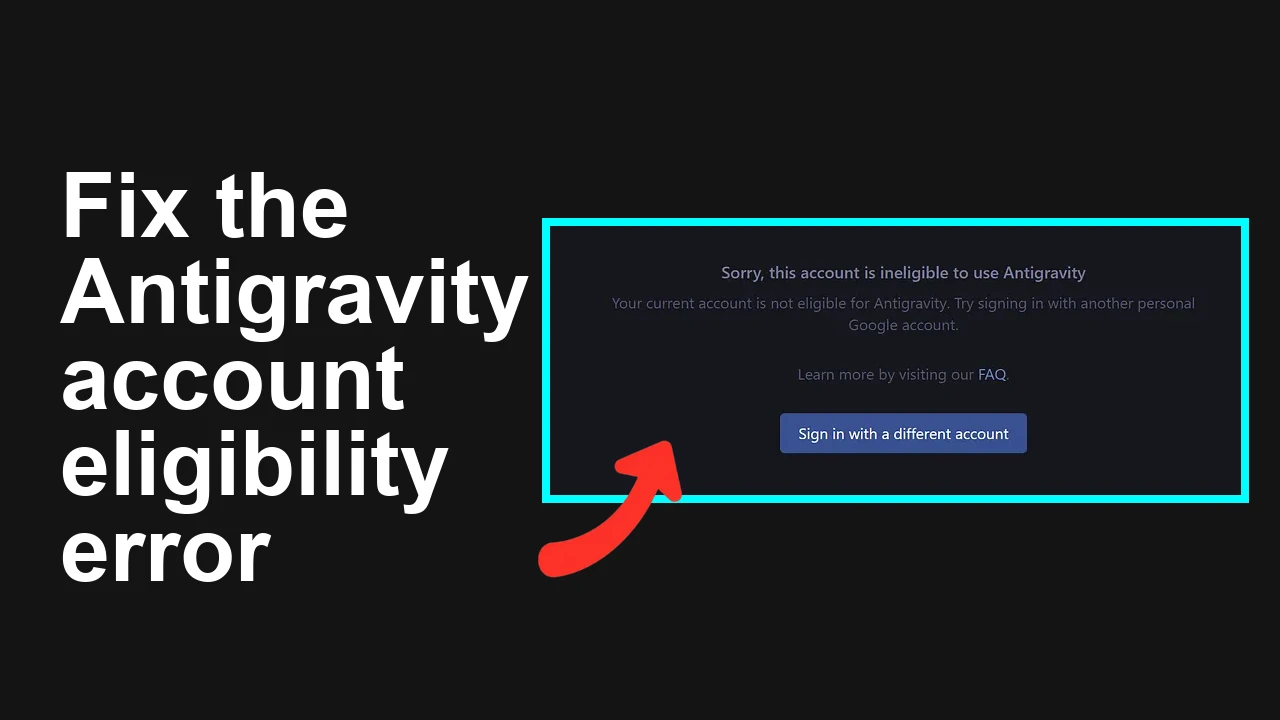
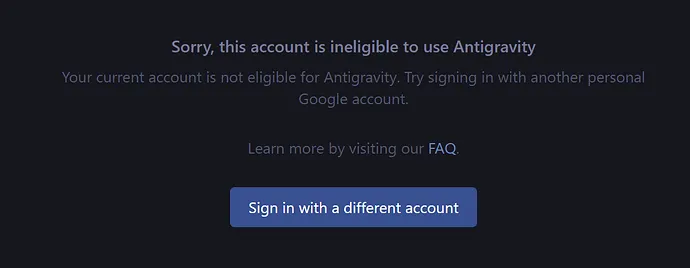
You are seeing the Antigravity login prompt that says Your current account is not eligible, and even your previously working device now fails after you signed out. Clearing cache and reinstalling did not help.
This is almost always an account eligibility or stale session issue, not an install problem.
Antigravity login error Your current account is not eligible
On Windows 11 a fresh install often shows the prompt Your current account is not eligible for Antigravity. Try signing in with another. In several reports the app worked on an older Windows 10 PC, but after logging out to try a fix, both machines became blocked with the same message.
Reinstalling Antigravity, deleting cache, and unlinking the account did not resolve the error. The fix is to correct the account’s eligibility and reset stale Google sessions tied to Antigravity.
If after login your models vanish or your workspace looks empty, see this related fix: troubleshooting missing models after login.
Solution Overview
Aspect
Detail
Root Cause
The Google account in use is not entitled for Antigravity or is blocked by Workspace policy, region, age, or stale cross device sessions and permissions
Primary Fix
Confirm the eligible Google account, revoke Antigravity app access and device sessions, clear site data and cookies, then sign in from a clean browser profile. If on Workspace, enable the service in Admin console
Complexity
Medium
Estimated Time
15 to 25 minutes
Fix the Antigravity account not eligible error
Step by Step Solution
1) Confirm you are using the correct Google account that has access
Sign out of all Google accounts in your browser.
Sign back in with only the account that previously worked or the one that received access.
If you are on Google Workspace, your admin must allow the service. See Admin steps below.
– Open Your devices and sign out any old or unknown sessions.
If your organization uses SSO, also sign out from your IdP portal and re authenticate.
3) Clear Antigravity and Google Accounts site data only
In Chrome address bar open: chrome://settings/siteData
Search for antigravity and remove all results.
Search for accounts.google.com and remove cookies and storage.
Ensure third party cookies are not blocked for sign in:
– Open chrome://settings/cookies then add these to Allowed
– https://antigravity.google.com
– https://accounts.google.com
4) Launch a clean browser profile and sign in once
Windows run box method to start a fresh Chrome profile:
– Press Win and R then run:
“`
chrome.exe –user-data-dir=”%LOCALAPPDATA%\Google\Chrome\User Data\AntigravityTemp” –no-default-browser-check
“`
macOS new Chrome instance:
“`
open -na “Google Chrome” –args –user-data-dir=”$HOME/AntigravityTemp” –no-default-browser-check
“`
In this fresh profile
– Open https://accounts.google.com and sign in with the eligible account only.
– Then open Antigravity and complete the prompt.
If your Antigravity project page opens but content does not load, see this targeted fix: project not loading in Antigravity.
5) Workspace admin steps if you use a corporate account
Find Antigravity or Early Access Apps and set it to On for everyone or for the correct OU.
Confirm age based access and content restrictions are not blocking the service.
If data region or trust rules are enforced, allow antigravity.google.com and related Google endpoints.
6) Region and age eligibility
Confirm your Google account age is 18 plus in Personal info.
Confirm Antigravity is available in your region. If your account country setting differs from your current location, update it where appropriate in Payments profile and Google Account.
7) OS level checks that can block sign in
Correct time and region:
– Windows: Settings Time and language Date and time then turn on Set time automatically and Set time zone automatically.
– macOS: System Settings General Date and Time then enable Set time and time zone automatically.
Temporarily disable system wide proxies or VPNs to rule out region or SSO issues.
Document Workspace settings for Antigravity so future device changes are painless.
Final Thought
This error is rarely fixed by reinstalling. Confirm the right account, clear stale permissions and cookies, then sign in from a clean profile or enable the service at the admin level and you should be back in quickly. If other symptoms appear, the related guides above address missing models, stalled projects, and token issues.
We use cookies to ensure that we give you the best experience on our website. If you continue to use this site we will assume that you are happy with it.