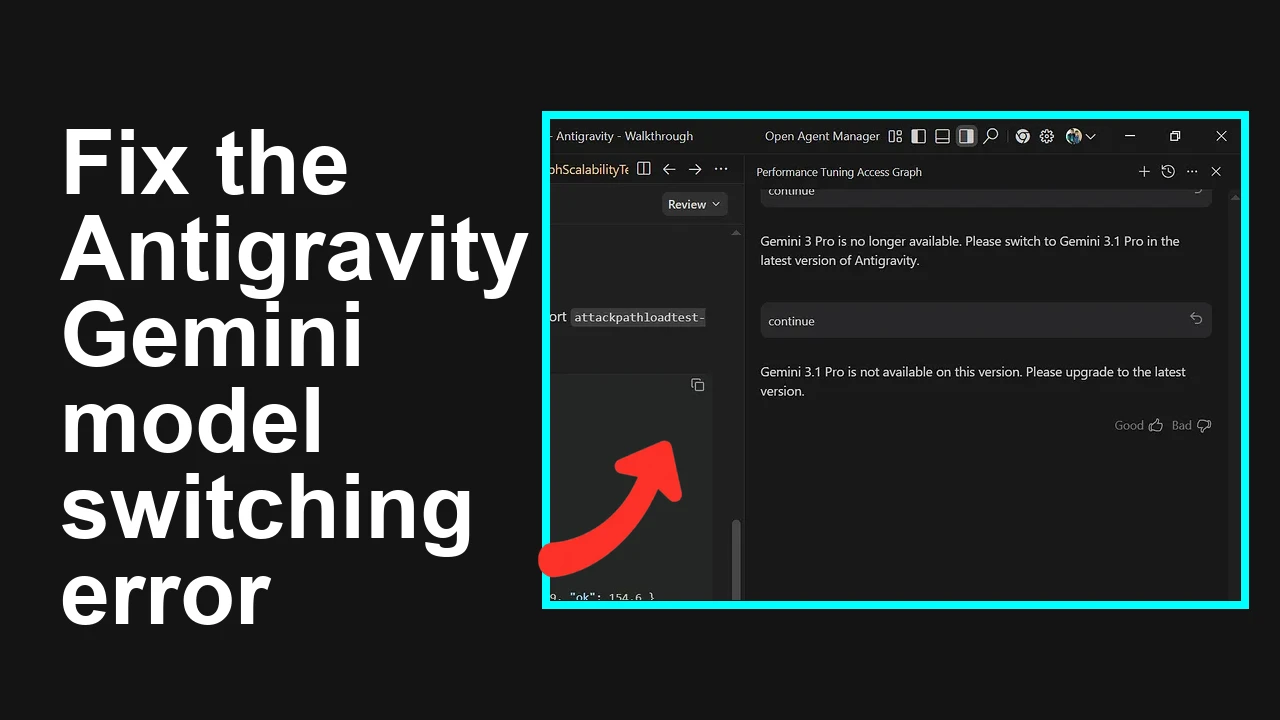
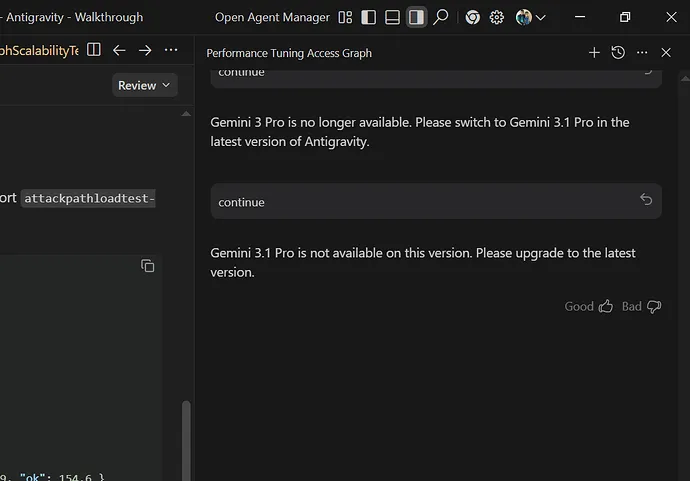
You try to switch models in Antigravity and hit a loop: Gemini 3.1 Pro says it is not available while Gemini 3 Pro says it is no longer available. Here is the fastest way to fix it and select a working model right now.
Antigravity shows conflicting messages for Gemini 3 Pro and Gemini 3.1 Pro
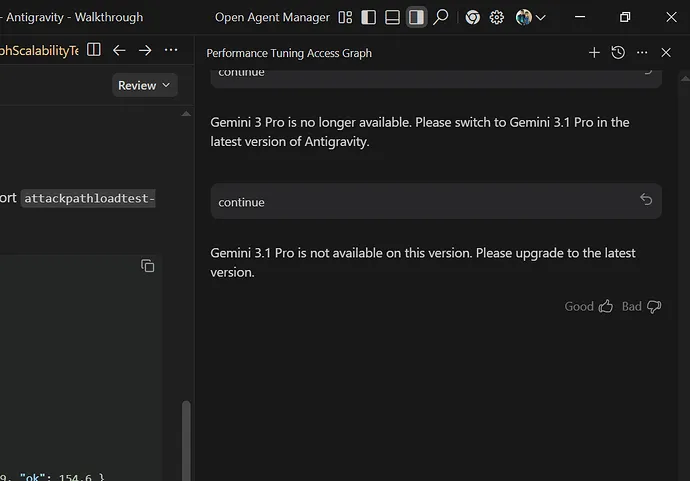
When selecting Gemini 3.1 Pro you see: “Gemini 3.1 Pro is not available on this version. Please upgrade to the latest version.”
Switching back to Gemini 3 Pro shows: “Gemini 3 Pro is no longer available. Please switch to Gemini 3.1 Pro in the latest version of Antigravity.”
Solution Overview
Aspect
Detail
Root Cause
An outdated Antigravity build and a stale model catalog cache after model deprecations, plus possible entitlement or region mismatch
Primary Fix
Update Antigravity to the latest release, clear its model cache, re authenticate, then select Gemini 3.1 Pro from a refreshed catalog
Complexity
Easy
Estimated Time
10 to 15 minutes
Fix the Gemini model availability loop in Antigravity
Step by Step Solution
1) Update Antigravity to the newest release
Open Antigravity, open Settings or Help, then select Check for updates.
Install the latest version and restart Antigravity.
If your blocker is quota or rate limits rather than availability, see our short explainer on quotas in Antigravity here: quota and availability notes.
2) Clear Antigravity’s model cache and re authenticate
Stale cached catalogs commonly cause this loop after model deprecations.
Typical cache locations you can remove safely:
Now fully quit and relaunch Antigravity, then sign in again with the account that owns your Gemini subscription.
3) Refresh the model catalog and confirm available IDs
Inside Antigravity, open Settings then Models and select Refresh or Reload catalog. If there is no explicit button, a full app restart after clearing cache performs the refresh.
Cross check that the model exists for your account and region using the Google API. Set your API key as an environment variable, then list models:
If the command returns a Gemini 3.1 Pro entry, it should be available after Antigravity refresh. If it does not appear, it is not enabled for your region or plan.
Useful references:
Choose a listed Gemini 3.1 Pro variant and set it as default.
If Gemini 3 Pro is retired for your account, do not pin it in any project settings.
Still seeing the 3.1 Pro error dialog after you updated and cleared cache. Review this focused breakdown: error guide for Gemini 3.1 Pro in Antigravity.
5) Verify subscription and account
Confirm your plan grants access to the selected Gemini tier.
Ensure you are signed in to Antigravity with the same account that owns the subscription.
If your organization enforces regions or proxies, make sure the selected model is allowed.
Alternative Fixes and Workarounds
Use a model alias that tracks the latest compatible release
If Antigravity supports aliases, select a latest tag for Gemini Pro so you automatically move past retired identifiers.
Remove a pinned model in project settings
If a workspace or project config pins a retired model, update it:
{
 "model": "gemini-3.1-pro"
}
Save, then restart Antigravity.
Temporarily select another available Gemini tier
If access to Gemini 3.1 Pro is pending for your account or region, select another available Gemini tier to continue working while the entitlement is resolved.
For repeated capacity errors during peak usage, see this short note on limits: quota limits discussion.
Troubleshooting Tips
Confirm region support using the model listing curl command above and the Google availability page.
Sign out in Antigravity, then sign back in. Mixed credentials across multiple Google accounts can cause entitlement mismatches.
If you use a corporate proxy, test on a clean network. Cached HTTP responses or SSL inspection can block catalog refresh.
Check system time and certificates. Auth endpoints can fail if the clock is skewed.
Reinstall Antigravity only after you have tried update and cache clear.
Best Practices
Keep Antigravity updated so you pick up model catalog changes and deprecation notices promptly.
Avoid hard pinning deprecated model IDs in project configs. Prefer an alias that follows a current release.
After a major Gemini release, refresh the model catalog and verify access once.
Monitor quotas and capacity so you can pick an alternate tier when needed. A short overview is here: quota and availability notes.
Final Thought
This loop is almost always caused by an outdated client combined with a stale model catalog. Update Antigravity, clear the cache, re authenticate, and select Gemini 3.1 Pro to restore normal operation fast.
We use cookies to ensure that we give you the best experience on our website. If you continue to use this site we will assume that you are happy with it.