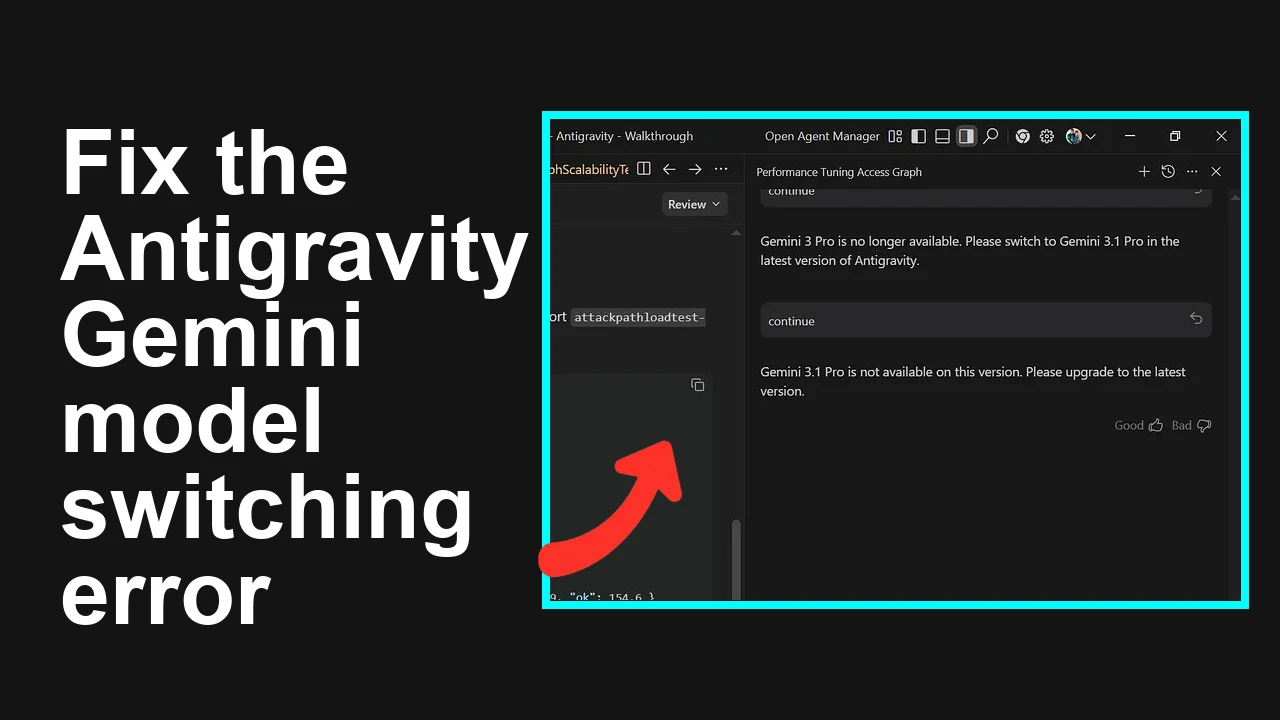
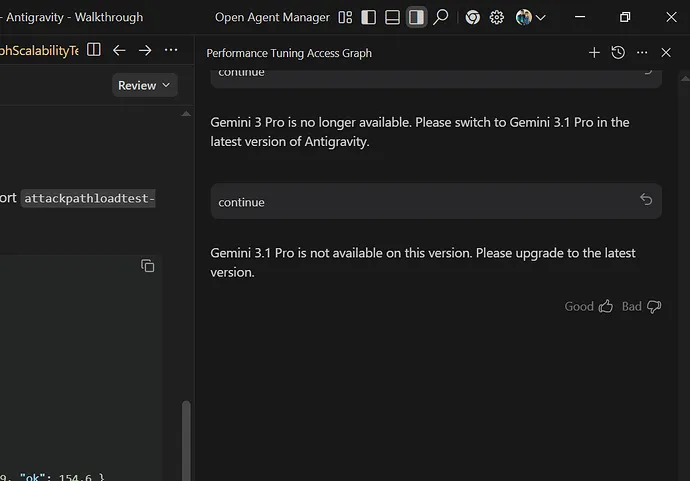
You are stuck in a version loop inside Antigravity. Switching to Gemini 3.1 Pro asks you to upgrade, and switching back to Gemini 3 Pro says it is no longer available.
Antigravity shows mixed availability for Gemini 3 Pro and Gemini 3.1 Pro
This issue presents as two conflicting prompts:
“Gemini 3.1 Pro is not available on this version. Please upgrade to the latest version.”
“Gemini 3 Pro is no longer available. Please switch to Gemini 3.1 Pro in the latest version of Antigravity.”
In practice, it means your local Antigravity build and your account entitlements are out of sync. The app believes Gemini 3 Pro is retired while your client cannot yet enable Gemini 3.1 Pro.
Solution Overview
Aspect
Detail
Root Cause
App version and entitlement mismatch with cached model preference
Primary Fix
Update Antigravity to the newest build, sign out and sign back in, then reselect Gemini 3.1 Pro
If you installed from the official site, download the newest installer and run it over your current app
If you used a package manager, run the matching command below
Windows with winget
winget upgrade Antigravity
Windows with Chocolatey
choco upgrade antigravity
macOS with Homebrew
brew update
brew upgrade antigravity
Linux with apt
sudo apt update
sudo apt install antigravity
After upgrading, restart your device to ensure the app relaunches with fresh components.
3. Refresh account entitlements
Open Antigravity
Sign out from your profile or account menu
Close the app completely
Reopen Antigravity and sign in again with the subscription account
This step forces a new entitlement check that aligns your plan with available models.
4. Clear only the model selection cache from the app settings
Open Antigravity
Settings then Models or Preferences then Models
Select Clear model selection or Reset model list if available
Reopen the model picker
If your settings offer an option called Restore defaults use that, then reconfigure preferences after the fix.
5. Select a supported model
Open the model picker
Choose Gemini 3.1 Pro
Start a new chat or session to confirm it loads without the version prompt
6. If the prompt persists, perform a clean reinstall
Uninstall Antigravity from your system
Install the newest build from the official download page
Sign in and pick Gemini 3.1 Pro again
Tip: A clean reinstall removes stale files that can keep the loop alive.
If you suspect capacity or plan limits are involved, see this guide to quota related blocks in Antigravity: quota limits and how to work around them.
Alternative Fixes and Workarounds
Use the web client temporarily
If Antigravity offers a web version, sign in there and select Gemini 3.1 Pro to verify your account has access
Pick an interim model
Select a compatible model that is currently available in your region to continue work while you resolve the prompt
Verify regional availability and plan
Check the official availability notes for Gemini models here: Model availability
Confirm your subscription tier includes Gemini 3.1 Pro
For recurring capacity related messages in Antigravity, review this primer on managing tight quotas: handling strict quota windows.
Troubleshooting Tips
Time and date accuracy: Ensure system time and date are set automatically
Network path: Retry on a different network to rule out filtering by a firewall or proxy
Enterprise controls: If this is a managed device, ask your admin to confirm the newest Antigravity build is allowed
Sign in scope: Verify you are signed in with the correct subscription account
Model list refresh: If your client has a Refresh models button in the model picker, use it after sign in
Logs: If Antigravity writes logs, open the log viewer from Help then Logs and check for errors that mention entitlement or model availability
Best Practices
Keep Antigravity up to date with auto update enabled
Pin a supported model in project settings so teams do not fall back to retired models
Check release notes when major model versions change to know what is retired and what replaces it
Document a clean reinstall procedure for your team to resolve cache related issues quickly
You are seeing a classic version and entitlement mismatch. Updating Antigravity, refreshing your sign in, and reselecting Gemini 3.1 Pro resolves the loop in most cases and gets you back to productive work fast.
We use cookies to ensure that we give you the best experience on our website. If you continue to use this site we will assume that you are happy with it.