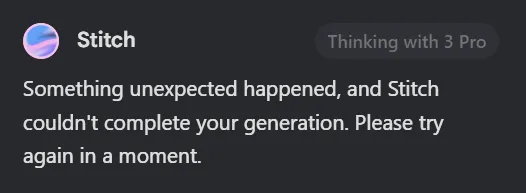
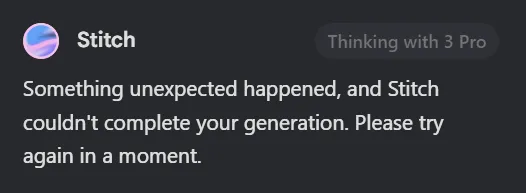
You are trying to generate a design in Stitch and keep getting the message: “Something unexpected happened, and Stitch couldn’t complete your generation. Please try again in a moment.” This persists even after clearing cache and starting a new project.
Fix Stitch generation blocked by Something unexpected happened
This error typically appears mid generation and then the run aborts with the same message every attempt. Some users report it continues for a day or more, even after cache resets and new projects.
For a fast checklist that you can apply immediately, see this focused Stitch error guide.
Solution Overview
Aspect
Detail
Root Cause
Service side instability or a hit on per day quota, sometimes compounded by a stale session or corrupt project cache
Primary Fix
Check quota then retry from a fresh session and a brand new project after clearing site data
Complexity
Easy
Estimated Time
5 to 15 minutes
Immediate fix that works for most users
Step by Step Solution
1. Confirm you are not at your daily quota
In Stitch, look for any usage indicator or message about daily limits.
If you also use the Gemini API, confirm your request limits in the quotas guidance here: Quotas overview.
Optional connectivity check:
macOS or Linux:
curl -I https://generativelanguage.googleapis.com
Windows:
ping generativelanguage.googleapis.com
A normal 200 response on curl or reachable host on ping confirms basic network path.
2. Start a truly fresh session and project
Sign out of Stitch completely.
Open a private window and sign back in.
Create a new blank project and paste your prompt and assets.
Run the generation.
If it works here, your previous session or project cache was likely the issue.
3. Clear only Stitch site data and hard reload
Chrome
– Visit chrome settings by typing: chrome://settings/siteData
– Search for the Stitch site entry, open it, and remove data.
– Back in the Stitch tab, perform a hard reload:
– Windows or Linux: Ctrl plus Shift plus R
– macOS: Shift plus Command plus R
Firefox
– Settings then Privacy and Security then Cookies and Site Data then Manage Data, search for the Stitch site, remove, then hard reload.
Advanced manual clear in the browser DevTools Console on the Stitch tab:
A successful response confirms your key and regional access are working.
For a deeper step by step walkthrough tailored to this message, use our Stitch error playbook.
Troubleshooting Tips
Check the browser console for red errors
Open DevTools then Console and attempt a generation. Errors about blocked cookies, CORS, or 4xx 5xx responses point to either local blocking or service side trouble.
Try a different network
Swap from office Wi Fi to mobile hotspot to rule out filtering or DNS issues.
Most cases resolve by confirming quota, starting a new session, and clearing Stitch site data. If the error persists after these steps, it is likely a service side incident, so retry later and keep an eye on usage and status while working from a fresh project.
We use cookies to ensure that we give you the best experience on our website. If you continue to use this site we will assume that you are happy with it.