
Claude Code Desktop lets me preview my applications, manage terminals, add plugins, connect MCP tools, and run multiple tasks in parallel across separate sessions inside one UI.
To use it, download the Mac or Windows build, open the Code section, pick your repository and branch, choose a local or cloud workspace, and start a session to execute tasks, run servers, and switch between them as needed.
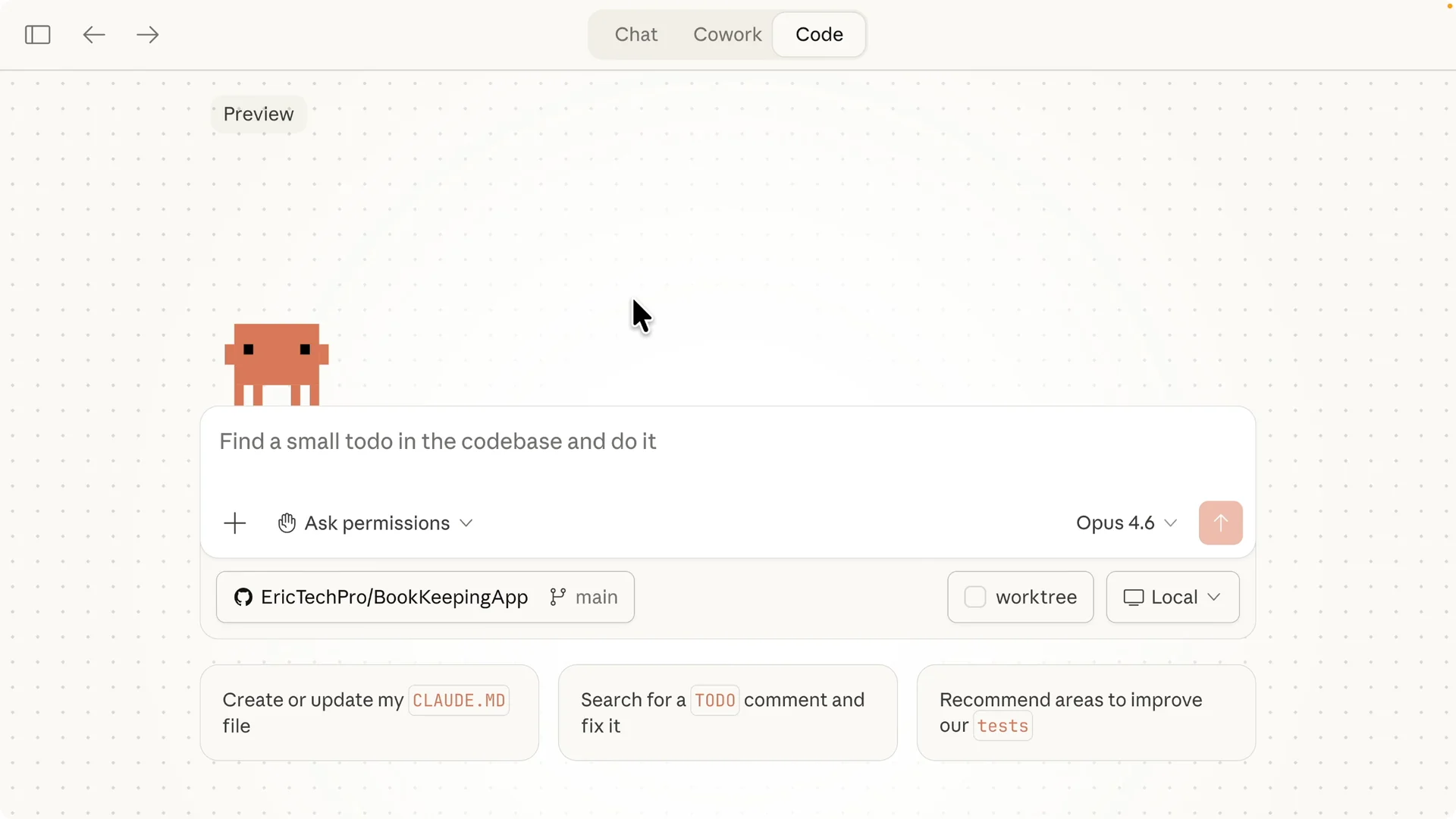
Enable the settings that match your workflow.
I keep Bypass Permissions on when I want Claude to edit files and run commands without prompts, and I switch to Plan mode when I want it to propose a plan before making changes.
I can also toggle Ask Permissions or Auto Accept Edits based on the level of control I want during edits.
Get set up
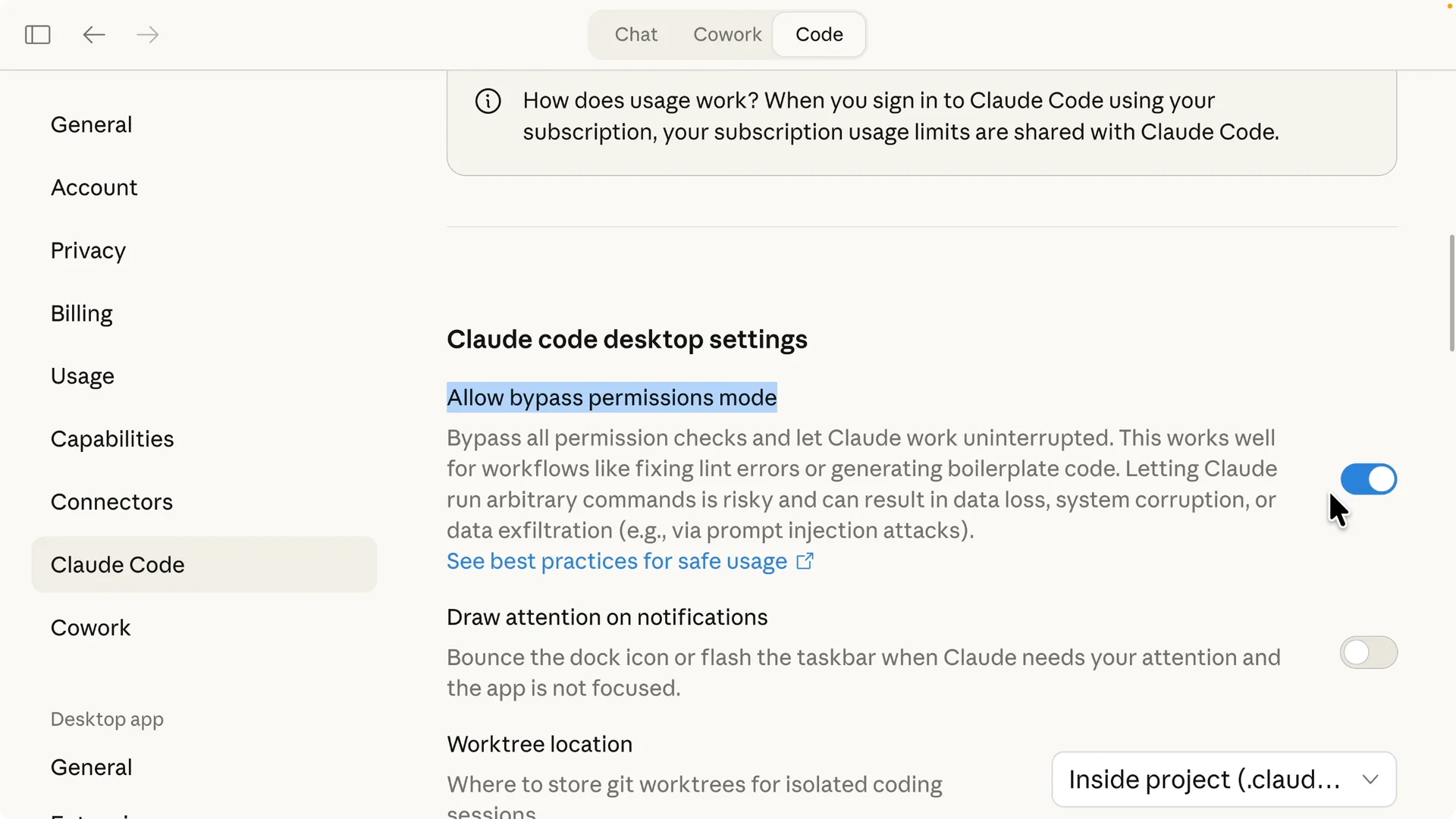
Open the sidebar to manage all sessions.
I can spin up multiple sessions for different tasks and jump between them instantly.
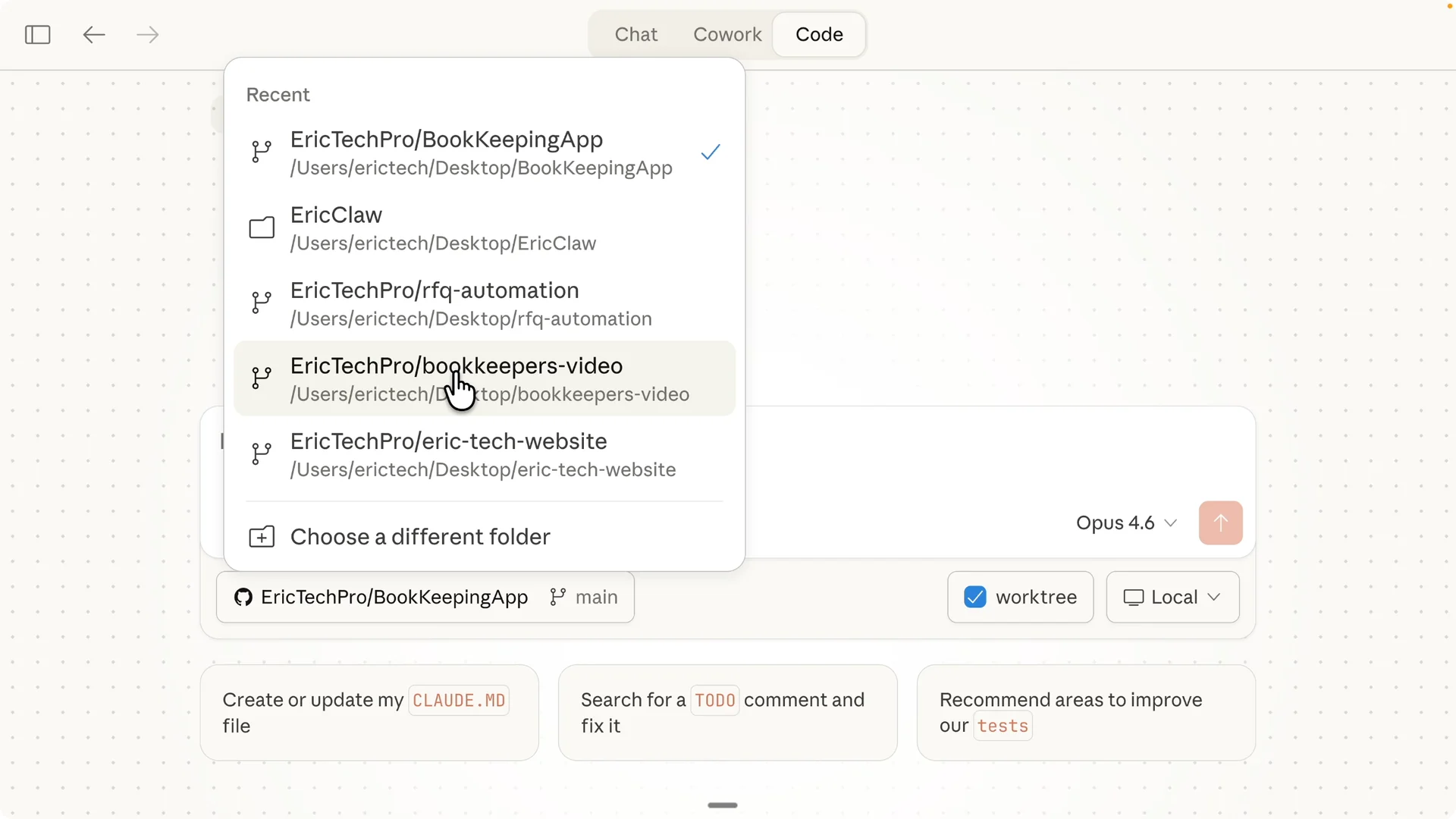
Each session can target a specific branch and repository.
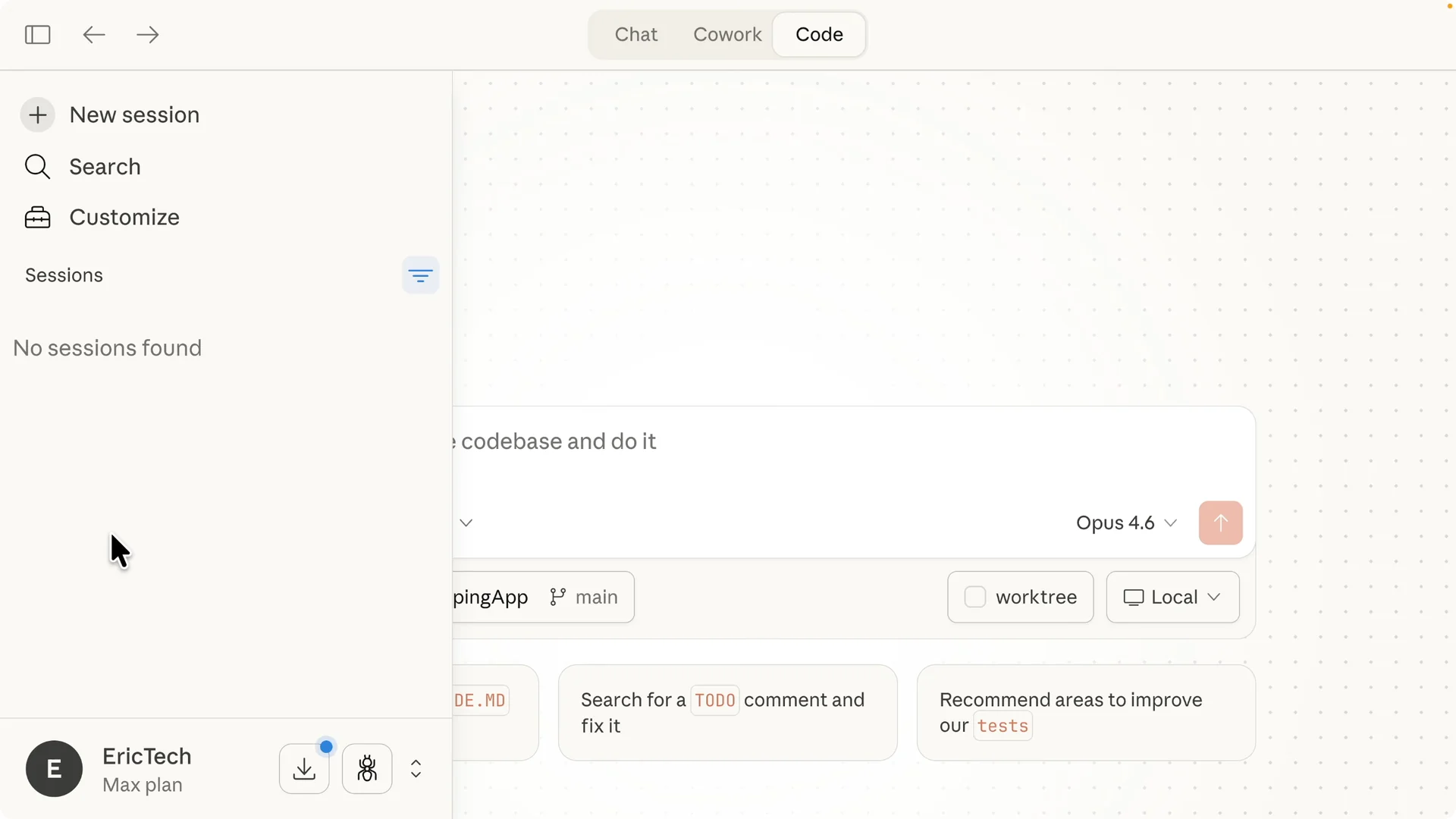
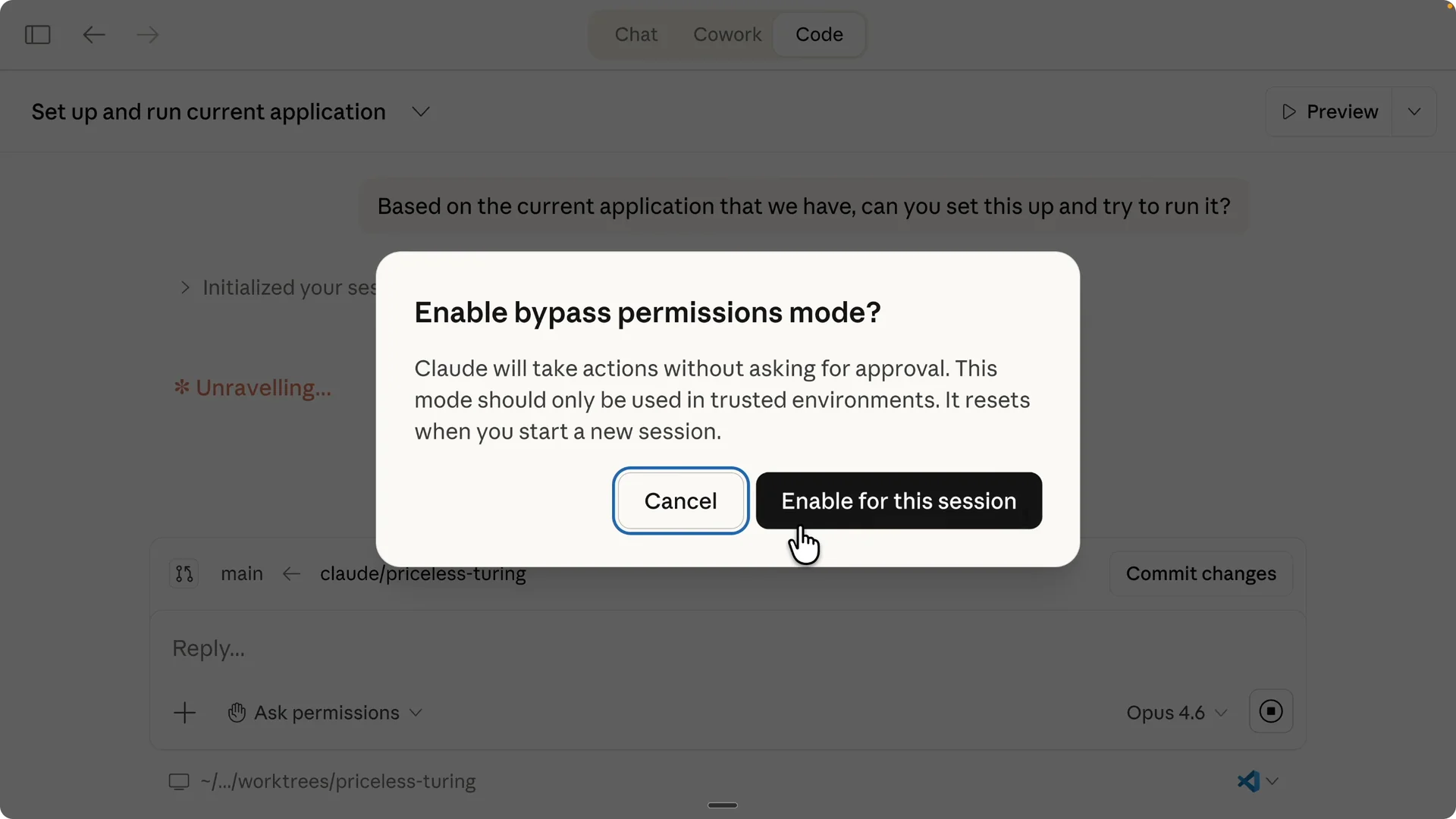
In Settings under Claude Code, I use the Allow Bypass Permissions toggle, which works like the dangerously skip permissions flag in the Claude terminal.
With this on, Claude edits and executes without asking me to confirm every step.
If I want review first, I switch to Plan mode to see a proposed change list before approval.
Choose the repository from local folders or a remote source that I have access to, and then pick the branch.
I can also create or switch branches directly from here.
Work trees let me isolate changes per task and merge them back to main once they are done.
For a broader tour of the desktop experience, check out this Claude Code desktop overview. It expands on layout, navigation, and typical workflows I reference here.
Commands and chat
All the slash commands I use in the Claude Code terminal show up here too.
I can type requests directly in the message window and Claude responds with actions, explanations, or a plan.
Plan mode gives me a clean summary of what it will change and why before execution.
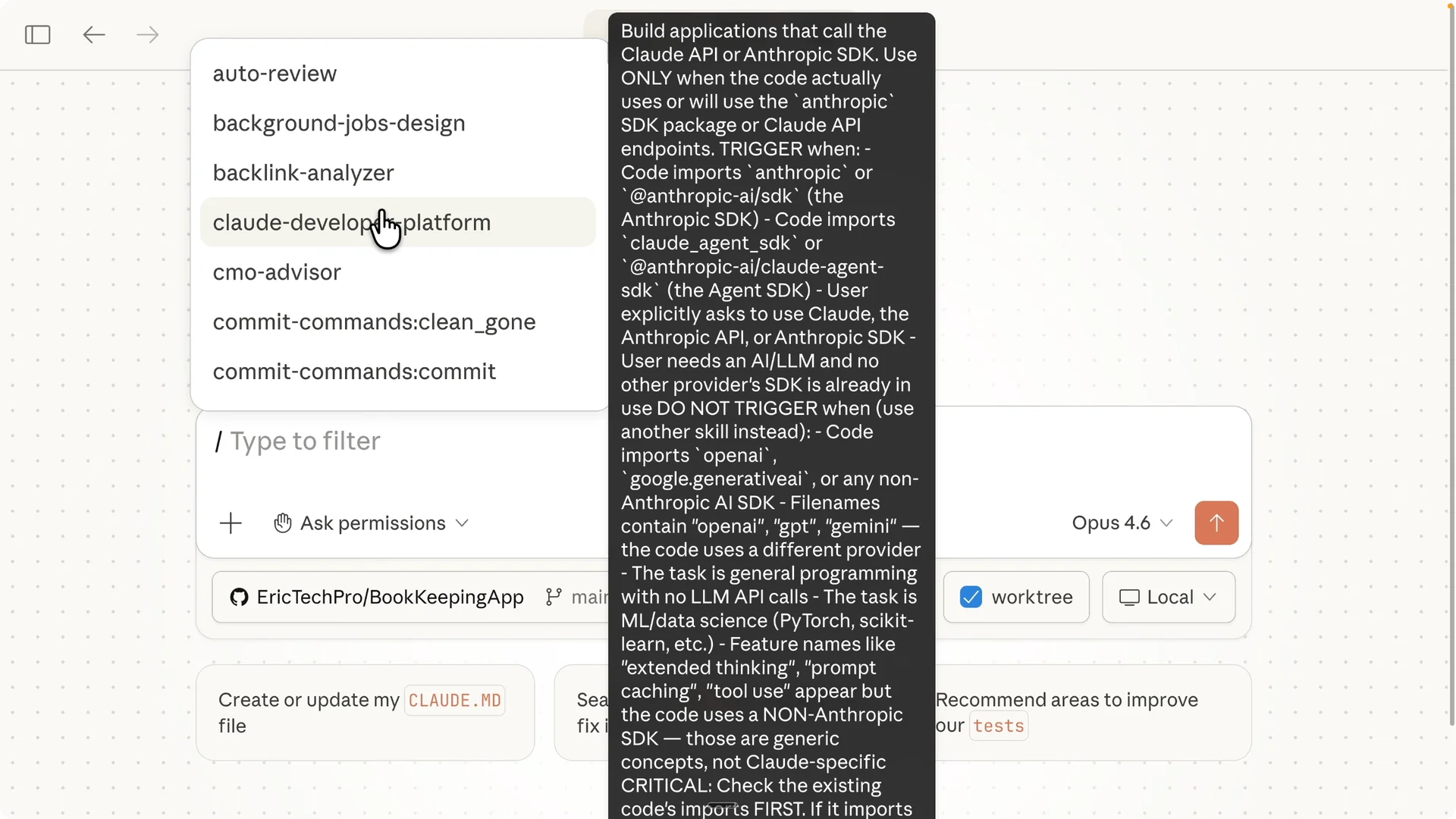
If I am focusing on front end design work, the autocomplete helps me with design oriented prompts.
I can anchor each session to a single task to keep context clean.
Naming the session after a ticket number keeps everything organized.
Connectors
Connectors bring my tools into Claude’s context.
I click Manage Connectors, hit the plus button, and browse options like Gmail MCP, Google Calendar, Slack, Sentry for debugging logs, Supabase for database and auth, and Google Drive for files.
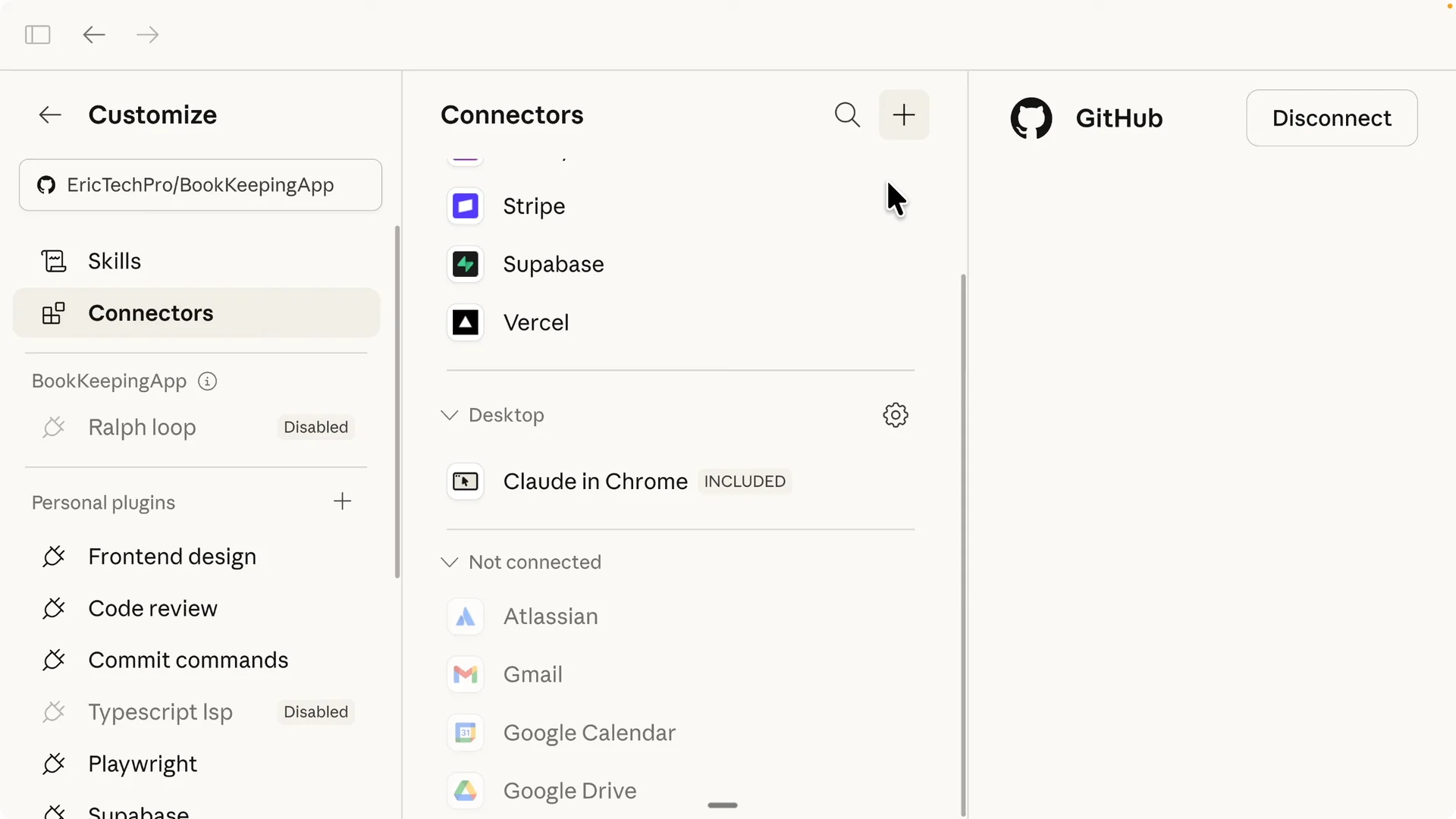
After connecting, Claude can access these tools to understand my system better and act across them when I request it.
This boosts productivity because Claude can read logs, query data, and coordinate tasks across my stack.
I keep only the connectors I need per project for a clean setup.
If you run Claude Code in a hosted workspace, here is a practical guide to install Claude Code in Antigravity. It covers environment setup that pairs well with remote sessions.
Plugins
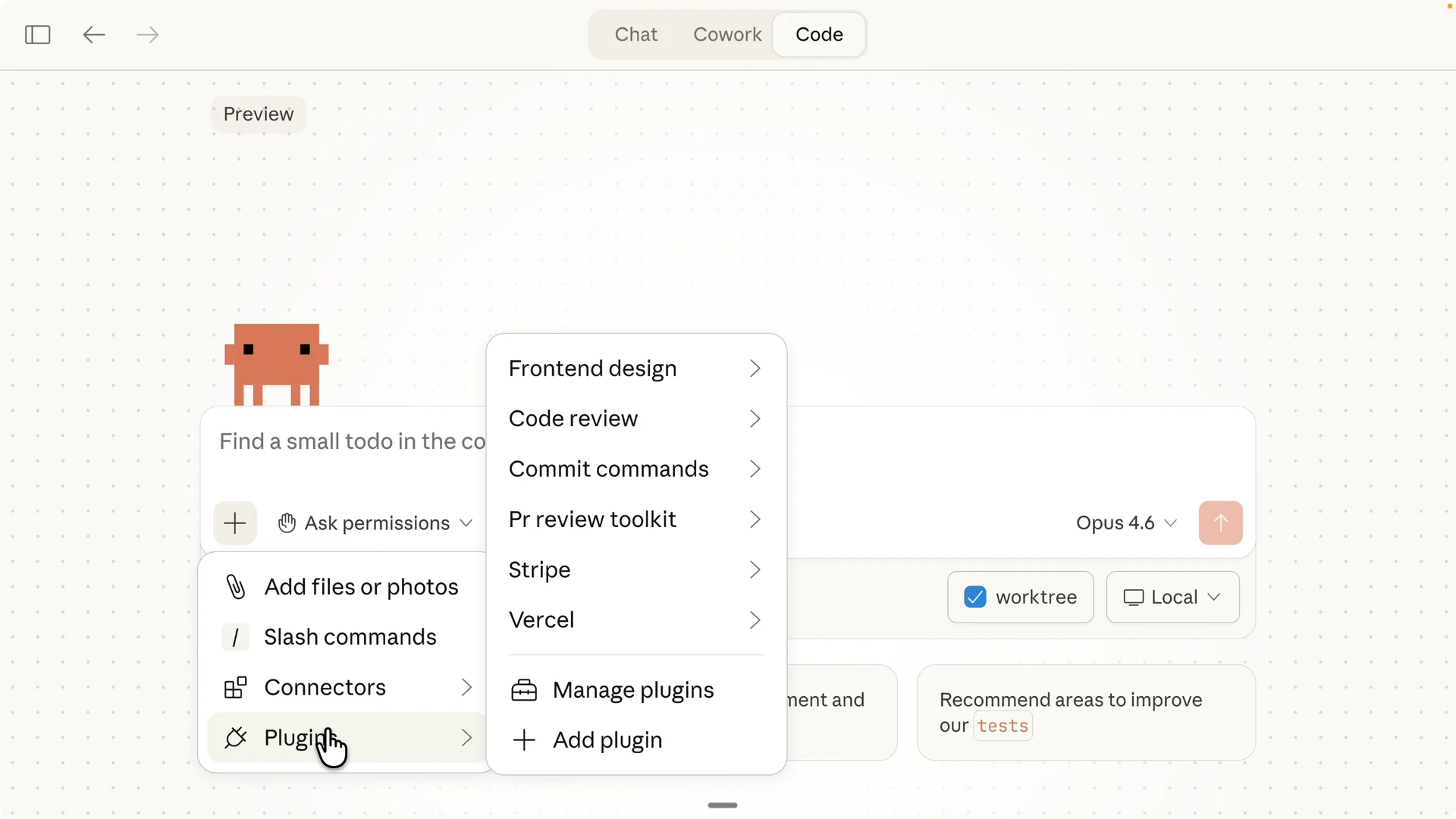
I add plugins from the left panel or via More Options.
I keep favorites like Frontend Design, Code Review, and a Commits and PR Review toolkit.
I also explore recommendations like Context 7, Feature Dev for feature scoped work, Playwright MCP for tests, and a loop that iterates on tasks for continuous improvement.
I only install what I actually use on the project.
Fewer, targeted plugins keep sessions faster and edits focused. When I need a specialized agent for a task, I enable that plugin only in the session where I am working.
Run and preview an app
In the message window, I tell Claude: set up based on the current application and try to run it.
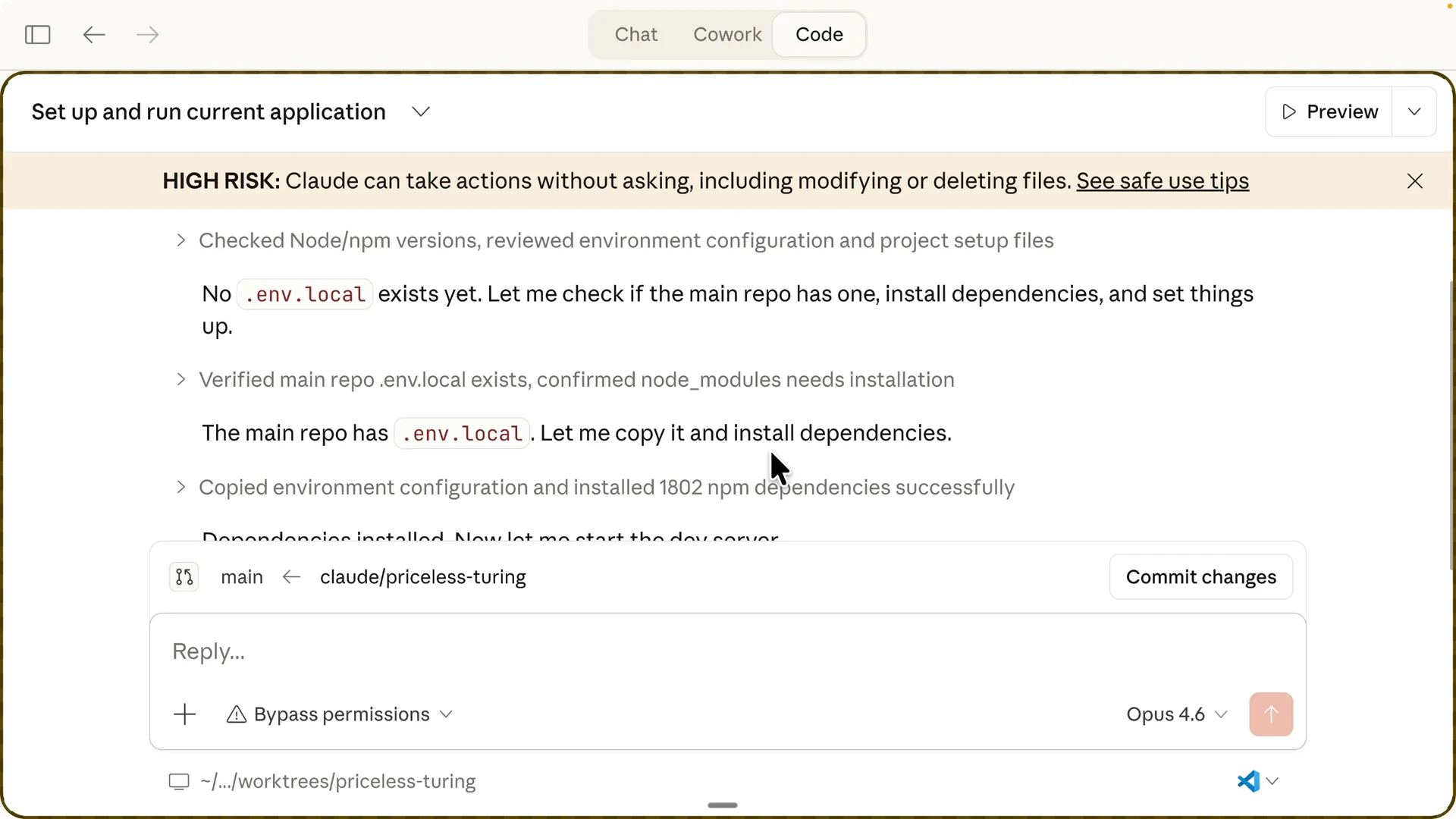
Claude requests access to my project directory and, with Bypass Permissions enabled, proceeds to install dependencies, prepare environment files, and start the dev server.
I like that it can detect local env files that are not committed and copy what it needs to run.
Once the server is up, I can open the preview inside the app, see a screenshot panel, and view terminal logs and console logs in a single terminal pane.
This makes validation and debugging straightforward.
Work trees and sessions
With work trees enabled, each session works in an isolated environment.
I can develop multiple features in parallel with no conflicts and merge a work tree back to main when it is ready.
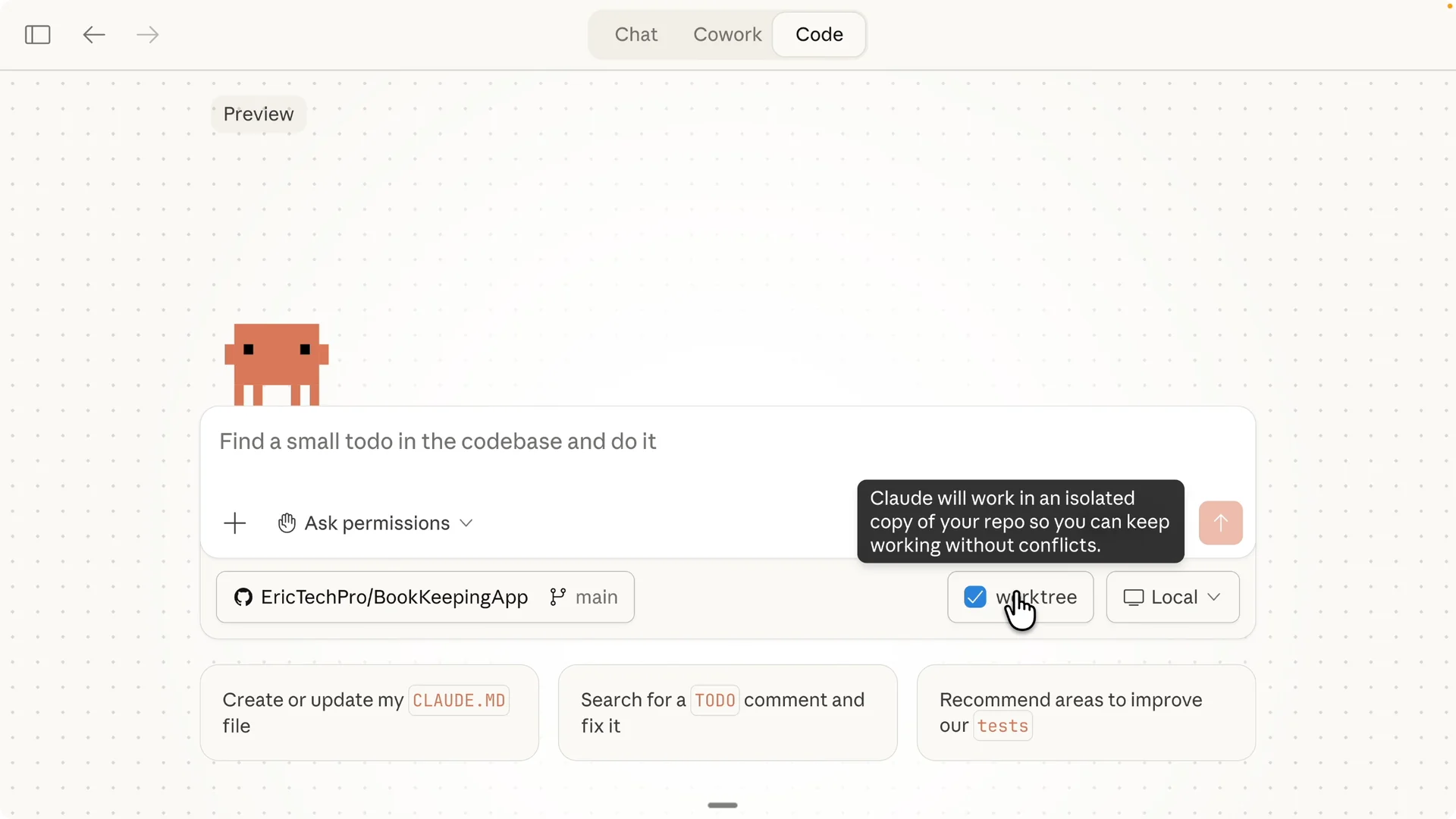
I name work trees after the task I am tackling, then keep commits scoped to that task.
When the task is merged, other sessions can sync changes and continue without interruptions.
For teams deciding on environments, see this comparison of approaches in Claude Code vs Antigravity.
It helps clarify when local work trees or cloud workspaces make the most sense.
Fix a ticket with plan mode
I paste a Jira ticket link into a dedicated session named after the ticket number. I ask Claude to investigate the issue and propose a fix. While it investigates, I can open a second session to work on another UI task in parallel.
Claude finds the root cause quickly. For example, a Start Free button on the pricing page redirected to a missing route, so users hit a 404. I clarify that the signup page sits behind a feature flag, and I want a centralized variable that sends users to sign in when the flag is off and to signup when the flag is on.
Plan the change
I switch to Plan mode to have Claude outline the approach. The plan checks the feature flag, uses a single variable to determine the target route, and updates the pricing CTA and any shared component. I approve the plan and Claude executes.
Claude applies the edits and restarts the dev server. I open the pricing page and click Get started to verify it routes to sign in while the feature flag is off. The change is validated and I am ready to commit.
Create a pull request
Claude summarizes the problem and the solution with the files it changed. I can click to create a pull request with a clear title and a concise body. If I am working locally, I can commit or branch first, then push and open the PR.
In cloud sessions, Claude can create the PR directly after successful checks. I keep changesets tight and focused per session to simplify reviews. That keeps the feedback loop fast.
Final take
This feature is in preview and bugs exist. I do not see it fully replacing Visual Studio Code yet, and I still keep the Claude Code terminal handy because a UI glitch can crash a panel, while the terminal is stable. That said, the multiple sessions, integrated logs, connectors, plugins, and work trees are already very productive for day to day tasks.
As the desktop UI matures, it could become a primary IDE for a lot of developers. Right now the balance that works for me is desktop sessions for orchestration and previews, and terminal sessions for long running, critical edits. Use Plan mode for guardrails, and switch to Bypass Permissions only when you trust the workspace and want speed.