Open WebUI now has a native desktop app for Windows, macOS, and Linux. Download the installer for your platform, run it, and you are done. No Docker to manage and no browser tab to keep open, plus a
system-wide floating chat bar you can pull up over any window with a keyboard shortcut.
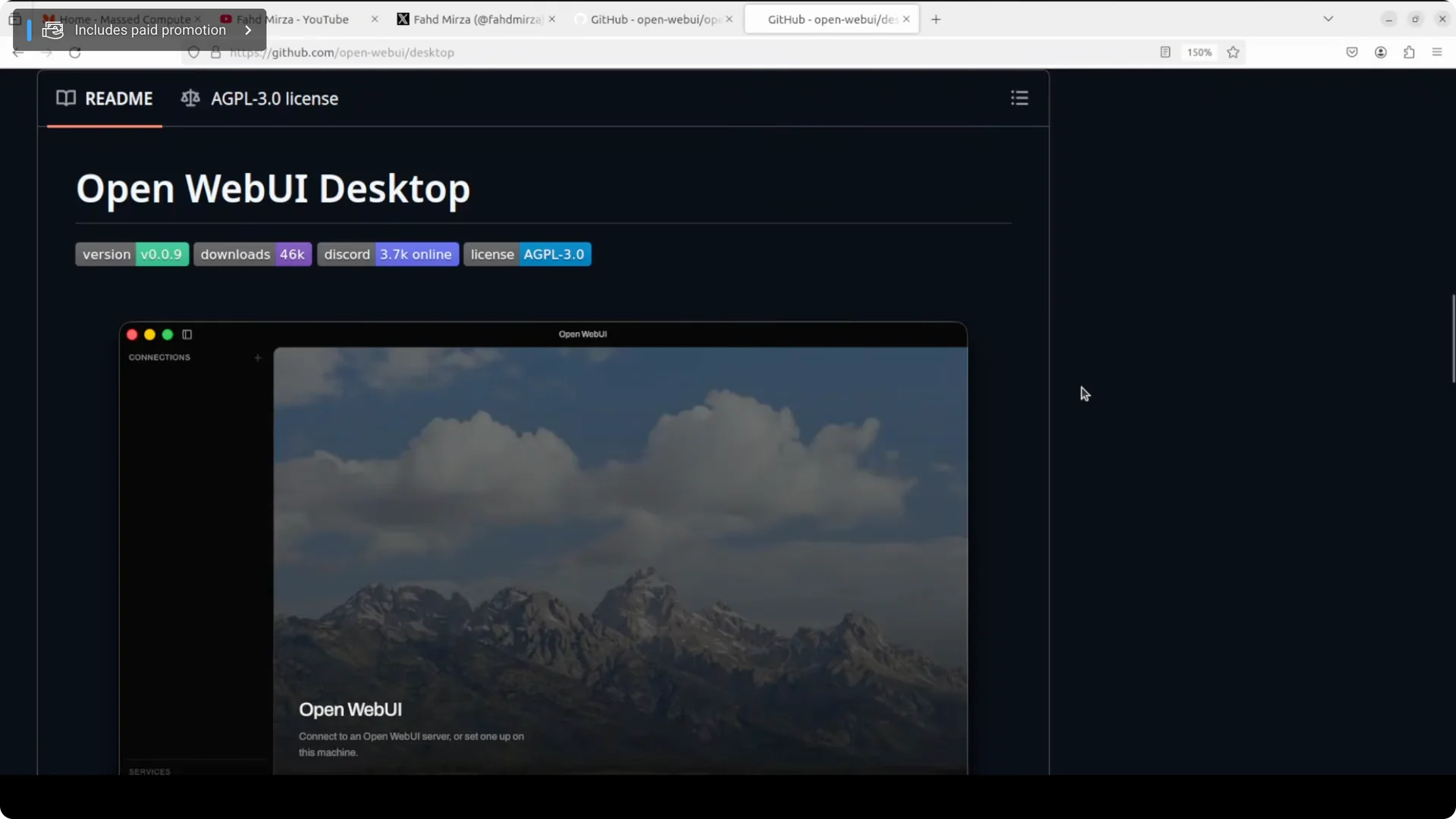
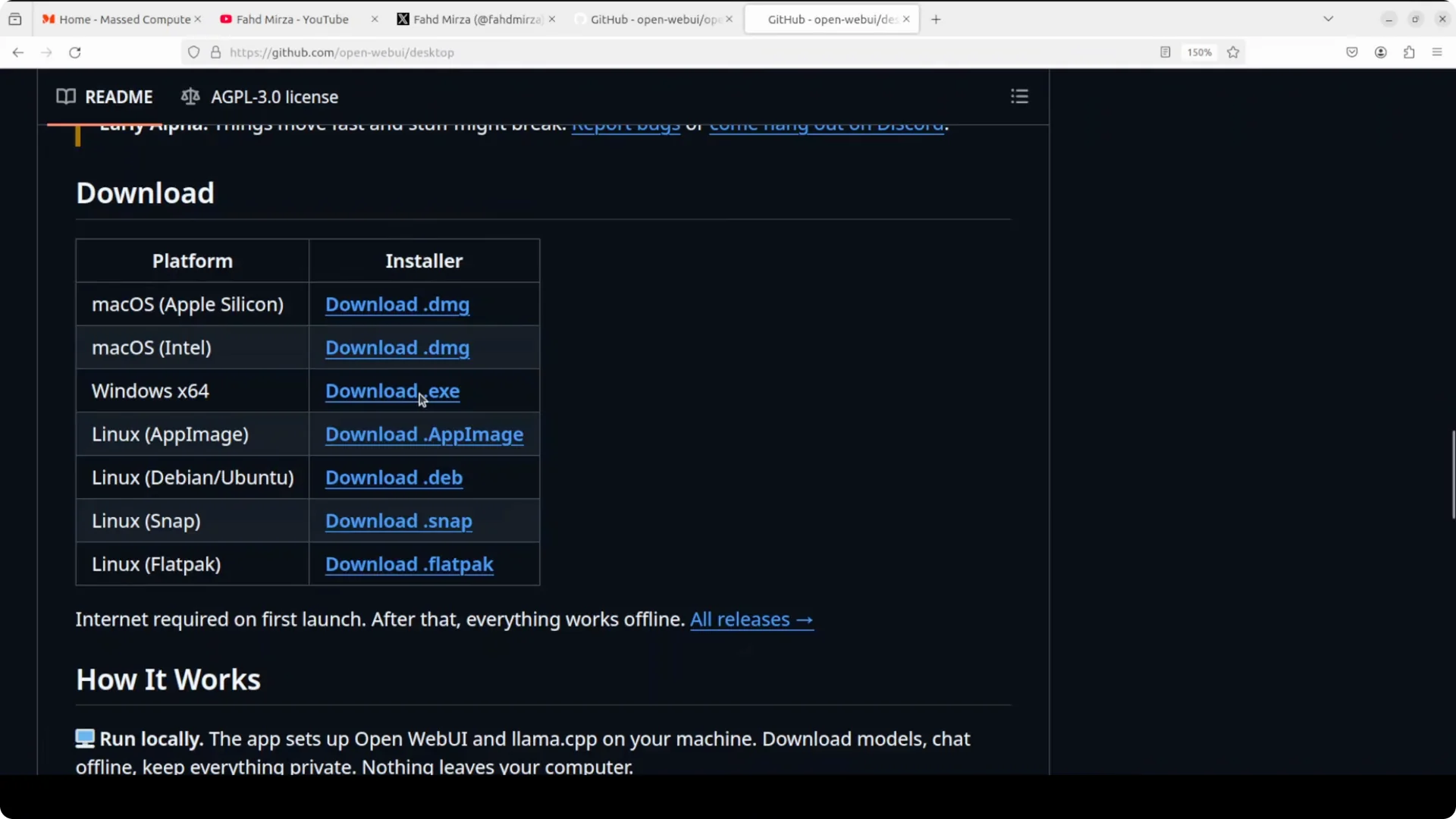
On Windows and Mac, install the .exe or .dmg, launch the app, and walk through the quick setup. On Debian or Ubuntu, install the .deb with your package manager and start the app. If it crashes on Linux due to Chromium shared memory or sandboxing, fix /dev/shm permissions or launch with a few Electron flags and it will open cleanly.
What the desktop app adds
It is a native wrapper for one of the most popular self-hosted AI interfaces out there. It supports Ollama, OpenAI API, and pretty much any LLM backend you can think of. I use it almost every day, and the desktop build keeps the familiar interface with a quick launcher and floating chat.
Install on Windows
Download the Windows installer and run it. Click through the setup and launch Open WebUI from the Start menu. You can keep it pinned for quick access to the floating chat bar.
If you work on a high RAM workstation, see this guide for tuning and stability on Windows. Check our notes on
high memory Windows setup to keep large models responsive.
Install on macOS
Download the macOS build and drag it to Applications. Launch it from Launchpad and allow any first run prompts. The floating chat bar works system wide once the app is open.
If you pair this with a desktop coding assistant, you can flip between chat and code without losing focus. For an integrated editor experience, see the
Claude Code desktop IDE overview.
Install on Linux
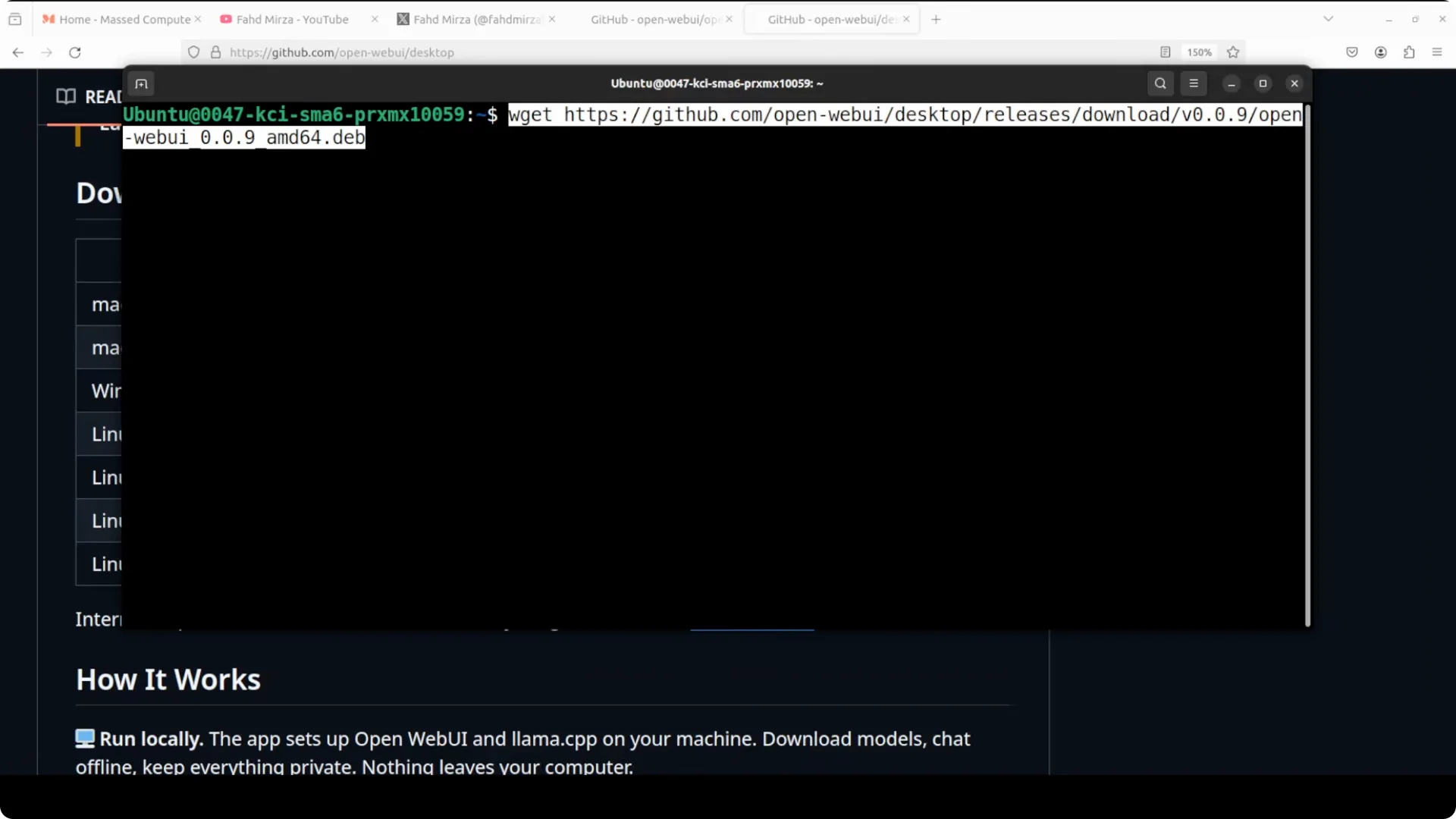
Download the .deb package for your distro. Install it with your package manager and then start the app.
Example install steps:
sudo dpkg -i /path/to/openwebui-desktop.deb
sudo apt -f install
open-webui
If your desktop launcher is created automatically, you can start it from your application menu. If you prefer the terminal, keep using the command.
Fix shared memory crash on Linux
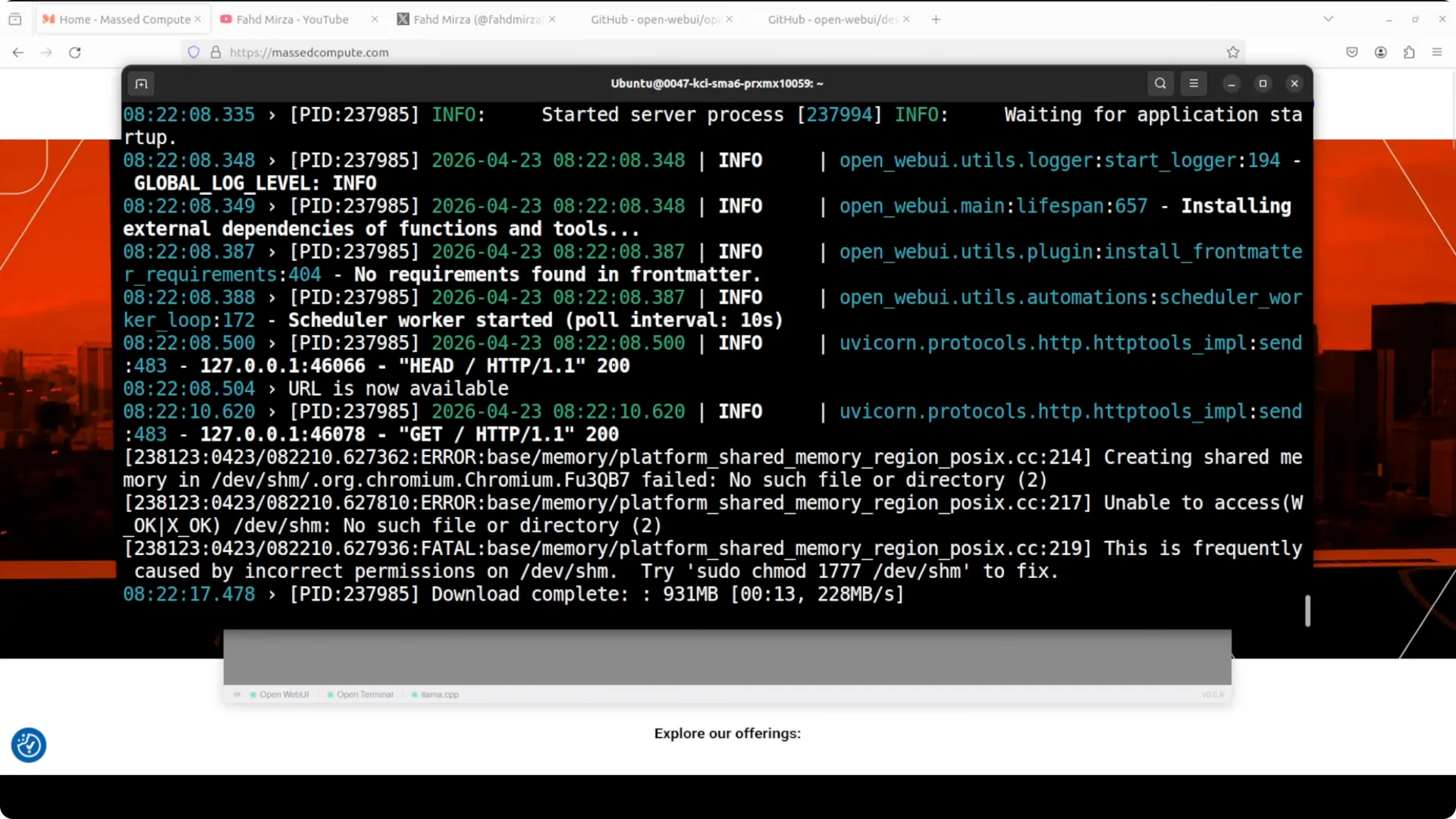
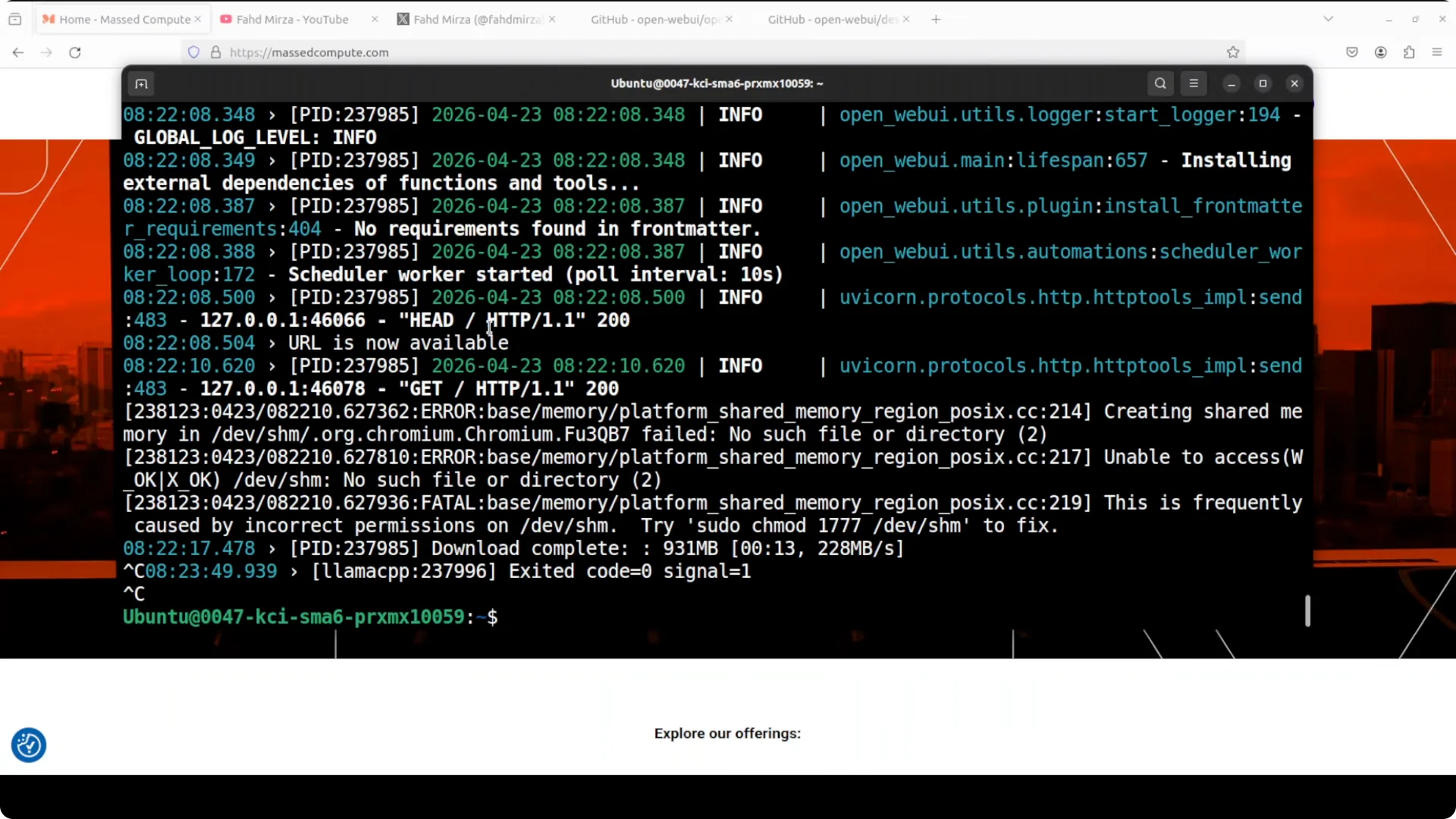
If the window opens and then nothing loads or you see a Chromium error, it is often a shared memory permission problem on /dev/shm. Give the proper permissions and relaunch:
sudo chmod 1777 /dev/shm
open-webui
If you run inside a container or a locked down VM and it still will not open, run with these Electron flags:
open-webui --disable-dev-shm-usage --disable-gpu --no-sandbox
These flags tell Chromium to stop using shared memory and to fall back to software rendering for the UI only.
Your GPU for AI inference remains fully available.
If you run development tools in the same environment and hit odd editor or git prompts, this quick note on a known fix can help. See the troubleshooting write up on
commit message errors in constrained environments.
Containers, proxies, and sandbox notes
Chromium runs its renderer inside a security sandbox that depends on kernel features. In LXC or similar containers, those features can be restricted, which makes the app window fail to render. The flags above disable the sandbox and shared memory usage so the window can actually open behind a proxy or inside a container.
First launch and setup
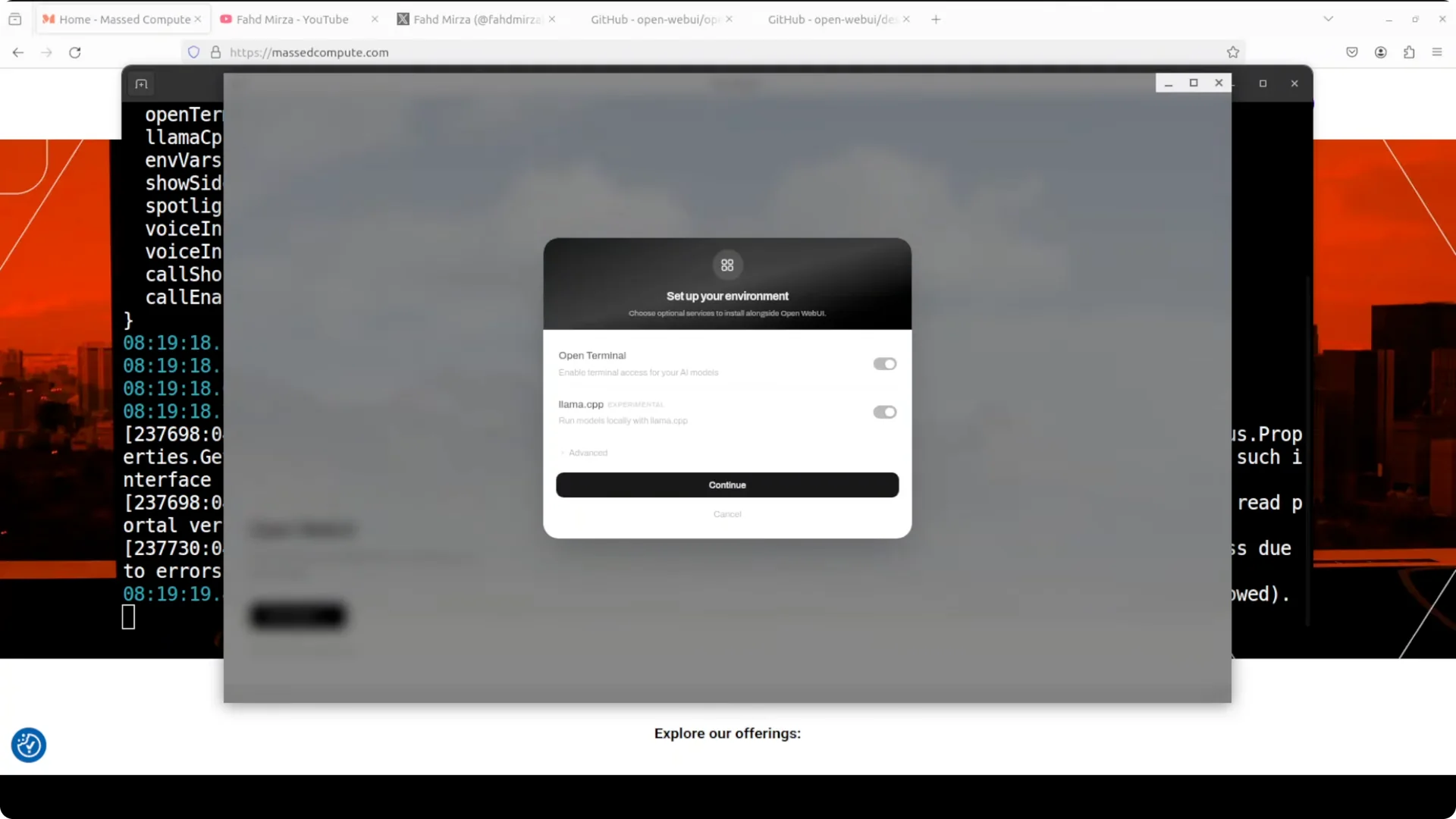
Click Get Started and choose your environment options. The first toggle gives SSH or terminal access to your AI models and the second installs llama.cpp. Advanced options for install location are present, but they are still in progress.
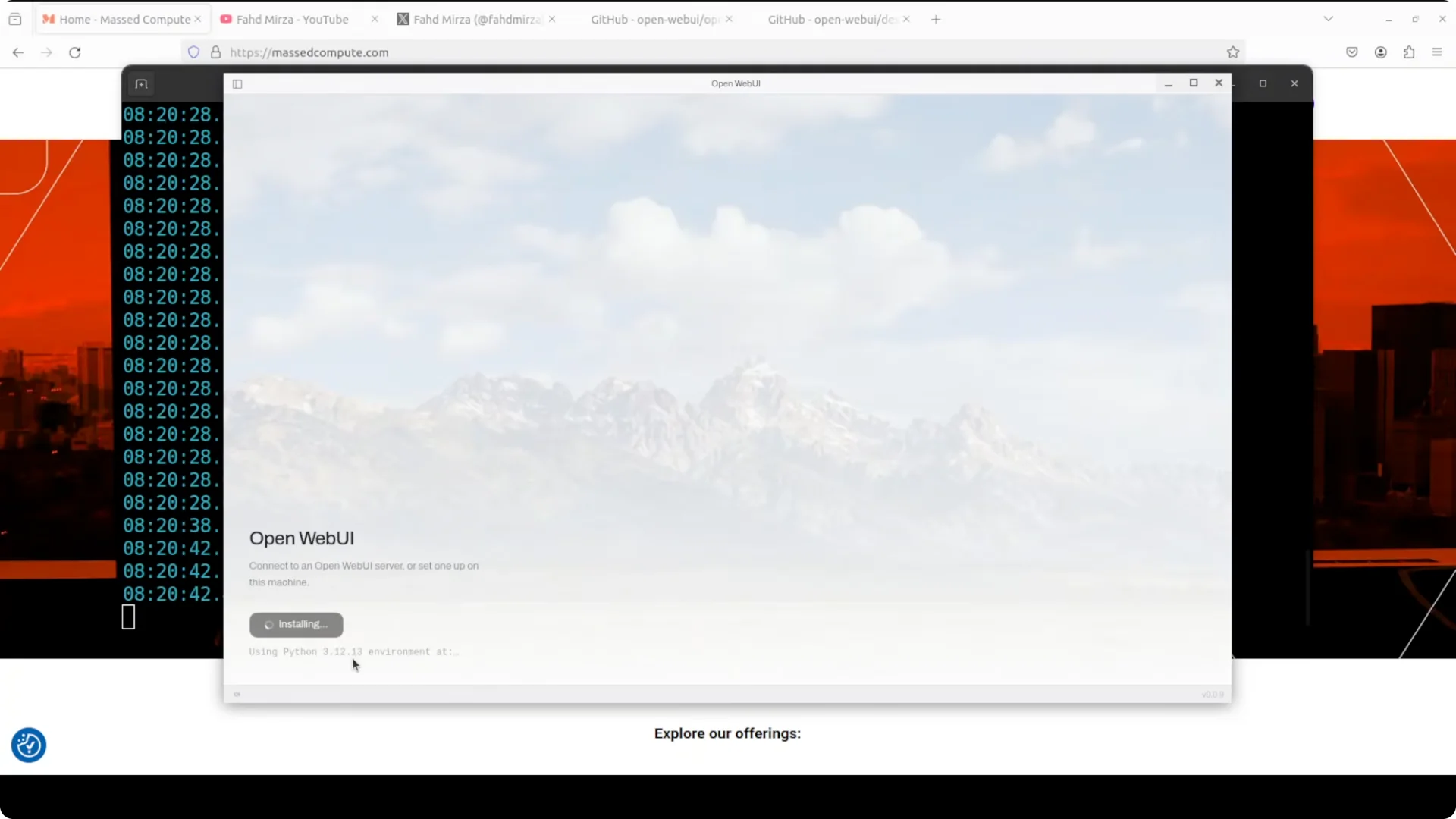
The app will install dependencies like the
uv package manager on first run. Let it finish, then the main interface appears. If it stalls, quit and relaunch once.
 Read More: Install Claude Code inside Antigravity
Connect providers and pick models
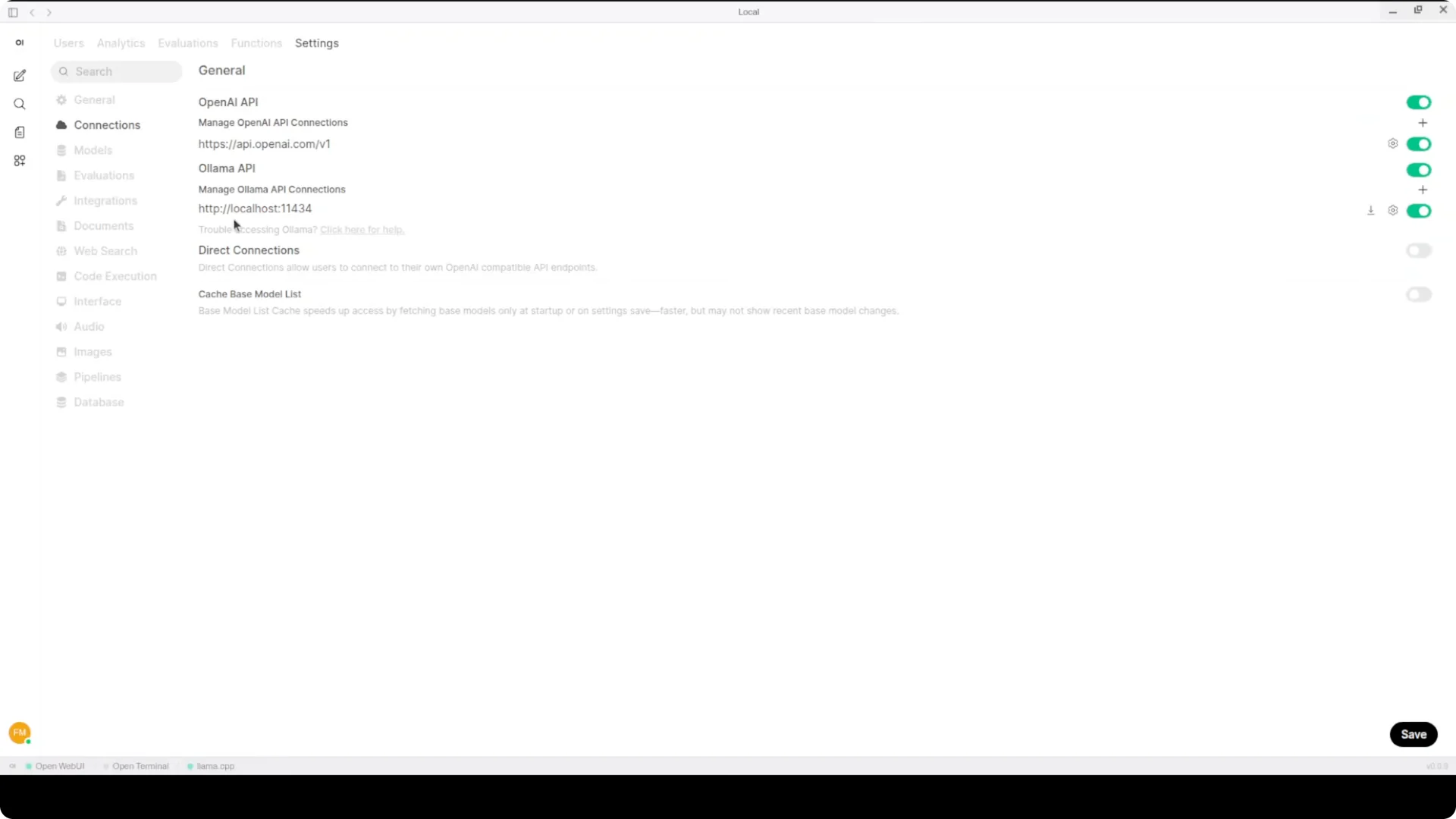
Go to the top right, open the Admin panel, and head to Settings. Set up your connections for Ollama and OpenAI, and confirm the defaults if it already detected your local models. Start a new chat, pick a model, and begin.
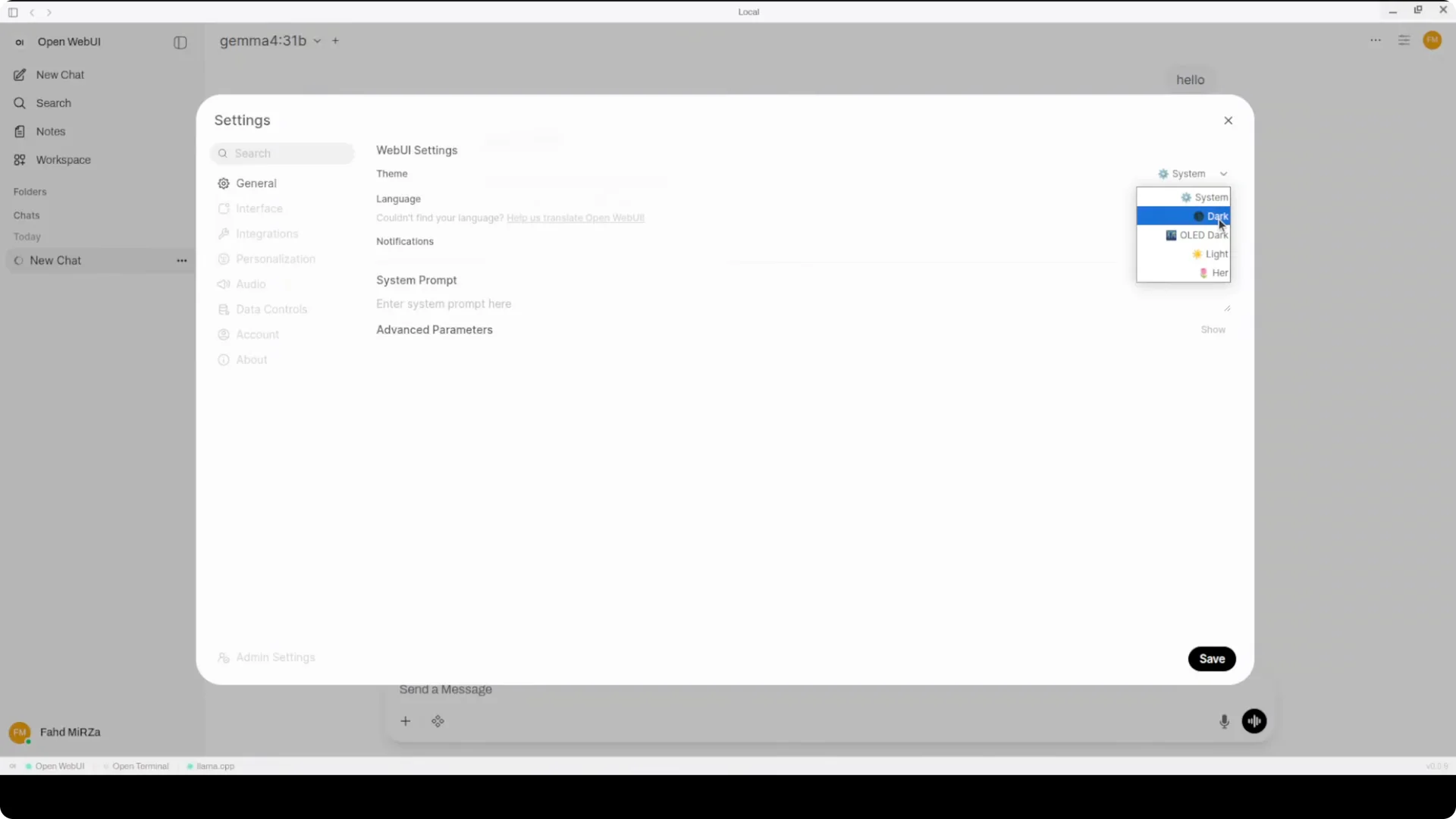
You can set the theme to dark mode from the bottom left under General. The rest of the interface matches the web version. It is the exact same experience, just a different and faster way to access it.
For task planning and backlog grooming alongside your chats, this pairs well with a focused workflow. See these tips on
managing tasks with a desktop assistant to keep work moving.
Use cases
Keep a floating chat on top of your IDE for quick prompts, summaries, and code refactors. Run local models through Ollama for private data questions and keep cloud models handy for broader research. Share quick snippets between the terminal and chat without context switching.
Analysts can keep model responses pinned while navigating dashboards. Product managers can capture meeting notes and draft specs in the floating bar. Researchers can compare outputs from different backends inside one interface.
Status and expectations
This is very early alpha software. The project warns that things move fast and stuff might break. If something does not work perfectly on your machine, do not blame the app or the team, it is just an alpha build.
What shipped is already useful and fills a real need. I am testing it because the experience is strong even this early. Expect rapid updates and polish to follow.
Final thoughts
The desktop app makes Open WebUI faster to reach and easier to keep in focus. Install it, connect your providers, and keep the floating chat one shortcut away. If you work across Windows and Linux, keep an eye on sandbox flags and shared memory, and you will be set.