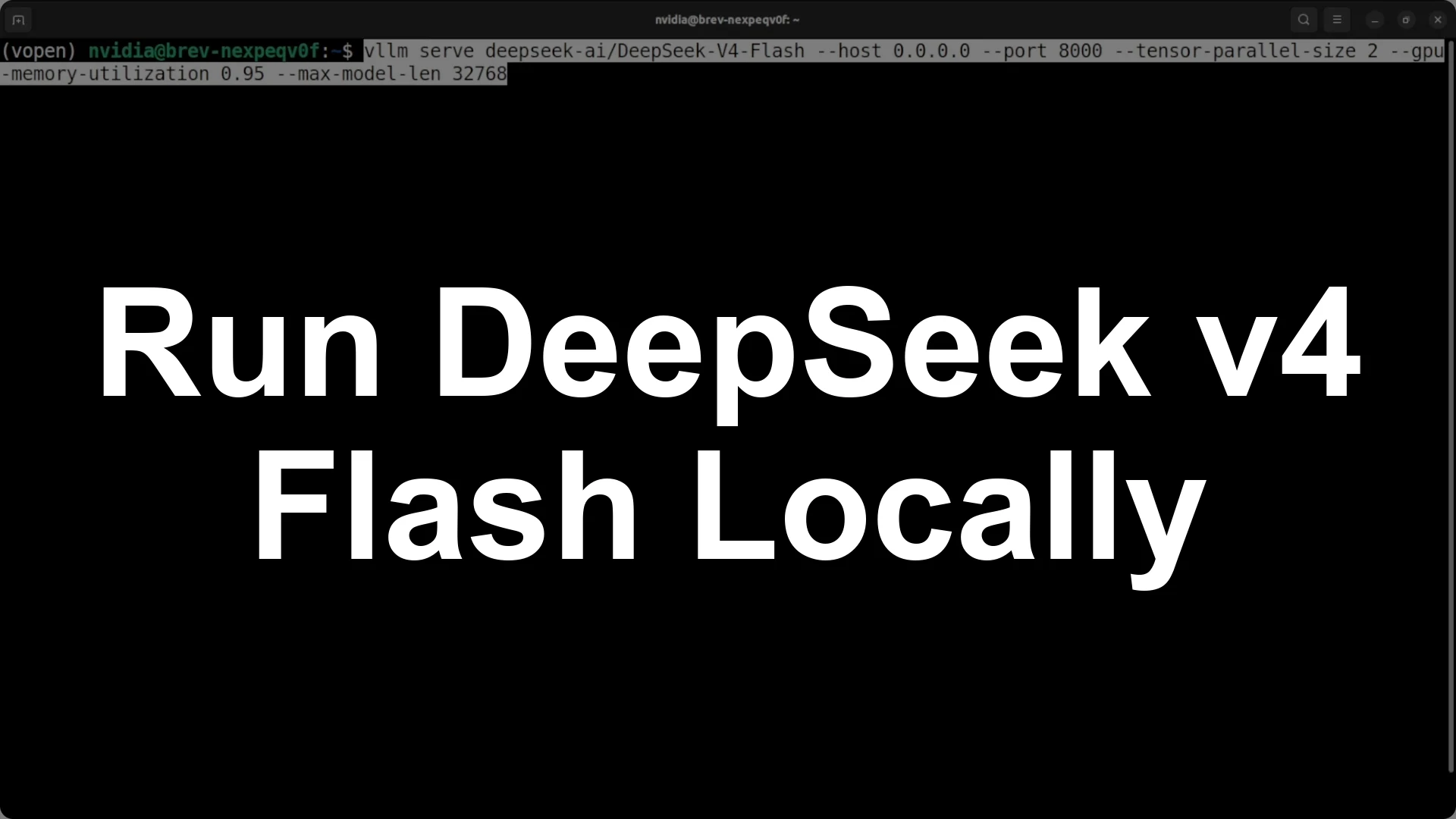
You can install and run
Deepseek V4 Flash fully local on a dual
H100 96 GB server. The model uses
FP4 and FP8 mixed precision, so loading the
284B parameters takes about
140 to 150 GB of VRAM, and
192 GB across two GPUs is enough to load it and get responses. Install
vLLM and serve the model with
tensor parallel size 2 and a
32k context, or use Deepseek’s native repo to download, convert, and load the weights across both GPUs, then launch with
torchrun to get an interactive chat or a local server on
localhost:8000.
If vLLM errors on an older Transformers build, upgrade
transformers or install it from source, or just switch to Deepseek’s native loader which includes a
convert-to-native step for the
256 experts layout. The end to end flow is: confirm both
H100 cards are visible, install
vLLM and dependencies, try to serve with
–tensor-parallel-size 2 and
–max-model-len 32768, or clone the Deepseek repo, set
CUDA_VISIBLE_DEVICES=0,1, download the model to a local directory, run the provided converter to split the experts across 2 GPUs, and start with
torchrun –nproc_per_node=2.
Server spec and memory headroom
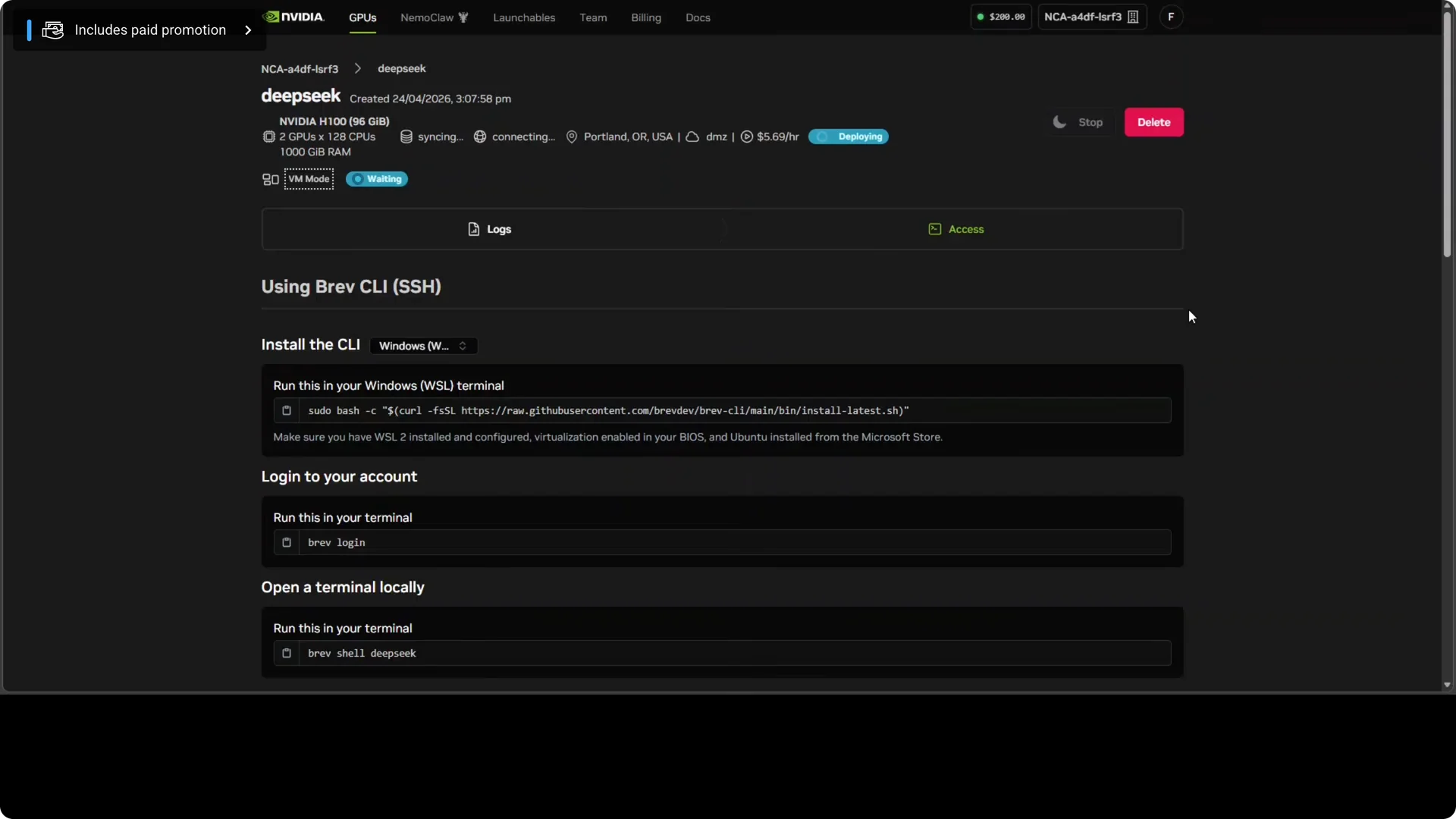
I am using
two H100s with 96 GB VRAM each for a total of
192 GB.
Deepseek V4 Flash fits here because the FP4 and FP8 mix reduces the memory footprint to roughly
140 to 150 GB. This is a minimum viable setup that proves local load and inference.
For a compact overview of V4 Flash and benchmarks, see our notes in
Deepseek V4 Pro Flash.
Option 1: Serve with vLLM
Create or activate a Python environment and install the packages. Upgrade
transformers to avoid the common loader error.
python -m venv v4 && source v4/bin/activate
pip install -U pip
pip install -U vllm transformers accelerate
Start the server with two GPUs and a safe
32k context length. Keep VRAM headroom with
–gpu-memory-utilization 0.95.
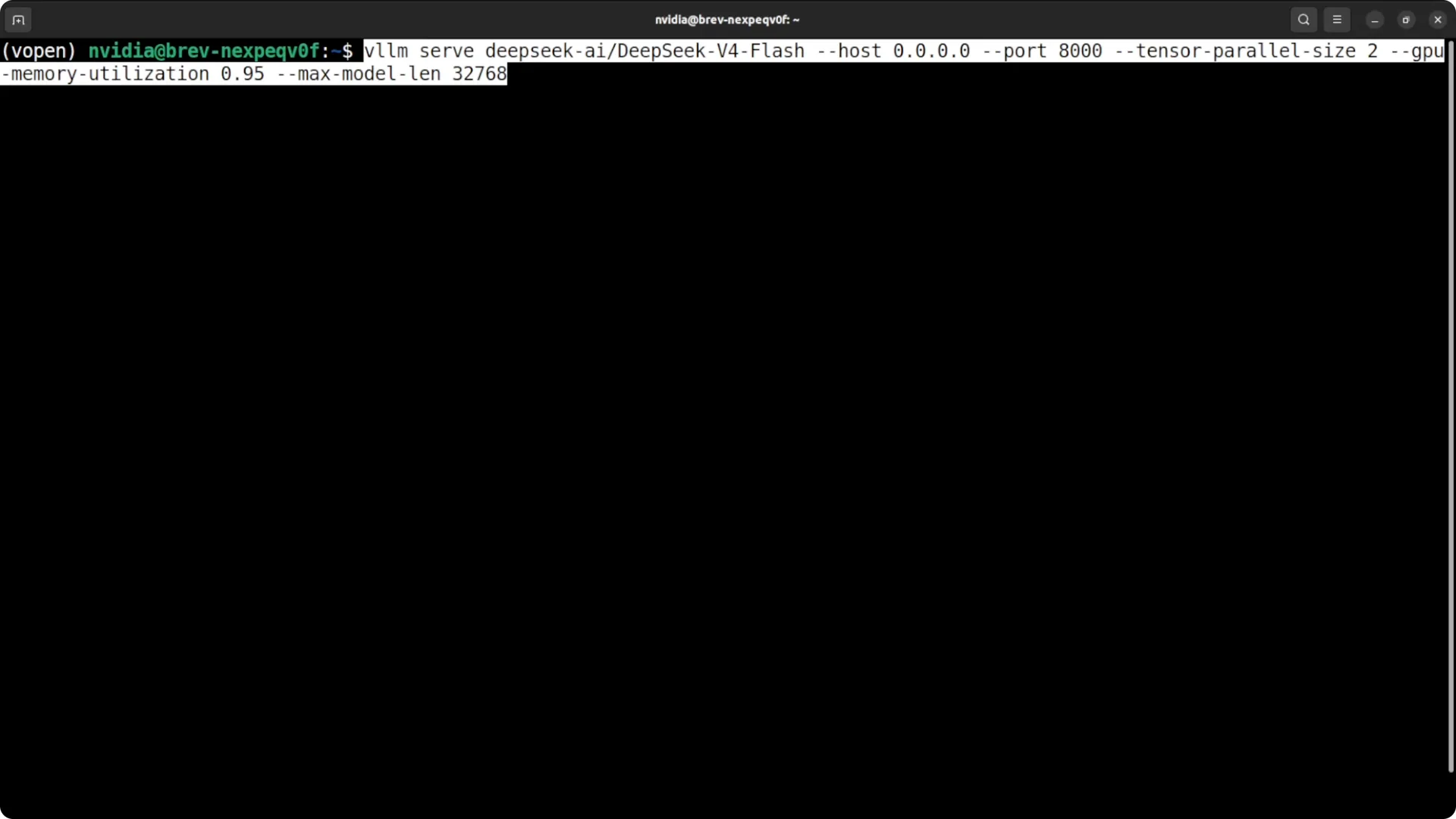
vllm serve deepseek-ai/DeepSeek-V4-Flash \
  --tensor-parallel-size 2 \
  --max-model-len 32768 \
  --gpu-memory-utilization 0.95
Test that both H100s are busy and memory is near full but stable.
nvidia-smi
Fix Transformers version error
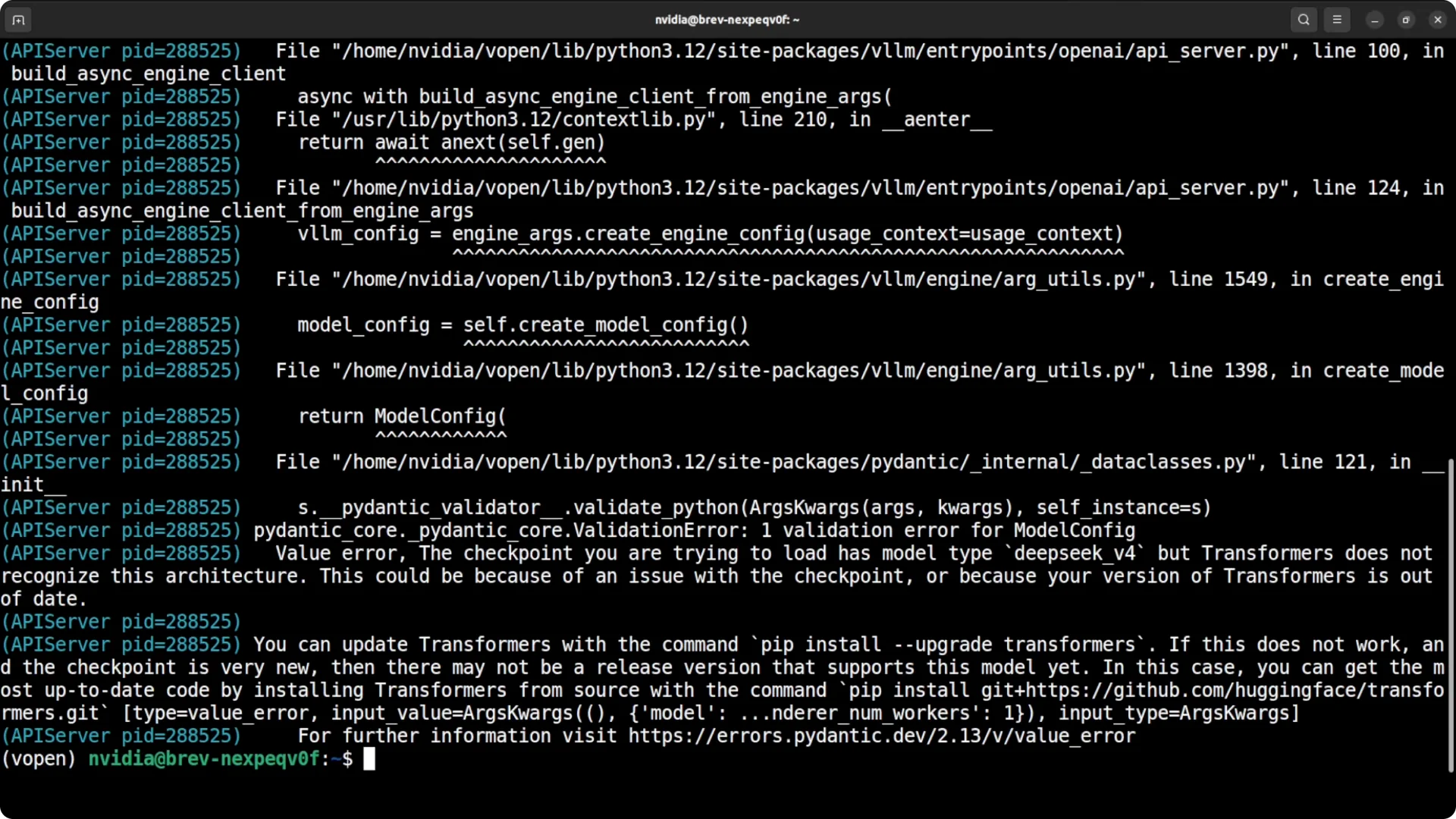
If the first launch fails and complains about an old
transformers, update it in place.
pip install -U transformers
If it still fails, install from source to pick up the latest loaders.
pip uninstall -y transformers
pip install git+https://github.com/huggingface/transformers.git
If your environment remains finicky, switch to the native loader below which includes a conversion step tailored for
256 experts.
Option 2: Deepseek native repo
This path uses Deepseek’s own scripts to download, convert, and launch the model interactively across both GPUs. It also supports serving on a local port.
Clone and prepare
Clone the repo and install its requirements. Set GPU visibility and a local model directory.
git clone https://github.com/deepseek-ai/DeepSeek-V4.git
cd DeepSeek-V4
pip install -U pip
pip install -r requirements.txt

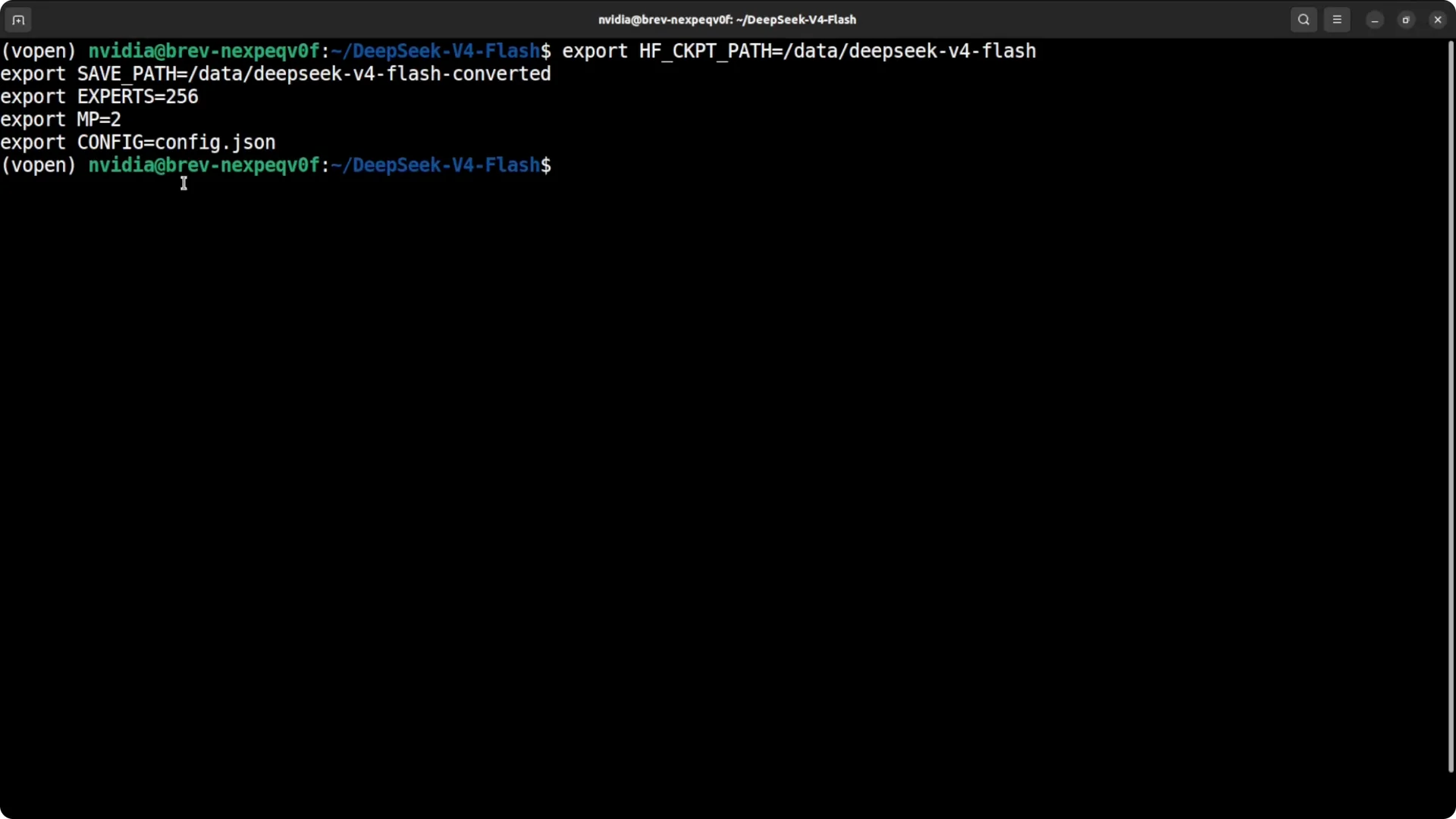
export CUDA_VISIBLE_DEVICES=0,1
export DS_MODEL_DIR=/data/models/deepseek-v4-flash
mkdir -p "$DS_MODEL_DIR"
Download the model weights
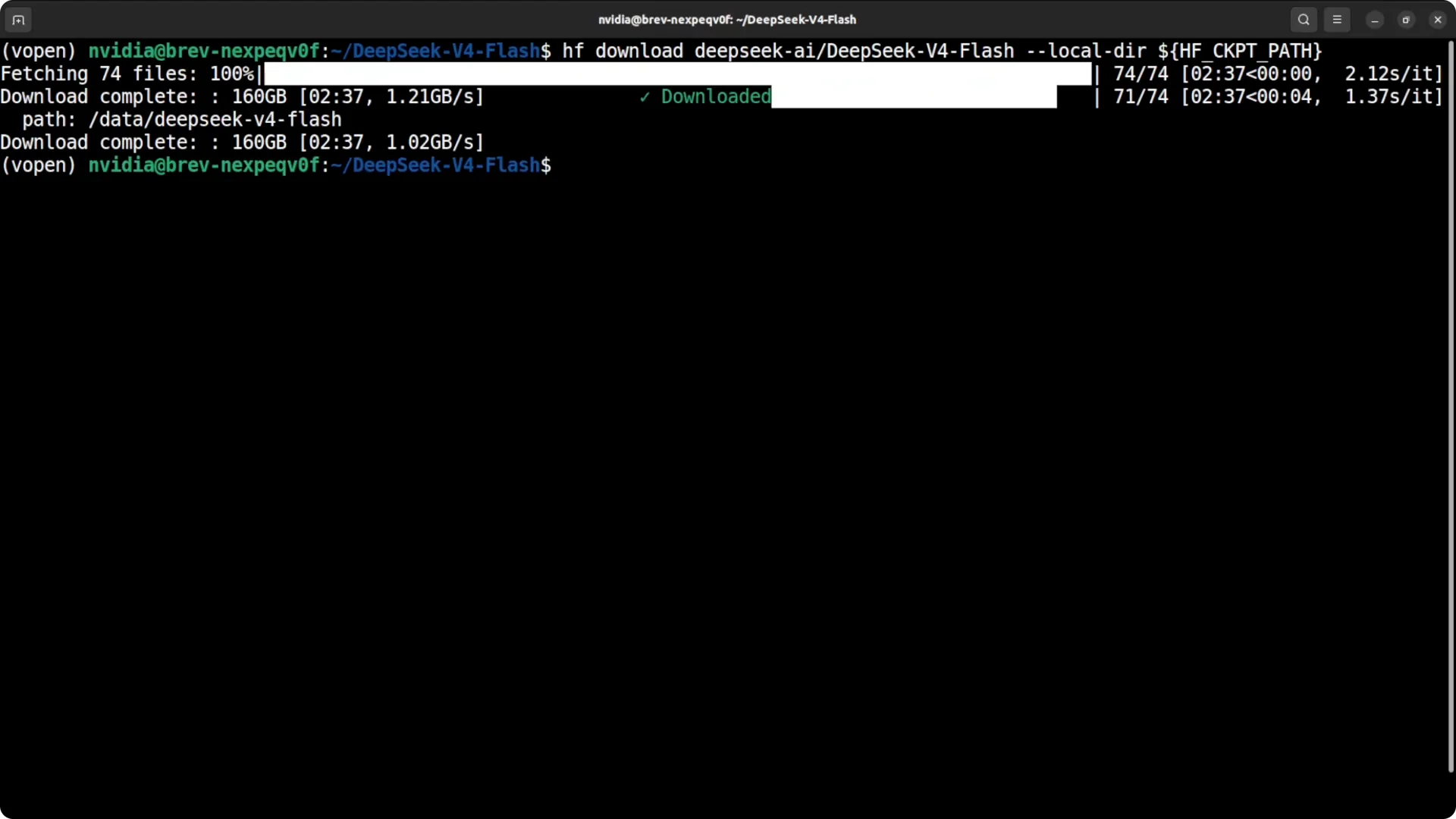
Use the Hugging Face CLI to fetch the
~160 GB weights to your path.
pip install -U "huggingface_hub[cli]"
huggingface-cli download deepseek-ai/DeepSeek-V4-Flash --local-dir "$DS_MODEL_DIR"
Confirm the directory size is around
160 GB before conversion.
Convert to Deepseek native format
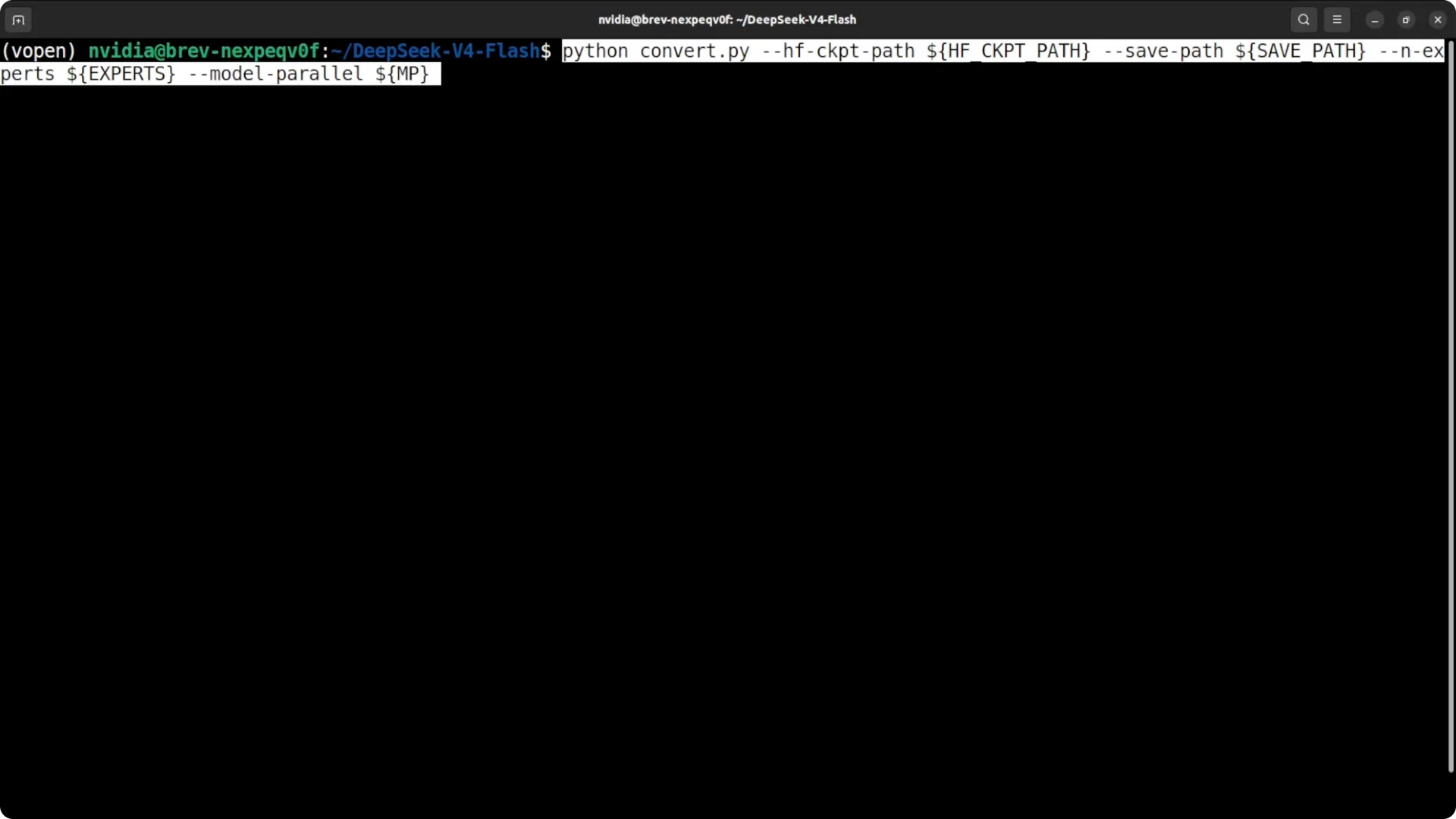
Translate Hugging Face layout to Deepseek’s native format and split
256 experts across two GPUs. Use the converter included in the repo.
python tools/convert_hf_to_ds.py \
  --hf-path "$DS_MODEL_DIR" \
  --output "$DS_MODEL_DIR-ds" \
  --num-experts 256 \
  --tensor-parallel-size 2
This step can take time. Wait for a clean completion message.
Launch across two GPUs
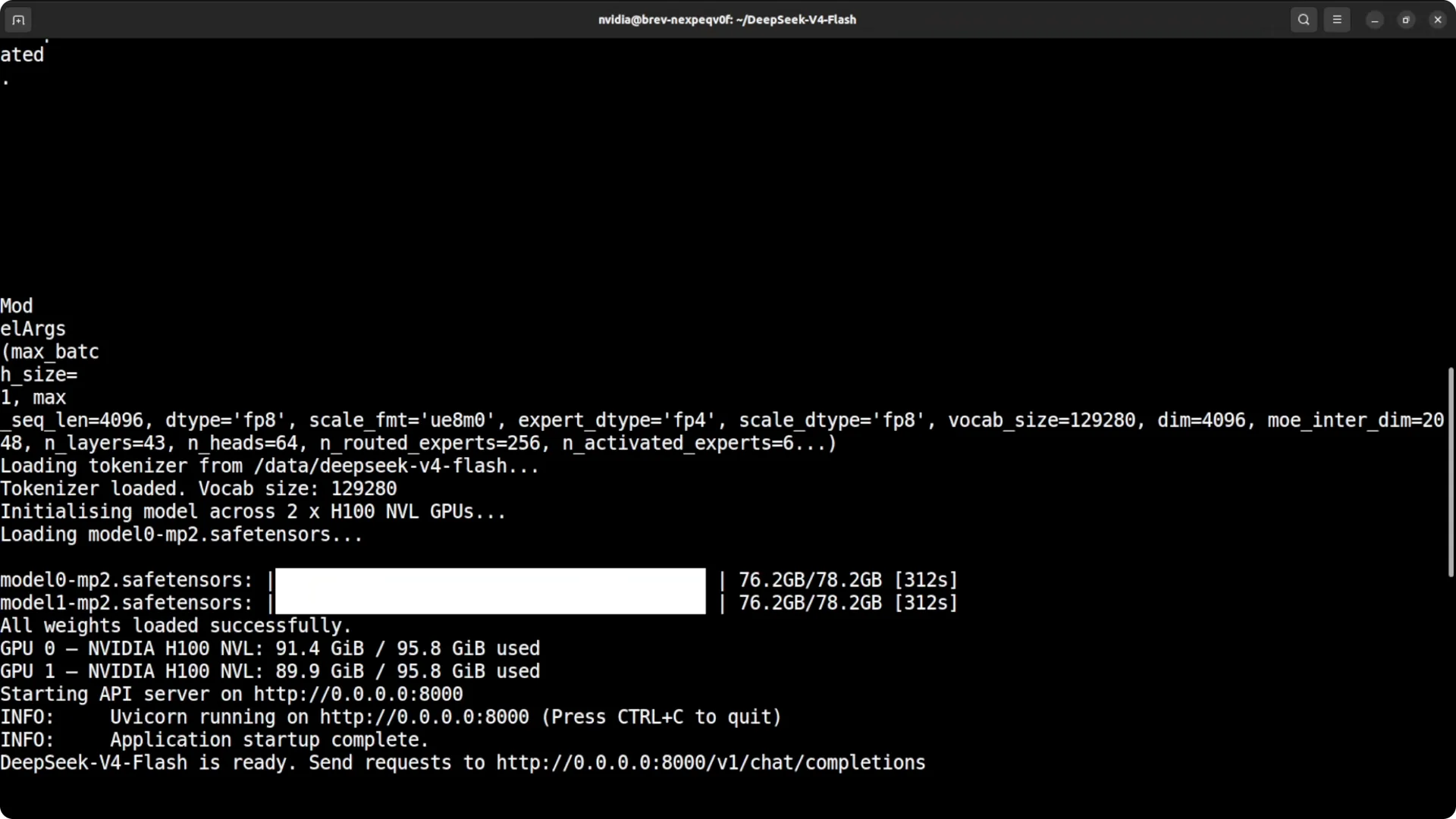
Start the interactive chat across both H100s with a safe
32k context. You can also expose an HTTP server on
localhost:8000.
torchrun --nproc_per_node=2 generate.py \
  --model "$DS_MODEL_DIR-ds" \
  --max-model-len 32768 \
  --port 8000
Watch
nvidia-smi to verify that both GPUs are fully engaged and VRAM sits close to the expected load.
Quick inference check
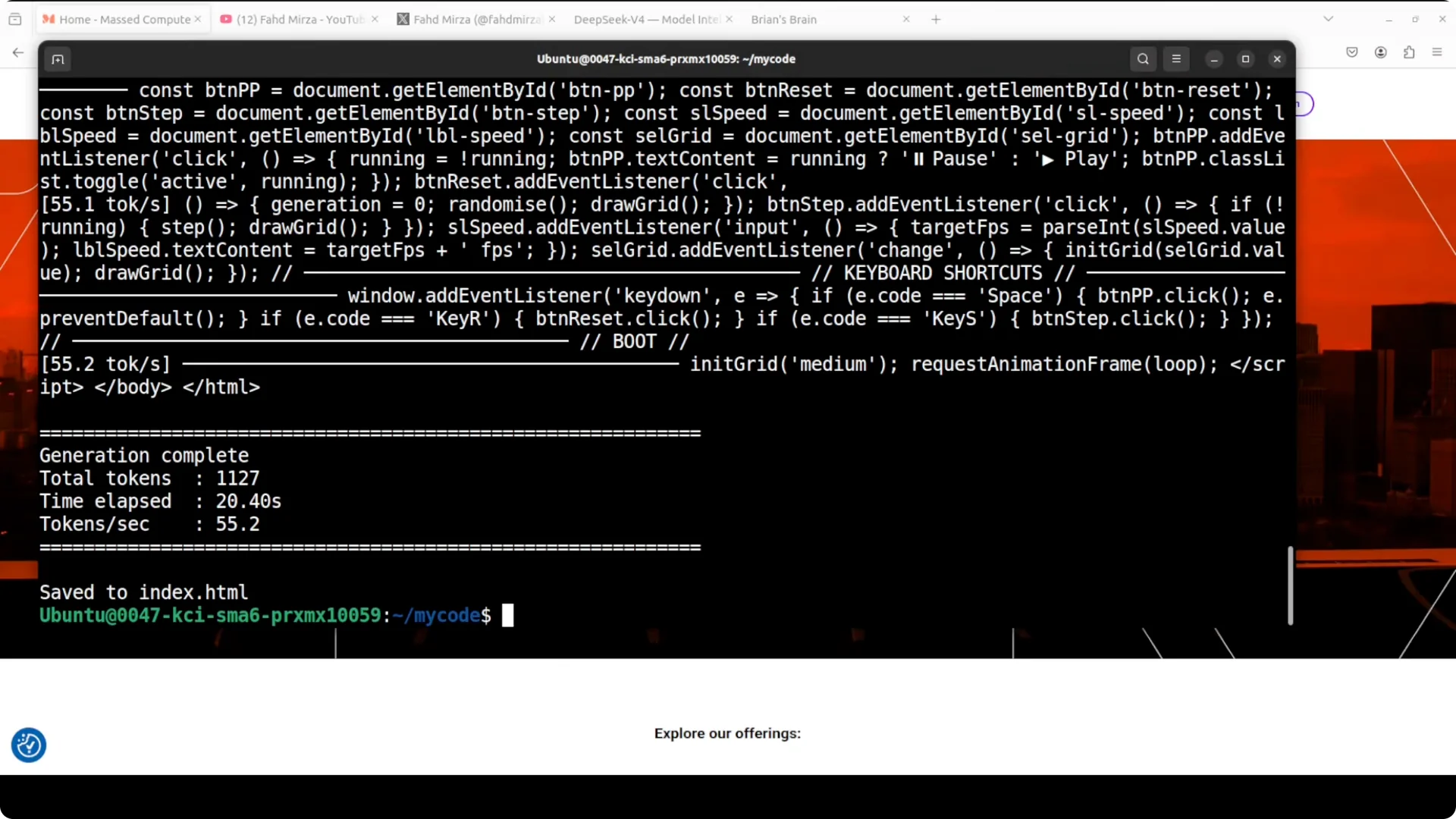
Open the interactive prompt and send a short instruction to confirm token generation. Keep prompts concise at first to validate stability.
# Example prompt in the interactive session:
Explain mixture of experts briefly and list typical routing strategies.
Once you get a coherent response and stable
tokens per second, proceed to your real tasks.
Performance notes and safe defaults
I stick with
–max-model-len 32768 because it fits reliably in
192 GB across two H100s. Pushing longer contexts may cause
out of memory errors. For vLLM, keeping
–gpu-memory-utilization 0.95 leaves a small buffer that prevents instability.
If you prefer more headroom, reduce the context a bit or trim concurrent requests. Increase it later once you confirm stability on your workload.
What you can run on this setup
I focus on workloads that need strong reasoning and large context but not extreme throughput. Long technical reviews, code refactors, and multi file analysis all run well here. Private data chat and structured extraction are also good fits.
This is a solid box for deep coding sessions, staged planning, and iterative agent style loops. If you work across assistants, you might pair your workflow with approaches like the
SuperClaude method for code work. For planning heavy tasks, I also map steps with the
GSD framework for Claude code.
Terminal centric flows remain my favorite for reproducibility. If you prefer a shell first dev style, see this quick setup for a
Claude Code terminal workflow. These patterns transfer cleanly to local V4 Flash sessions.
Troubleshooting
If you hit
out of memory, lower
–max-model-len by a few thousand tokens and retry. Confirm
–tensor-parallel-size 2 is set so both GPUs load their shard. If a loader complains about incompatible files, re run the conversion step and ensure the
num experts and
tp size match your launch flags.
If
transformers mismatches persist in vLLM, pin a fresh build from source and clear any old caches before relaunch. The native loader path tends to be more forgiving on first runs.
Read More: Fix HTTP 500 errors in Google Workspace
Final thoughts
Local
Deepseek V4 Flash runs fine on a
2x H100 96 GB rig once you respect the memory budget. Use vLLM for quick spins or the native repo for a model aware conversion and launch. Keep the context near
32k, split across both GPUs, and you will get a steady, private setup ready for real projects.