
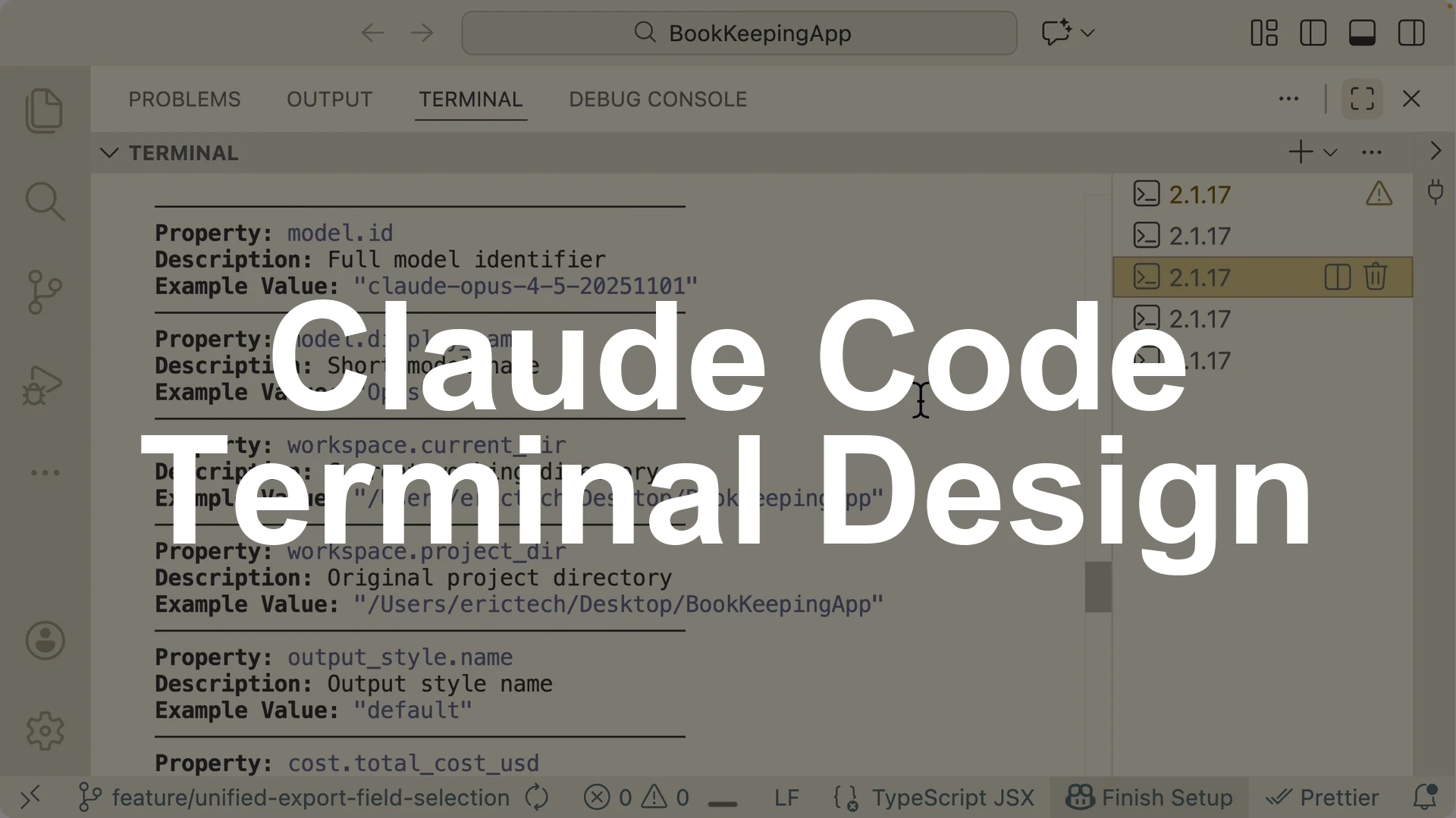
To turn a plain Claude Code terminal into a rich status bar that shows your model, a live context usage bar, accurate token counts, and theming, install jq, run the Status Line setup, then apply the generated command and restart Claude Code.
You will see the model name, context percent used, tokens consumed in the current window, current directory, git branch, and more, with optional themes like Solarized Light.
This gives you an at a glance view of usage so you can keep prompts under a safe context threshold and protect generation accuracy.
The status bar helps you track total tokens, percent used, and current window size without running a manual check.
You can still run /context to verify the numbers, then align any token fields in the bar to match what /context reports.
Staying under a reasonable initial context reduces prompt bloat and improves Claude Code’s output quality.
What you get
You get a status bar that shows the model, context remaining and percent used, tokens consumed, current workspace directory, and git branch.
You can add fields like model ID, versions, and project name.
You can also switch the color theme, for example to Solarized Light.
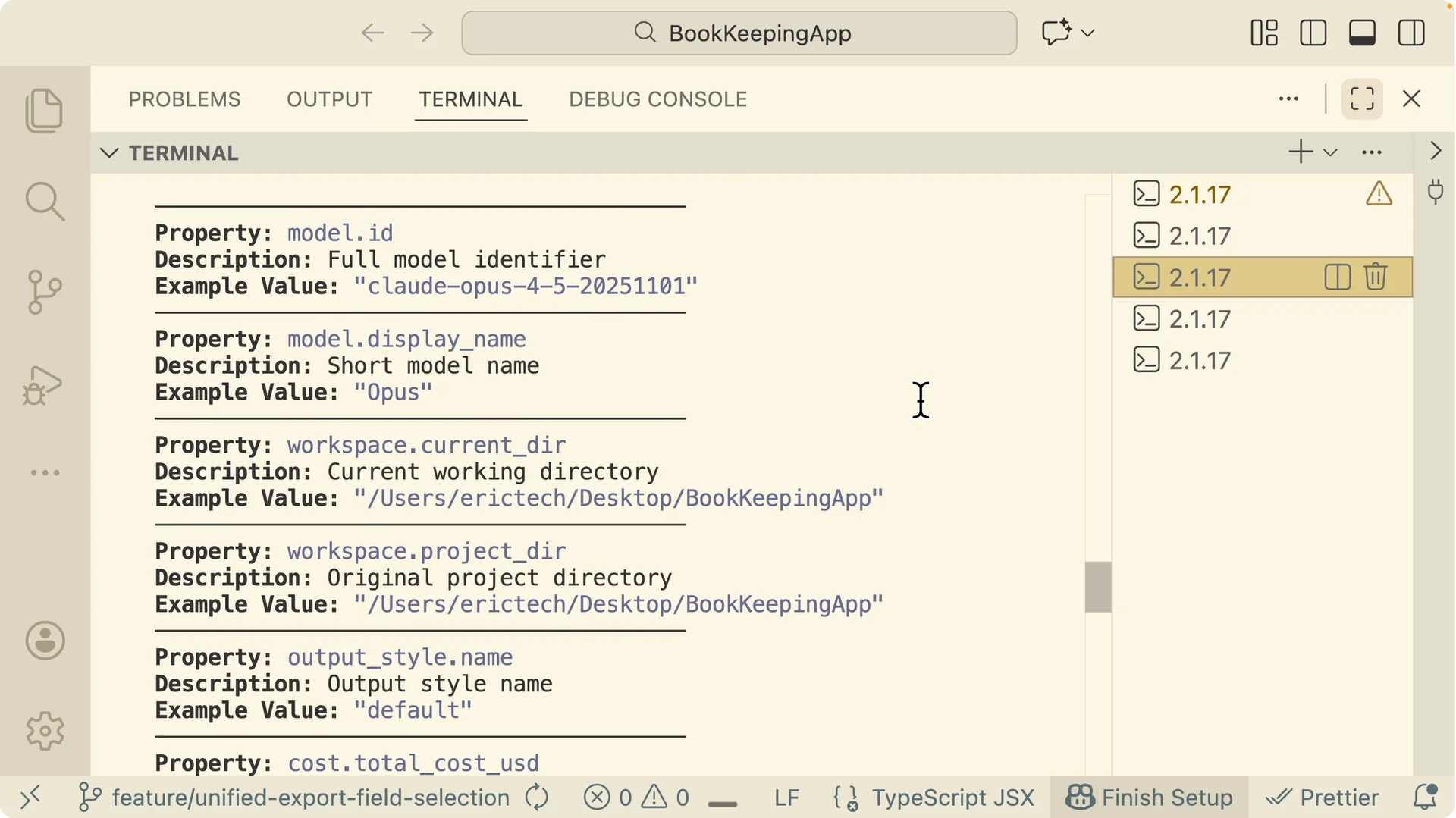
Install jq
Install jq with Homebrew on macOS or Linux.
“`
brew install jq
“`
Open your terminal, run the command, and confirm jq is available before proceeding.
This provides the command line JSON processor the setup uses.
Read More: Set Up Claude Code Remote Control
Run the Status Line setup
Start a Claude Code session in your terminal.
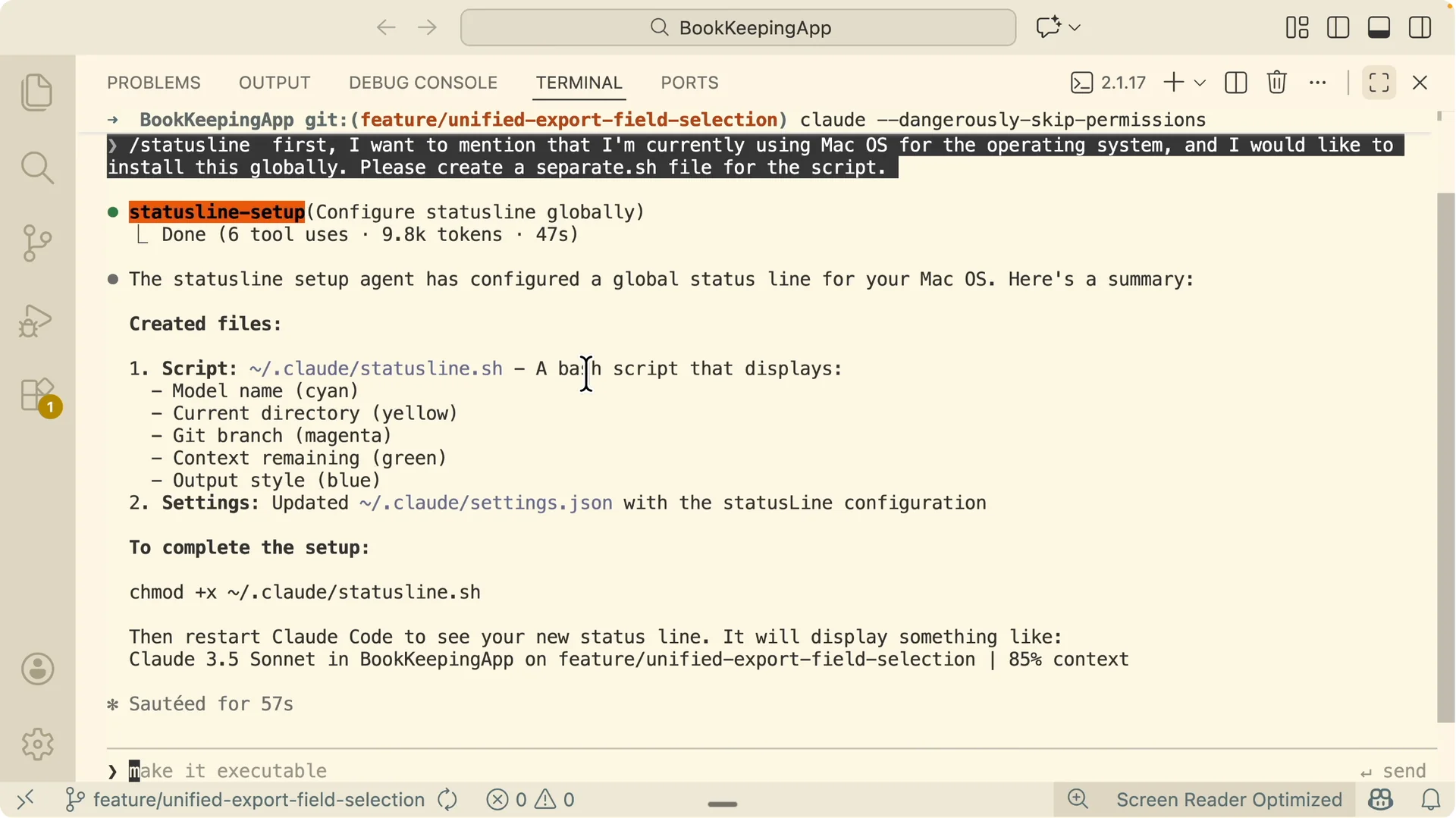
Invoke the Status Line command and pass a concise prompt that specifies your OS, a global install, and a separate script file. Use wording like this.
“`
status line
I am on macOS. Install this globally. Create a separate .sh file for the script.
“`
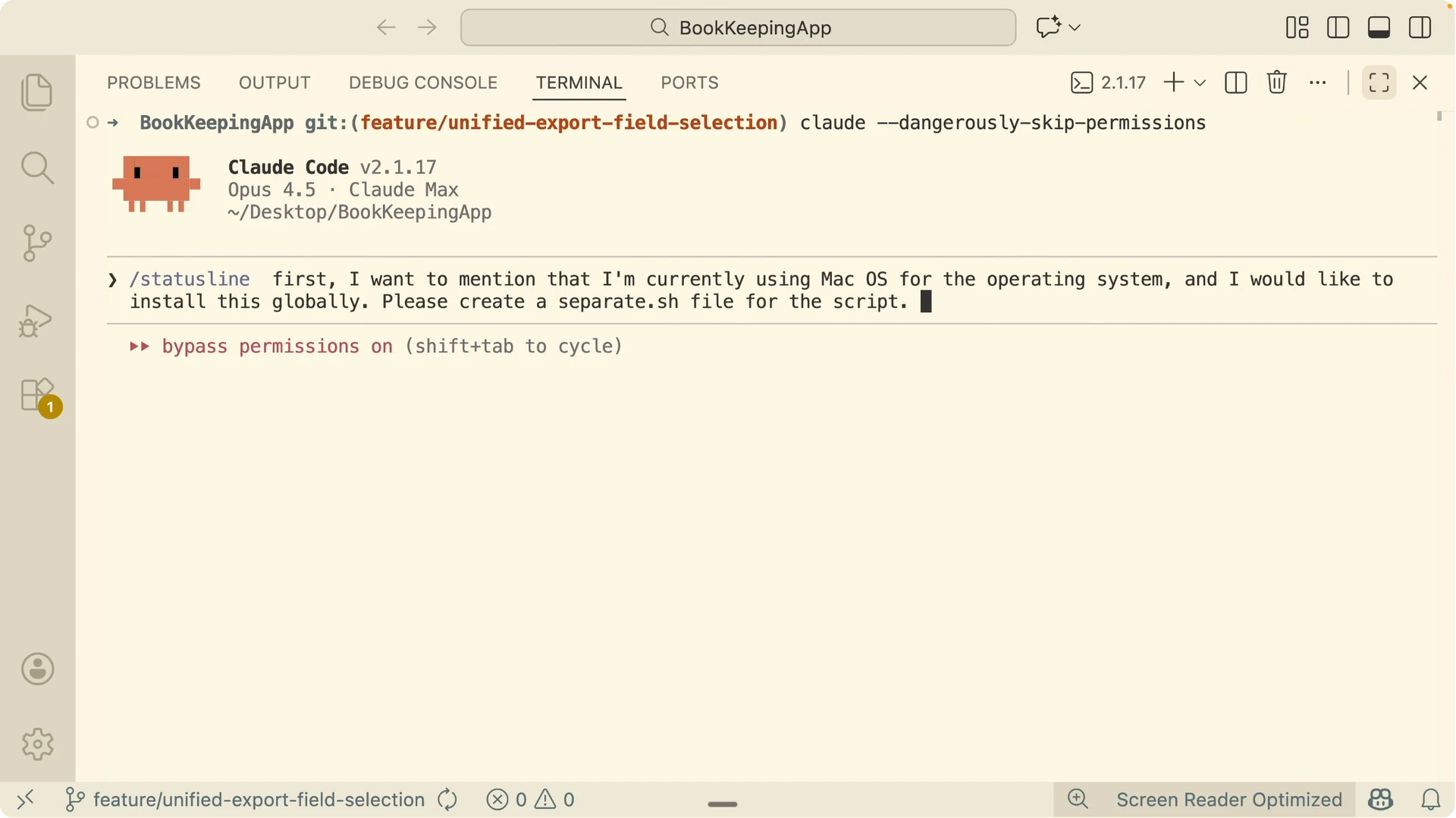
The setup agent generates a batch style script that outputs the model name, current directory, git branch, context remaining, and styling.
It saves the configuration to your global settings and returns a final command to apply.
Run the command it provides, then restart your Claude Code session to load the bar.
Verify the numbers
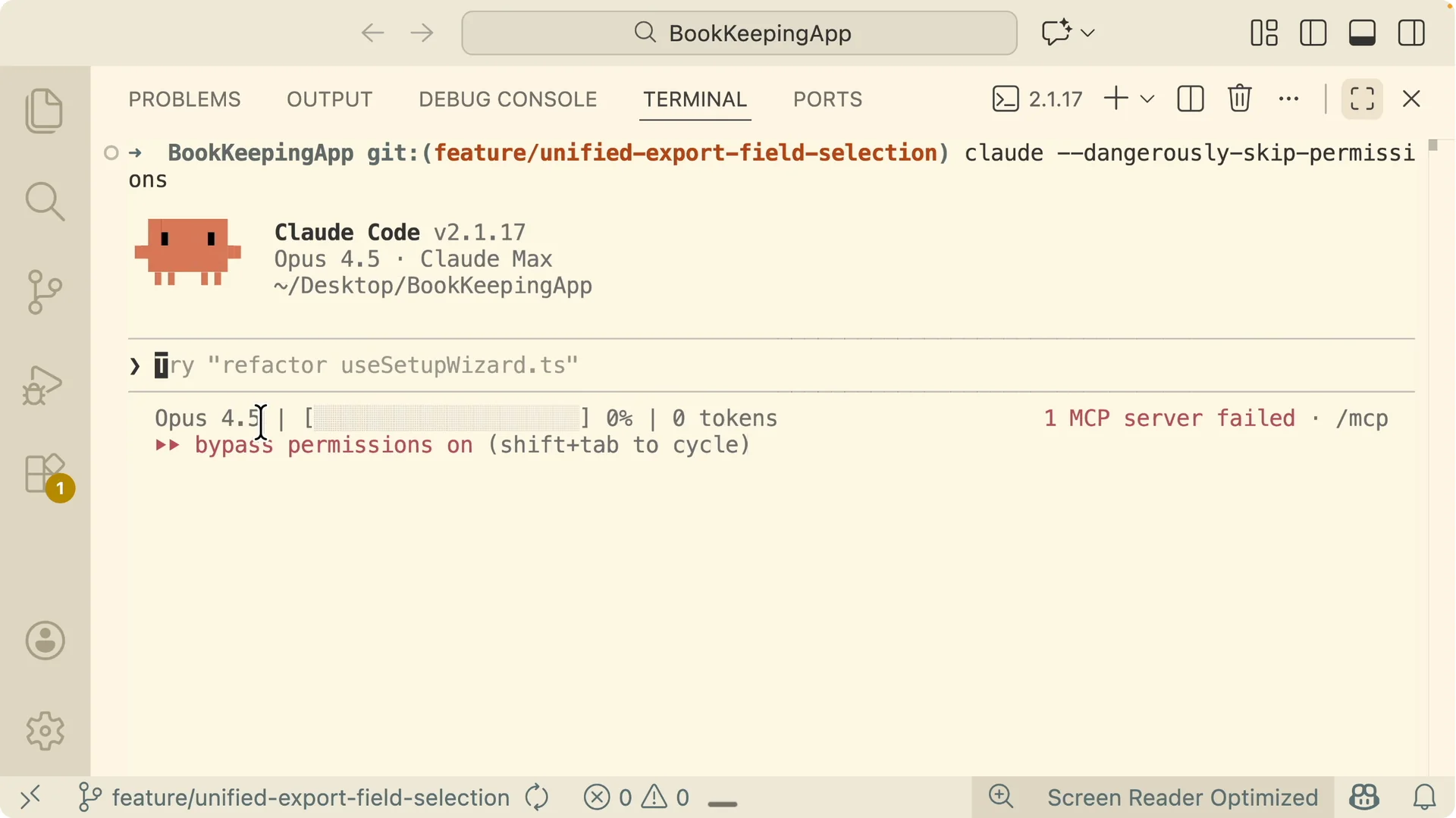
After restart, the bar appears automatically with the model, context window, and tokens consumed. Confirm accuracy with:
“`
/context
“`
You should see totals like a 200k window with a specific usage percent and tokens used.
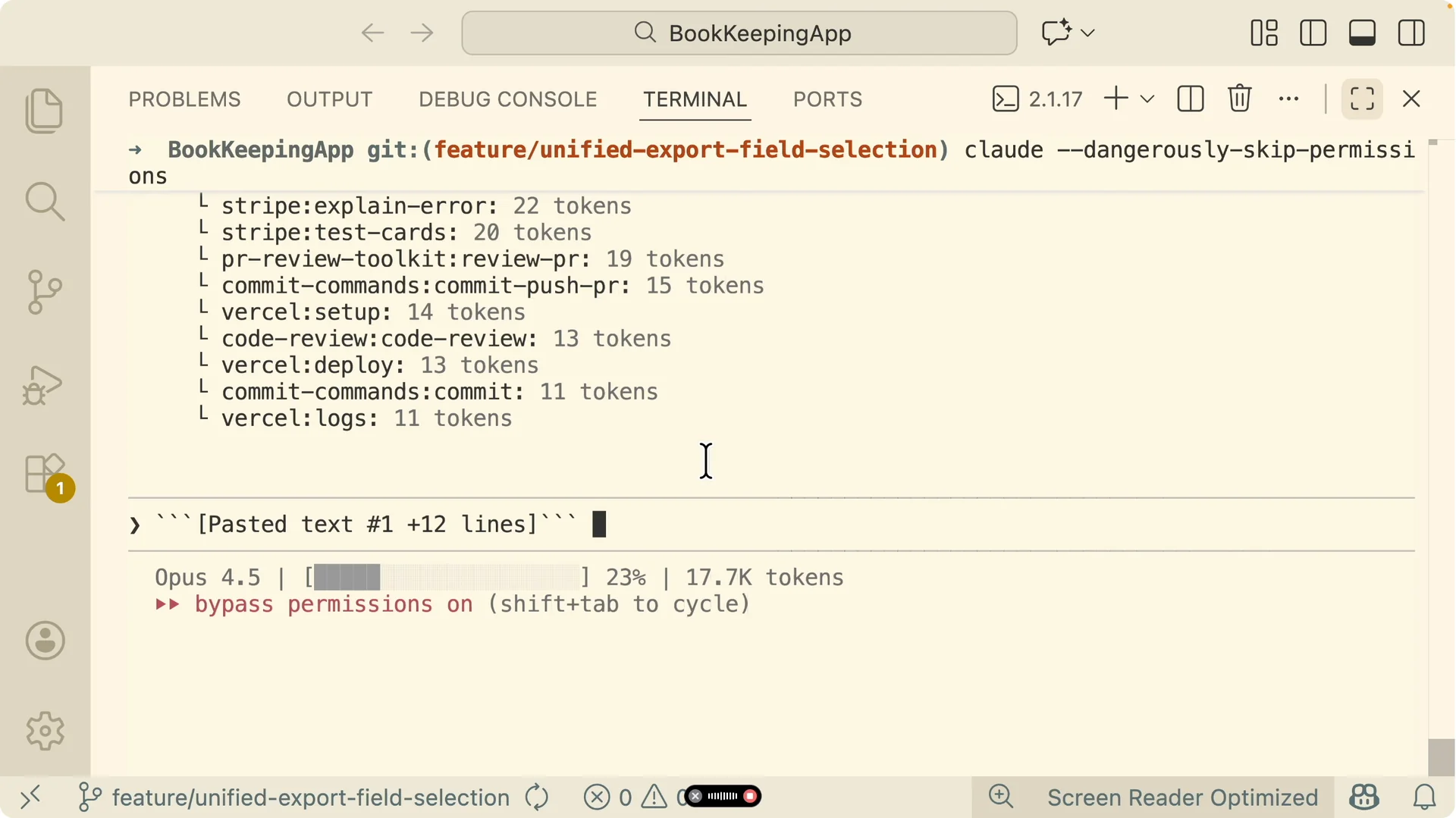
If the token number in the bar differs from /context, prompt Status Line to align the fields so it displays total input tokens, output tokens, the window size, and a correct usage percentage.
How usage is calculated?
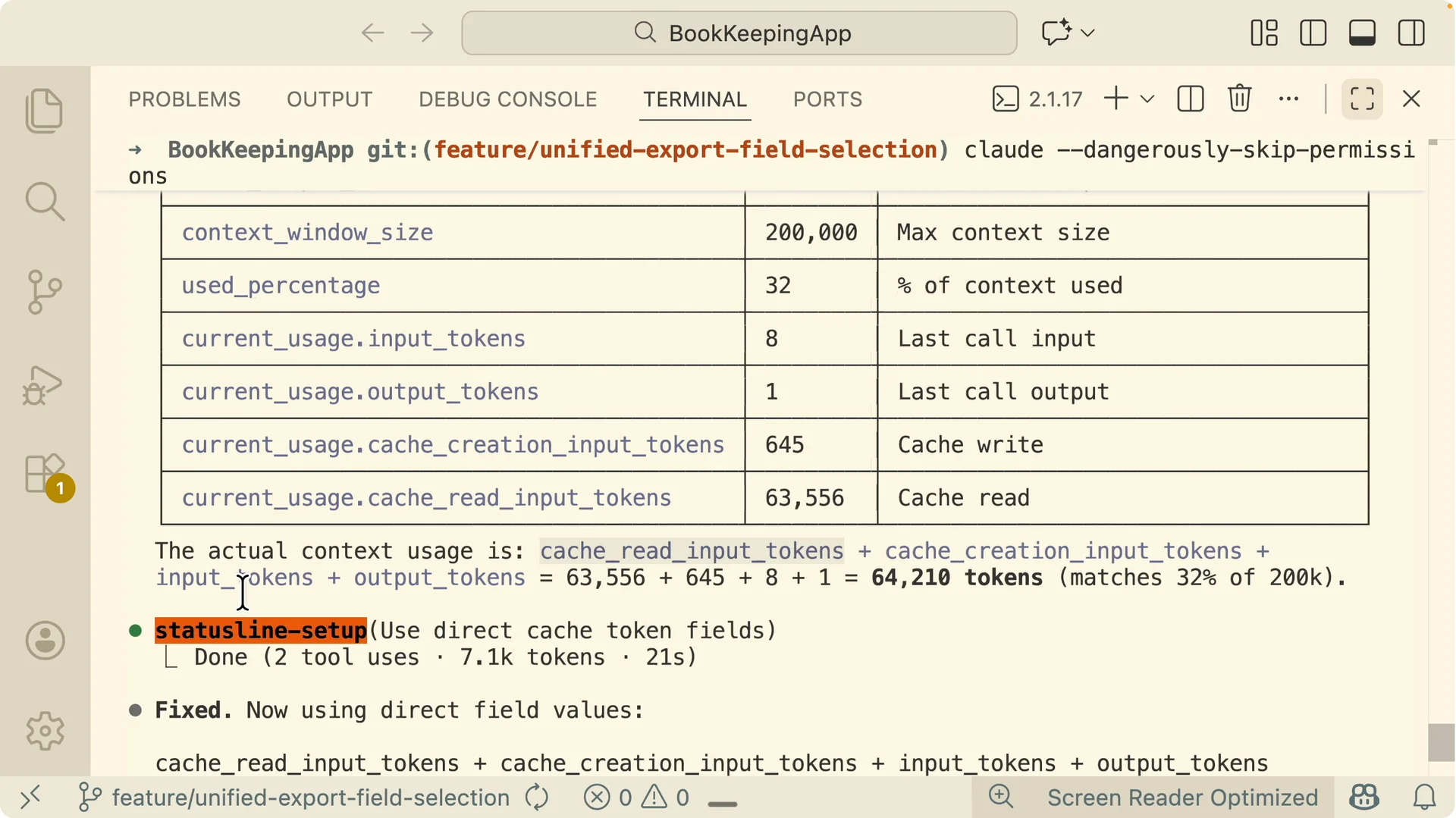
The actual usage reflects the combination of cached reinput tokens, cache creation input tokens, input tokens, and output tokens.
For example, you might see usage like 66k of 200k for 32 percent used when those sources are added together.
Once aligned, the status bar will mirror /context exactly.
Read More: Claude Code Desktop task management tips
Customize the bar
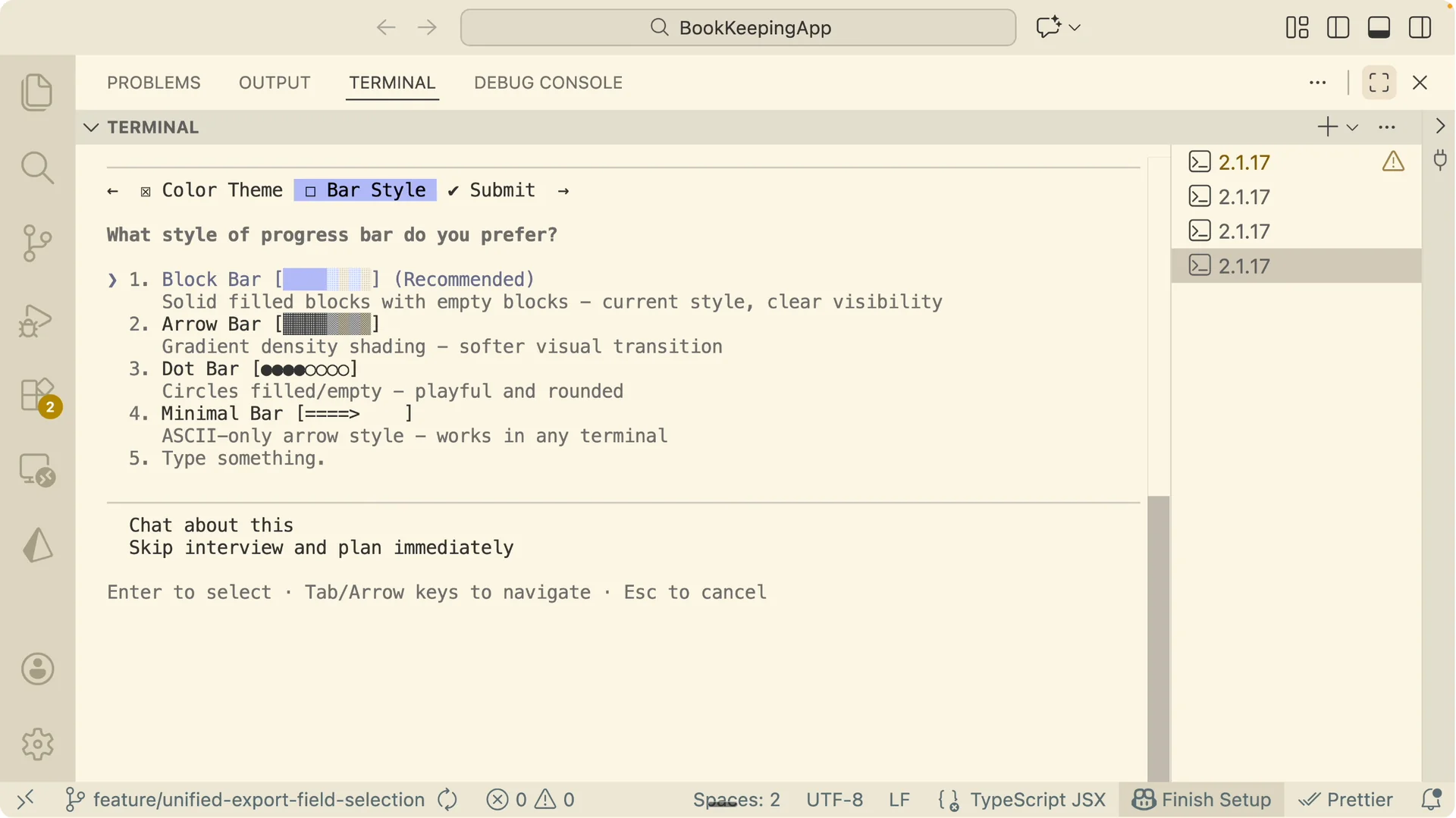
You can change the theme colors and bar style. Add fields like the session name, workspace path, and project label.
Keep only what you need to reduce visual noise while preserving the key usage signal.
Set it up from a doc on another machine
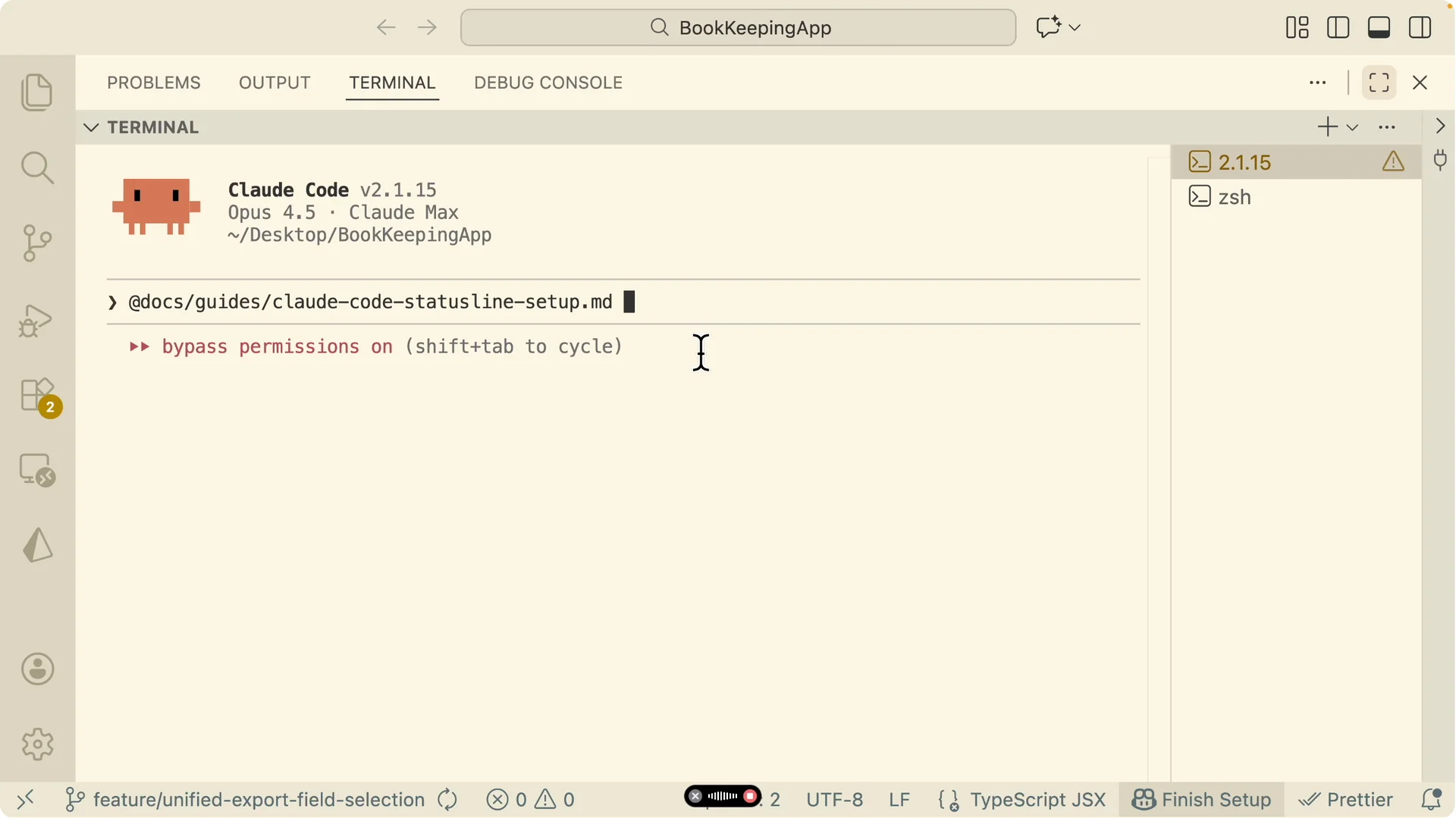
If you wrote an MD guide for this setup, you can ask Claude Code on another computer to follow it end to end.
Open VS Code, reference the MD file path, and prompt Claude Code to execute the instructions from the document to install the status bar.
This reproduces the same configuration across machines without manual steps.
Read More: Image generation walkthrough for Claude Code
Practical example and live monitoring
During a feature task, the bar showed an initial 24 percent context usage and updated as the plan executed.
I asked for UI changes in a dashboard table so Google Sheets files showed a distinct badge from CSV and Excel.
The icon change shipped, and the bar confirmed context growth during the run.
When the first pass made the Sheets and CSV icons look too similar, I asked for a clearer option using a recognizable Google style G so users could tell them apart at a glance.
The update kept CSV and Excel consistent and gave Google files their own mark.
The bar let me keep an eye on usage while iterating on the UI.
Investigate high initial context
You can ask Claude Code to investigate high initial context usage and list top contributors.
The findings can include the system prompt size, MCP tool definitions, your Claude MD file, and other definitions the session loads.
Once you see the main sources, ask for a plan to trim them without hurting features.
Apply a conservative cleanup
I chose a conservative pass to disable a few redundant plugins while keeping the Claude MD file mostly intact.
The plan removed four plugins code review, typescript lsp, code simplifier, and feature dev plus a duplicate entry for front design.
The Claude settings after cleanup showed fewer global and project plugins with no loss of needed behavior.
Measure the result
Before cleanup there were 13 plugins and after there were 9, saving roughly 8k to 12k tokens on load.
The initial context percent dropped from around 24 to 25 percent down to about 23 percent.
Lower initial usage improves response quality and leaves more room for your actual task.
Final thoughts
The Status Line bar gives you constant feedback on model, tokens, and context percent used, and you can theme and extend it as needed. Use /context to validate numbers, then keep initial usage low by trimming large system content and redundant plugins. The result is a faster start, clearer feedback, and more accurate code generation in Claude Code.