
Claude Code on the web lets me connect a GitHub repo, analyze the codebase with a single /init command, auto generate a claude.md guide and a README with Mermaid diagrams, then prepare a branch and pull request in minutes.
I can move the same session to my local machine through Open in CLI, continue the work in terminal, review the PR, and merge, which is how I 10x my day to day speed as a software developer.
The fastest path is simple. Go to claude.ai/code, authorize GitHub, pick your repository, import any required environment variables, adjust network access if needed, and run /init to let Claude understand the project.
Review the generated changes, click Create pull request, attach the session in your terminal with the provided command, and git pull after merging to sync your local main branch.
I also run multiple web sessions in parallel, each on its own branch and virtual environment, so UI, back end, and database tasks progress at the same time without conflicts, then I test and merge.
Get started in the browser
Navigate to claude.ai/code and connect your GitHub account.
Grant the requested permissions and click Authorize Claude.
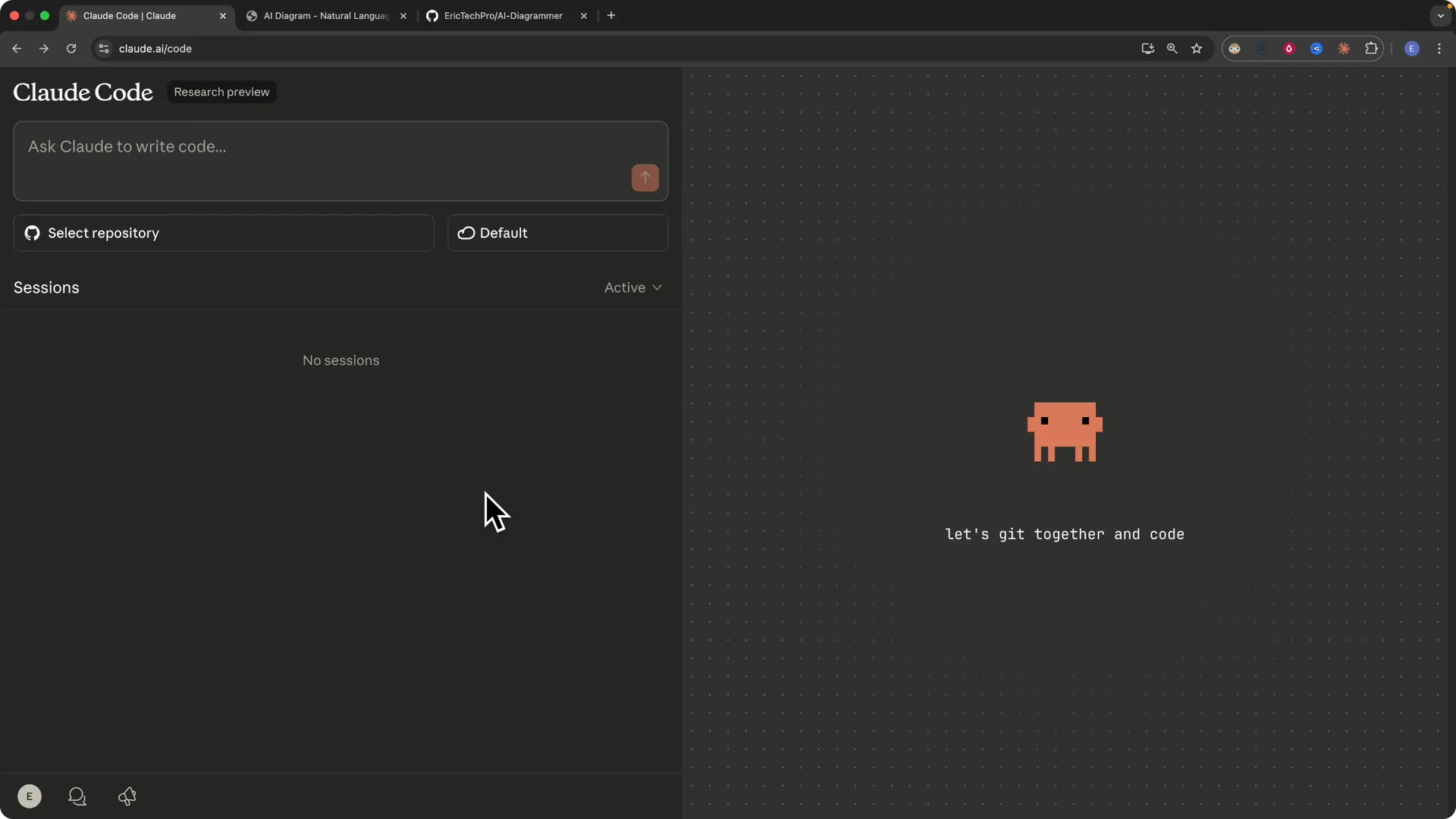
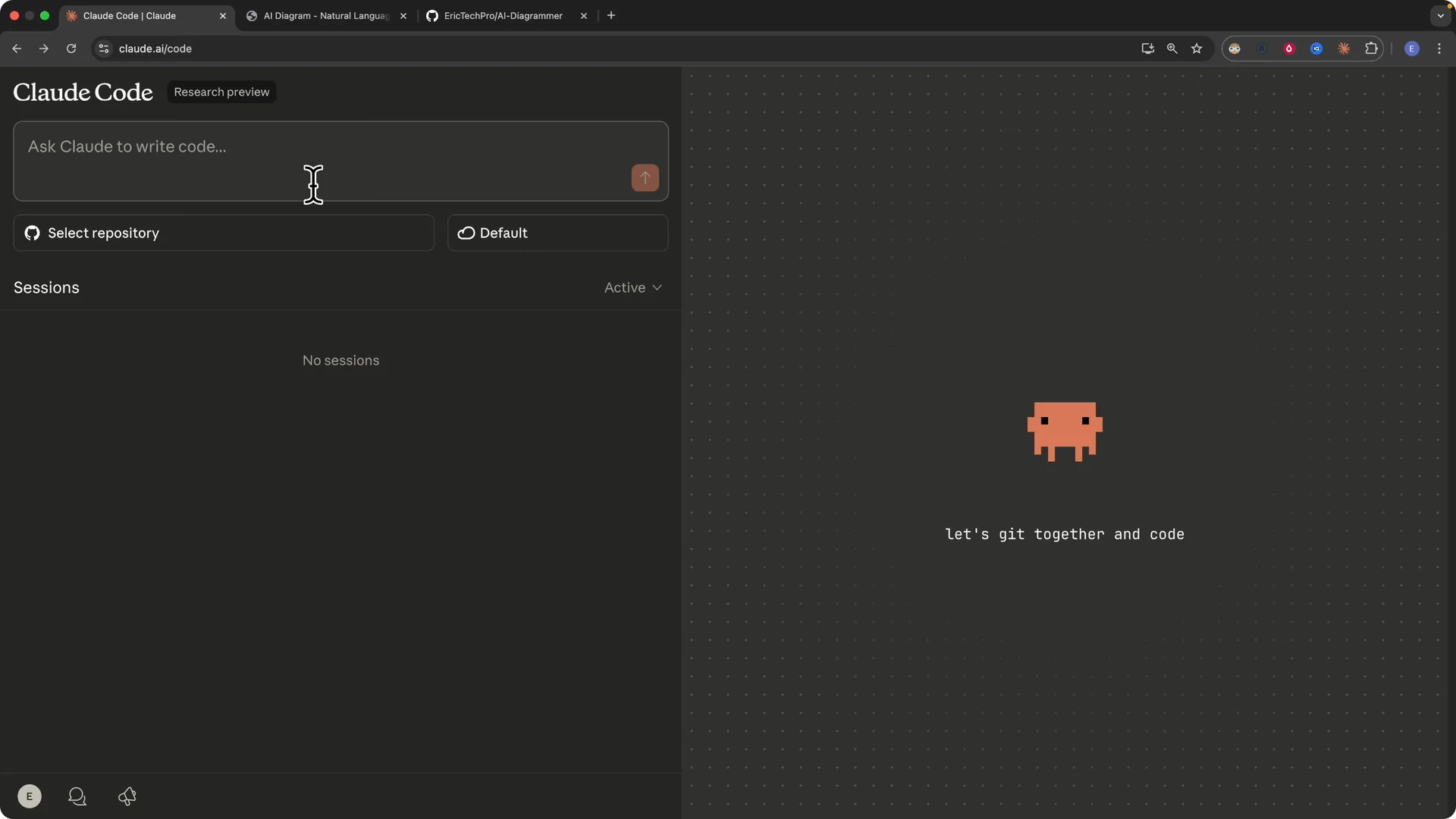
You will see a prompt window to describe what you want Claude Code to build.
Select a repository from your GitHub account and set up the Environment with any required keys or variables.
If your company network or VPN needs configuration, adjust Network access and custom domains.
Name your cloud environment if prompted because the session runs in a virtual environment.
For continuing sessions across devices, see the remote control setup guide.
Initialize and understand the codebase
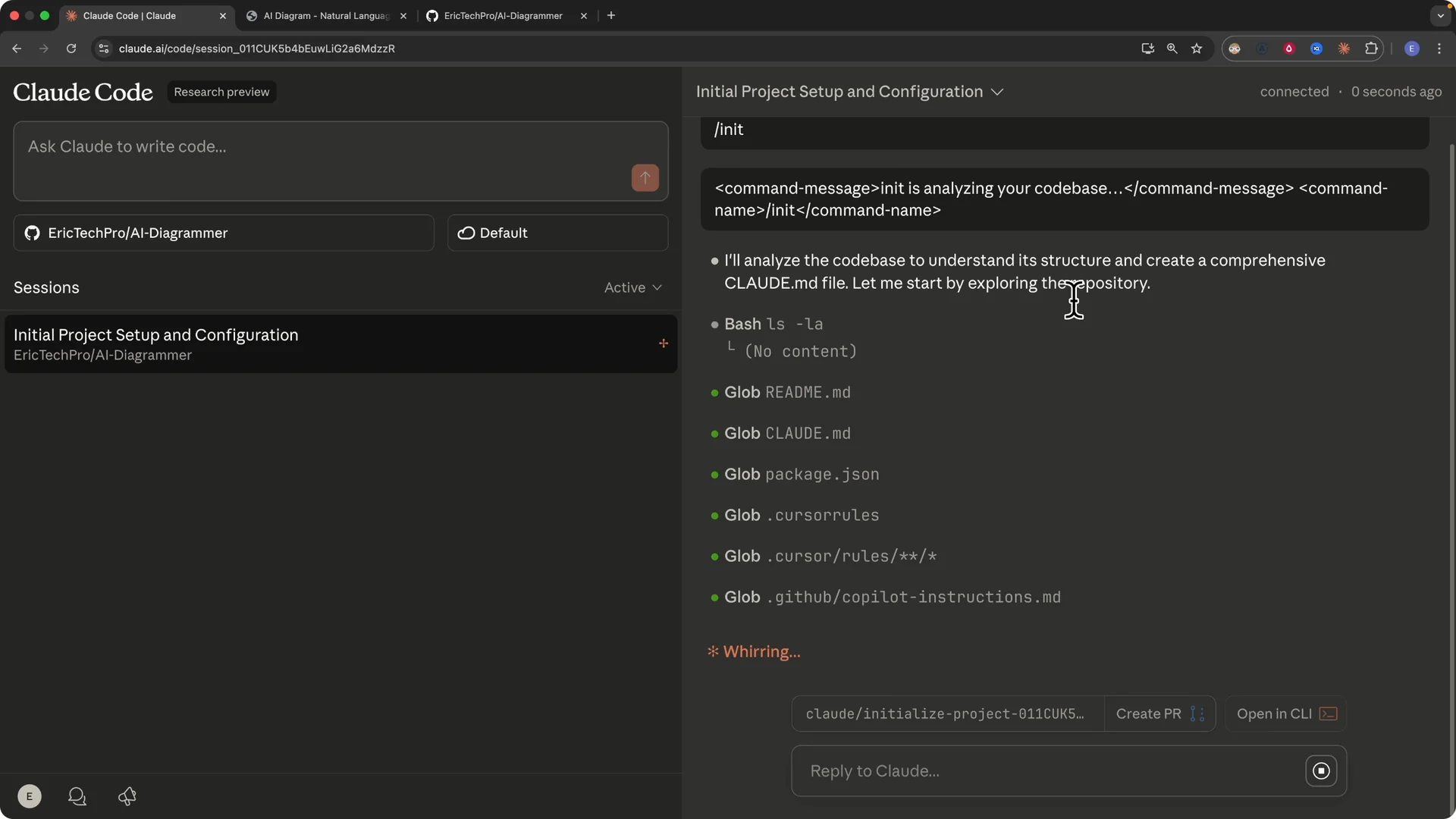
I selected an AI Diagrammer repository and asked Claude to understand the codebase.
I ran the /init command to analyze the project structure and enabled notifications.
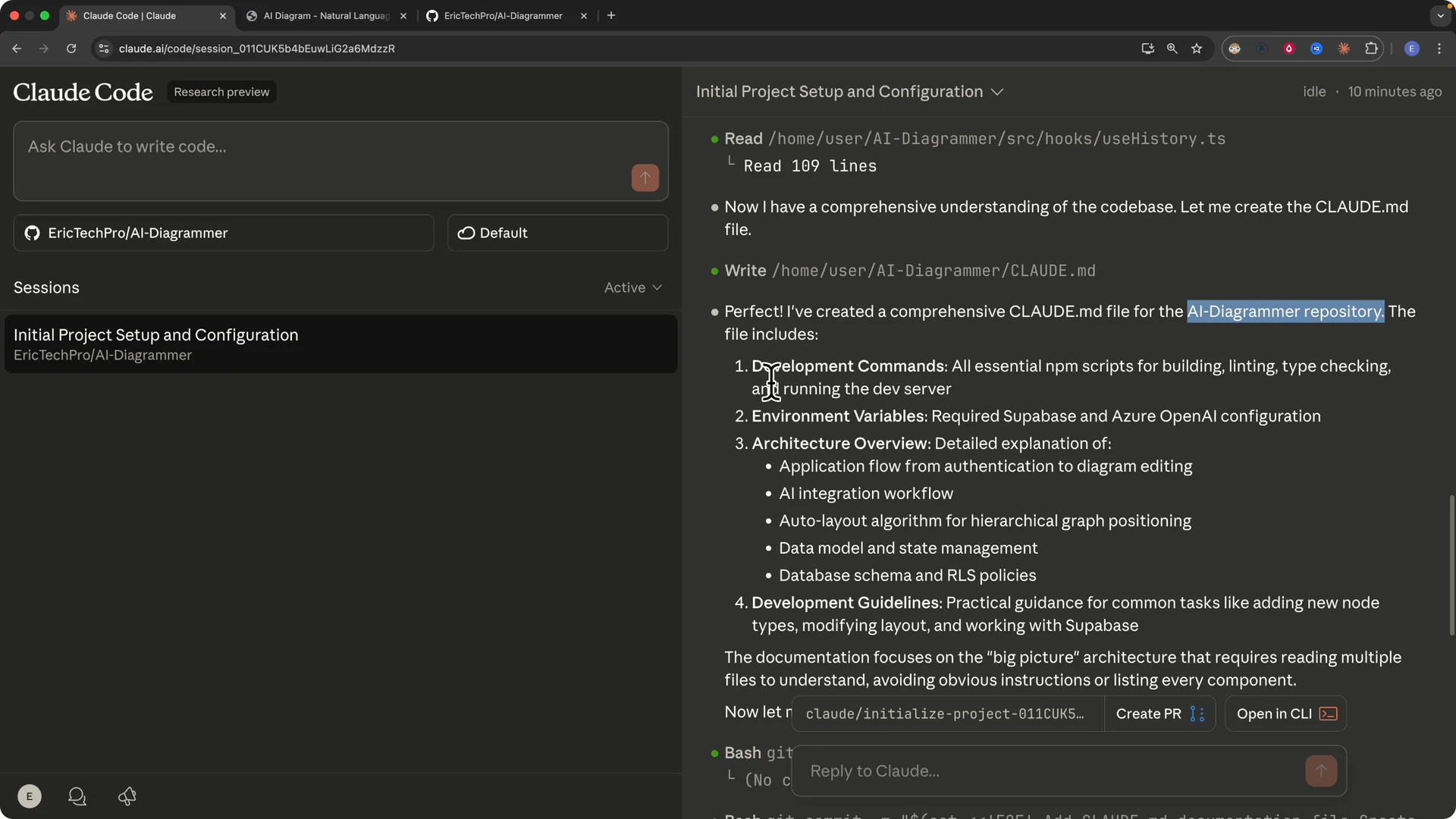
The initialization created a comprehensive claude.md for the repository.
It included development commands, environment variables, architecture overview, development guidelines, and more, and staged the file in a commit ready for a PR.
Read More: Claude Code Nano Banana Ai Images
Create a pull request
I clicked Create pull request on the main branch.
Claude created a new branch with an ID, filled in a PR title and description, and showed the changes including the new claude.md.
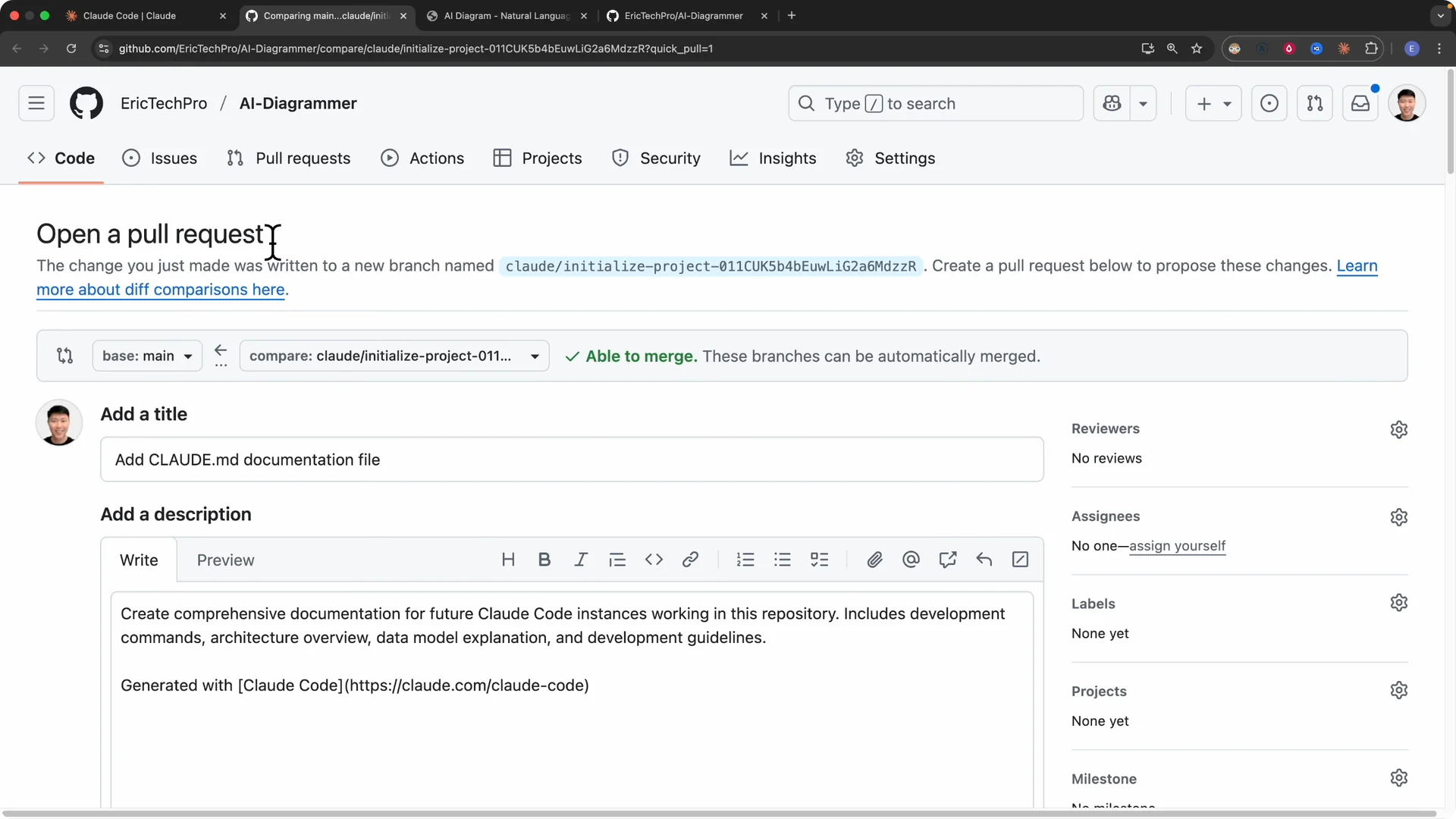
I then asked Claude to generate a README for the project, to use Mermaid for the system architecture diagram, and to include the setup steps.
I sent the request and let Claude implement the changes in the browser.
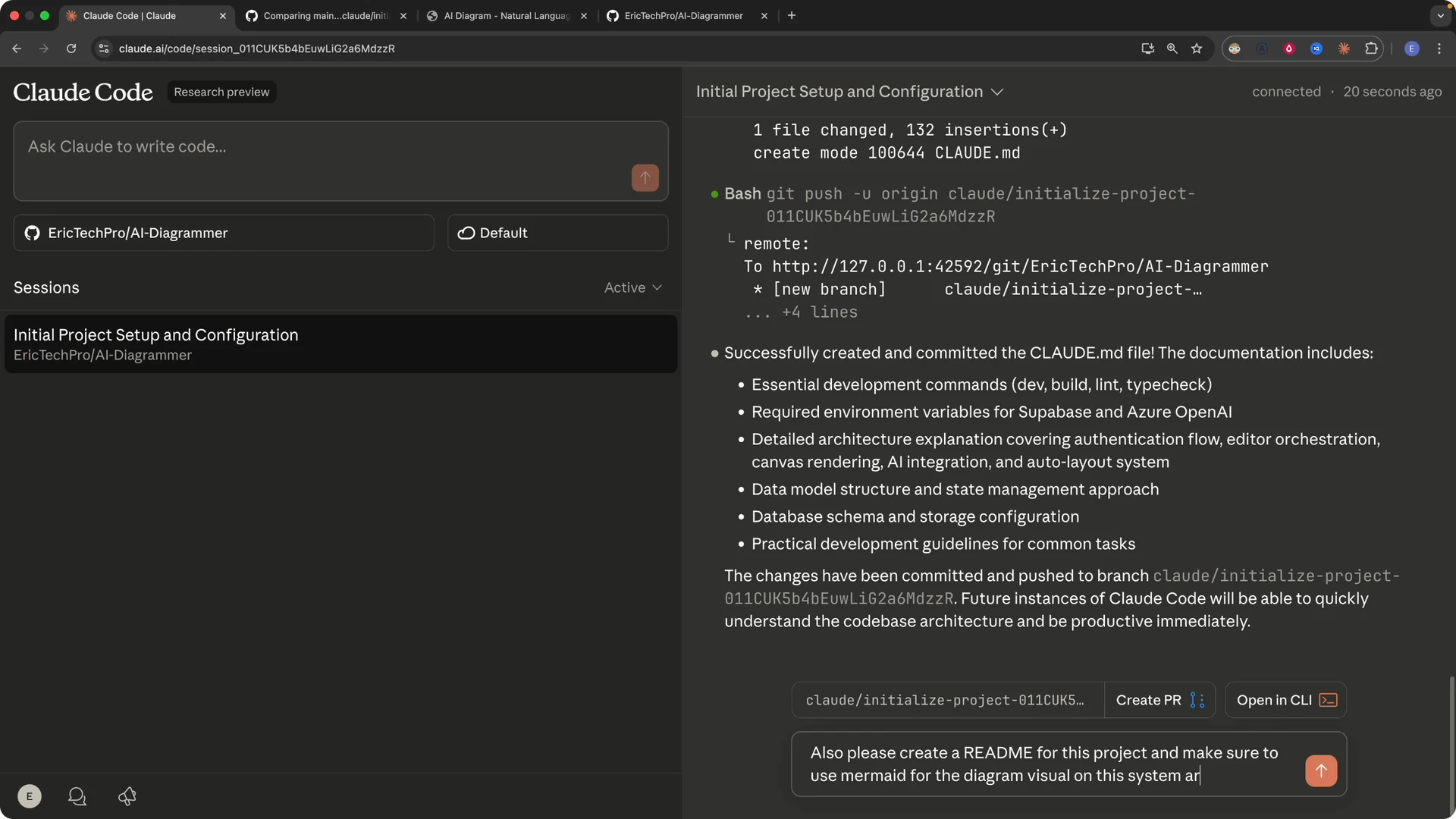
Continue the same session in the CLI
I used Open in CLI to copy the session command.
I cloned the repository locally and changed into the project directory, then ran the provided session command to attach and continue the exact browser session from my terminal.
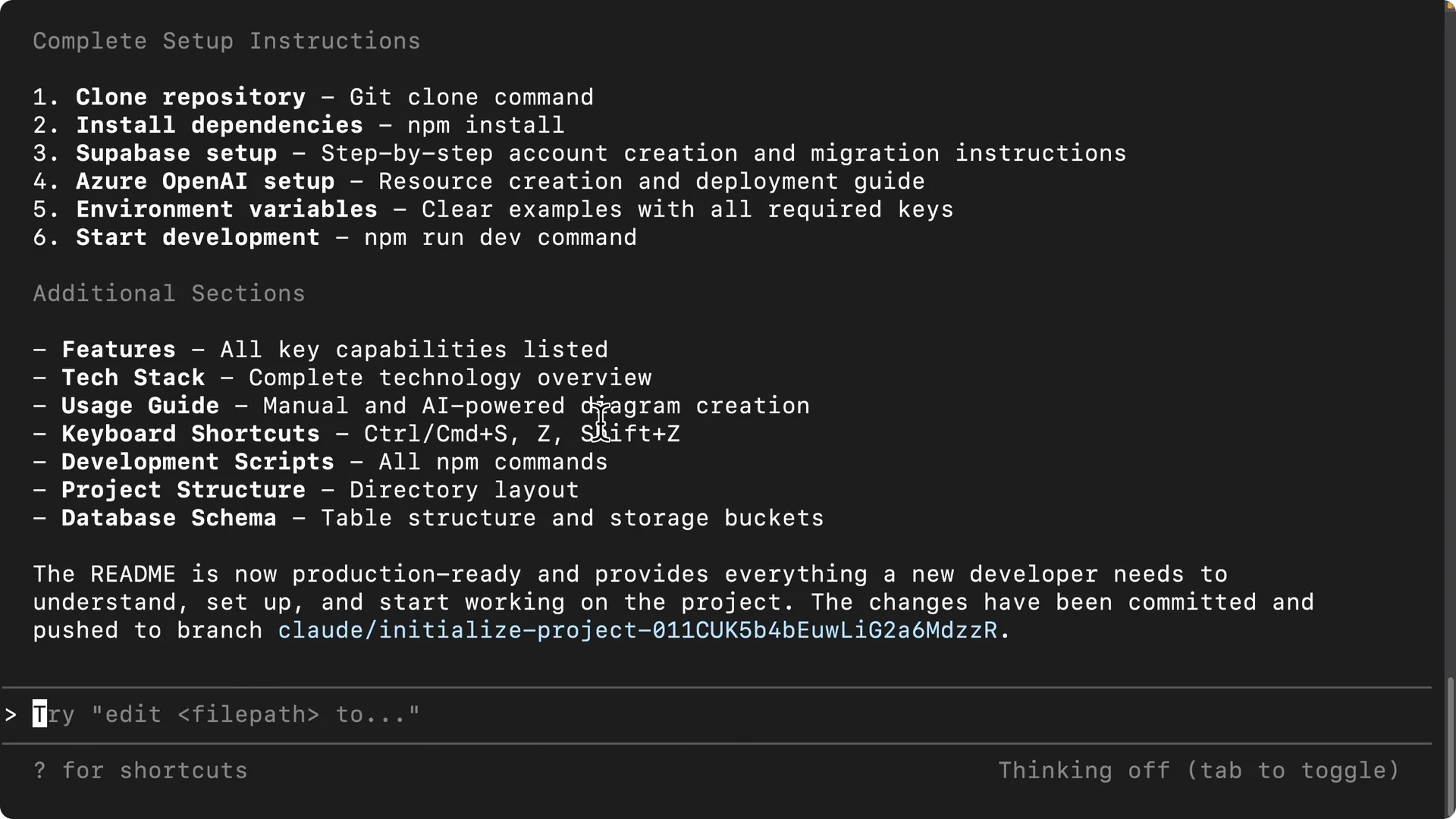
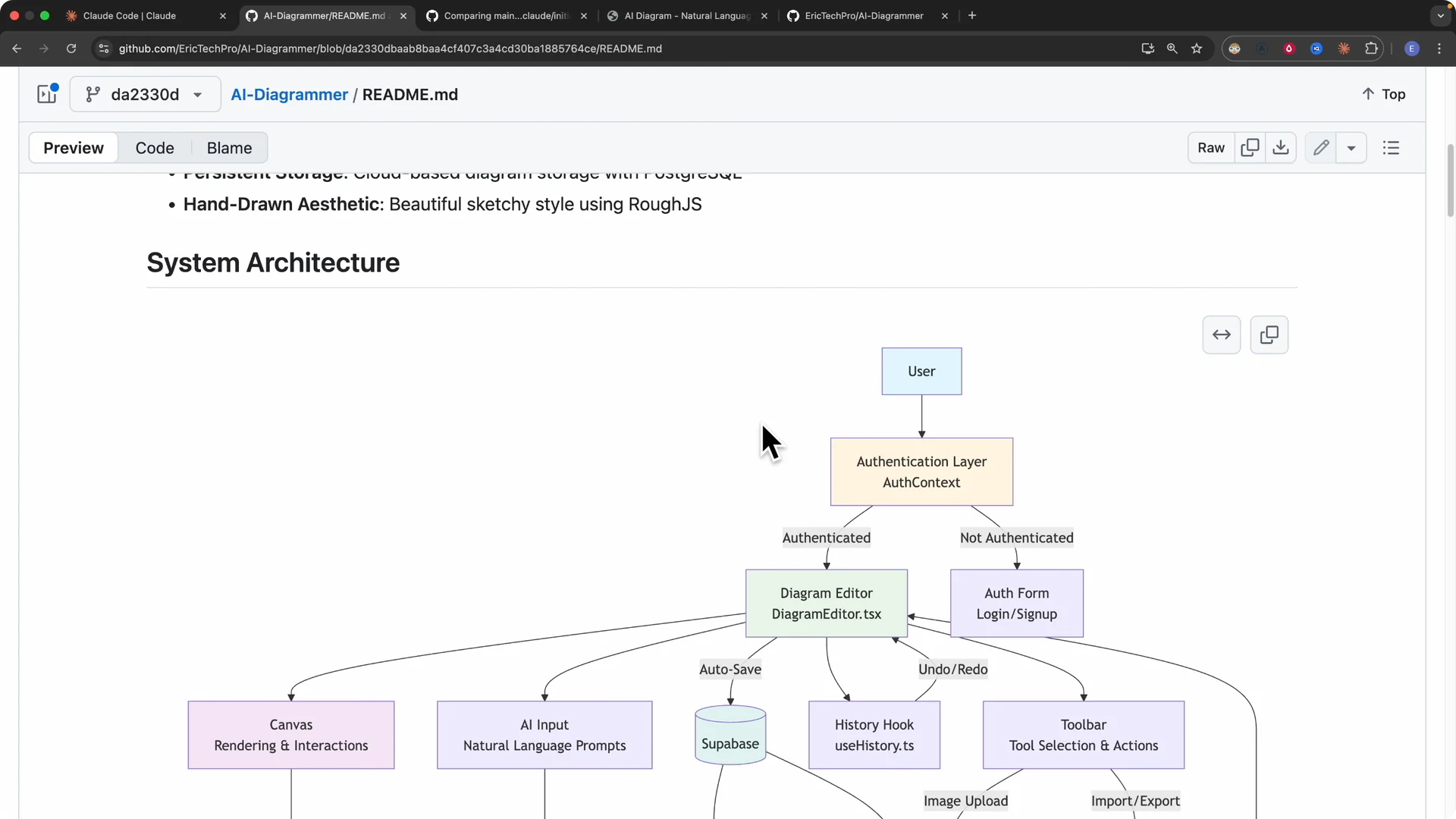
That session showed the earlier /init results, the created claude.md, and the Mermaid system architecture in the README.
The diagram covered authentication, canvas, AI input, autosave, history hooks, toolbar, and the tech stack using React and TypeScript with AI integrations.
For cross device continuity and control, check the Claude Code remote control guide.
Finalize and sync
I asked Claude for a clean PR title and description, pasted them into the PR, and created it. After review, I merged the PR.
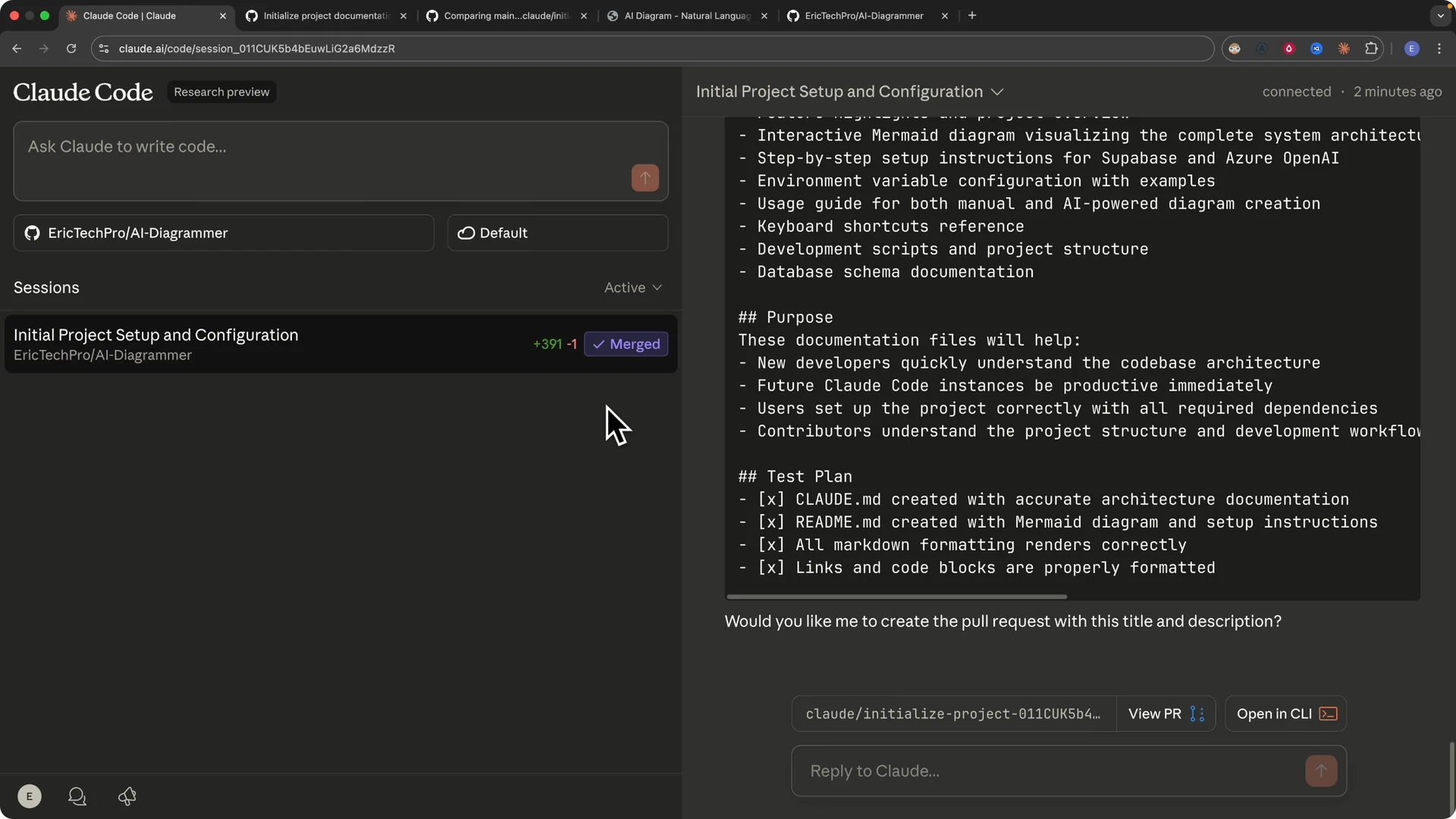
Back on my local main branch, I ran git pull to fetch the latest changes from the cloud environment.
The repo synced and I was ready for a new session.
My parallel session workflow
Previously I could only run one branch in one environment at a time, so switching tasks meant waiting for the current branch to finish. That single environment model slowed feature work and context switching.
With Claude Code on the web, each session runs on its own branch and own virtual environment. I can spin up multiple sessions for a single project and progress in parallel.
If I am implementing a feature, I will start one session for the UI, one for the back end, and one for the database. Each session creates its branch and PR, I pull the changes, test, verify, and merge to main.
For organizing work across machines, see these desktop task management tips.
Final thoughts
Claude Code on the web gives me a fast loop from /init to claude.md, README with Mermaid, branch creation, and pull request. The ability to move the same session to the CLI and to run multiple web sessions in parallel is the productivity boost. I plan work as small parallel sessions, review the PRs, pull locally, and merge to finish features quickly.